

AI coding tools have changed how designers work. With Claude Code, they can explore several UX directions, turn them into working interfaces, and test real interactions much faster than before.
And designers are already adopting this approach. According to the 2026 UX Tools State of Prototyping survey, 38.4% of respondents use Claude Code weekly, with Figma Make close behind at 34.8%. This shows that AI-powered prototyping is becoming part of designers' regular workflows.
Does this mean Figma is becoming irrelevant? Not at all.
At Eleken, we work in both Figma and code. And we've found that Figma doesn't always need to come first. Sometimes, starting in code gets us to a strong design direction faster.
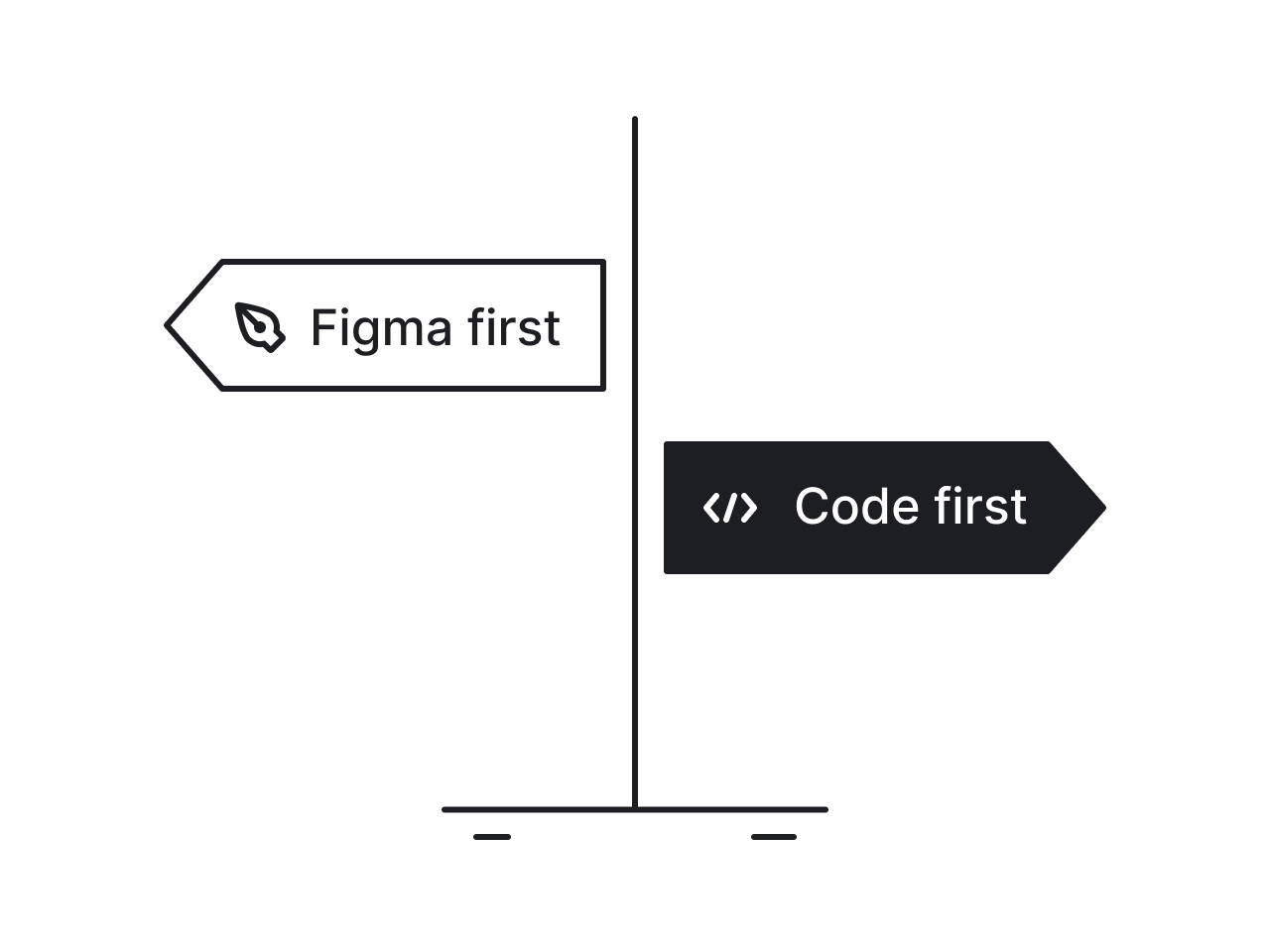
So, when should you start in Figma, and when does it make more sense to design directly in code? Let's compare both workflows and see where each works best.
Figma-first vs code-first product design: what's different?
Let's compare the two workflows:
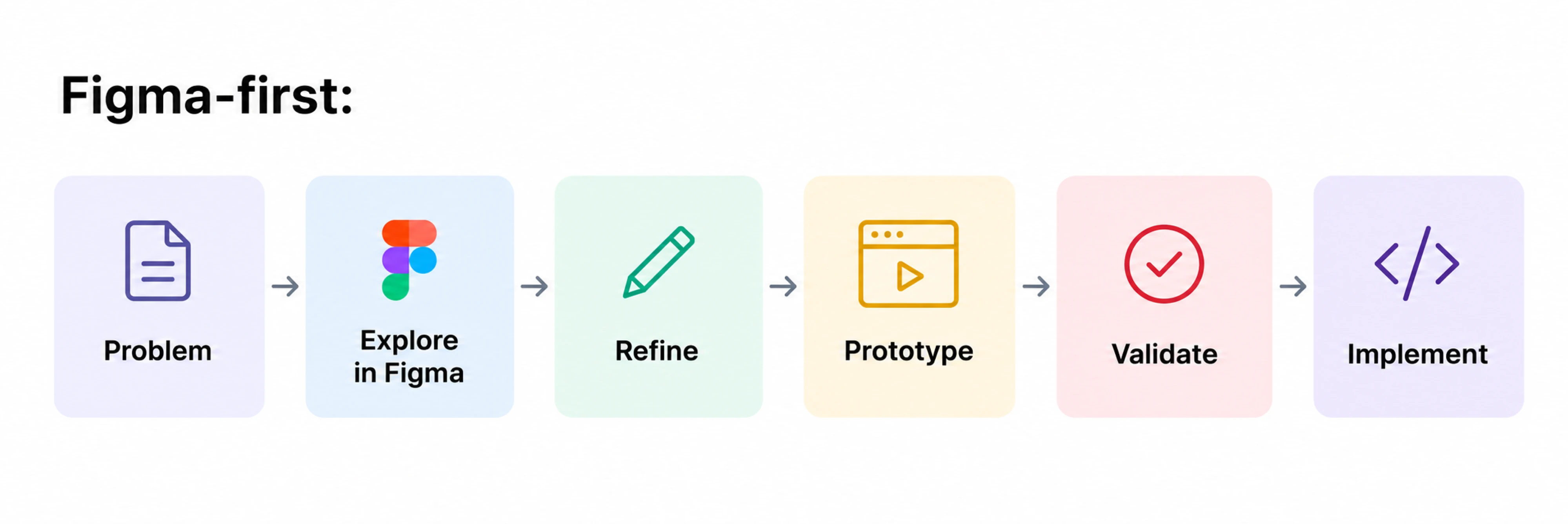
- Figma-first: Designers explore ideas in Figma, refine layouts and user flows, and turn screens into clickable prototypes. Once validated, developers translate the designs into working code.
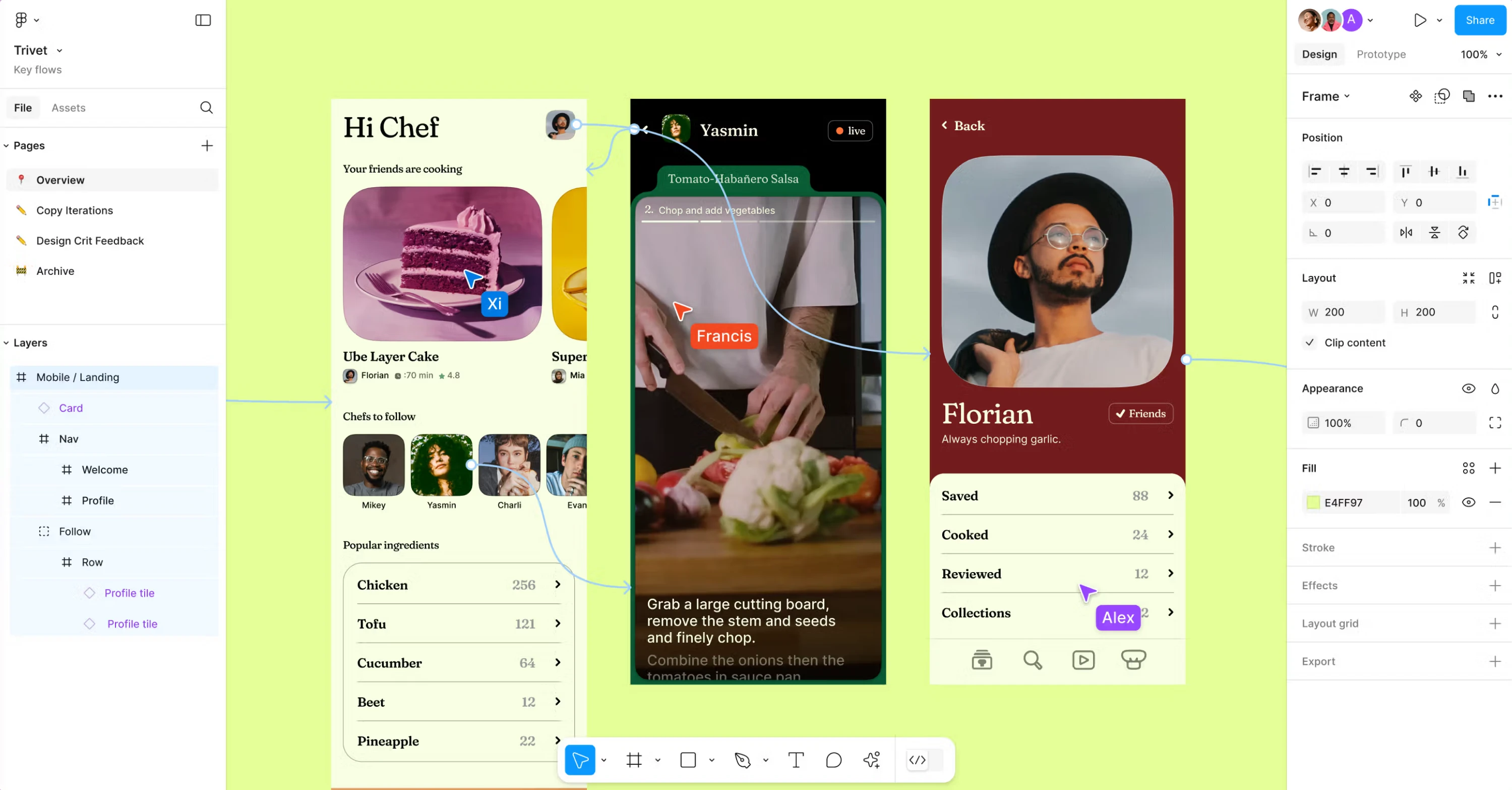
Figma makes it easy to compare multiple screens side by side, refine visual details, and demonstrate basic interactions. However, testing complex behavior and real data often requires a working code prototype. Learn more in our Figma prototype vs. code prototype comparison.
- Code-first: Designers use AI tools like Claude Code to generate working interfaces, compare different approaches, and refine the strongest direction directly in code before validation and implementation.
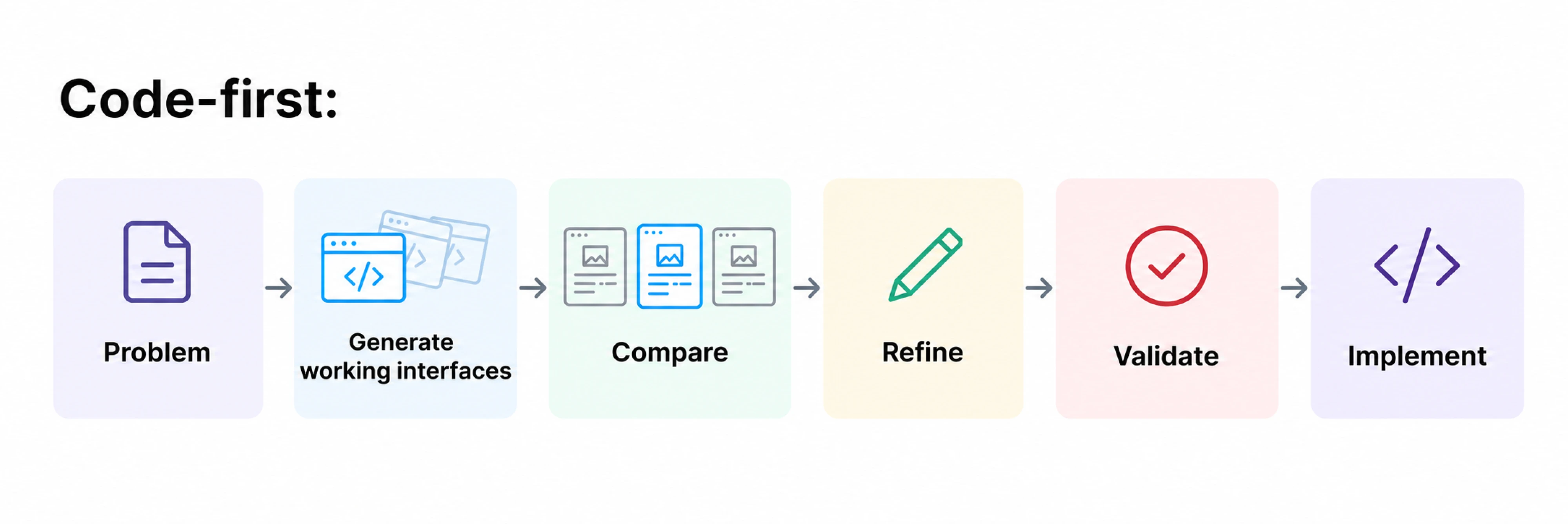
Unlike static mockups, these interfaces let you test interactions, responsive layouts, and realistic data early on. This helps identify usability issues before development.
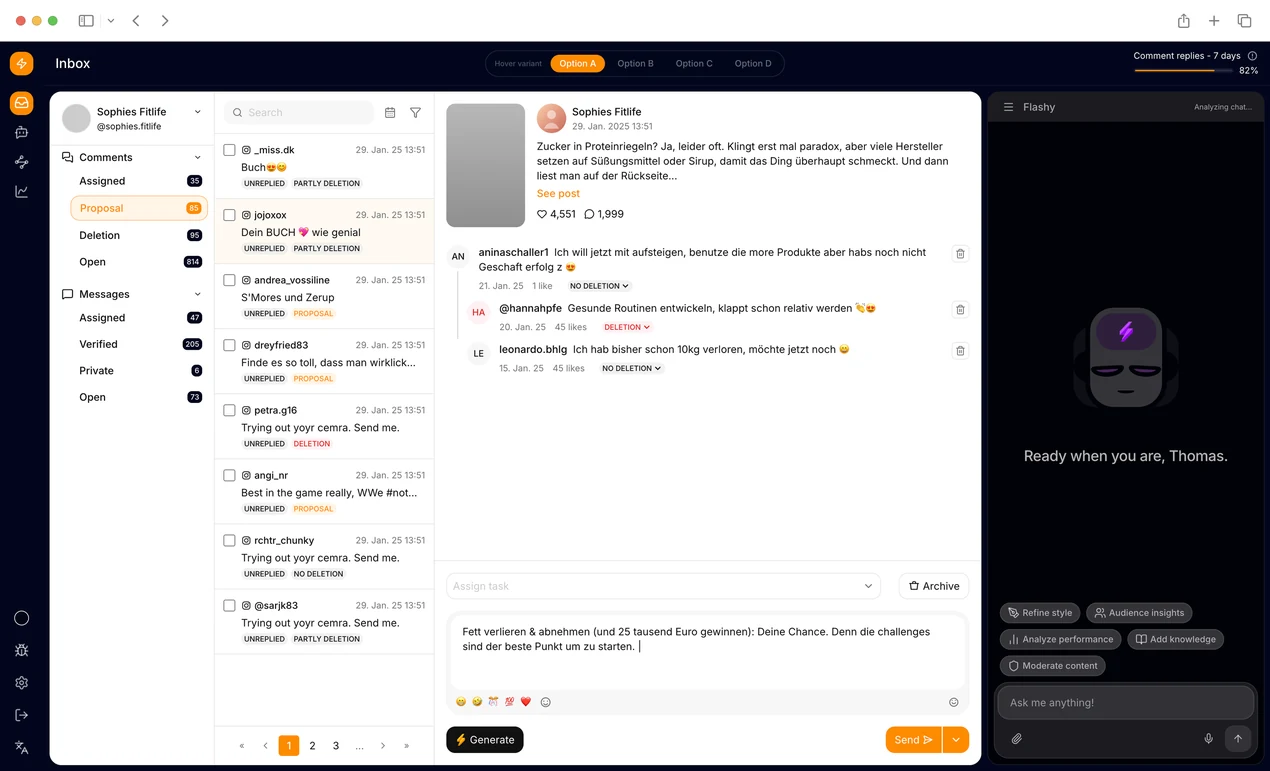
It's also worth understanding the difference between a proof of concept vs prototype. A proof of concept tests whether an idea is technically feasible, while a prototype helps evaluate how users interact with it.
Both Figma-first and code-first workflows can produce prototypes. The difference is how much functionality you can test before development.
So, if designing in code has these advantages, why hasn't it always been the standard approach?
Why code-first product design has become practical
The biggest reason is: exploring ideas in code has become much faster and cheaper.
Think about how design tools have evolved. First, designers used Photoshop to create interfaces. Then came Sketch, often paired with InVision for interactive prototypes. Figma made the process easier by bringing design, prototyping, and collaboration into one place.
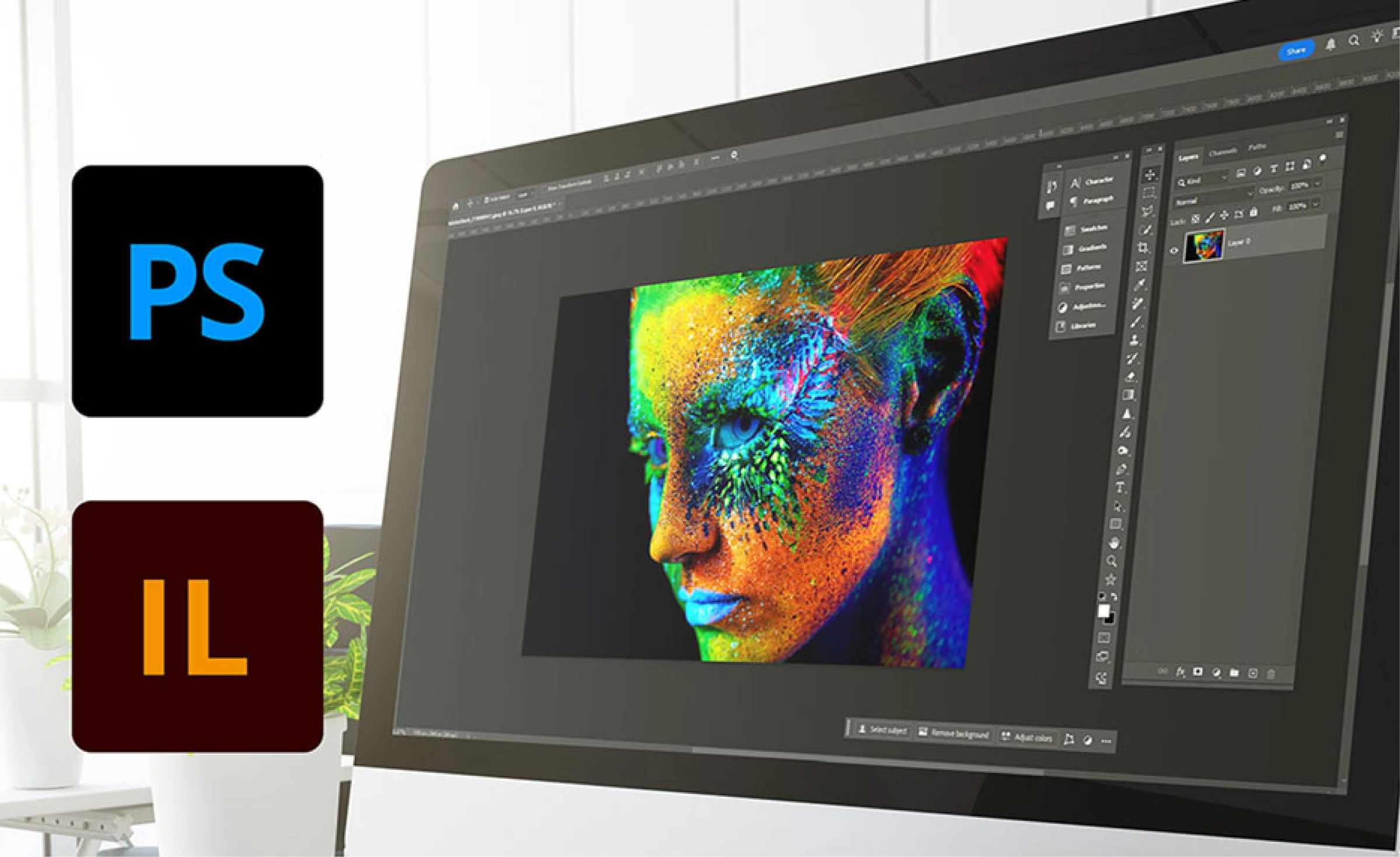
Each shift made it faster to explore and test ideas.
But code was different. Creating several working versions of an interface required significant development time. It was simply too expensive for early exploration. So teams designed in Figma first and moved to code once the direction was approved.
AI coding tools changed that. With Claude Code, designers can now:
- Generate multiple UI directions from the same product problem.
- Experiment with layouts, user flows, and interactions.
- Use screenshots, references, existing components, and product context.
- Test each version as a working interface.
- Quickly discard weak ideas or combine promising ones.
- Refine the strongest direction directly in code.
And Claude Code isn't the only tool making this possible:
- Vercel introduced v0 in 2023, allowing users to generate interfaces from text prompts.
- Claude Code became generally available in 2025.
- That same year, Figma launched Figma Make and its MCP server, making it easier to connect design files with AI coding tools. By Config 2026, Figma was experimenting with code layers directly on the canvas.

Designers aren't abandoning Figma. They're using code earlier in the design process to explore ideas, test interactions, and refine solutions. Figma is also evolving to support this shift.
So, what does code-first exploration look like in practice?
How to explore product design ideas directly in code
Prototyping is an important part of design thinking. It helps teams turn ideas into something they can test before committing to development.
With Claude Code, a design thinking prototype can go beyond clickable screens. You can test real interactions, responsive behavior, and different user flows using working interfaces.
Here's how the process works:
- Define the problem. Identify what users struggle with and what needs to improve.
- Provide context. Give Claude Code screenshots, existing components, design system rules, references, and realistic data. The more relevant context it has, the more consistent the results.
- Generate multiple directions. Explore different layouts, navigation patterns, user flows, and visual approaches instead of settling on the first result.
- Compare the options. Click through each interface, resize the screen, test interactions, and see how it handles different scenarios.
- Combine or reject ideas. Keep what works, borrow useful elements from other versions, and discard the rest.
- Refine the strongest direction. Improve usability, visual hierarchy, responsiveness, and component behavior. Test loading, empty, and error states.
- Validate the result. Test the working interface with users and stakeholders before preparing it for production.
You can also bring stakeholders into the process earlier. Instead of waiting for finished Figma screens, they can review working prototypes, test interactions, and leave feedback directly.
At Eleken, we typically share working React or HTML prototypes every one to three days. This lets clients compare solutions and request changes before development becomes expensive.
For example, imagine a SaaS team redesigning an operations dashboard to help managers track KPIs, prioritize tasks, and respond to urgent alerts.
With a traditional Figma-first approach, a designer might spend several days creating three concepts: a KPI-focused dashboard, a task-based layout, and an alert-driven interface.
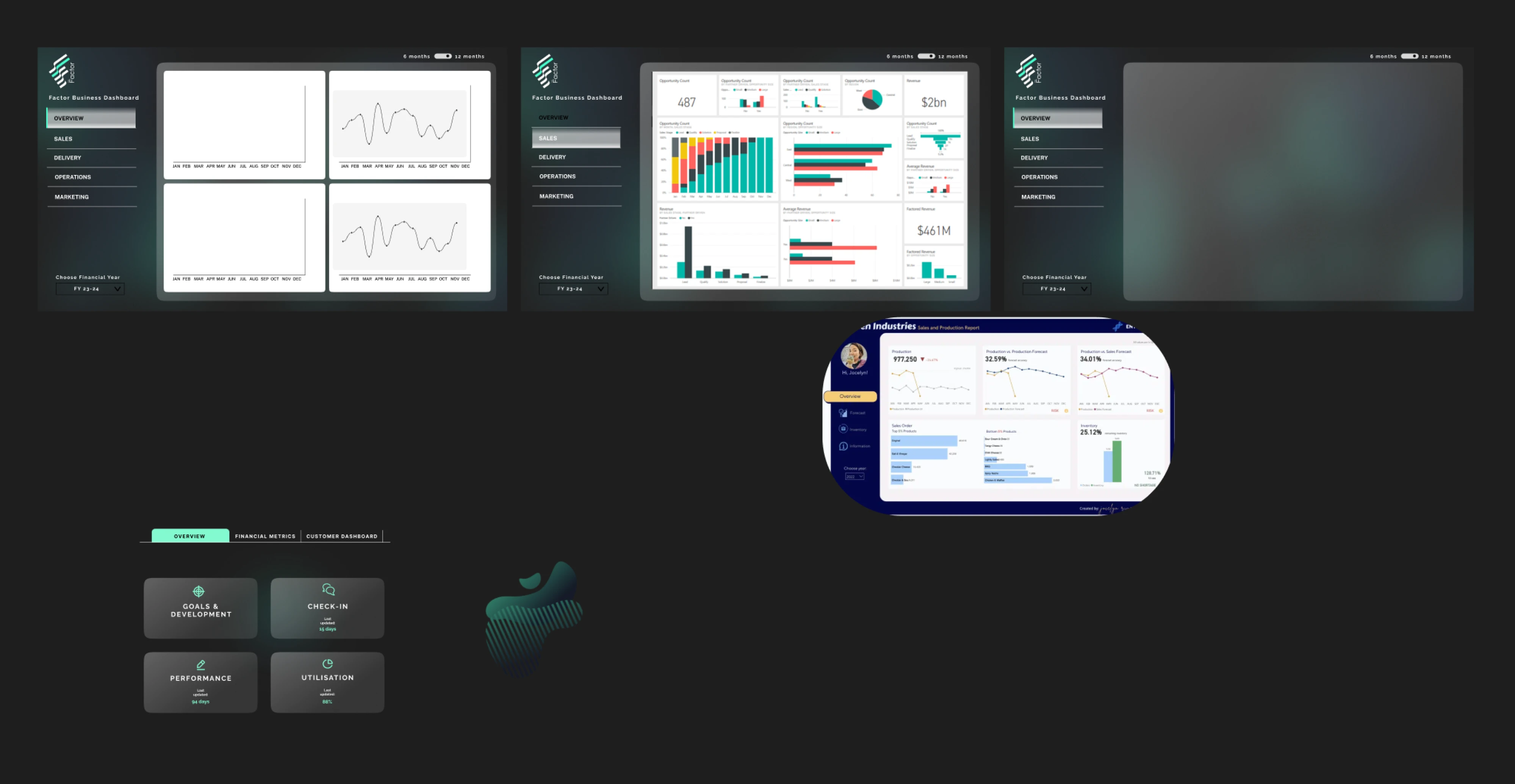
With Claude Code, they could generate all three as working interfaces in a few hours, using realistic product data.
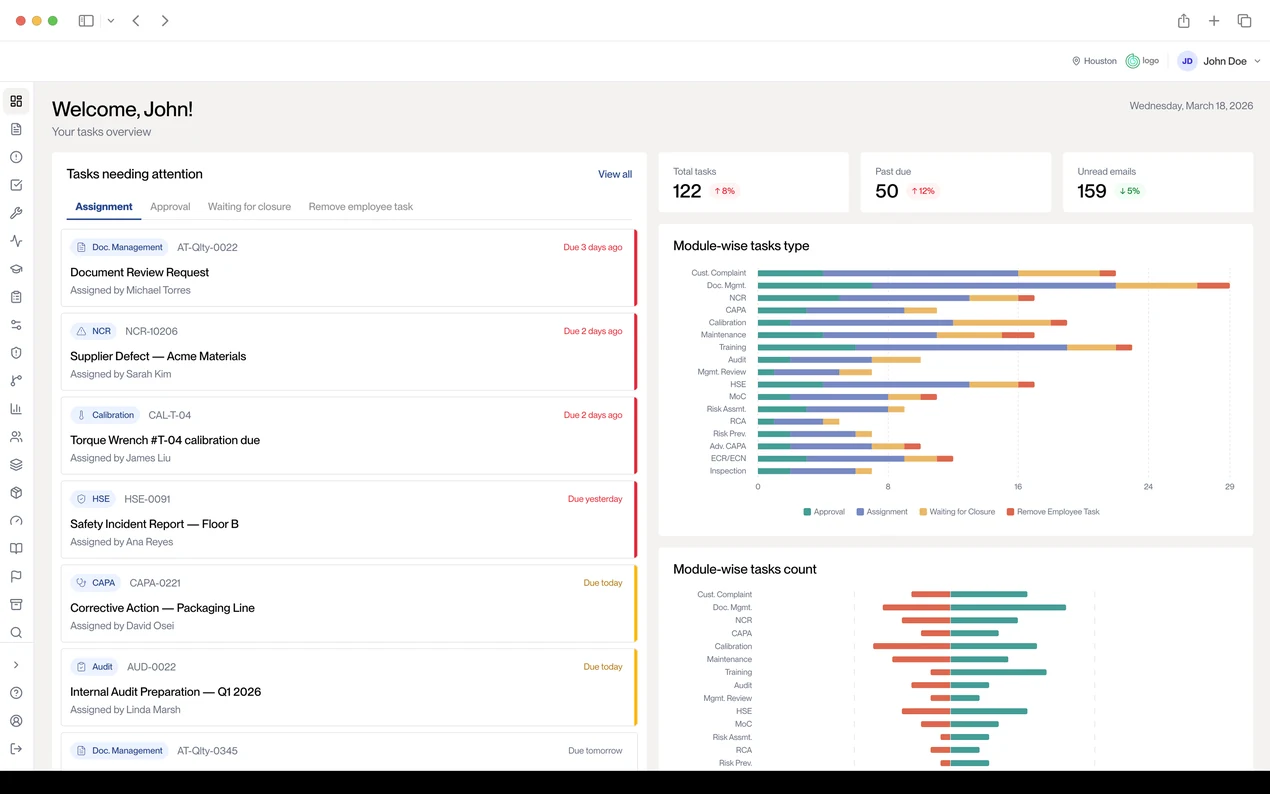
A Claude-generated quality management dashboard that turns overdue tasks, approvals, CAPAs, audits, calibration items, and module-level workload into a clear operational view for quality teams.
A dashboard that works with eight rows of data might become difficult to use with forty. A desktop layout might break on mobile, or an empty state might lack clear next steps. Working prototypes let designers catch these issues early.
But AI needs context to generate useful interfaces. Giving Claude Code access to your design system, existing components, and Storybook helps it follow established patterns. Without them, it may create inconsistent layouts that require rework.
The designer still makes the UX decisions: which alternatives to test, what needs improvement, and which solution best addresses the problem.
Claude Code makes exploration faster. Designers make sure the results work for users.
Still, not every design task is better done in code. Figma has its own advantages.
When should you choose Figma over code?
Starting in Figma can still be faster and more practical. It depends on the task, your team's workflow, and the tools you already use.
Figma makes more sense when:
- You need precise visual refinement. Adjusting spacing, typography, colors, and small UI details is often faster directly on the canvas than through AI prompts.
- You're building or maintaining a design system. Figma makes it easier to organize components, manage variants, and review design tokens across screens.
- You need to see the bigger picture. Viewing dozens of screens side by side helps spot inconsistencies, compare user flows, and maintain visual consistency.
- Your team works primarily in Figma. If stakeholders review designs, leave comments, and approve changes there, switching to code may add unnecessary steps.
- Your codebase isn't ready for design exploration. Without access to existing components or a well-structured codebase, AI-generated interfaces may require more cleanup than they're worth.
- You need to explore ideas quickly. Sometimes, sketching a few layouts in Figma takes minutes, while setting up a working prototype would take longer.
For example, a designer working on a complex SaaS dashboard might start in Claude Code to test different layouts with real data, then move to Figma to refine the visual details and document the final design.
Another team with a mature Figma design system might do the opposite: start in Figma, validate the direction, and use AI coding tools to turn it into a working interface.
Team size also matters. One Reddit commenter pointed out that when 20 or more people need to review and approve designs, Figma can make collaboration easier: “Depends on the size of the team. If you have 20+ people involved and need multiple stakeholders to sign off, Figma works better to receive feedback and share workflows.”

Depends on the size of the team. If you have 20+ people involved and need multiple stakeholders to sign off, figma works better to receive feedback and share workflows.

Sharing live code prototypes requires someone to manage access, environments, and updates.
The better starting point depends on what you need to evaluate next. Use Figma when visual exploration and collaboration matter most. Use code when you need to test how an interface actually behaves.
And when both are useful, there's no reason to keep them separate.
From Figma to code: A more flexible design workflow
The choice isn't necessarily Figma vs. code. Increasingly, designers move between both depending on what they're trying to achieve.
For example, a design-in-code workflow might look like this:
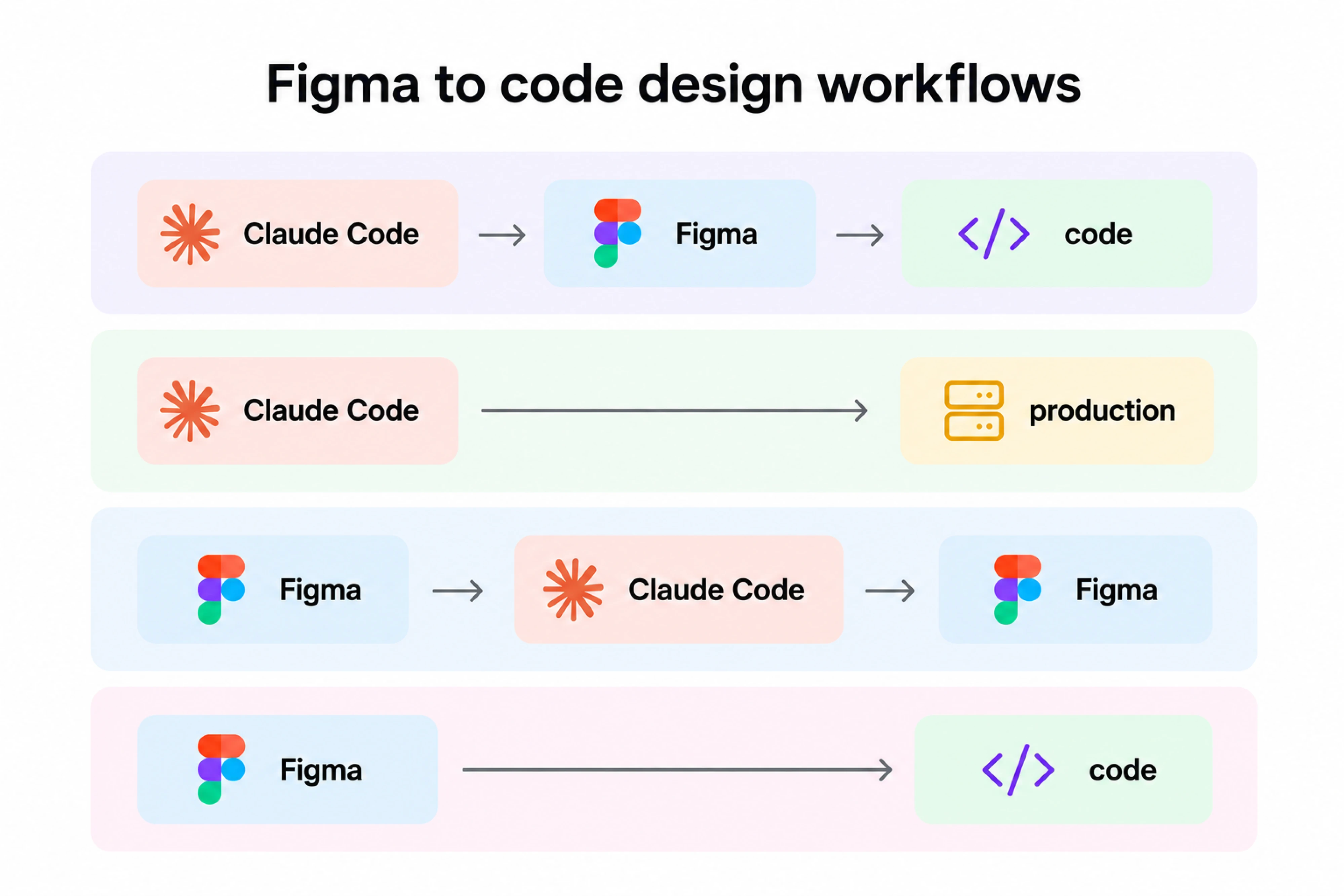
- Claude Code → Figma → code. Generate several directions, refine the strongest one in Figma, then implement it.
- Claude Code → production. Explore and refine directly in the codebase, then submit the changes for engineering review.
- Figma → Claude Code → Figma. Sketch an idea, test it as a working interface, then return to Figma for visual refinement.
- Figma → code. Start with mockups, then continue refining the interface directly in code.
The right tool depends on what you're testing. Code lets you test interactions, responsive layouts, and real data. Figma makes it easier to compare screens, refine visual details, and maintain consistency.
But AI-generated interfaces still need a designer's judgment.
AI can produce multiple options in minutes, but choosing the right one requires understanding users and their problems. Designers evaluate usability, accessibility, navigation, consistency, and edge cases.
At Eleken, we see this when clients bring us AI-generated interfaces. Individual screens may look polished, but the overall experience often suffers from inconsistent navigation, disconnected workflows, and missing states.
As Linear CEO Karri Saarinen argues in The Disappearing Middle of Software Work, AI is reducing the effort needed to turn ideas into working software. That makes the decisions around what to build and why even more important.
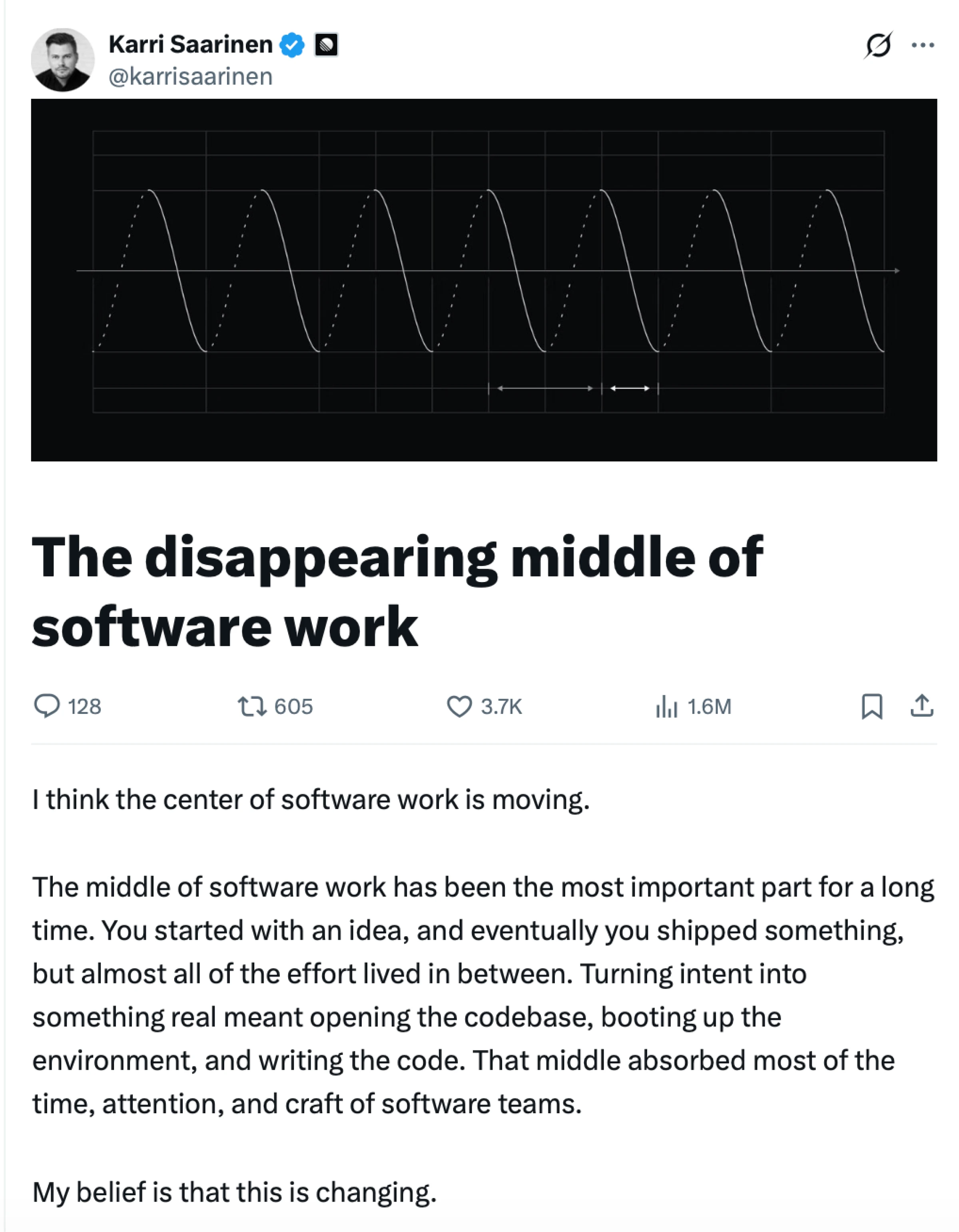
That's why a solid product design process still matters, regardless of the tools involved.
What changes for developers?
Traditionally, the Figma-first workflow looks like this:
Figma → Approval → Developer handoff → Implementation → Design QA
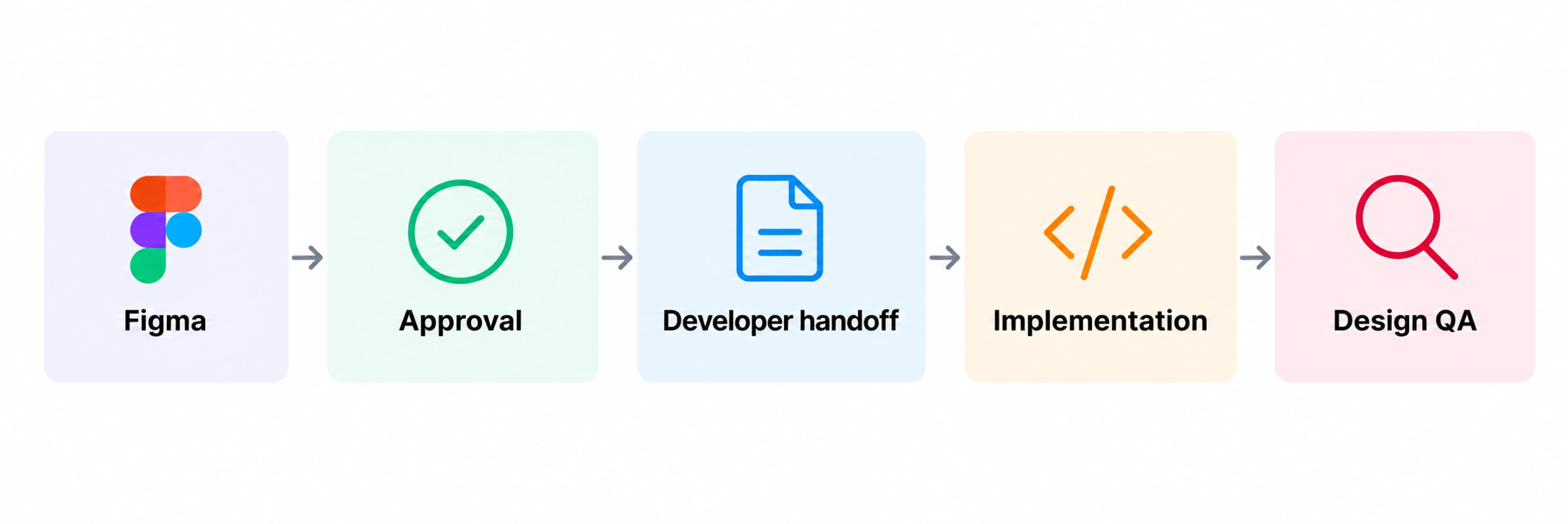
Developers translate mockups into code, recreate interactions, and fill in missing states. This often leads to multiple rounds of revisions when the implementation doesn't match the design. That's why a clear design QA process remains important.
With code-first design, the process can look different:
Explore in code → Refine → Validate → Pull request → Engineering review → Production
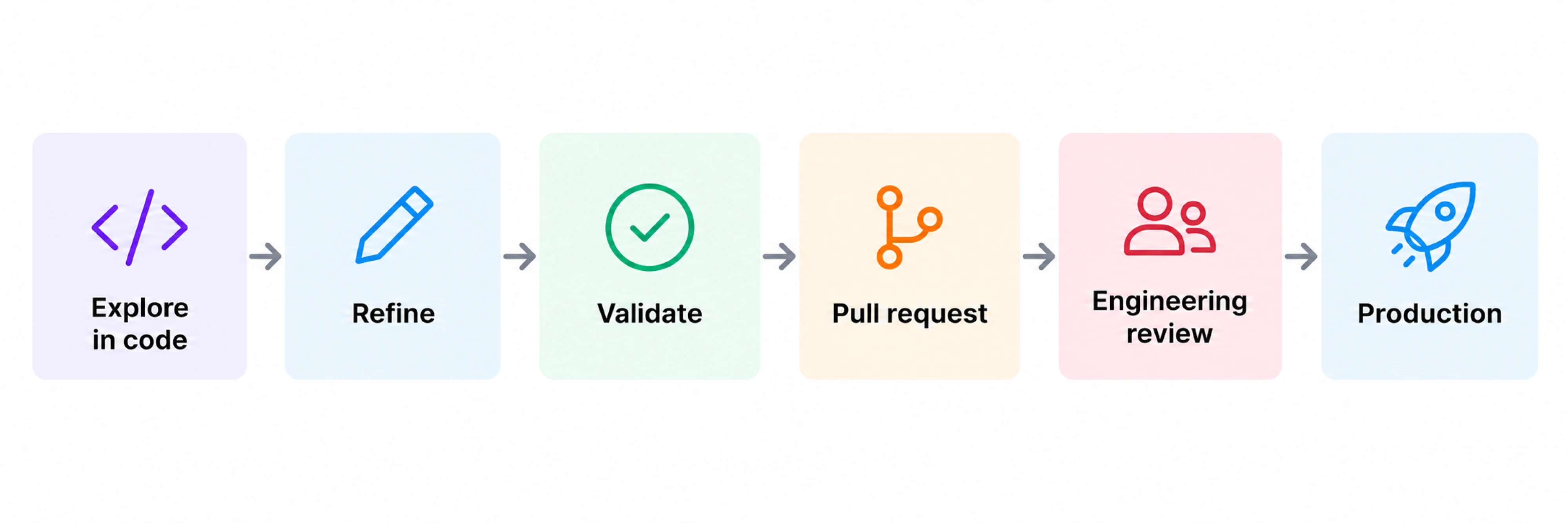
Instead of handing developers static screens, designers can deliver working UI changes directly through GitHub.
The designer focuses on the interface: layouts, components, interactions, and visual details. Developers review the changes, connect the necessary logic and data, and ensure the implementation meets production requirements.
Such a design engineering process reduces delivery time by half: fewer handoffs, less rework, and less UI implementation left for developers.
Figma-to-code workflow changes traditional designer-developer collaboration, bringing both roles closer to the same codebase.
At Eleken, we've already adopted this approach in projects like Ship Angel. Our designer works directly in the product's codebase using Claude Code, tests changes locally, and submits pull requests for developer review.
This helped cut design time by approximately 50%, while reducing the back-and-forth between design and development.
11 to 12 hours saved on a single redesign: 8 on the build, 3 to 4 on follow-up. – Kevin Cowan, Head of Engineering at Ship Angel
Of course, not every AI-generated prototype is production-ready. The results depend on whether you're working with the actual codebase, existing components, design system, and technical constraints.
The closer design exploration happens to the real product, the less work developers need to recreate later.
Watch our video on design-driven development to see how teams can streamline handoff and ship faster.
Figma-first or code-first: How to choose the right workflow
Both approaches have their strengths. The challenge is knowing which one will help you solve your current design problem faster, without creating extra work later.
Here are five questions to help you decide:
1. What are you trying to figure out?
Start with the problem, not the tool.
If you're exploring how users should navigate a complex workflow, interact with a dashboard, or complete a multi-step process, code-first product design lets you test different approaches as working interfaces.
If you're exploring visual hierarchy, comparing page structures, or mapping an entire user journey, Figma may be a faster starting point. As Reddit user u/Ruskerdoo explains: "...But for layout and visual design, I still need a design canvas."
But for layout and visual design, I still need a design canvas. And Figma is still the best design canvas.
2. How quickly can you explore alternatives?
Consider how much effort it takes to create and compare several directions.
With Claude Code, you can generate multiple working interfaces using the same product context. This is especially useful when you need to test different layouts, navigation patterns, or interactions.
But if the generated results need extensive corrections, sketching ideas in Figma might be more efficient.
3. What do you need to test or refine?
Different tasks benefit from different tools:
- Choose code-first UI design to test interactions, responsive behavior, realistic data, complex tables, and loading or error states.
- Choose Figma to fine-tune typography, spacing, colors, visual consistency, and layouts across multiple screens.
For example, you might use Claude Code to test how a dashboard handles hundreds of records, then switch to Figma to refine its visual hierarchy.
4. How well are your design and code connected?
Code-first works best when AI can access your existing components, design tokens, Storybook, and product codebase.
For example, Storybook shows which components already exist and how they behave in different states. Shared design tokens keep colors, typography, and spacing consistent.
With this context, Claude Code can reuse established patterns instead of generating new ones for every screen.
Without it, AI may produce interfaces that look good individually but don't match the rest of your product, creating more work for designers and developers.
A connected design system makes code-first exploration more useful because the results are closer to what your team can ship.
5. What does your team need next?
Think about who will use the result and what they'll do with it.
If stakeholders need to review multiple concepts, compare screens, or leave comments, Figma may fit your team's workflow better.
If developers need a working interface they can test, review, and integrate into the product, code-based design can reduce the work between design and implementation.
The key is to choose the tool for the next task, not commit to one approach for the entire project.
Figma-first vs. code-first: It's not an either-or choice
Figma is no longer the default starting point for every design task. AI coding tools like Claude Code make it possible to explore ideas, test interactions, and refine working interfaces much earlier.
But that doesn't make Figma less valuable. The most effective product design workflow uses both tools where they make the most sense.
That's how we approach product design in code at Eleken.
Our designers move between Figma and Claude Code depending on the problem they're solving. A typical workflow looks like this:
We use Claude Code to explore different solutions and test how they behave. When a direction needs detailed visual refinement, we move to Figma.
By working with the product's existing components and codebase, our designers create interfaces that fit the real product. Developers receive working UI changes through GitHub pull requests, reducing handoffs, rework, and time to delivery.
And we're already seeing the results. For Smartpin, we created a shared component library across Figma, React, and Tailwind, helping the team build new features faster.
So, you don't need to choose between Figma and code. You need to know when each will get you to a better solution faster.
At Eleken, we help SaaS teams make that decision, combining UX expertise with AI-powered workflows to explore ideas faster, maintain product consistency, and reduce development rework.
Want to see how this works for your SaaS product? Start a trial with an Eleken designer and explore your first design directions together.