
Many UX artifacts describe what happens inside the interface. Wireframes show layout. User flows explain navigation paths. Prototypes simulate interactions between screens.
But many usability problems begin outside the interface.
Users are often distracted, rushing between tasks, or switching between devices. They might review a dashboard during a meeting, approve requests on a phone while commuting, or jump between tools to finish a task. At Eleken UI/UX design agency, we often see these real-world conditions shape how people interact with SaaS products, yet traditional UX artifacts rarely capture them.
This is where UX storyboards come into play.
A UX storyboard illustrates how a user interacts with a product in a real-world scenario. Instead of focusing only on screens, it shows the user’s environment, actions, motivations, and emotions — helping teams see the bigger picture of the experience.
In this guide, we’ll explain what UX storyboards are, when they’re useful, and how to create them.
What is storyboarding?
A UX storyboard is a series of simple visuals that show how a user interacts with a product in a real-life context.
Instead of focusing only on screens or interface design elements, UX storyboarding illustrates the story around the interaction — what the user is doing, where they are, and what they are trying to achieve.

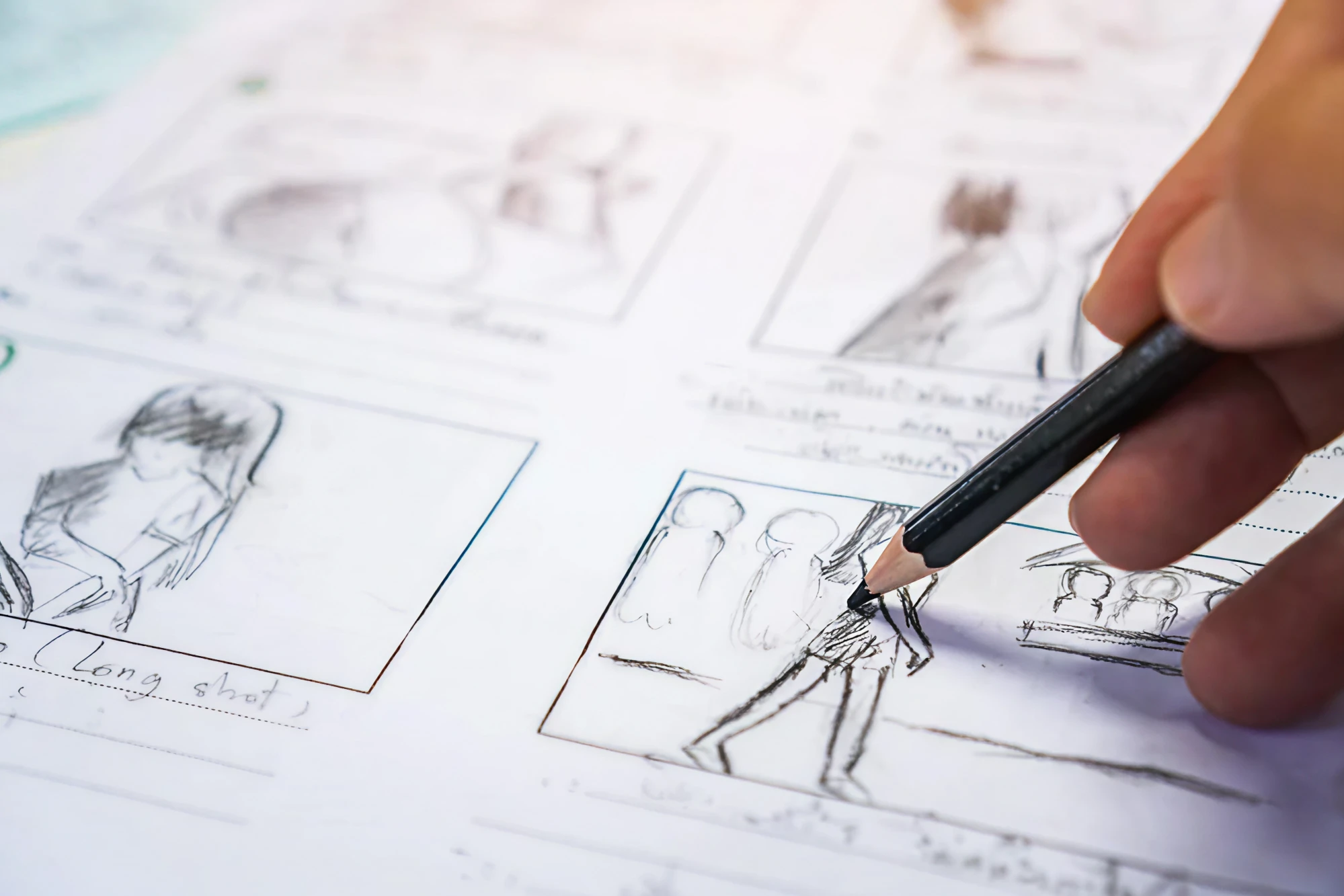
Designers often use quick sketches, stick figures, or basic illustrations arranged in a sequence of panels among ideation techniques. Each panel represents a moment in the user’s experience and explains what happens next.
A typical storyboard shows several aspects of the user experience:
- User actions – what the user is trying to accomplish
- Environment – where the interaction happens (office, commute, home, etc.)
- Emotions and motivations – what the user feels at each step
- Context and obstacles – distractions, time pressure, or limitations
- Outcome – whether the task succeeds or fails
Because storyboards capture both the interaction and its context, they help teams understand the experience beyond the interface. This perspective often reveals design opportunities that might be missed when focusing only on screens or user flows.
Key elements of a storyboard UX design
Most UX storyboards share a few common components. Together, these elements help illustrate how a user experiences a product in a specific situation.
Scenario
The scenario describes the situation the user is in. It explains what triggers the interaction and what the user is trying to accomplish.
For example, a scenario might describe a finance manager reviewing expense reports before an upcoming meeting.

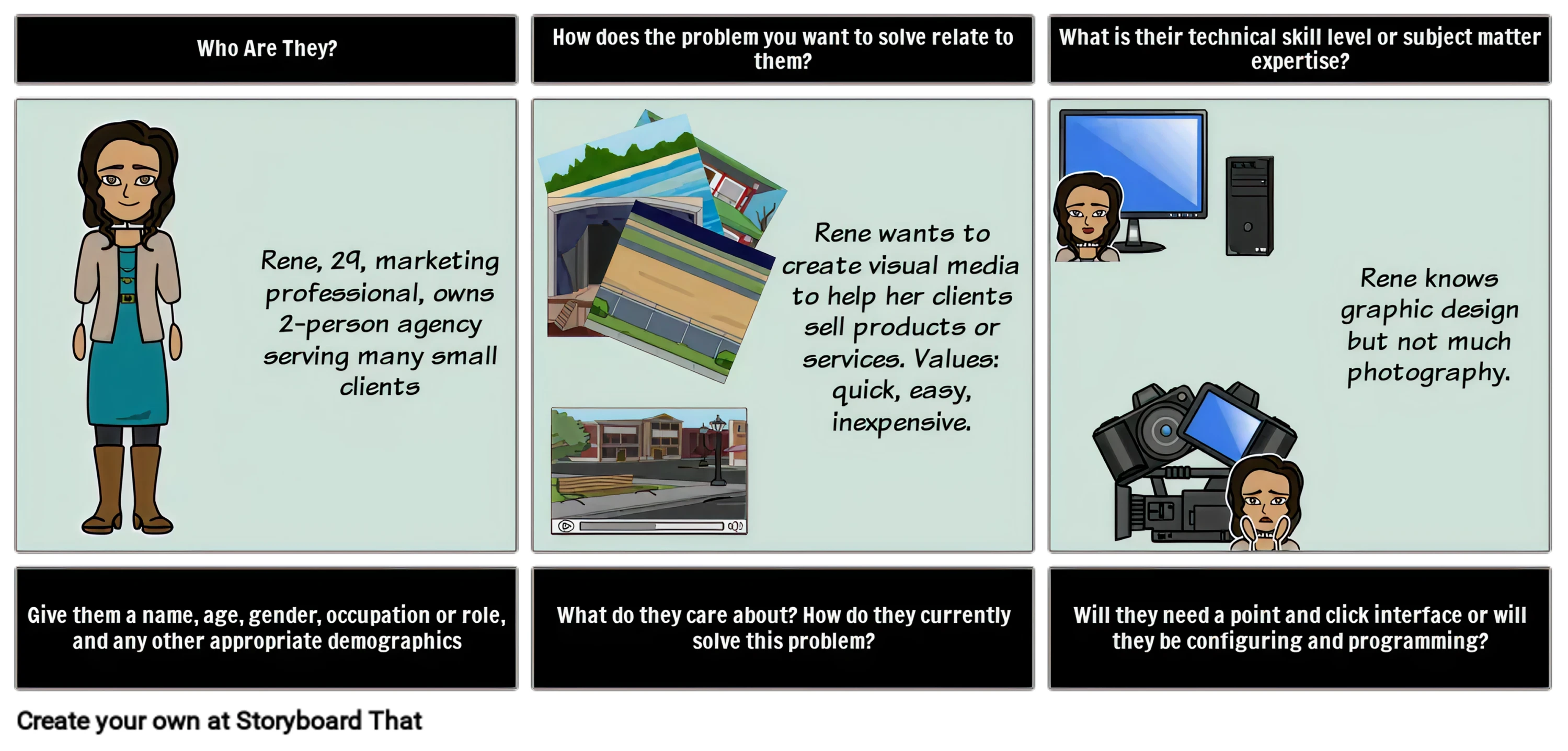
Persona
The persona represents the type of user in the story. This usually includes basic details such as the user’s goals, motivations, and challenges.
Personas are often based on insights from user research or user interviews.
Panels
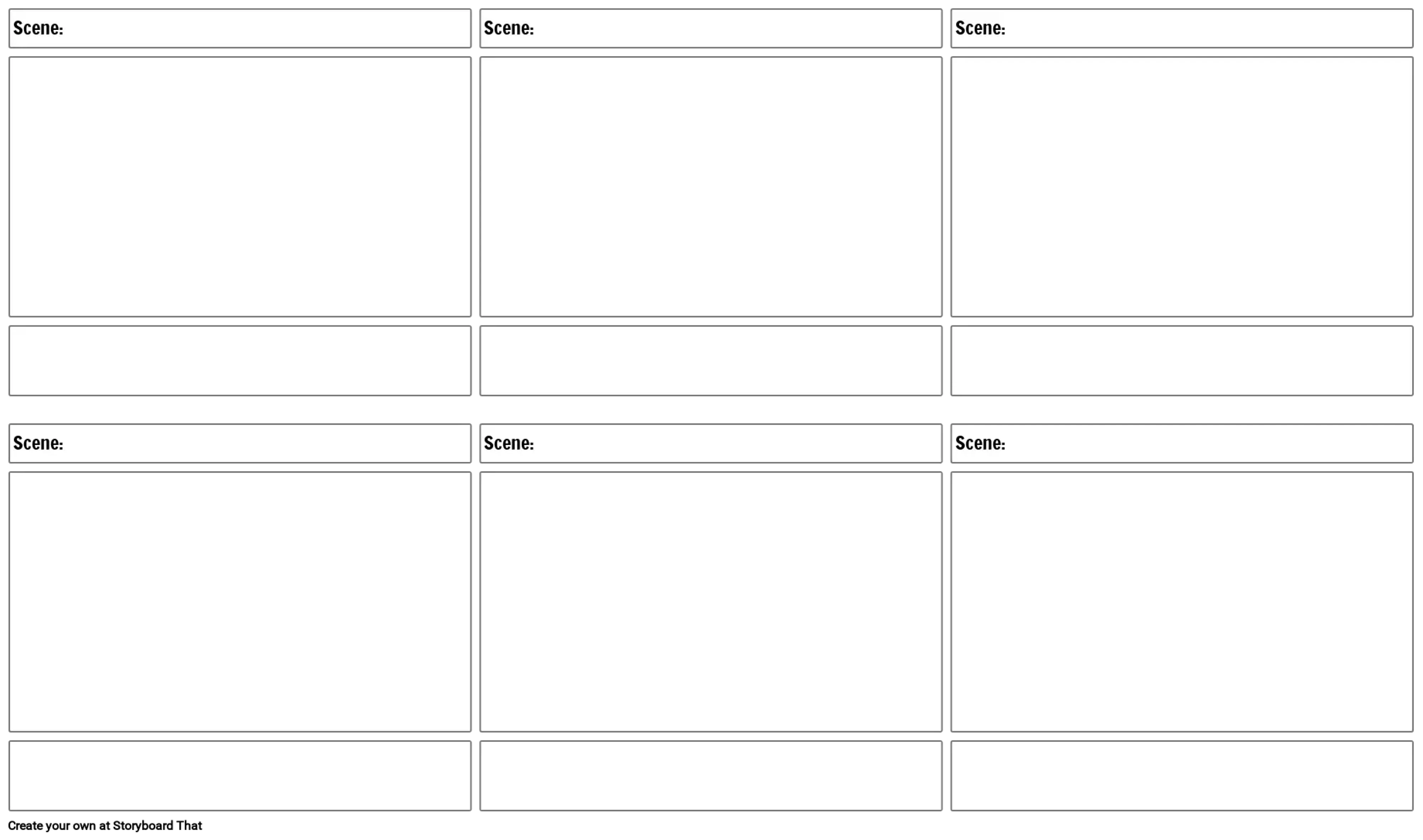
Storyboard UX is organized into a sequence of panels, similar to comic strips. Each panel represents one step in the experience.
A typical UX storyboard includes four to eight panels, showing how the interaction unfolds from beginning to end.
Visuals
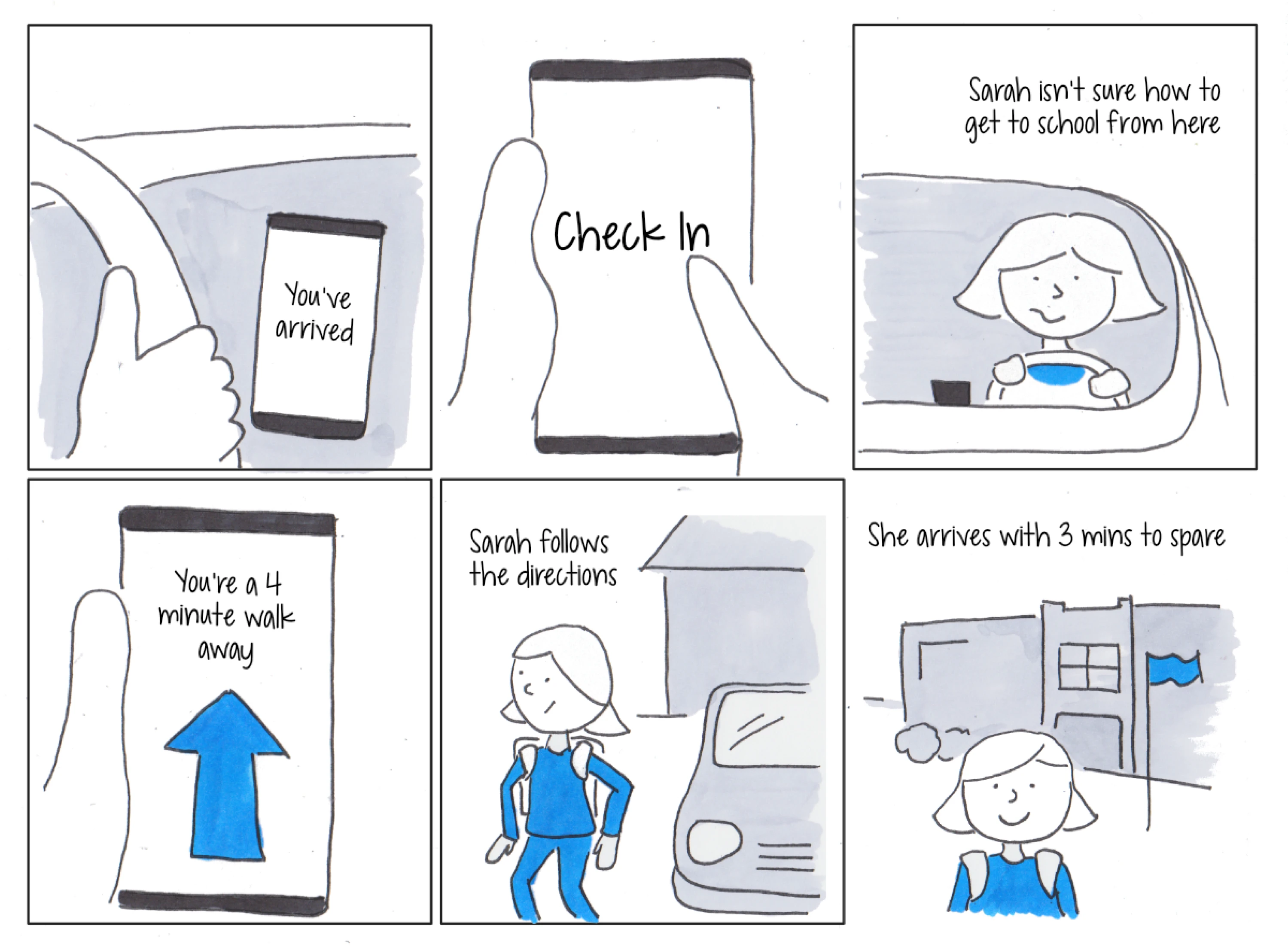
Each panel contains simple visuals that illustrate the situation. These may include stick figures, interface sketches, or elements of the user’s environment.
The goal is clarity, not artistic quality. Low-fidelity sketches are usually enough.
Captions
Short captions explain what happens in each panel. They often describe:
- what the user does
- what the user feels
- what happens next
Together, these elements help tell a clear story about the user’s experience.
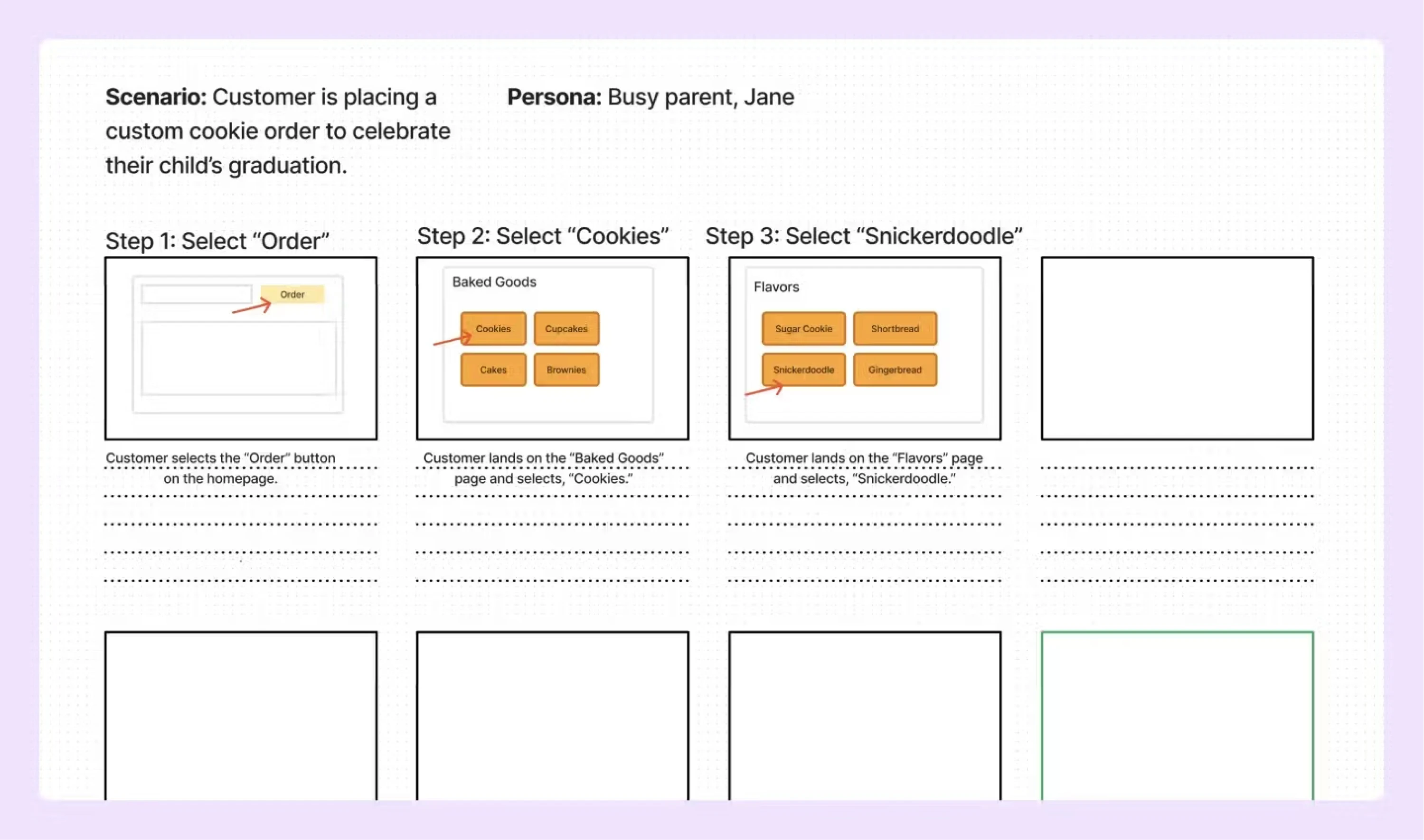
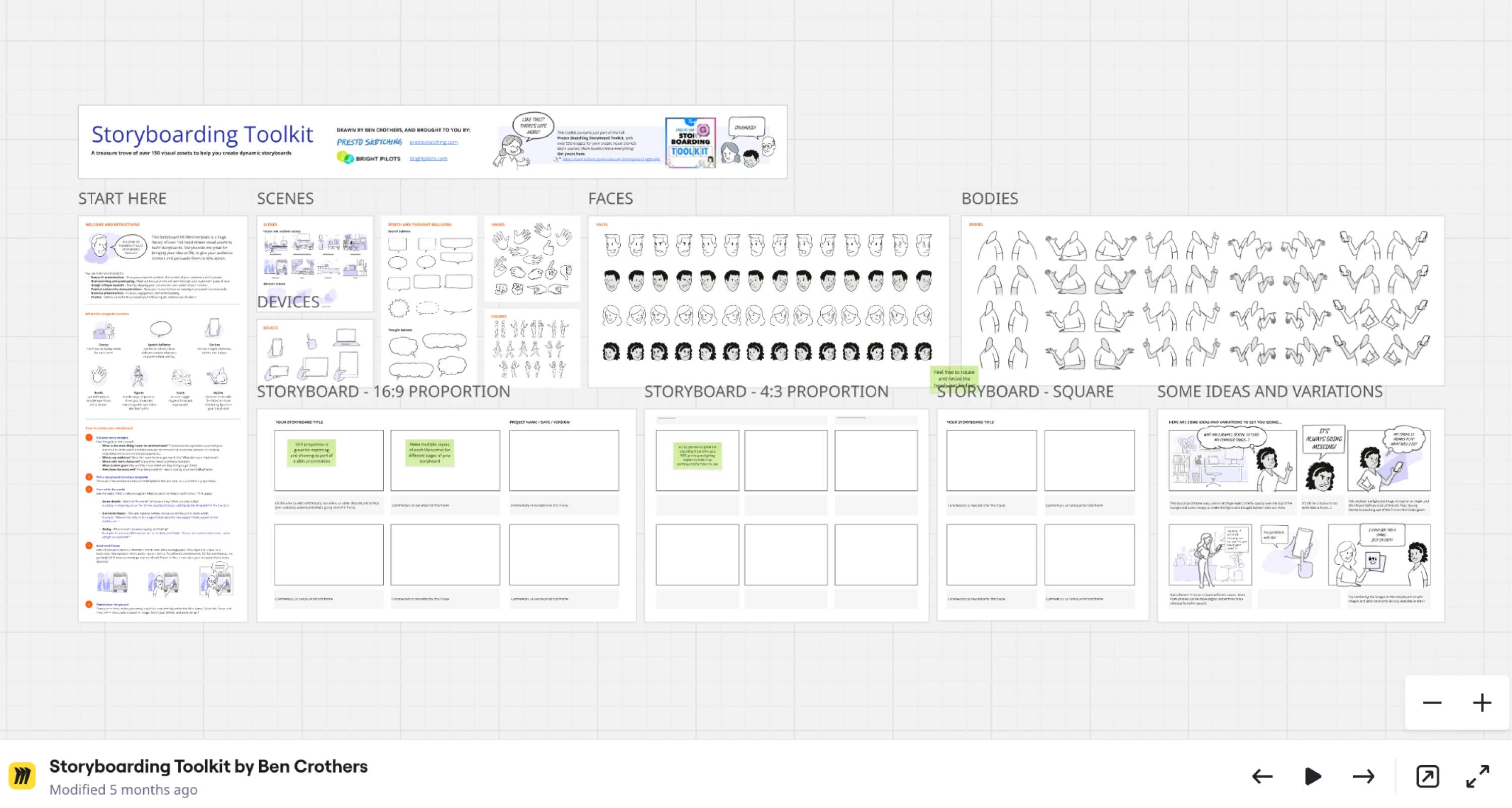
Bonus point – feel free to grab this free template to create your own storyboard.
Why storyboard in UX design matters
Many UX artifacts describe how an interface works. Storyboards focus on how people experience it.
By visualizing a user’s situation, storyboards help teams understand the broader context in which interactions happen.
✔ They make user context visible
Users rarely interact with products in ideal conditions. They may be working under time pressure, multitasking, or using a device in a distracting environment.
For example, a manager might approve expense reports on their phone just before a meeting. A customer might check a dashboard while traveling. Storyboards make these situations visible and help designers consider the constraints users face.
✔ They help teams align around the experience
User storyboard is easy to understand, even for people without a design background. Product managers, developers, and stakeholders can quickly grasp the story being told.
Because they show the experience visually, storyboards often communicate ideas more clearly than written documentation.
✔They support early idea exploration
Storyboarding in UX is particularly useful during early stages of the design process, such as brainstorming sessions or product discovery. Teams can sketch different scenarios and explore how a concept might work in real life.
This makes storyboards a helpful tool for design thinking and ideation.
✔ They reveal gaps in the user journey
When teams walk through a storyboard step by step, they often discover missing pieces in the experience. UX storyboarding might reveal unclear transitions, missing information, or unrealistic assumptions about how users behave.
Identifying these gaps early can prevent costly redesigns later in the process.
A similar situation occurred during Eleken’s work on the Data Streams platform redesign. While analyzing user scenarios, the team mapped how data engineers moved between dashboards, configuration screens, and monitoring tools during daily workflows. Visualizing these flows helped reveal hidden friction points, such as unclear transitions between configuration steps and monitoring views.
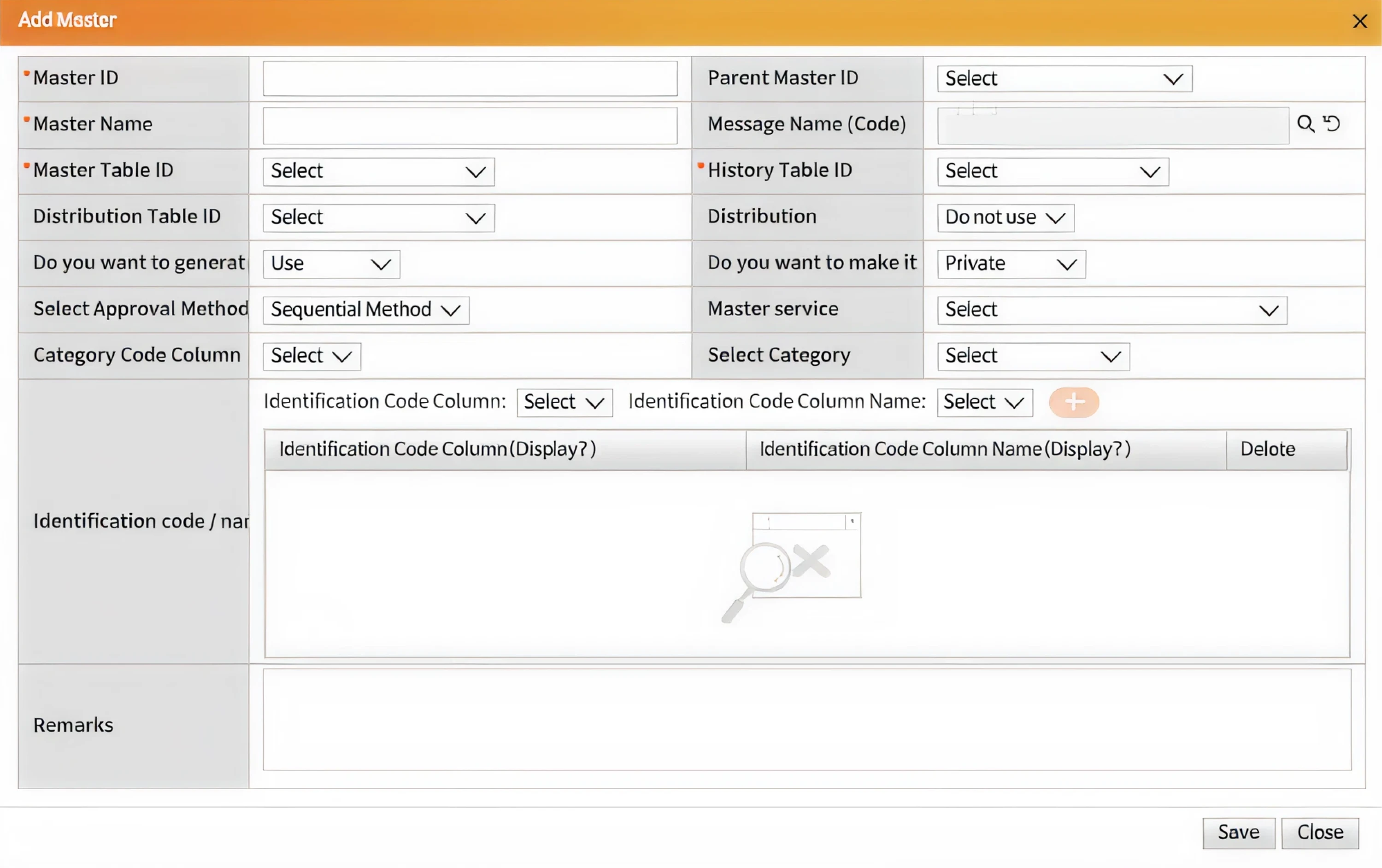
By understanding the scenario around the interaction — not just the interface — the team could simplify navigation and make complex data management tasks easier to follow.
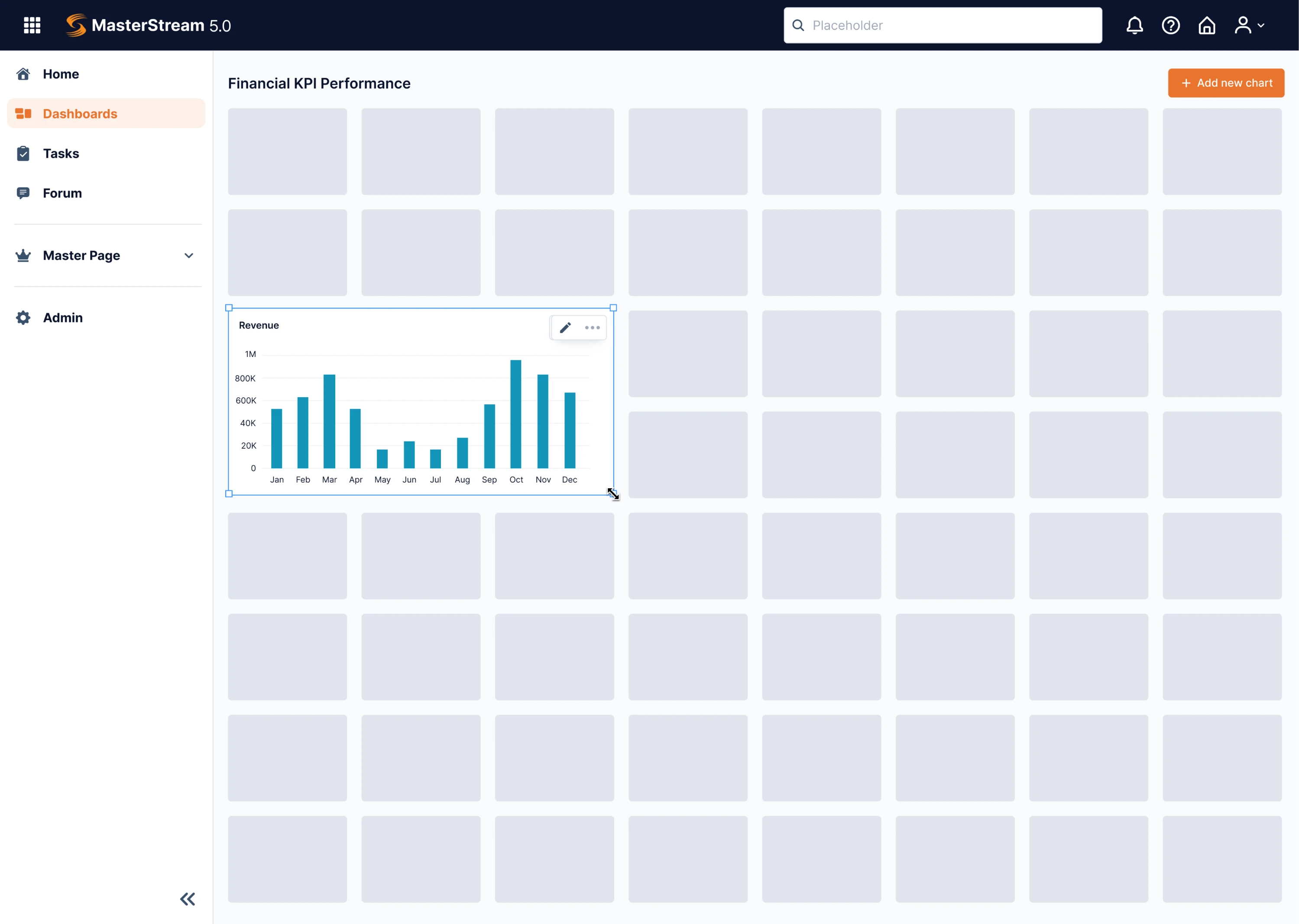
In the redesigned version, users simply drag visualizations onto the dashboard and see the result immediately, turning a previously technical, configuration-heavy process into a faster and more intuitive experience.
Where storyboarding UX design fit in the UX process
UX storyboards usually appear after research but before detailed interface design. At this stage, teams already understand the user and the problem they want to solve, but they are still exploring how the experience should unfold.
Storyboards help bridge the gap between UX research insights and concrete product ideas.
A simplified UX workflow often looks like this:

Each step serves a different purpose.
Research and interviews help teams understand user needs and behaviors. Personas and journey maps organize those insights. Storyboards then turn that knowledge into specific scenarios, showing how a typical user might interact with a product in a real situation.
From there, designers can move into more detailed artifacts such as user flows and wireframes, which define the interface structure and system logic.
In other words, storyboards help translate research into design direction before teams start building screens.
UX storyboards vs other UX artifacts
Storyboards are often confused with other UX deliverables such as journey maps, user flows, and wireframes. While these artifacts can look similar at first glance, they serve different purposes in the UX design process.
Understanding the distinction helps teams choose the right tool at the right stage of a project.
Storyboards vs User Journey Maps
A user journey map shows the overall experience a user has with a product or service across multiple stages.
Journey maps typically include:
- stages of the user journey
- user goals and actions
- pain points
- insights and opportunities
They provide a high-level, analytical overview of the entire experience.
Storyboards, on the other hand, focus on one specific scenario. Instead of analyzing the journey, they visually tell the story of how a particular interaction unfolds.
In simple terms:
- Journey maps show the big picture
- Storyboards show a specific moment within it
For example, in the ProcessPlace project, a SaaS platform for managing operational processes and workflows, Eleken used user journey mapping to better understand how people interact with the product while managing complex processes.
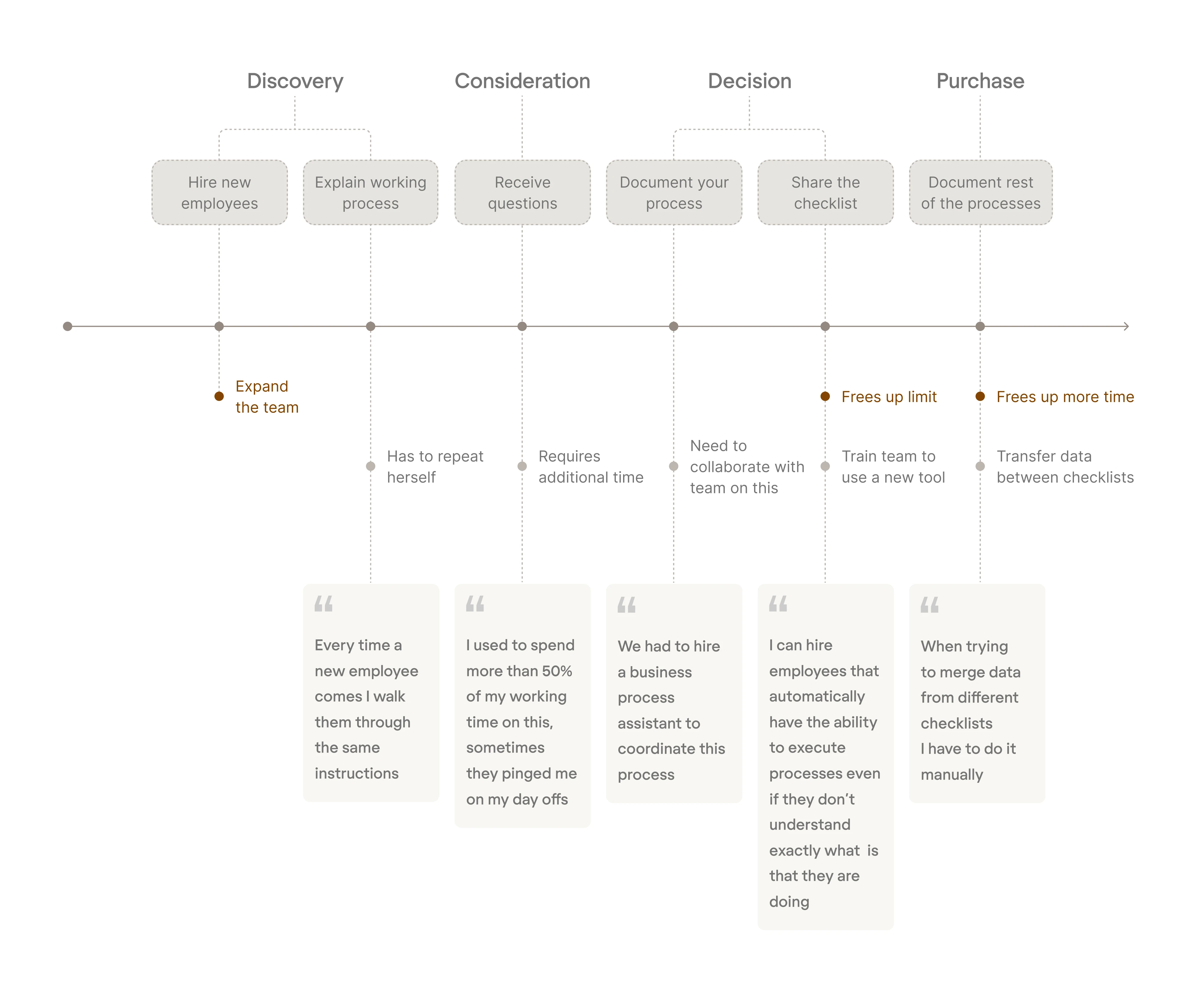
Mapping the user journey helped the team visualize each step users take when creating, reviewing, and improving workflows, revealing friction points and opportunities for simplification. These insights informed the design decisions and helped structure a more intuitive experience across the platform.
Storyboards vs User Flows
A user flow describes the sequence of screens or steps a user takes to complete a task inside a product.
User flows focus on:
- navigation paths
- screen transitions
- system logic
Storyboards focus on something different — the human side of the interaction. They illustrate what the user is doing, why they are doing it, and what is happening around them.
While a UX flow might show that a user clicks through several screens to approve a request, a storyboard might show that the user is approving it on their phone while rushing between meetings.
A similar approach appeared in Eleken’s work with PrimePro, a mobile app connecting contractors and on-demand workers, where the team mapped the user journey through detailed user flows before designing the interface.
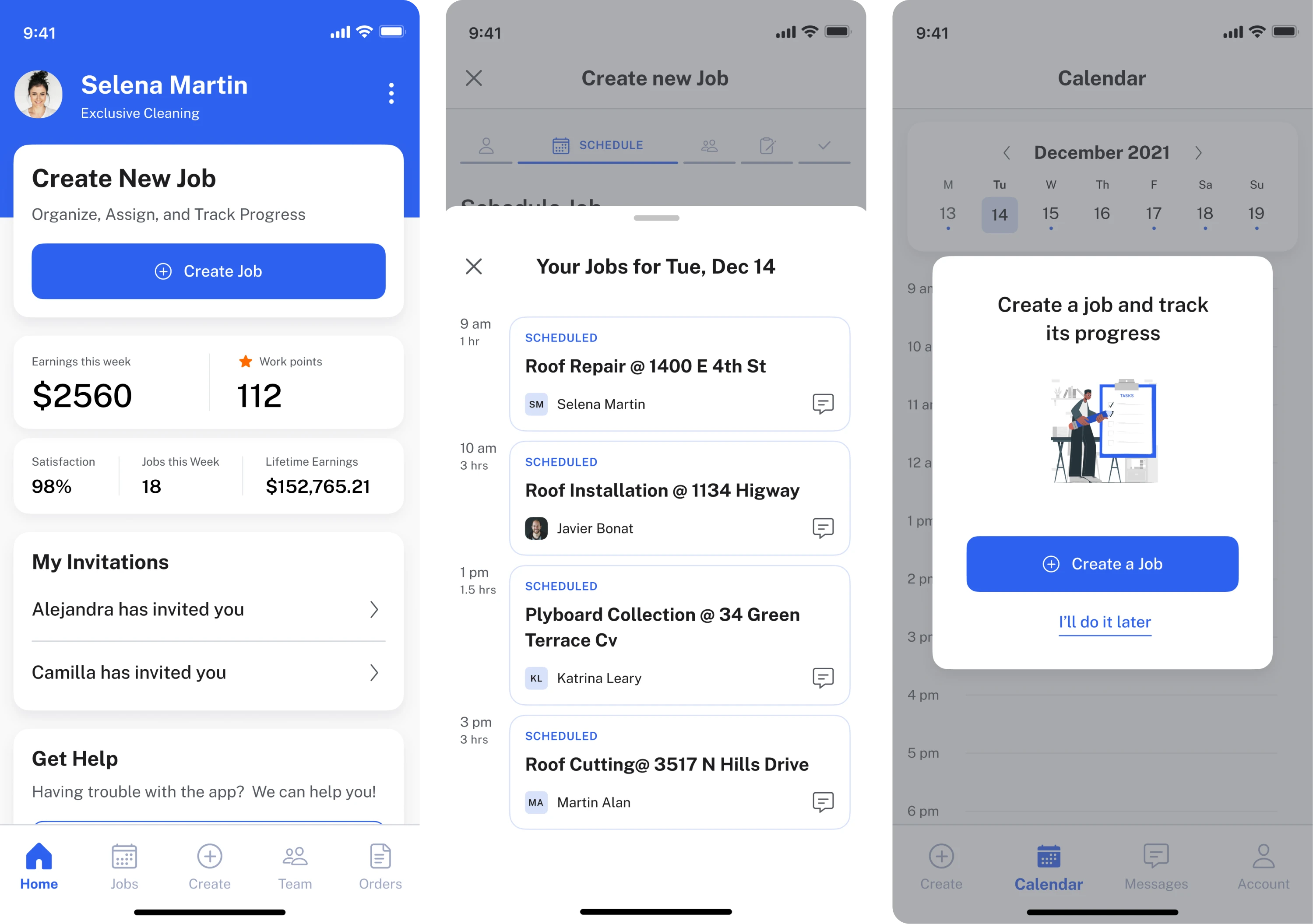
By visualizing how users would move step by step through the platform, designers could identify unclear transitions and refine the structure before creating wireframes. This kind of story-driven mapping serves a similar purpose to storyboards: clarifying how the experience unfolds for the user.
Storyboards vs Wireframes
Wireframes describe the layout and structure of an interface of the future product, acting as a rough sketch or schematic representation that helps quickly visualize screens, test ideas, and gather feedback before investing time in detailed design.
Wireframes answer questions like:
- Where does the navigation go?
- What information appears on the screen?
- How are interface elements arranged?
Storyboards answer a different question: What is happening in the user’s life when this interaction occurs?
In other words, wireframes focus on the interface, while storyboards focus on the experience surrounding it.
For example, in the Datawisp project, a SaaS platform designed to help teams analyze and visualize data, Eleken used wireframes to structure the product experience before moving to visual design.
The team first created low-fidelity wireframes to map key user flows and define how information and features should be organized across the interface.

After validating the structure, these concepts were refined into high-fidelity wireframes, adding clearer layouts and interaction details that prepared the product for the final UI design stage.

When UX storyboards are most useful
UX storyboards are not necessary for every design project. In many cases, user flows or wireframes are enough to describe how an interface should work. However, storyboards become especially valuable when teams need to understand the context around the interaction, not just the interface itself.
Conceptual or early product work
Storyboards are particularly helpful during the early stages of product development. When teams explore new features, services, or product ideas, storyboards help visualize how the experience might unfold in real life.
Instead of jumping straight into screens, designers can first map out how a user encounters the product, what problem they are trying to solve, and what steps they take along the way.
Complex workflows
Storyboards also work well for products with multi-step or multi-tool workflows.
For example:
- SaaS onboarding experiences
- approval processes across multiple roles
- service platforms involving several interactions
- workflows that span different devices
By illustrating these situations visually, storyboards help teams understand how users move through the entire experience.
For instance, while designing Habstash, a fintech MVP, Eleken mapped how users moved through a multi-screen journey while planning and saving for a future home purchase. The team explored how people would progress from goal setting to savings tracking and financial planning across several screens.

Visualizing this journey early helped designers clarify the logical flow between steps and ensure the product supported the user’s long-term decision process rather than presenting isolated features.

And by the end of the onboarding journey, the user receives a target plan – their first win or aha moment before even official account creation.
Stakeholder communication
Storyboards can make complex ideas easier to explain. Because they show the experience as a simple visual story, stakeholders can quickly understand how a product or feature will work.
This makes storyboards useful when presenting:
- product concepts
- feature ideas
- new user experiences
Cross-channel experiences
Some products involve interactions across multiple touchpoints, such as mobile apps, desktop tools, email notifications, or physical environments.
Storyboards help designers visualize how these interactions connect and how users move between them.
Step-by-step: how to create a UX storyboard
Creating a UX storyboard does not require artistic skills or specialized tools. The goal is simply to visualize a user’s experience in a clear sequence. Most teams start with basic sketches and refine them as the idea develops.
Here is a practical process designers often follow.
Step 1: Define the goal
Start by clarifying why you are creating the storyboard. Different projects may require different kinds of stories.
For example, a storyboard might help you:
- explain a new product idea
- visualize a complex workflow
- explore how users might interact with a new feature
- communicate a concept to stakeholders
Defining the goal helps keep the storyboard focused.
Step 2: Choose a specific scenario
Next, select a single scenario to illustrate a storyboard example. Avoid trying to show multiple user paths in one storyboard.
A clear scenario usually includes:
- a type of user
- a specific situation
- a task the user wants to complete
For example, a scenario could describe a project manager approving tasks on their phone while commuting.
Step 3: Outline the story
Before drawing anything, write down the sequence of events. This helps you organize the story logically.
A simple storyboard sequence often includes:
- the trigger that starts the interaction
- the user’s actions
- any obstacles or frustrations
- the final outcome
This outline will guide the visuals you create.
Step 4: Sketch the panels
Now convert the sequence into visual panels, similar to a comic strip. Each panel represents a moment in the user’s experience.
You can use:
- stick figures
- simple sketches
- screenshots or interface snippets
- icons or shapes
Remember that storyboards are communication tools, not art projects. Simple visuals are usually more than enough.
Step 5: Add captions and emotions
Add short captions to each panel explaining what is happening.
Captions often describe:
- the user’s actions
- the user’s thoughts or feelings
- what changes from one step to the next
Showing emotions can be especially helpful because it highlights user frustrations, motivations, or moments of success.
Step 6: Share and iterate
Finally, review the storyboard with your team. Designers, product managers, developers, and stakeholders can all provide useful feedback.
Storyboards are easy to modify, so teams often adjust them and apply iterative design as they learn more about the user experience.
In some projects, this exploration quickly evolves into early UX prototypes. For example, when Eleken worked on the Polaris security platform, designers created prototype screens to visualize how developers would review vulnerabilities and navigate complex security data. Seeing the interaction flow in a prototype helped the team test assumptions about how users would move between investigation steps and refine the experience before full development began.
UX Storyboard Examples
To better understand how UX storyboards work, it helps to look at realistic scenarios. In practice, storyboards often illustrate everyday situations where users interact with a product while dealing with time pressure, distractions, or complex workflows.
Below are a few examples commonly seen in SaaS and digital product design.
Example 1: SaaS onboarding
Imagine a new team administrator setting up a project management tool for their company.
A storyboard might show the following sequence:
- The user discovers the tool while searching for a better way to manage tasks.
- They create an account and start setting up a workspace.
- The user invites teammates and tries to configure permissions.
- Confusion appears when the permission settings are unclear.
- After exploring the interface, the user successfully completes the setup.
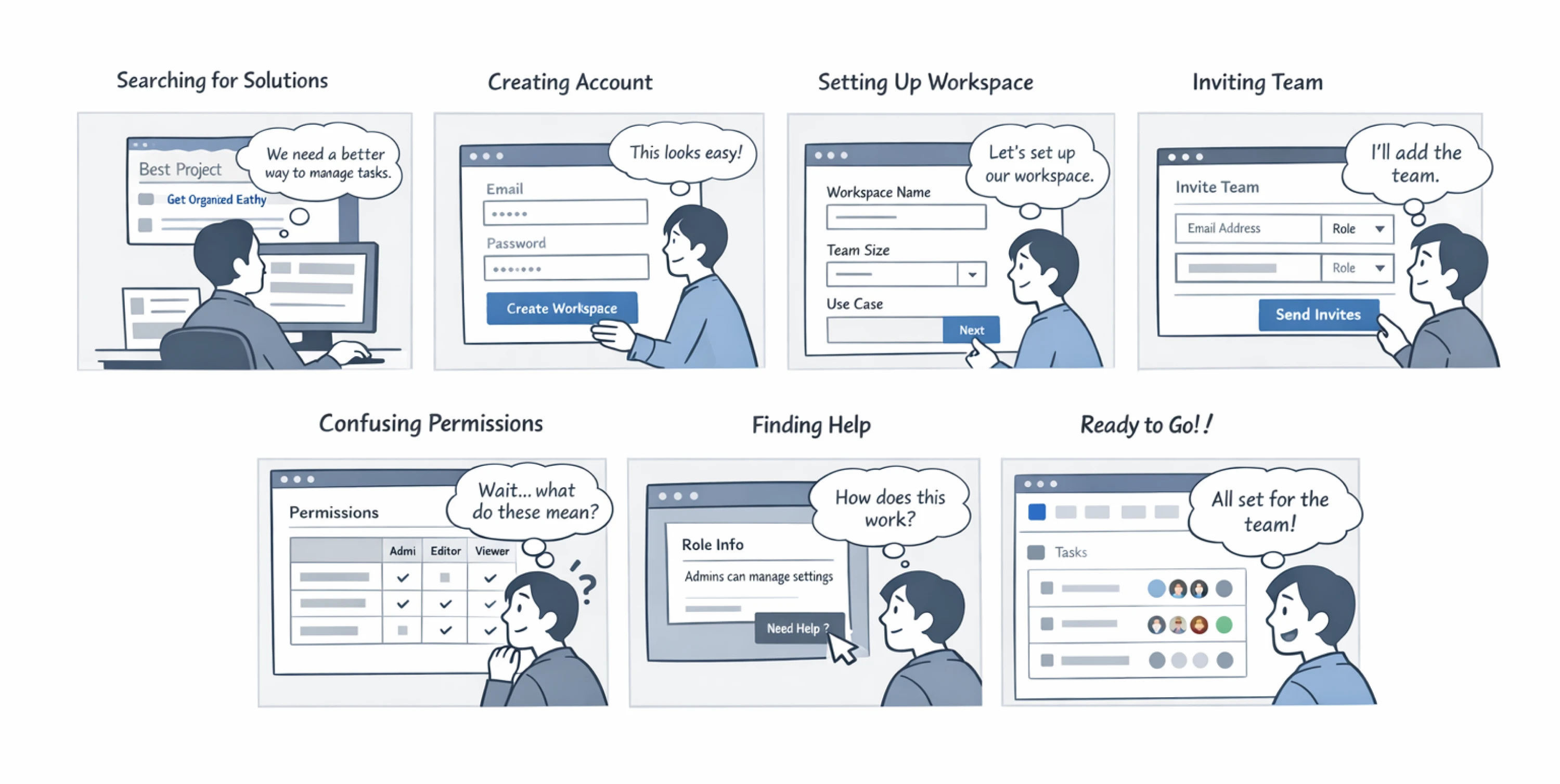
This storyboard helps designers identify possible friction points during onboarding, such as confusing permissions or unclear setup instructions.
For example, in Eleken’s work with the hiring platform myInterview, similar story-driven thinking helped the team redesign the candidate onboarding journey, where step-by-step flows revealed why nearly 90% of candidates were dropping off. After clarifying the journey, Eleken created a clickable prototype of the improved onboarding experience to test how candidates would move through the application flow before finalizing the design.
Example 2: Mobile expense approval
Now consider a manager reviewing expense reports on their phone before a meeting.
The storyboard might illustrate:
- The manager receives a notification about pending expense approvals.
- While walking to a meeting, they open the approval screen on their phone.
- Attachments are difficult to review on a small screen.
- The manager hesitates because important details are not immediately visible.
- After switching views, the manager approves the request.
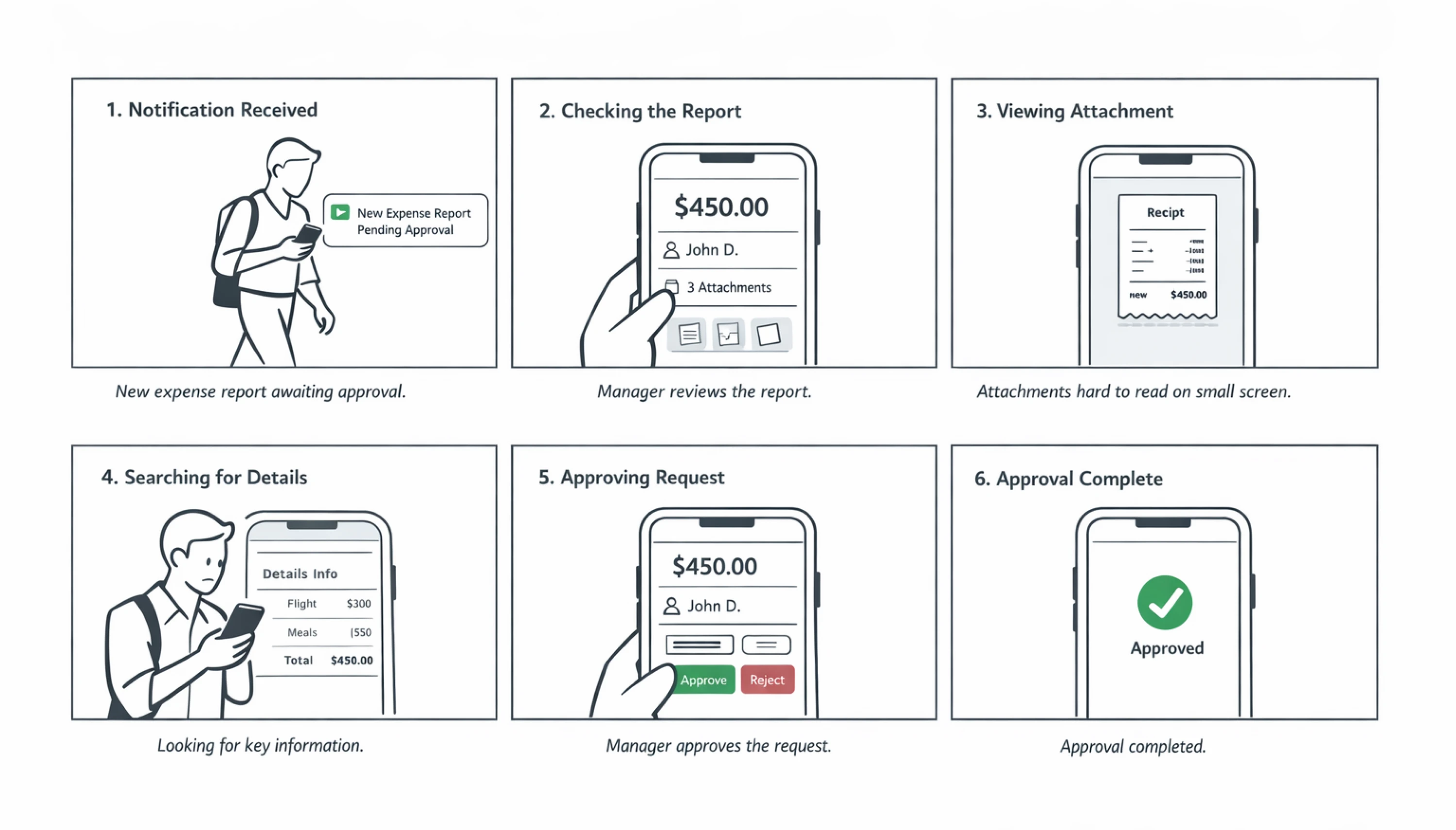
This scenario highlights how device limitations and time pressure affect user behavior. It can help designers rethink how attachments, summaries, or approval actions should appear on mobile devices.
Example 3: Customer support workflow
Consider a support agent resolving a customer issue.
A storyboard might show:
- A customer submits a support ticket describing a technical problem.
- The support agent opens the ticket and searches internal documentation.
- The agent switches between multiple tools to find the right information.
- They contact a teammate for clarification.
- Finally, the agent responds to the customer with a solution.
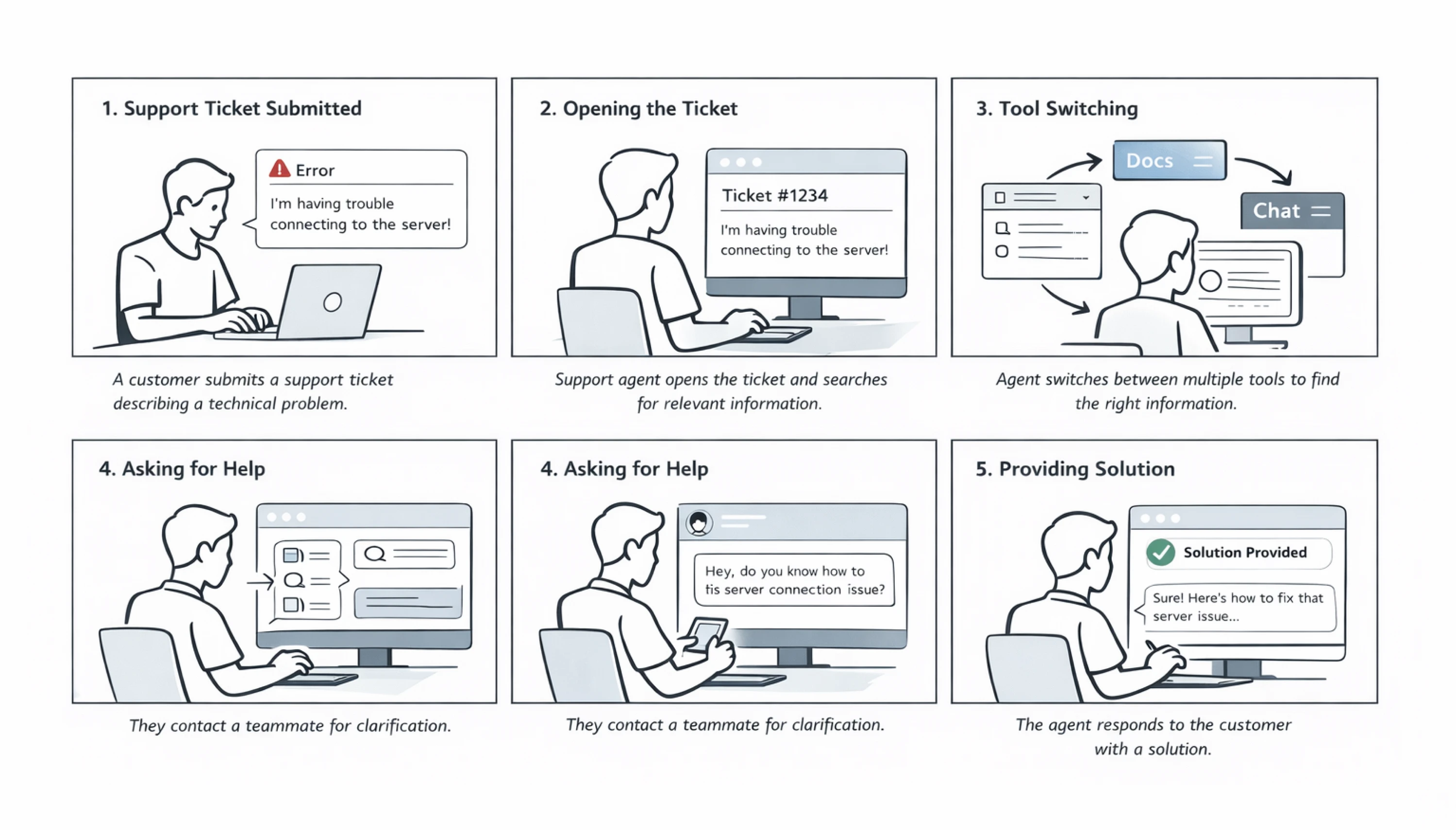
This storyboard reveals potential inefficiencies in the workflow, such as excessive tool switching or difficulty locating documentation.
Tools for creating UX storyboard examples
UX storyboards do not require specialized software. Many designers start with pen and paper, sticky notes, or a whiteboard, especially during brainstorming strategy sessions. The goal is to quickly visualize the user’s story, not to produce polished artwork.
However, several digital tools can make it easier to create and share storyboards with a team.
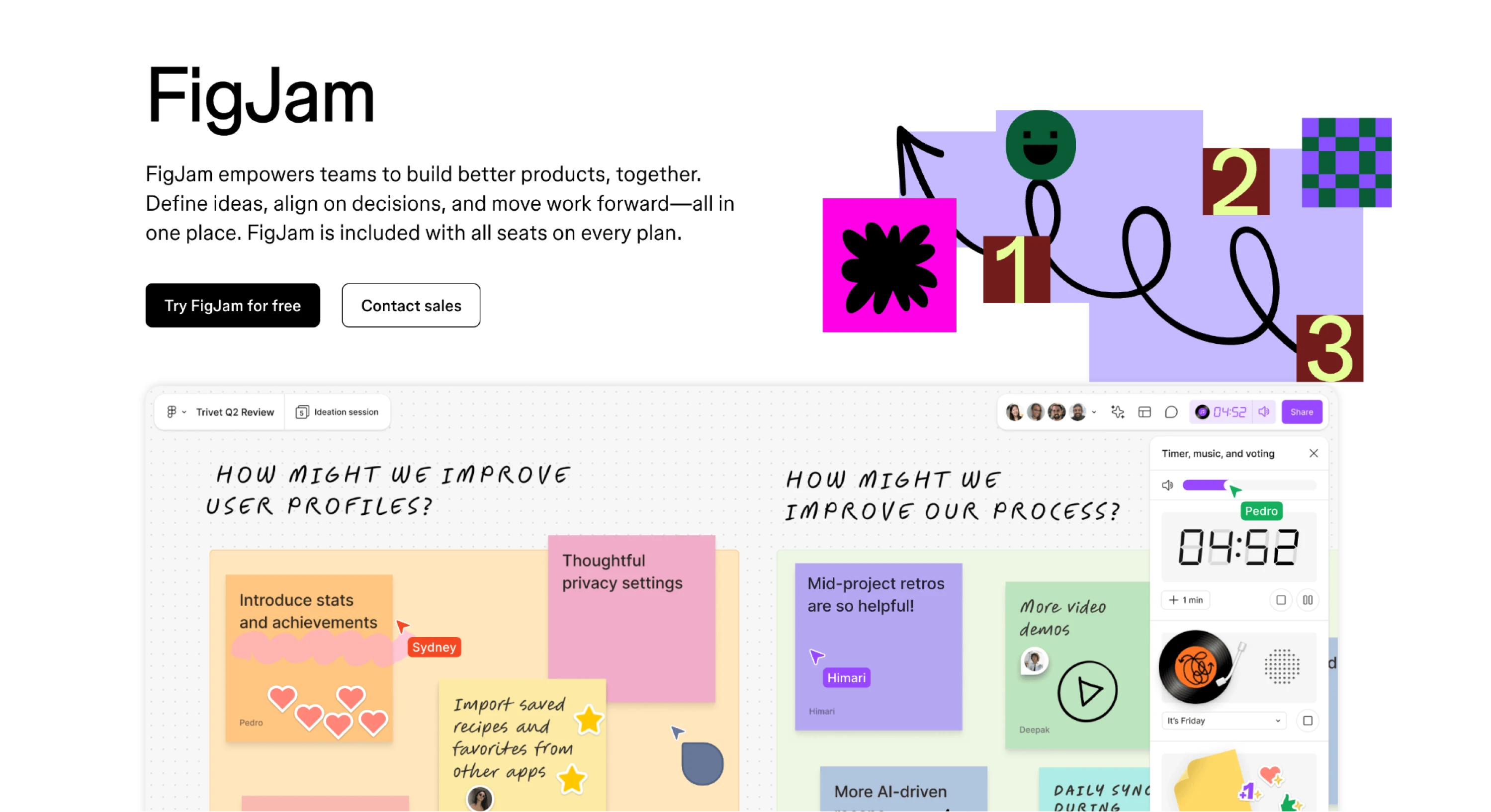
FigJam
FigJam is widely used for collaborative brainstorming and early design work. Designers can sketch storyboard panels, add captions, and collaborate with multiple team members in real time.
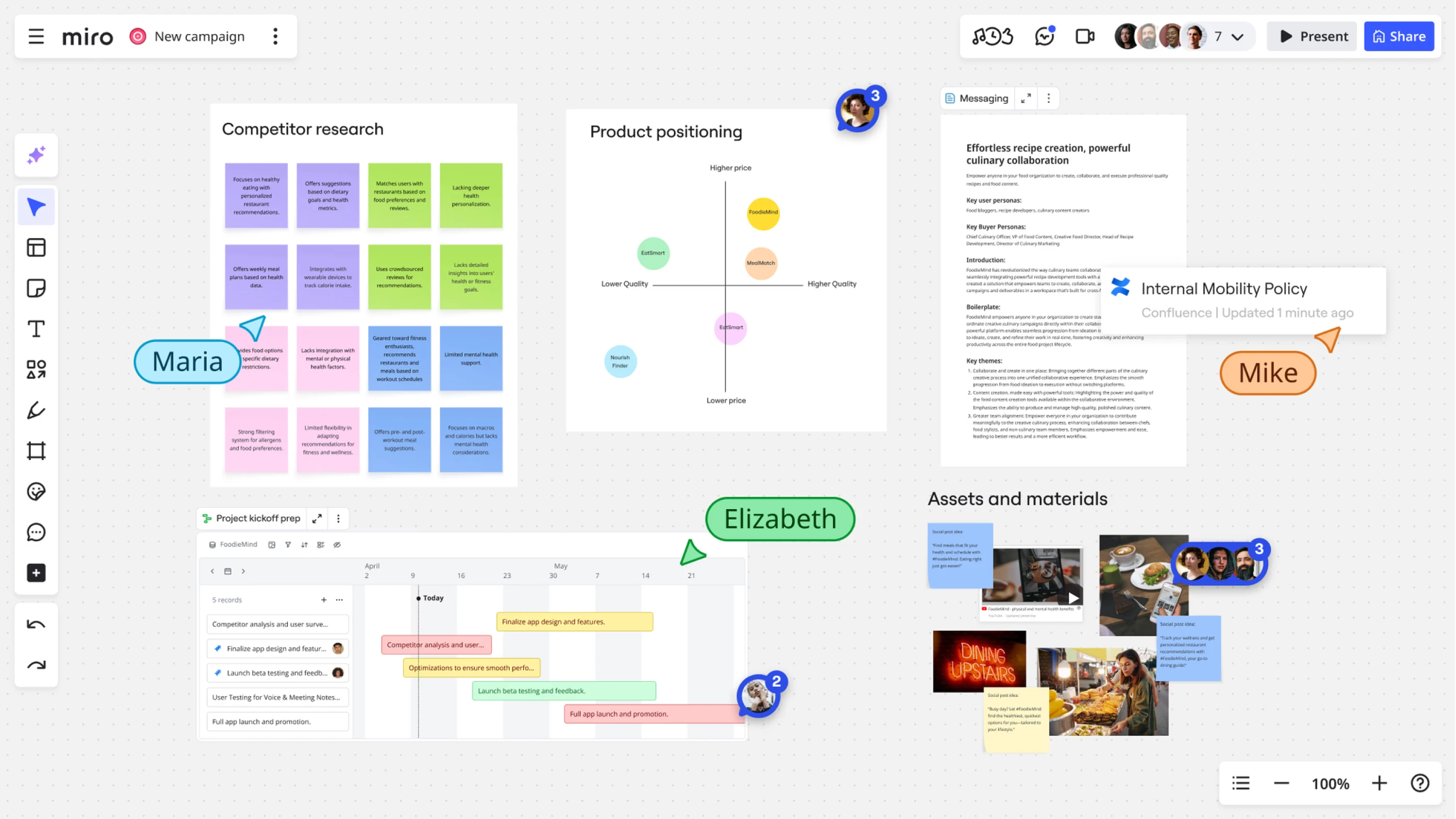
Miro
Miro is another popular whiteboard tool for visual collaboration. It allows teams to arrange panels, add comments, and explore different storyboard scenarios during workshops or design sprints.
Figma
Although Figma is primarily a UI design tool, many teams also use it to create simple storyboards using frames, illustrations, and interface mockups.
Whimsical
Whimsical provides simple diagramming and wireframing tools that can also be used to create storyboard sequences quickly.

Presentation tools
Some teams create storyboards using familiar tools such as PowerPoint or Google Slides. Each slide can represent one panel of the storyboard, making it easy to present the story to stakeholders.
In many cases, the simplest approach works best. A few basic sketches are often enough to communicate the story and gather feedback.
Seeing the user experience beyond the interface
UX storyboards help designers see the experience beyond the interface. Instead of focusing only on screens or interactions, they show the real-world context in which users interact with a product — their environment, motivations, and challenges.
Because of this, storyboards are especially valuable during the early stages of the UX design process, when teams are exploring ideas and trying to understand how an experience might unfold in practice.
They help teams:
- visualize user situations and constraints
- communicate product ideas more clearly
- identify gaps in the user journey
- align designers, developers, and stakeholders around the same story
And the best part is that storyboards don’t need to be polished. Simple sketches, stick figures, and short captions are often enough to explain a concept and gather feedback from the team.
At Eleken, we’ve worked across 200+ SaaS projects that mapped user journeys and early product scenarios to help SaaS teams move from rough ideas to clear, usable product experiences. If you're exploring a new feature or product concept, visualizing the user context early can make design decisions much easier later.
If you want help turning early ideas into well-designed product experiences, Eleken’s designers can help you map the journey, visualize interactions, and bring your product to life. Drop us a line and test the collaboration with a free 3-day trial to see if we are the right fit.


