
When you start looking for the best UX design tools, you get flooded with options. Ads follow you around, and every tool promises to be faster, smarter, and “the only solution you’ll ever need.” And before long, choosing a tool feels like a hard task.
We get it.
As a UX design agency working since 2015, we’ve tested, adopted, and abandoned many tools. In this article, we’re sharing the ones we actually use in client work. And since AI is reshaping the design landscape, we’ll look at those tools as well.
The best UX design tools by workflow stage
There’s no single tool that covers everything, and more often than not, you’ll move between several throughout a project. So instead of ranking tools from 1 to 20, we’ve organized the list by workflow stage. Let’s break it down.
1. UX research tools
Research is where strong product decisions begin. Before sketching interfaces or building prototypes, you need to understand your users, validate assumptions, and see how people actually behave. The tools below help you do exactly that.
Maze
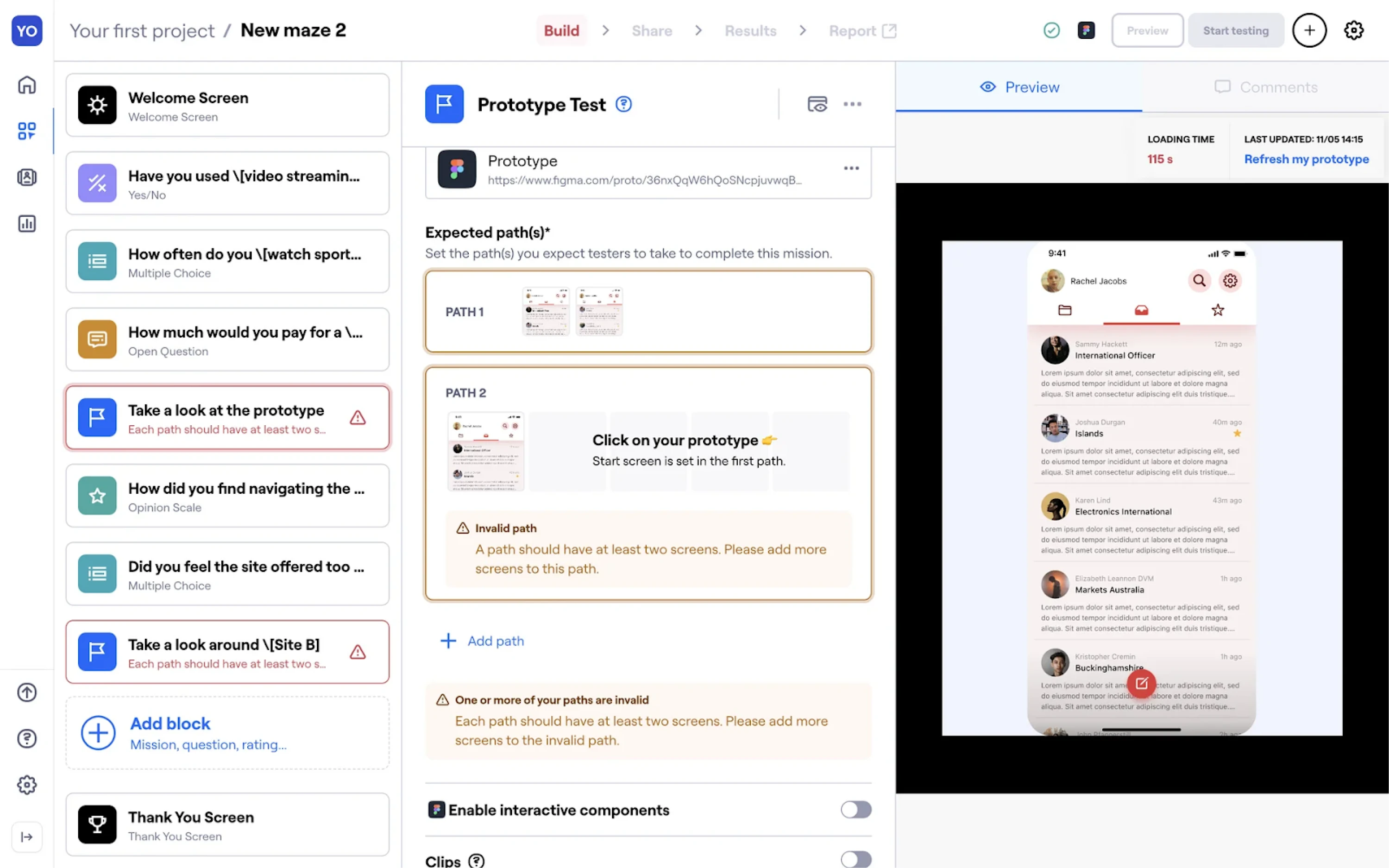
Maze is a UX research platform that helps teams validate design decisions and gather user feedback. It supports quantitative and qualitative research, allowing product teams to run usability tests, surveys, prototype evaluations, and more.
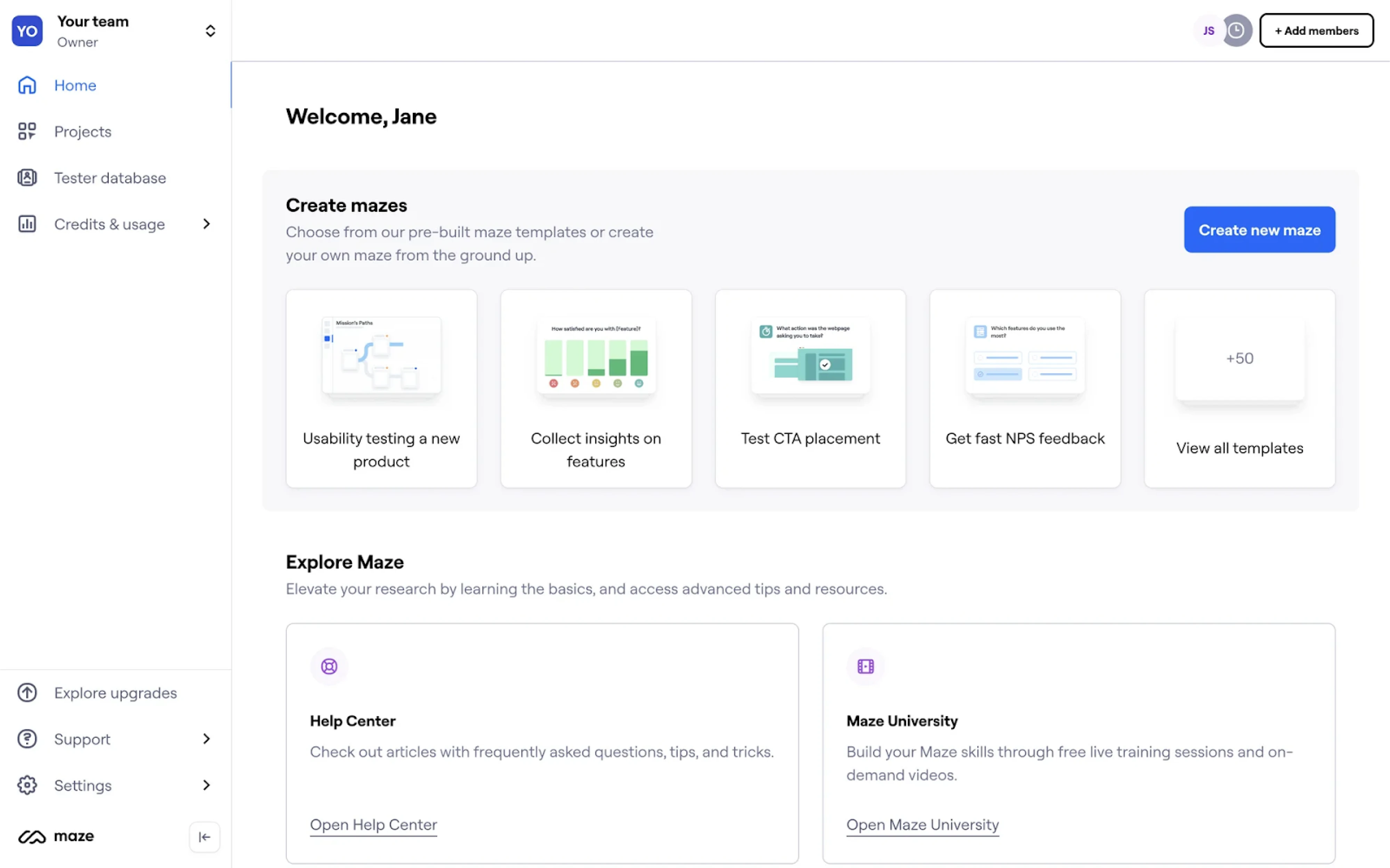
What we appreciate most about Maze is its simplicity. You can import prototypes directly from Figma, Sketch, or Adobe XD and test them with real users. At Eleken, we primarily use it for unmoderated testing when we need quick validation.
Its tools automatically surface patterns, highlight key findings, and make it easier to share insights with stakeholders.
Pros:
- Provides functionality for all UX research activities.
- Integrates directly with common design tools.
- Offers automated analysis and reporting features.
- Supports both moderated and unmoderated studies.
Cons:
- Testing capabilities are limited on the free or starter tiers.
- Some users report occasional issues with certain analytics.
Lookback
Lookback is a user research platform built to help teams conduct remote usability tests, live interviews, and qualitative studies. It captures screen activity, audio, and video, giving a real-world view of how users interact with digital experiences.
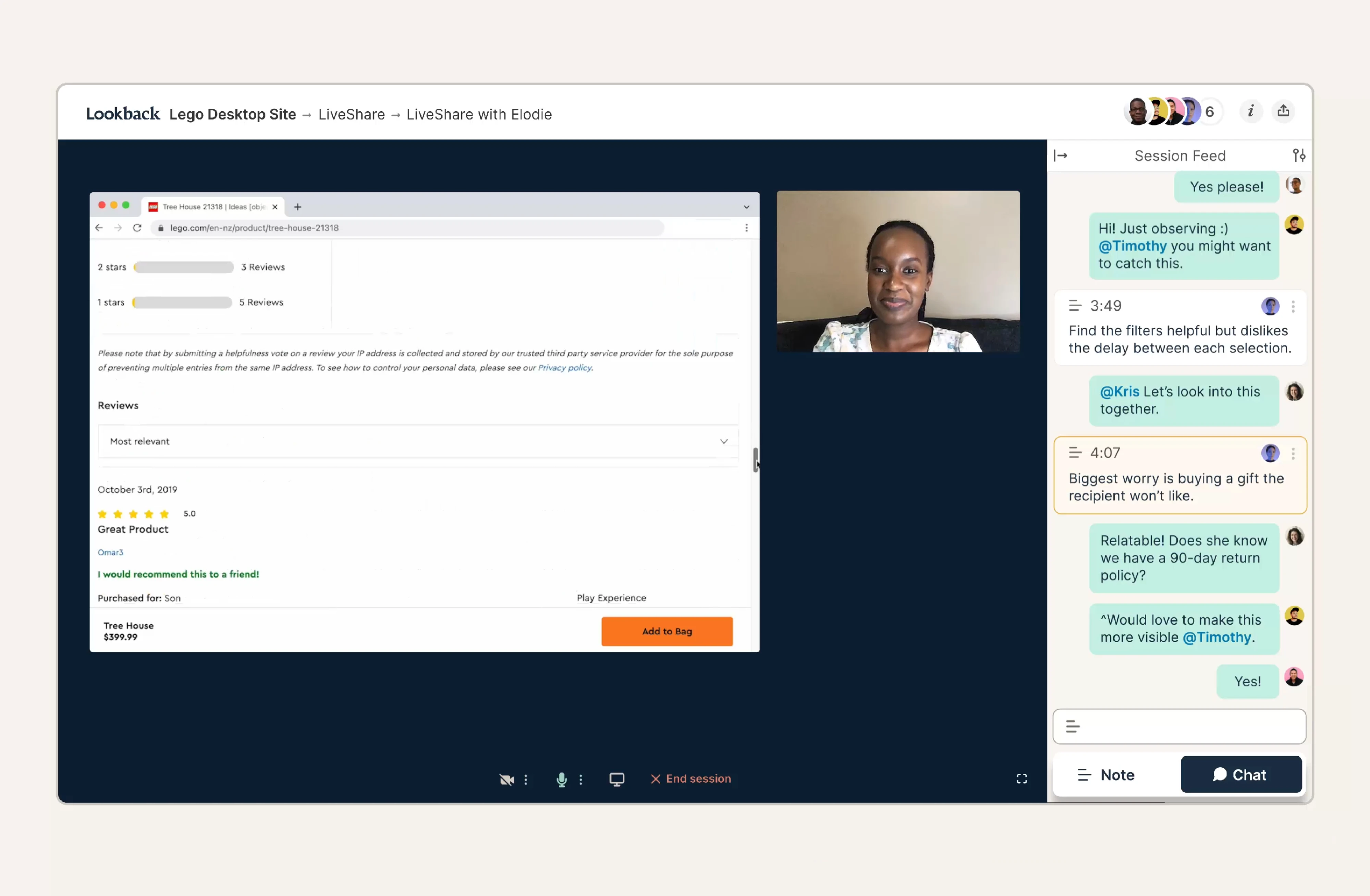
Unlike tools that focus mainly on analytics dashboards, Lookback emphasizes qualitative understanding. At Eleken, we use it primarily for moderated sessions, where direct interaction and live probing are essential.
The platform offers a collaborative environment where teams can invite stakeholders to observe research sessions live.
Pros:
- Captures screen, audio, and video.
- Supports both moderated and unmoderated research.
- Enables real-time collaboration and stakeholder observation.
- Includes AI-assisted analysis and participant recruitment options.
Cons:
- Participants may need additional setup before sessions.
- Some parts of the interface and advanced workflows can be complex.
Similarweb
Similarweb is a digital intelligence platform that provides insights into website traffic, engagement metrics, traffic sources, and market positioning. It helps teams understand how websites perform and how competitors attract and retain users.
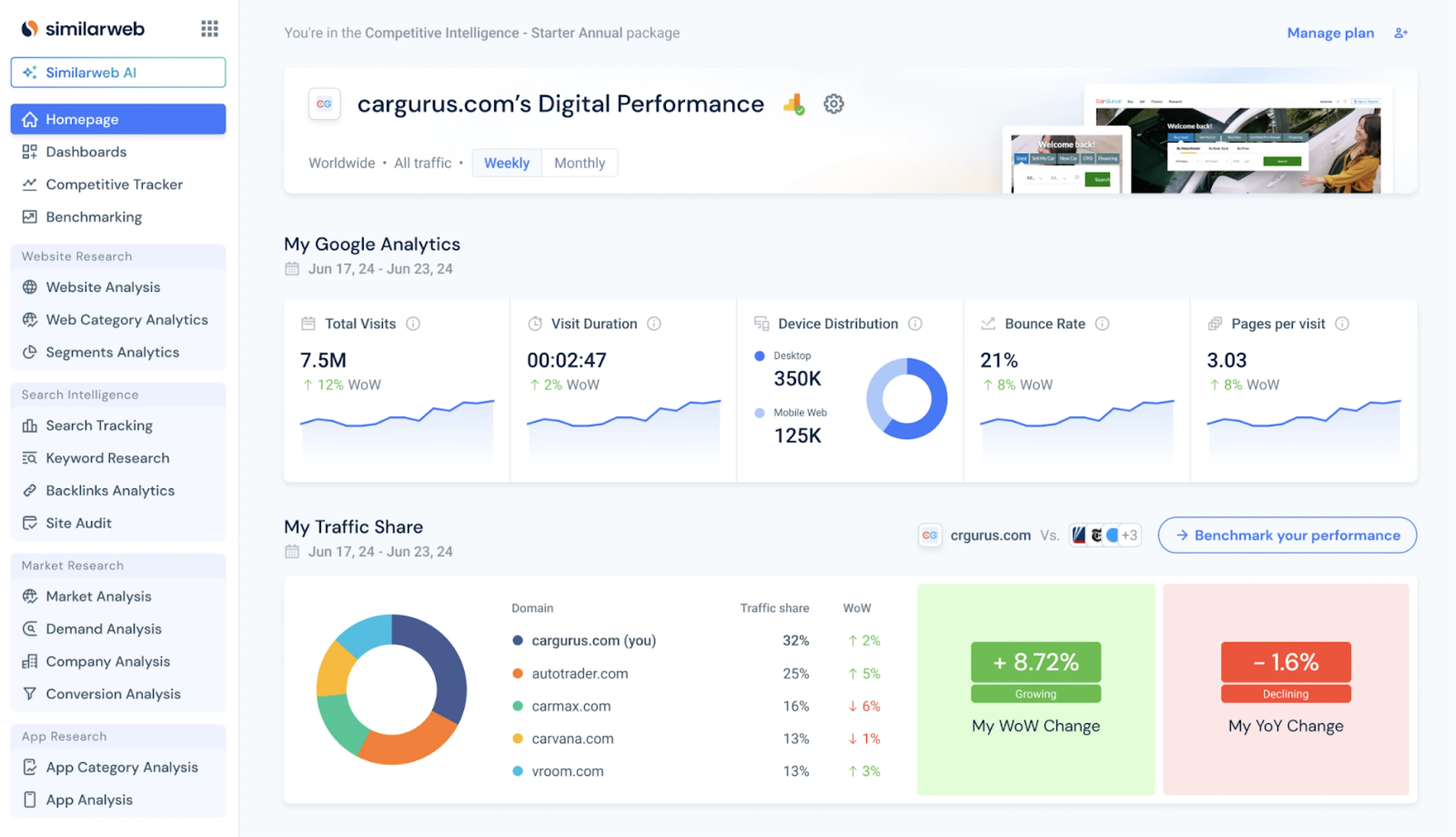
For our Eleken team, this tool is particularly useful during the discovery phase. We use it to evaluate competitors and analyze a client’s product performance. Designers can assess traffic sources, engagement patterns, and overall market positioning.
The free version offers enough functionality for solid competitor analysis. For deeper benchmarking and advanced metrics, paid plans unlock more detailed insights.
Pros:
- Offers a useful free version for discovery research.
- Provides competitor benchmarking and market insights.
- Helps analyze performance against competitors and spot trends.
- Includes audience behavior and demographic insights.
Cons:
- Advanced insights require paid plans.
- Focuses on quantitative web metrics, not user behavior insights.
2. Wireframing and ideation tools
With research insights in hand, the next step is ideating based on them. At this stage, you’re mapping flows, testing concepts, and challenging assumptions. Let’s look at the tools that help teams think visually.
Miro
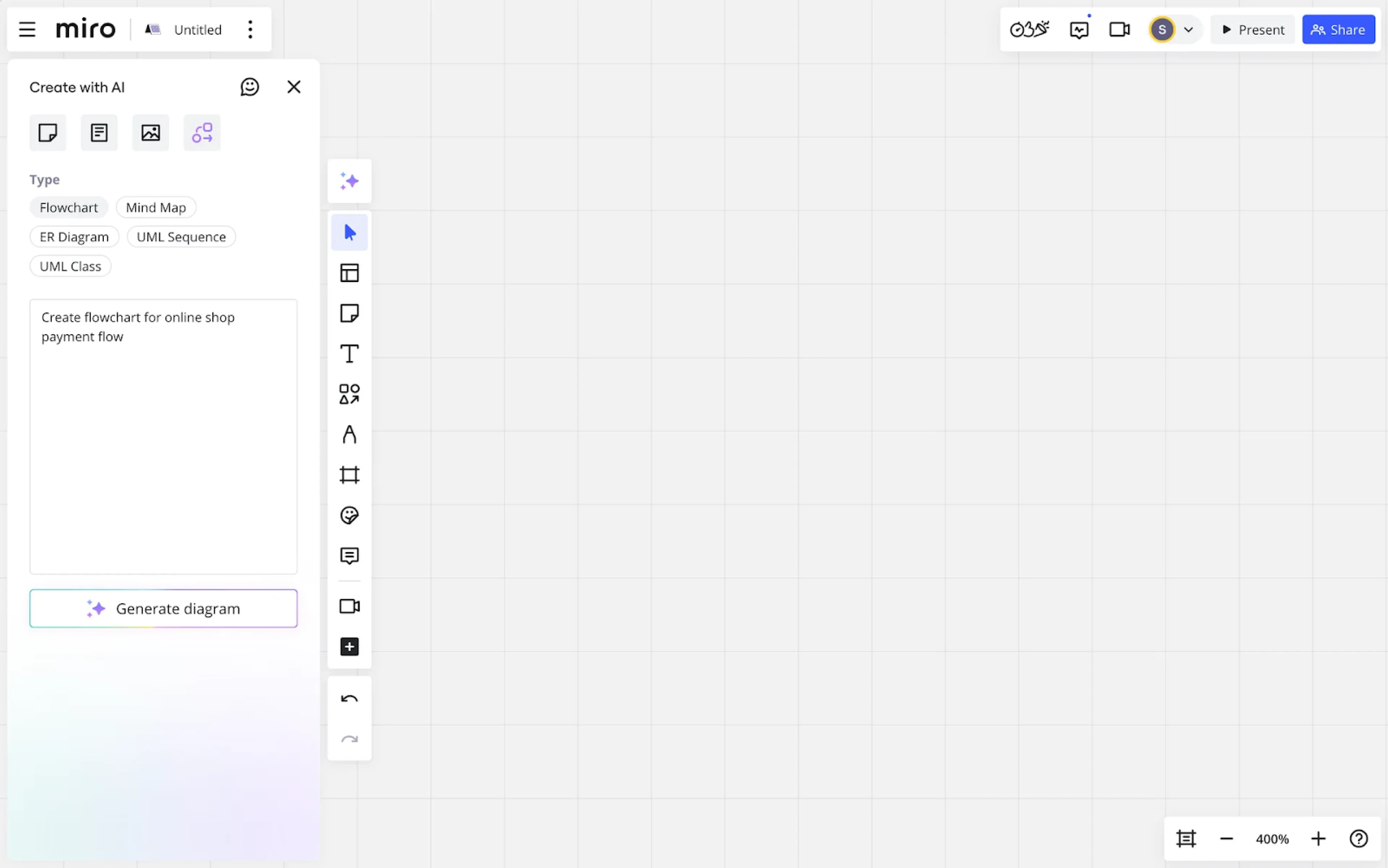
Miro is a visual collaboration platform built around an infinite digital whiteboard where teams can brainstorm, plan, and organize ideas together. At Eleken, we use it to map flows, create user journey diagrams, align on concepts, and run workshops.
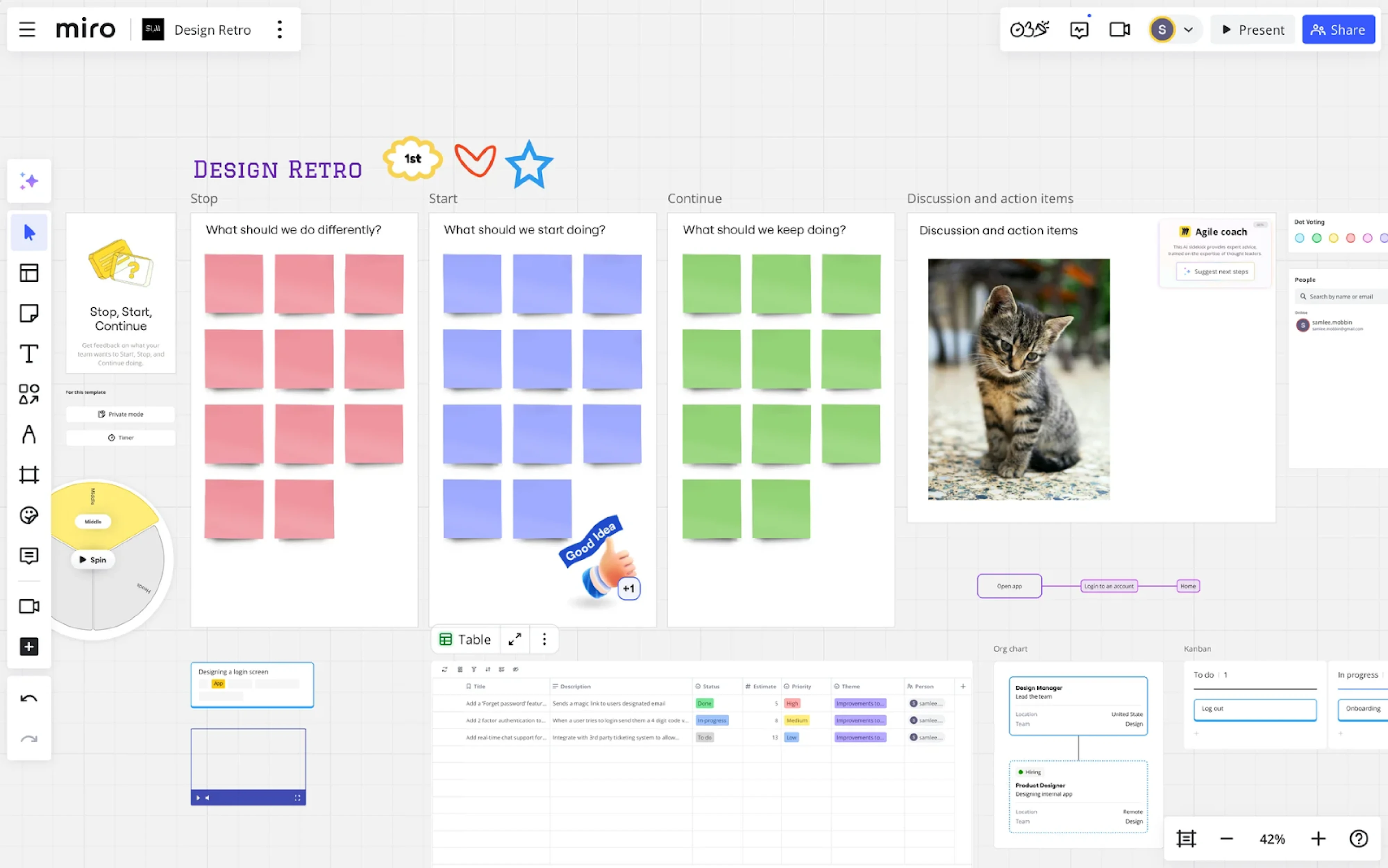
The platform offers a highly flexible canvas designed for collaborative work. Teams can add sticky notes, shapes, mind maps, diagrams, and embedded media onto an unlimited board, while multiple participants interact in real time or asynchronously.
Modern enhancements like AI-assisted features let teams generate diagrams, summaries, and thematic clusters automatically.
Pros:
- Provides a flexible infinite canvas.
- Supports real-time and asynchronous collaboration.
- Includes a large template library.
- Integrates with design and productivity tools.
- Offers growing AI-assisted features.
Cons:
- Can feel overwhelming for first-time users.
- Some advanced features may require paid plans.
FigJam
FigJam is Figma’s collaborative online whiteboard designed for brainstorming, ideation, and early-stage concept development. Teams can create sticky notes, diagrams, user journeys, and wireframe sketches, then transition into Figma files.
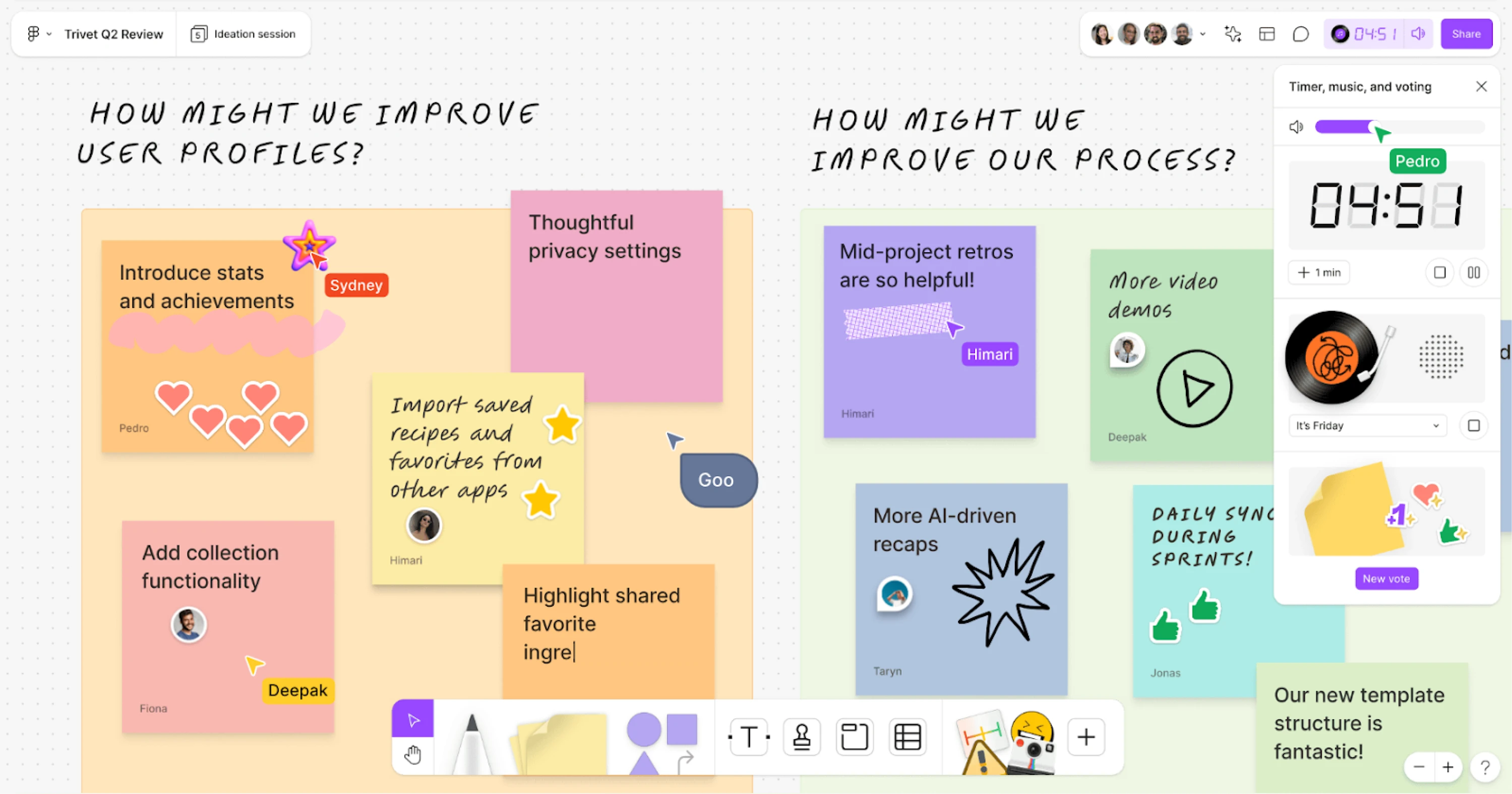
The platform also supports real-time collaboration, comments, voting sessions, and workshop facilitation. Built-in templates help speed up common exercises like user story mapping, retrospectives, and flow mapping.
Additionally, AI-powered features assist with clustering ideas, generating summaries, and organizing workshop outputs.
Pros:
- Integrates seamlessly with Figma design files.
- Supports real-time and asynchronous collaboration.
- Includes built-in templates for workshops and UX mapping.
- Offers AI-assisted idea organization and summarization.
Cons:
- Less flexible than broader whiteboard platforms like Miro.
- Limited advanced diagramming capabilities.
Whimsical
Whimsical is a visual collaboration tool for fast wireframing and structured thinking. It focuses on clarity and simplicity, making it easy to create flowcharts, wireframes, mind maps, and user journeys without getting distracted by excessive features.
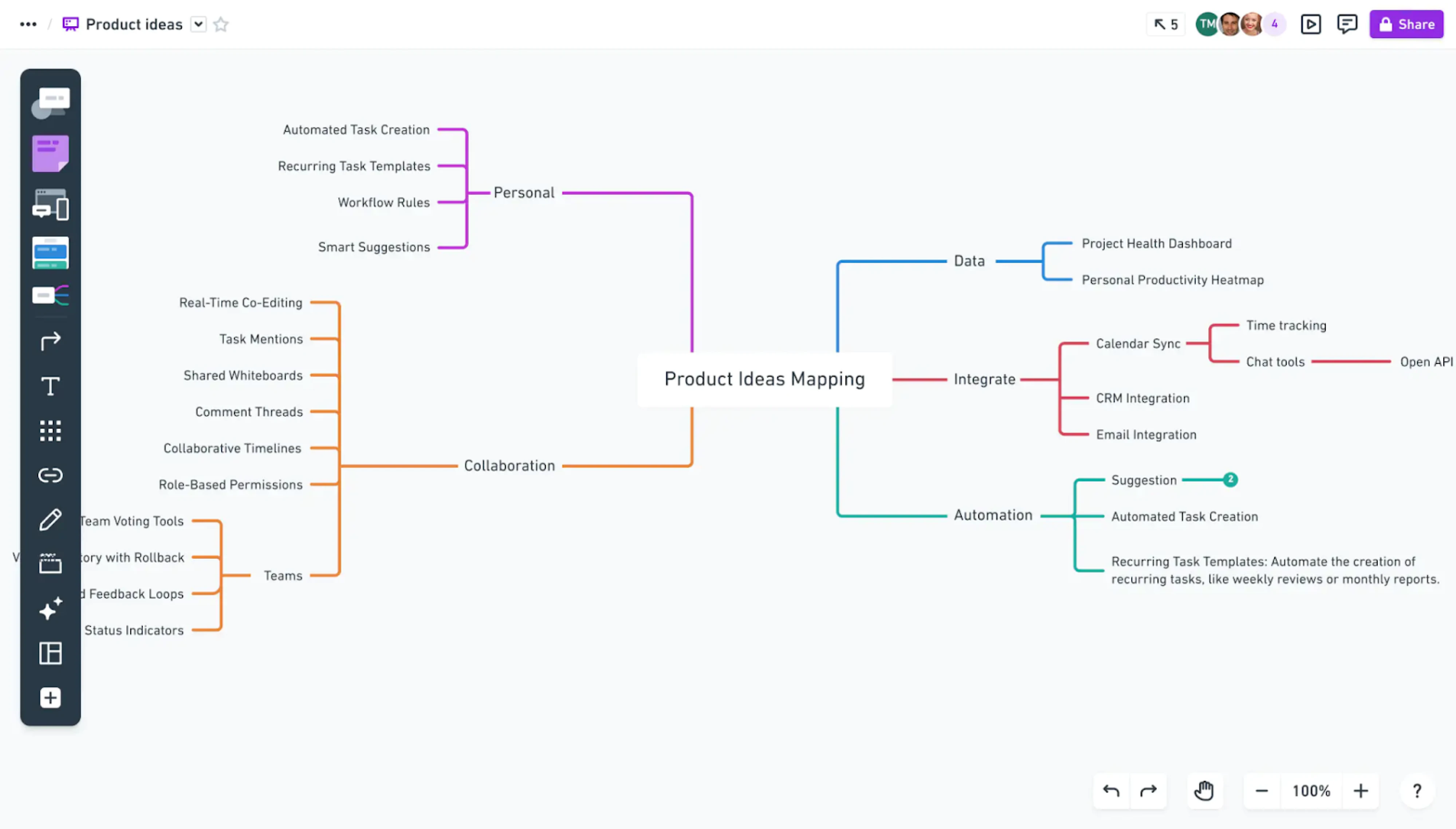
The platform has an intuitive interface, allowing designers to sketch low-fidelity layouts and map product flows quickly. Its wireframe elements are intentionally simple, helping teams focus on structure rather than visual details.
This UX software works well in early-stage ideation, when the goal is to define flows and structure before moving into higher-fidelity design environments.
Pros:
- Provides fast and intuitive wireframing tools.
- Supports flowcharts, mind maps, and user journey mapping.
- Offers a distraction-free interface.
- Enables real-time collaboration and commenting.
Cons:
- Limited advanced design capabilities.
- Not suitable for high-fidelity UI design.
3. UI design tools
In the design world, three tools consistently dominate conversations: Figma, Sketch, and Adobe’s design suite. If you’re building a product that needs to scale, chances are you’ll rely on one of these platforms. Let’s take a closer look at each of them.
Figma
Figma is a UI/UX design platform that has become the industry standard. It combines design, prototyping, and collaboration in a browser-based workspace, allowing teams to design, test, and gather feedback in a single environment.
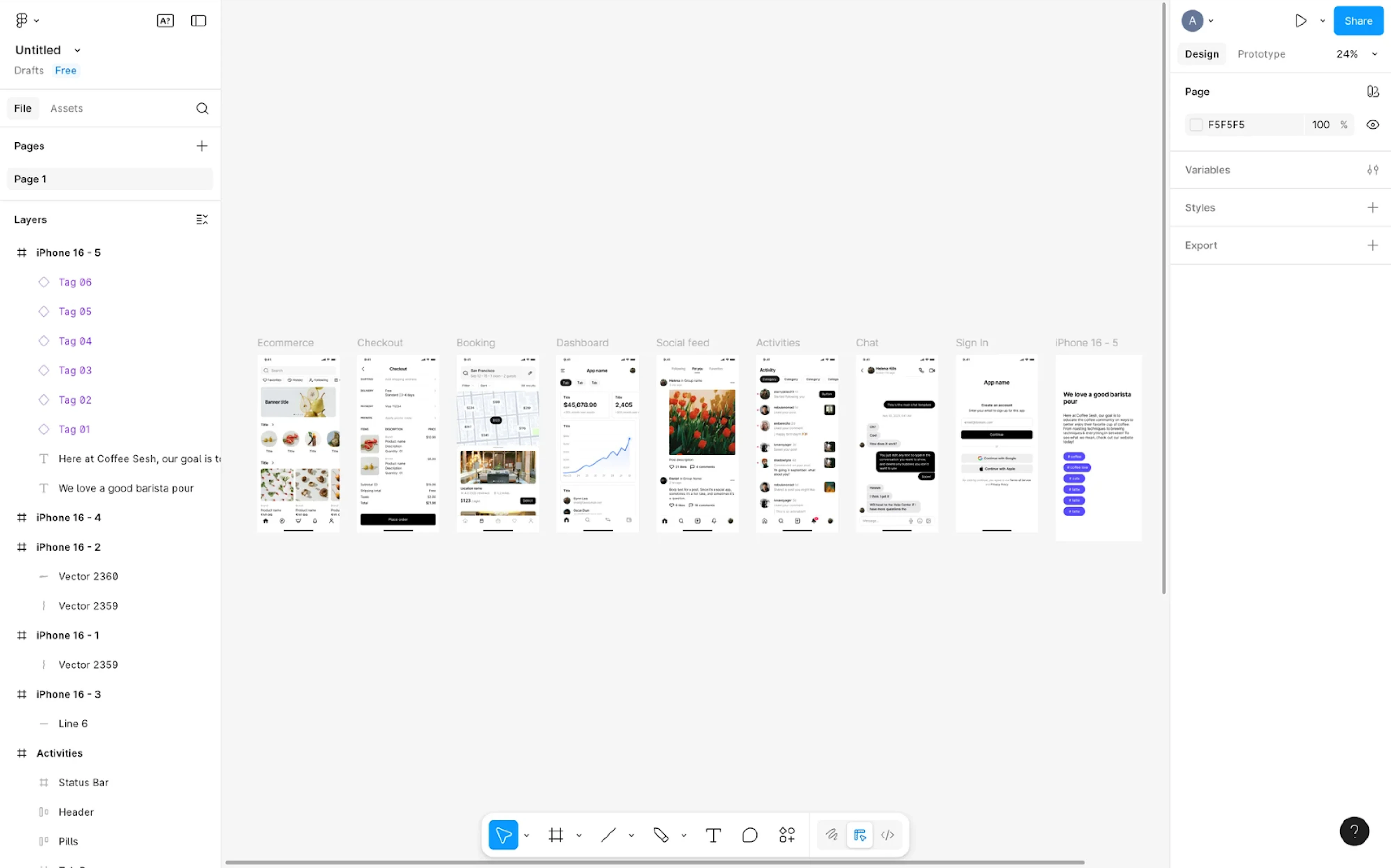
Today, Figma is the №1 UI design tool in most design communities. One of its defining features is real-time collaboration, which allows multiple designers and other stakeholders to work in the same file simultaneously.
Our Eleken team uses Figma as the main design tool for UI/UX work, thanks to its balance of flexibility, collaboration, and robust design system support.
Pros:
- Offers all-in-one vector design, prototyping, and collaboration.
- Enables real-time multi-user editing and feedback.
- Supports reusable components and responsive auto layout.
- Works entirely in the browser with cross-platform accessibility.
Cons:
- Advanced features require paid plans for larger teams.
- Requires reliable internet for best performance.
Sketch
Sketch is one of the pioneers of modern user interface design software. Launched in 2010 as a macOS-native app, it quickly became the go-to tool for designers due to its focused feature set, strong plugin ecosystem, and component-based workflow.
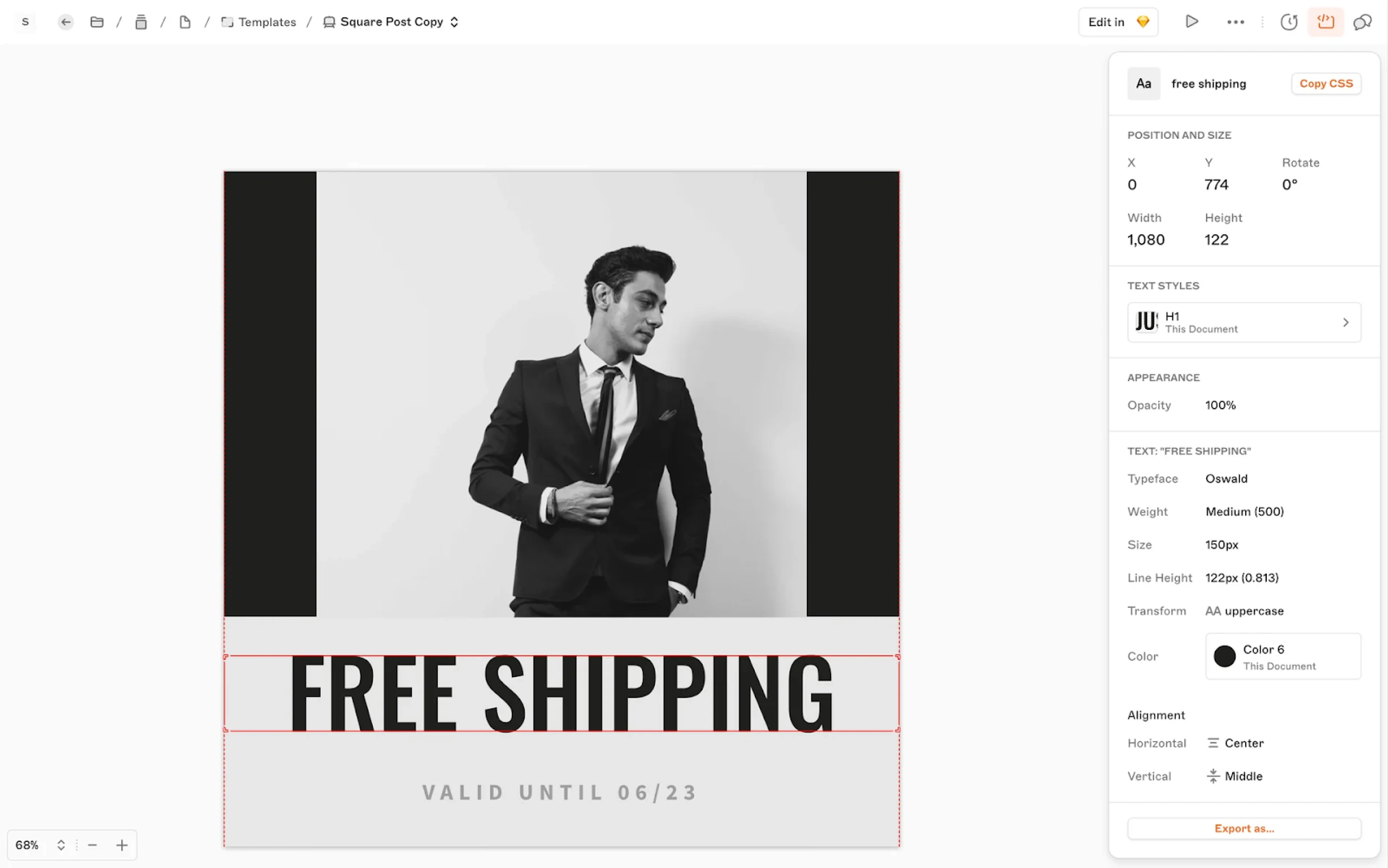
For years, Sketch dominated the UI designer tools landscape, especially among startup teams. Its introduction of symbols (now widely known as components) helped standardize reusable design systems long before they became the industry norm.
While Figma has since taken the lead, Sketch remains a solid option. Eleken designers are familiar with it and can work in Sketch upon client request.
Pros:
- Provides a mature and stable macOS-native UX design app.
- Offers strong vector editing and component capabilities.
- Supports an extensive plugin ecosystem.
- Works well for teams operating within the Apple ecosystem.
Cons:
- Limited to macOS for full design functionality.
- Smaller market adoption compared to Figma today.
Adobe
Adobe’s design ecosystem, particularly Photoshop and Illustrator, has long been a cornerstone of digital design. While these tools are not traditional UI/UX platforms, they still play an important role in many product design workflows.
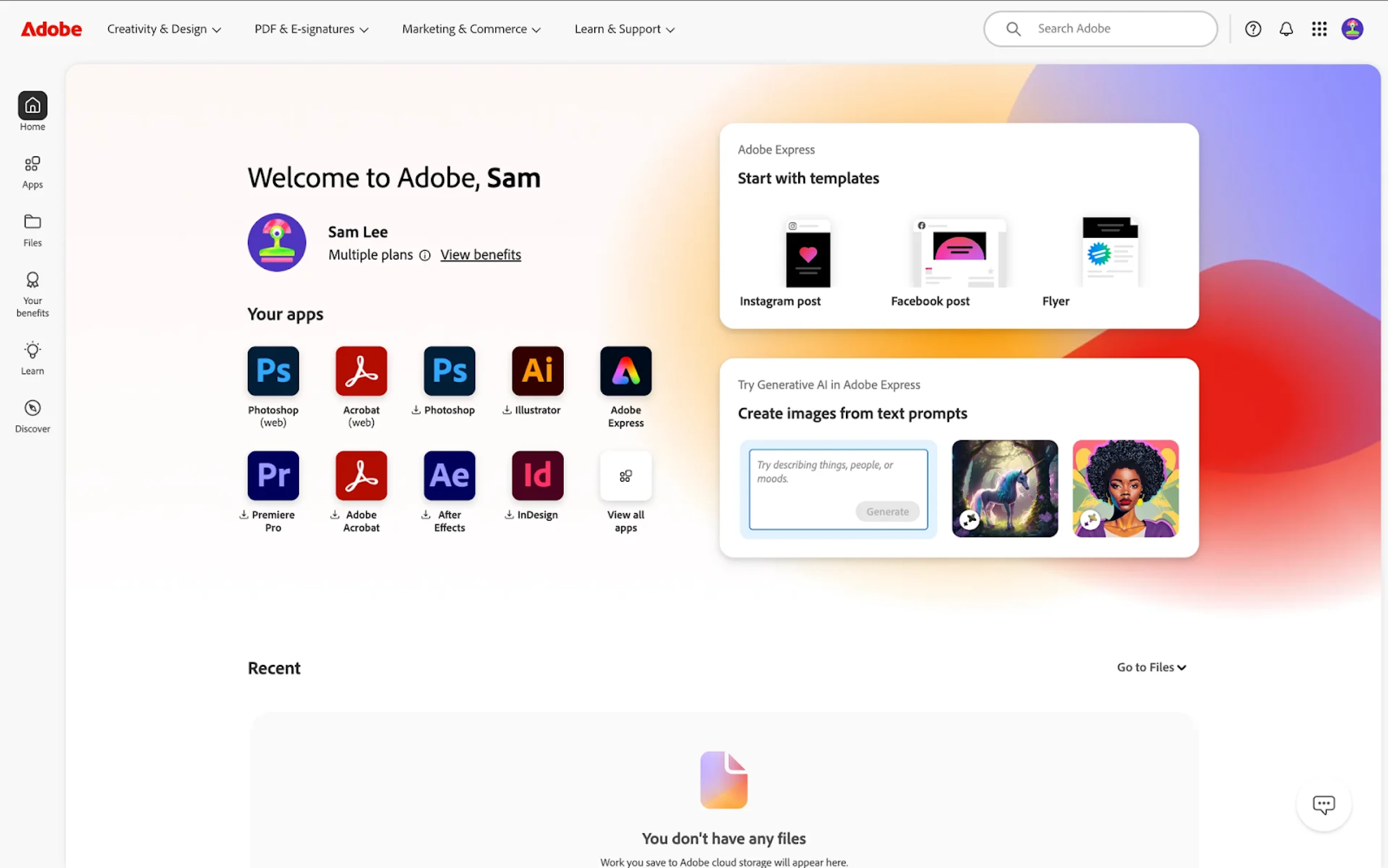
Photoshop is primarily used for photo editing, image manipulation, and visual asset creation. Illustrator, on the other hand, focuses on vector-based design and is widely used for branding, logo design, iconography, and custom illustrations.
Although Adobe XD was Adobe’s attempt to compete directly in the UI/UX space, it has been gradually deprioritized in favor of broader Creative Cloud integration.
Pros:
- Provides advanced raster and vector editing capabilities
- Supports high-quality asset creation for branding and marketing.
- Integrates within the broader Adobe Creative Cloud ecosystem.
- Offers industry-standard tools for image and illustration work.
Cons:
- Not optimized for full UI/UX workflows.
- Collaboration features are less seamless.
4. Prototyping tools
Once you have a fully designed product, building a prototype is a smart next step. It allows you to simulate real user flows and validate interactions before development begins. The following tools are designed to help you do exactly that.
Figma prototyping
Figma’s built-in prototyping features allow designers to turn static screens into interactive experiences. Because prototyping is fully integrated into the same file where UI design happens, teams can move quickly without switching tools.
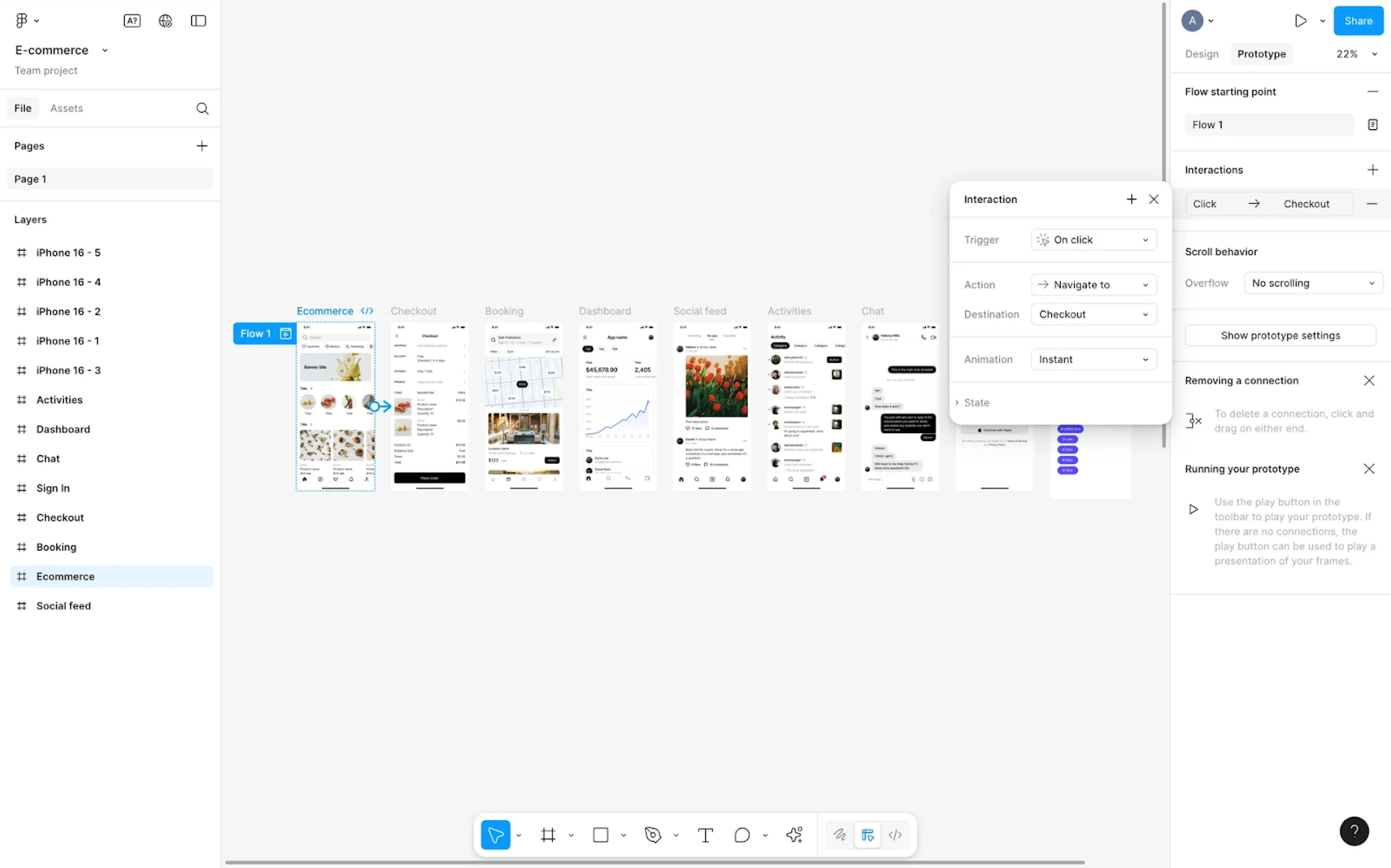
Features like Smart Animate enable motion and state changes, helping teams visualize how elements behave. Interactive components and variants also support hover states, toggles, dropdowns, and conditional flows.
Prototypes can be instantly shared via a link, allowing stakeholders to review flows, leave comments, and test interactions.
Pros:
- Integrates prototyping directly within the design environment.
- Supports interactive components and Smart Animate transitions.
- Enables quick sharing and feedback via browser links.
- Works well for both low- and high-fidelity prototypes.
Cons:
- Limited advanced logic compared to specialized prototyping tools.
- Complex interactions may require workarounds.
Framer
Framer is a tool originally known for its code-based capabilities. Over time, it has evolved into a visual builder that allows designers to create interactive prototypes with real layout behavior and responsive logic.
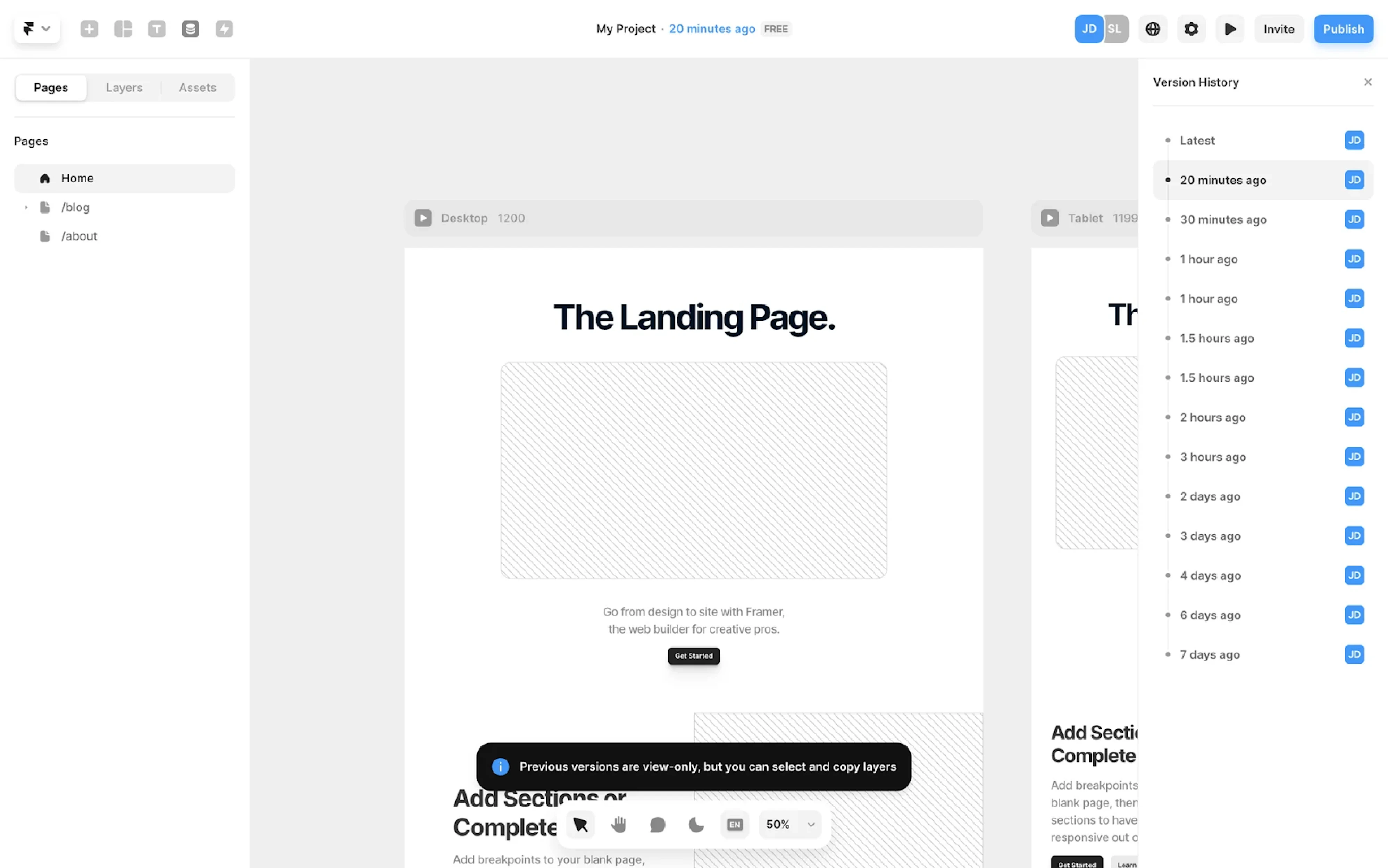
The platform includes built-in hosting and publishing capabilities. Designers can turn prototypes into live, shareable websites without involving developers, which makes it appealing for landing pages, marketing sites, and interactive demos.
While Framer offers strong visual capabilities, it leans closer to a website builder than a traditional UX prototyping tool.
Pros:
- Enables interactive prototypes with real layout behavior.
- Supports responsive design and breakpoints.
- Includes advanced animations and interaction capabilities.
- Allows publishing and hosting directly from the platform.
Cons:
- Steeper learning curve compared to basic prototyping tools.
- Can feel closer to a website builder than a UX flow tool.
InVision
InVision was once one of the leading prototyping tools in the UX design space. It became popular for turning static screens into clickable prototypes and enabling designers to share interactive flows with stakeholders.
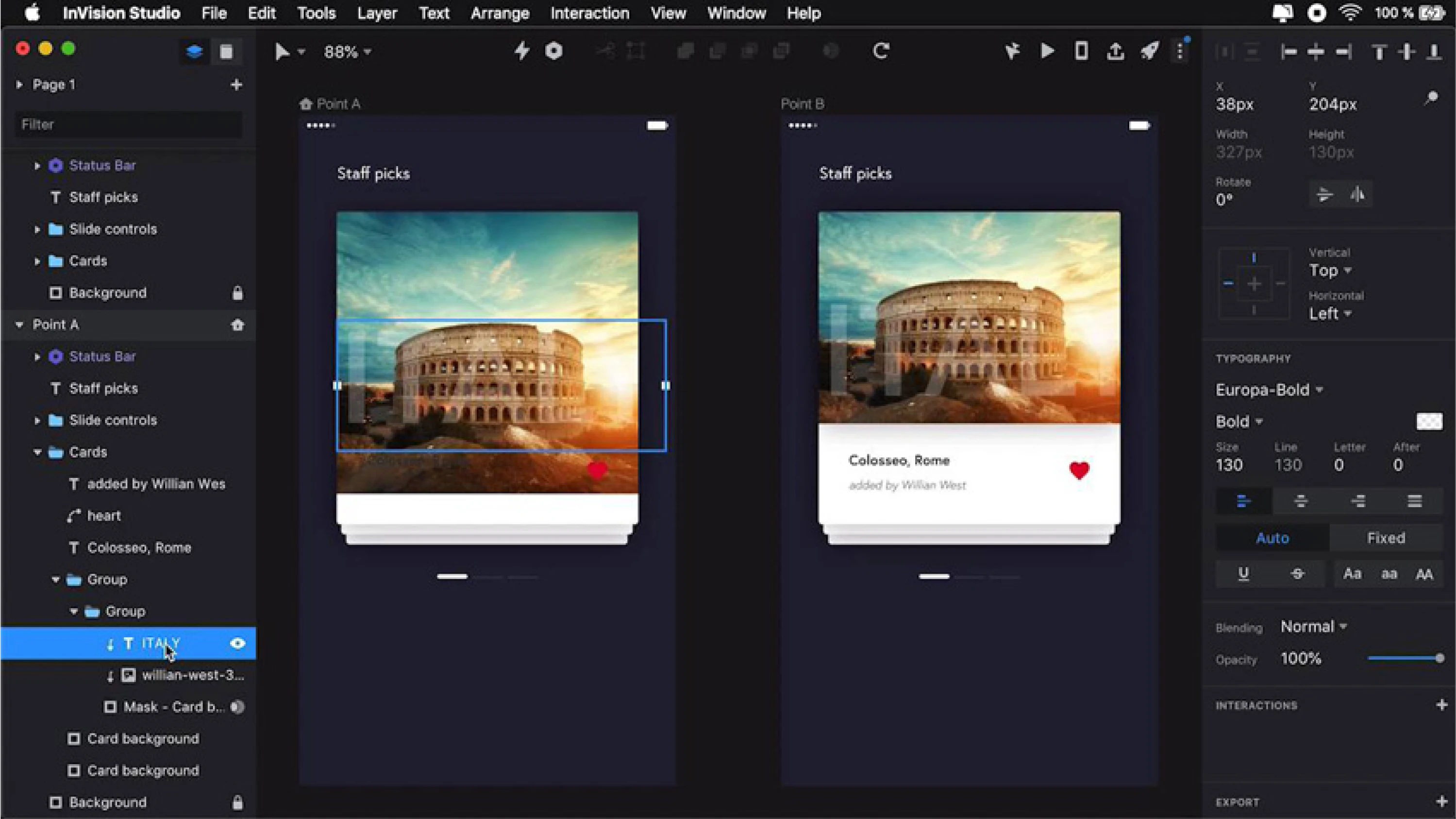
In many cases, prototypes are built directly inside an InVision project owned by the client, meaning designers are invited to collaborate within the client’s workspace.
While modern tools like Figma have largely replaced InVision in many workflows, it can still be a workable option. At Eleken, we prefer using Figma for prototyping, but we can work in InVision when required by client processes.
Pros:
- Allows creation of clickable prototypes from static designs.
- Supports screen linking and user flow simulation.
- Enables centralized stakeholder feedback within projects.
Cons:
- Lacks integrated design capabilities.
- Requires working within client-owned project environments.
5. Collaboration tools
As a designer, your job is to create a product that looks great and works from a UX side. But once the design is finalized, your responsibility is to ensure a smooth handoff to developers. The right collaboration tools make that transition efficient.
Figma dev mode
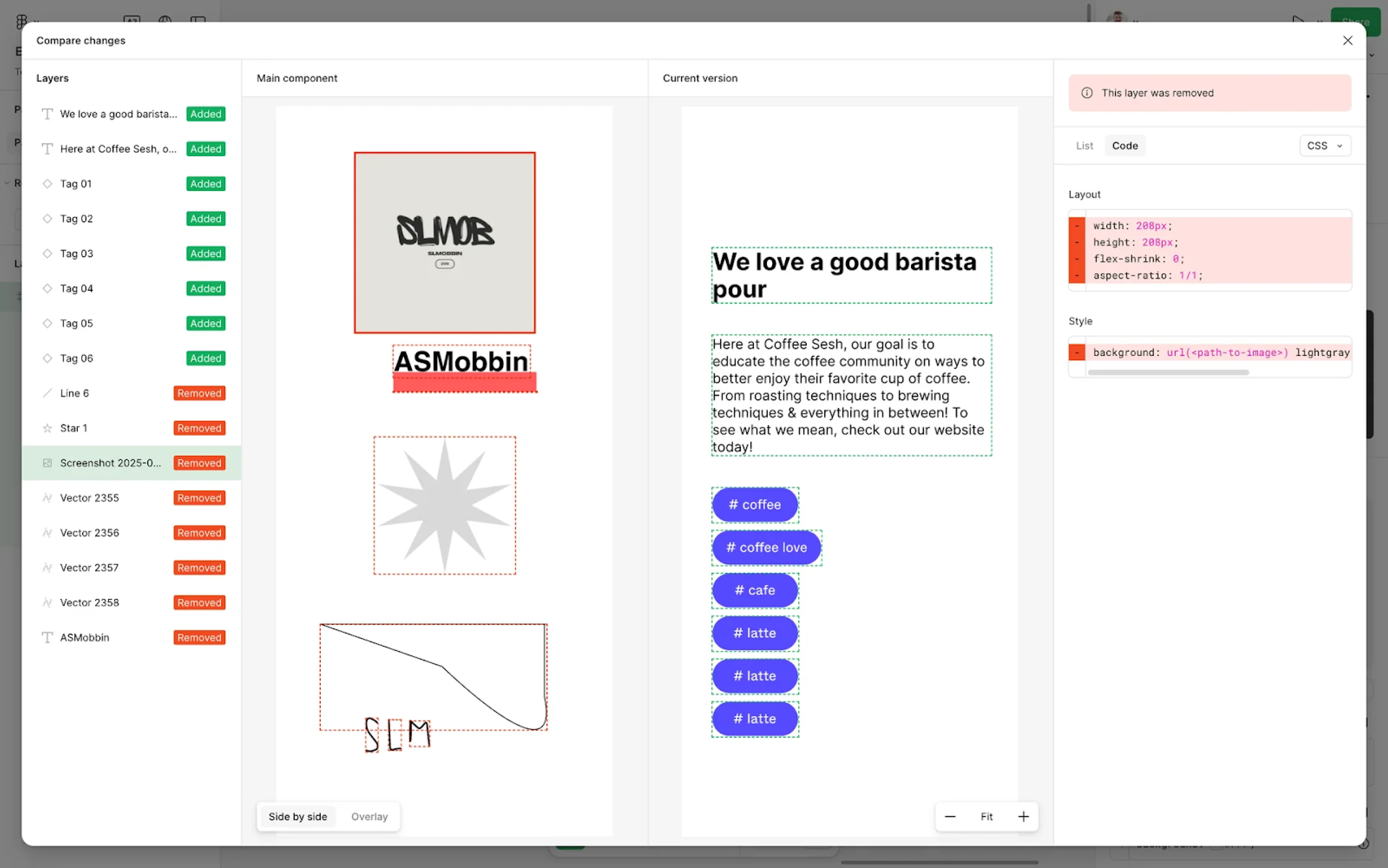
Figma Dev Mode is designed to streamline the handoff process. It allows developers to inspect design files directly within Figma, access measurements, spacing, typography, color styles, and export assets, all in a development-friendly interface.
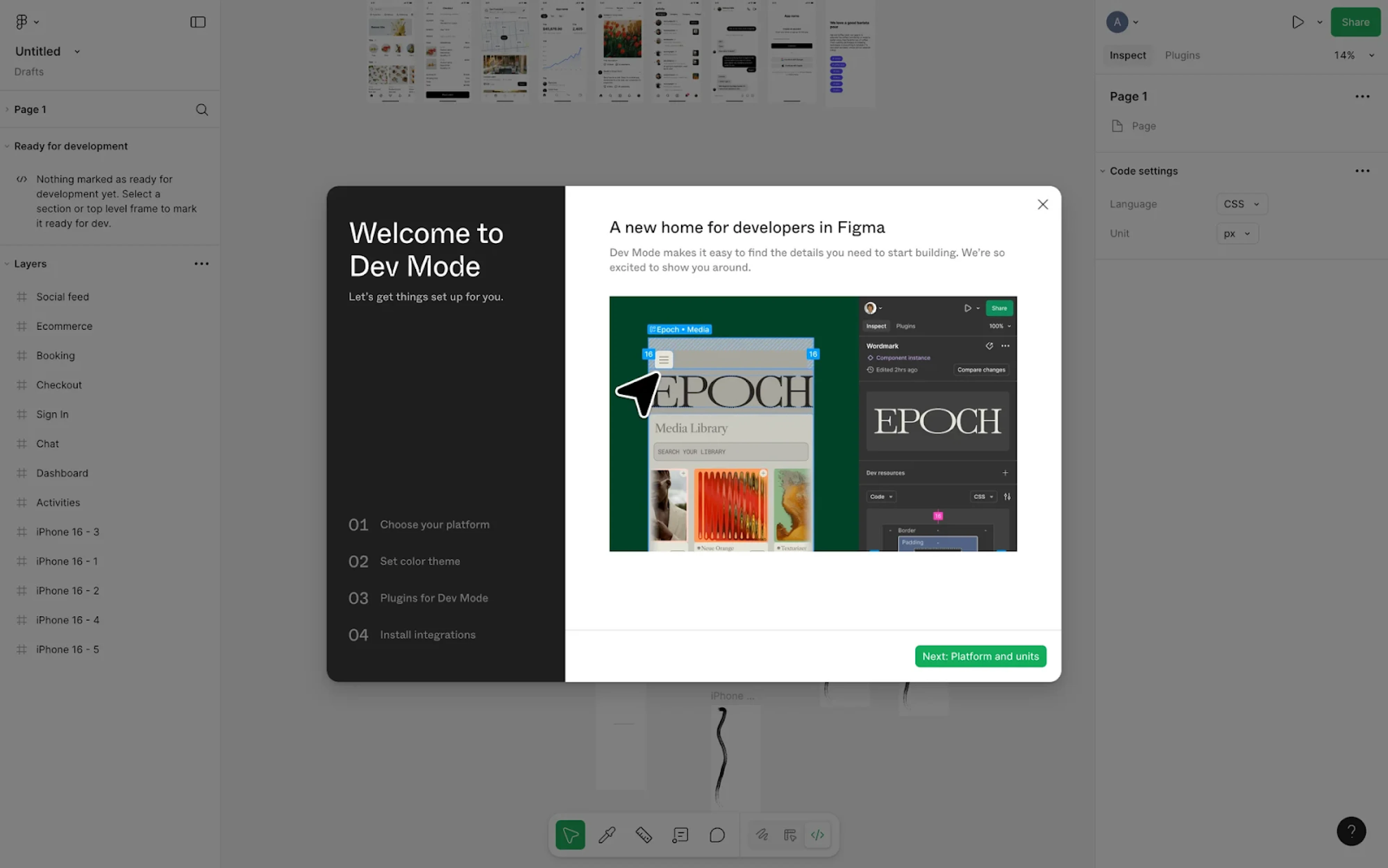
Dev Mode focuses specifically on implementation details. Developers can view CSS, iOS, or Android-ready code snippets, inspect components, and understand layout behavior, reducing potential misunderstandings.
Because Dev Mode is integrated into the same environment where the design was created, it eliminates the need for external handoff tools.
Pros:
- Provides built-in design inspection and developer handoff tools.
- Displays measurements, styles, and exportable assets clearly.
- Generates platform-specific code snippets.
- Reduces dependency on third-party handoff tools.
Cons:
- Requires paid plans for full Dev Mode access.
- Best suited for teams already using Figma.
Zeplin
Zeplin is a collaboration tool built for smooth design handoff to developers. Before Figma introduced built-in inspection modes, the platform was widely used to generate specs, measurements, and style guides from design files.
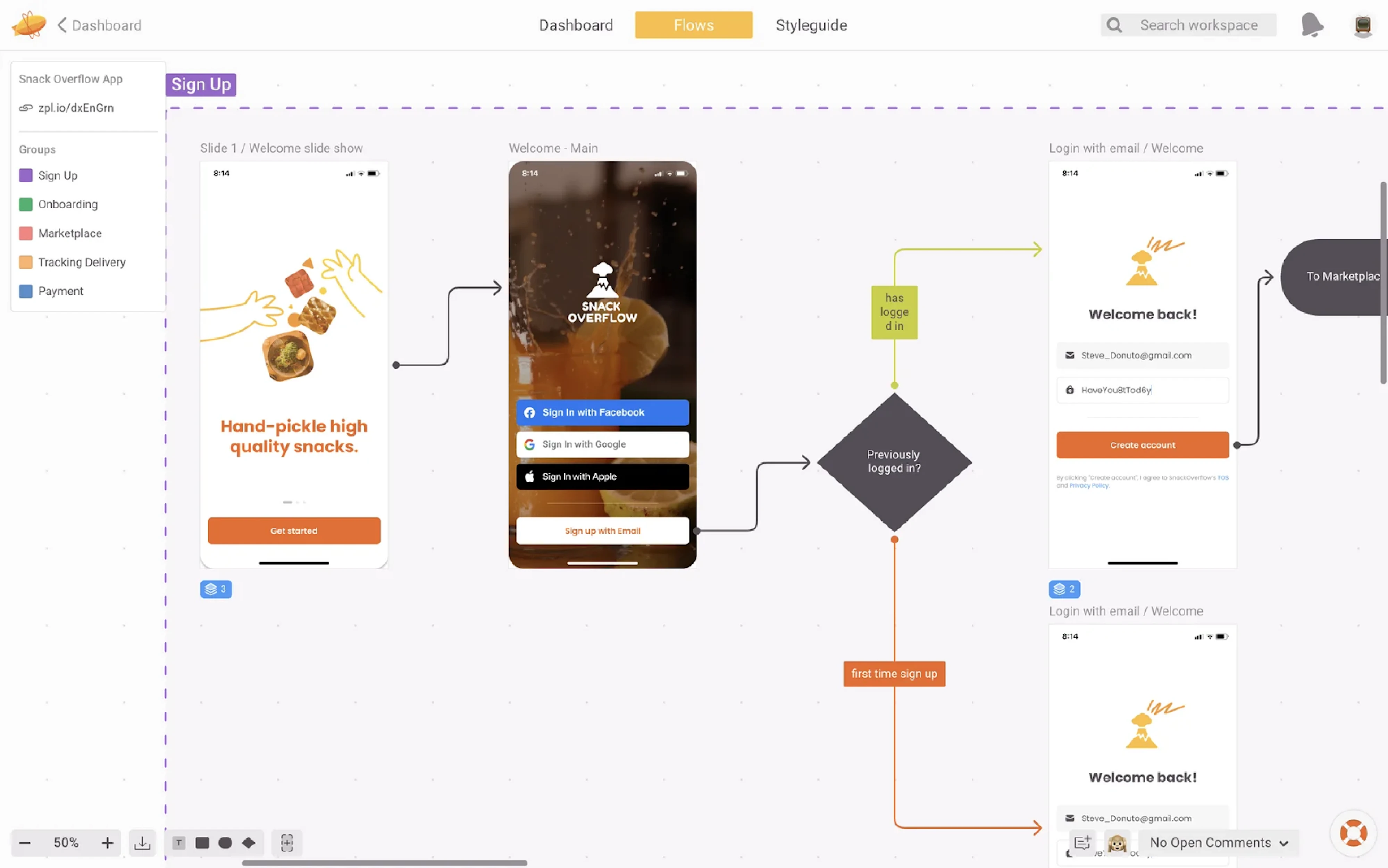
Designers can upload screens from different UI/UX design tools, and the platform automatically extracts spacing, typography, colors, and assets. Developers can then inspect elements, download resources, and access style information.
The software also supports shared style guides and design system documentation, helping teams maintain consistency across products.
Pros:
- Automatically generates specs and measurements from design files.
- Supports asset export and style guide documentation.
- Works with multiple design tools.
- Centralizes feedback and developer collaboration.
Cons:
- Requires manual syncing when designs are updated.
- Less relevant for Figma-native teams.
Zeroheight
Zeroheight is a collaboration tool focused on documenting and maintaining design systems. It helps teams centralize UI guidelines, component usage rules, and brand standards in one structured platform.
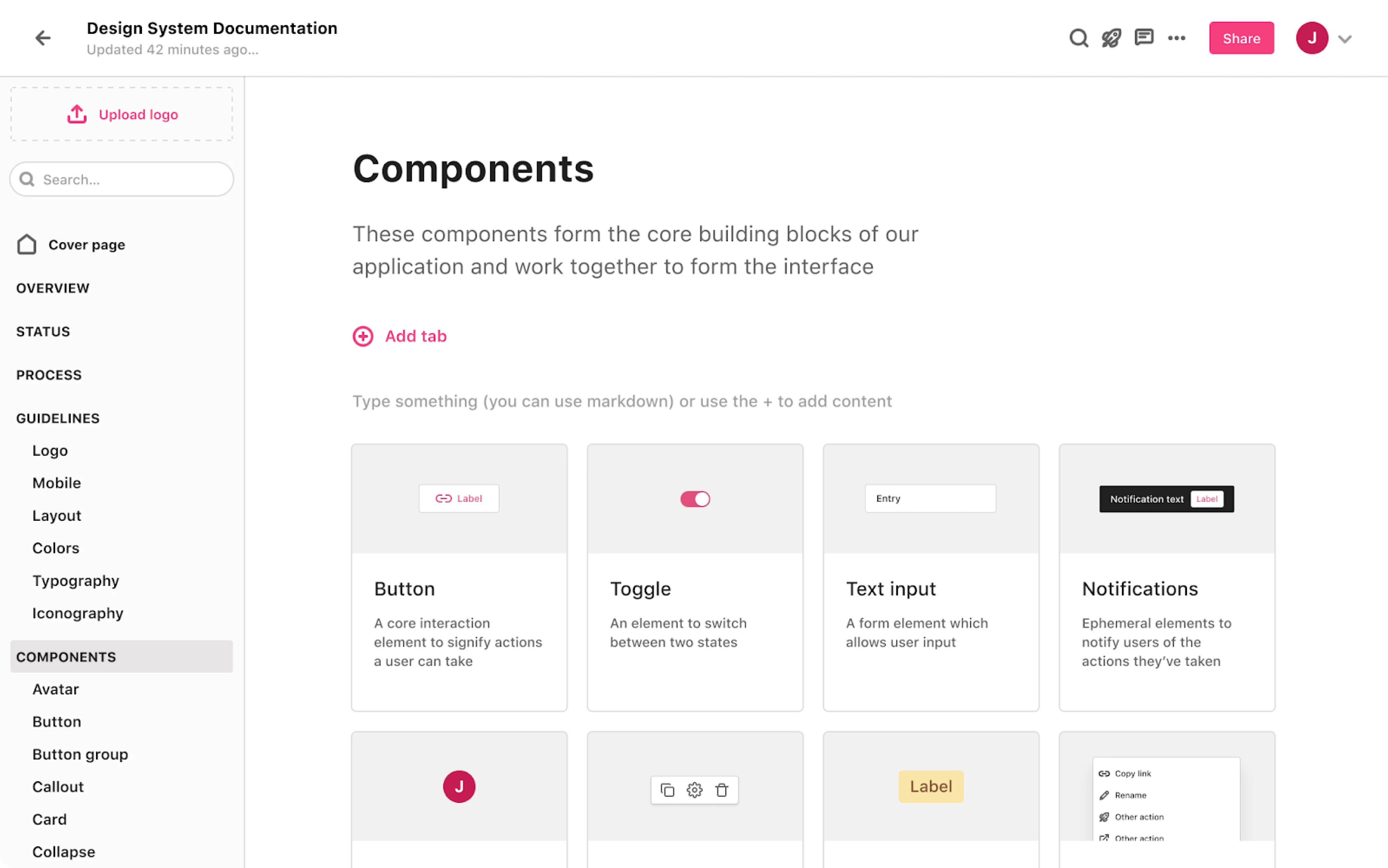
Designers can connect Zeroheight with tools like Figma to embed live components and document how they should be used. The platform allows teams to create structured guidelines, usage examples, and implementation notes.
The software supports versioned documentation and shared design system libraries, helping teams maintain consistency and scale products easily.
Pros:
- Supports structured design system documentation.
- Integrates with Figma for live component embedding.
- Helps align designers and developers around UI standards.
- Maintains centralized and versioned guidelines.
Cons:
- Focused on documentation rather than design creation.
- Requires ongoing maintenance to keep documentation up to date.
What the design community prefers in UX tools
Design communities are one of the best sources of honest insight. When we want to understand what designers truly use day to day, we turn to forums like Reddit.
Across multiple threads, one pattern is clear: Figma dominates. Designers repeatedly mention using Figma for UI design and prototyping, often paired with FigJam or Miro for ideation and journey mapping. As one designer put it:

Another shared:
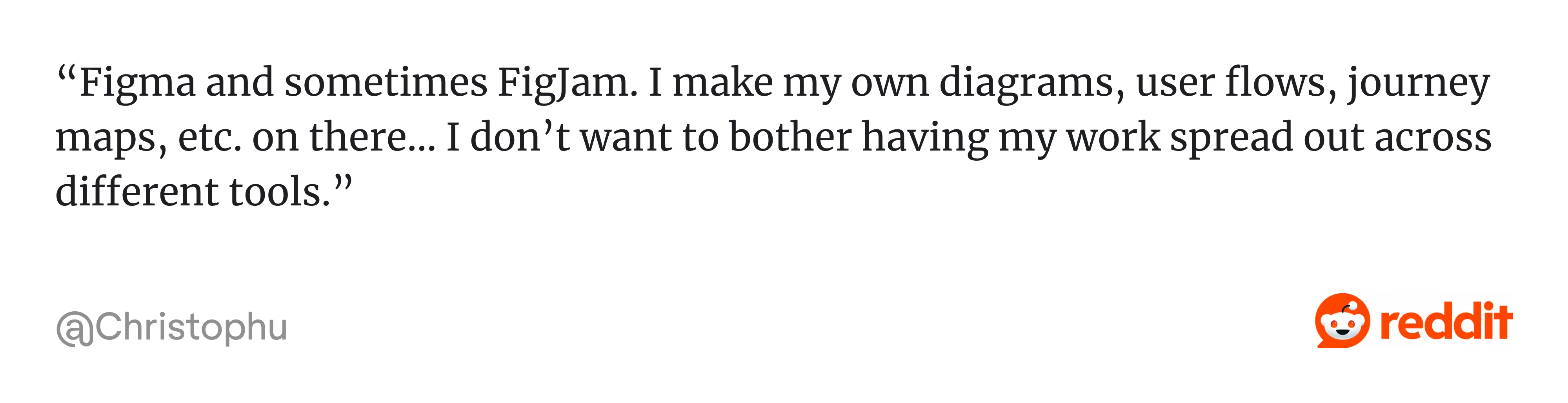
The desire to reduce tool-switching appears frequently. Many designers prefer keeping everything inside Figma when possible.
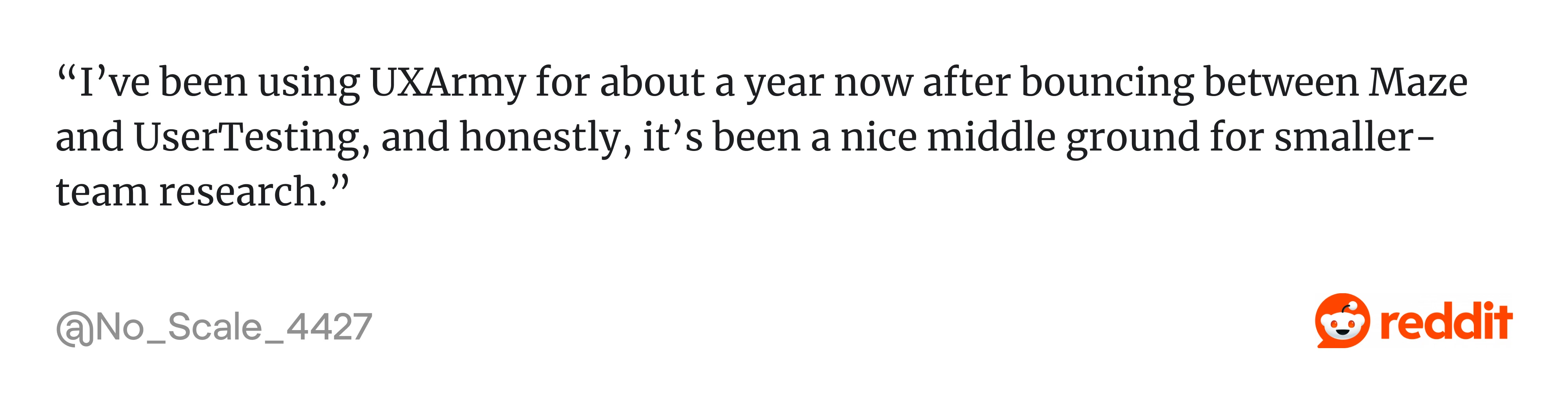
For research, tools like Maze, Lyssna, UXArmy, and Lookback are commonly mentioned. One designer described UXArmy as “a nice middle ground for smaller-team research,” while another noted that Lyssna is “good for tight timelines.”

Interestingly, community threads also reveal many lesser-known tools we don’t often see in mainstream “Top UX Tools” lists. This reinforces an important point: the best tool depends heavily on context, team size, and workflow.
If you’re curious about a new platform, it’s often worth testing it yourself.
One clear takeaway from these discussions is that designers are becoming more pragmatic. They choose tools that reduce friction, speed up collaboration, and simplify research, and many are now incorporating AI into that mix.
AI tools for UX design worth exploring
Across design communities, there’s a consistent sentiment that AI works well for text-heavy tasks. As one designer put it:
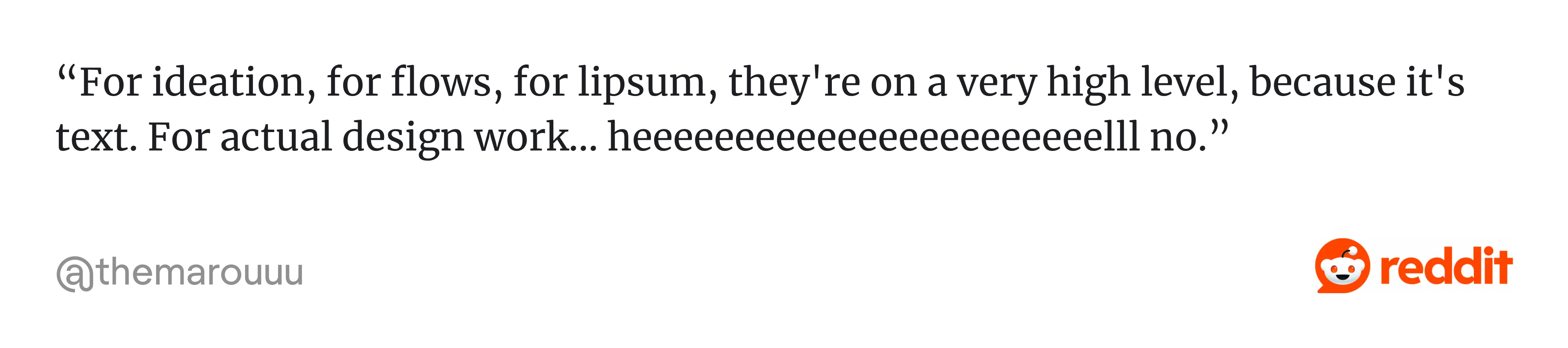
That perspective captures the reality well. AI can help you brainstorm, structure, summarize, and draft. But it can’t replace judgment, context awareness, or real user understanding. With that in mind, let’s look at the useful design tools.
If you’re looking for a broader breakdown, you can explore our list of 40 UX AI tools.
ChatGPT
ChatGPT has become the most widely used AI tool in UX workflows. Many Redditors describe it as a supporting tool across research, ideation, and documentation, helping designers reduce time spent drafting and organizing information.
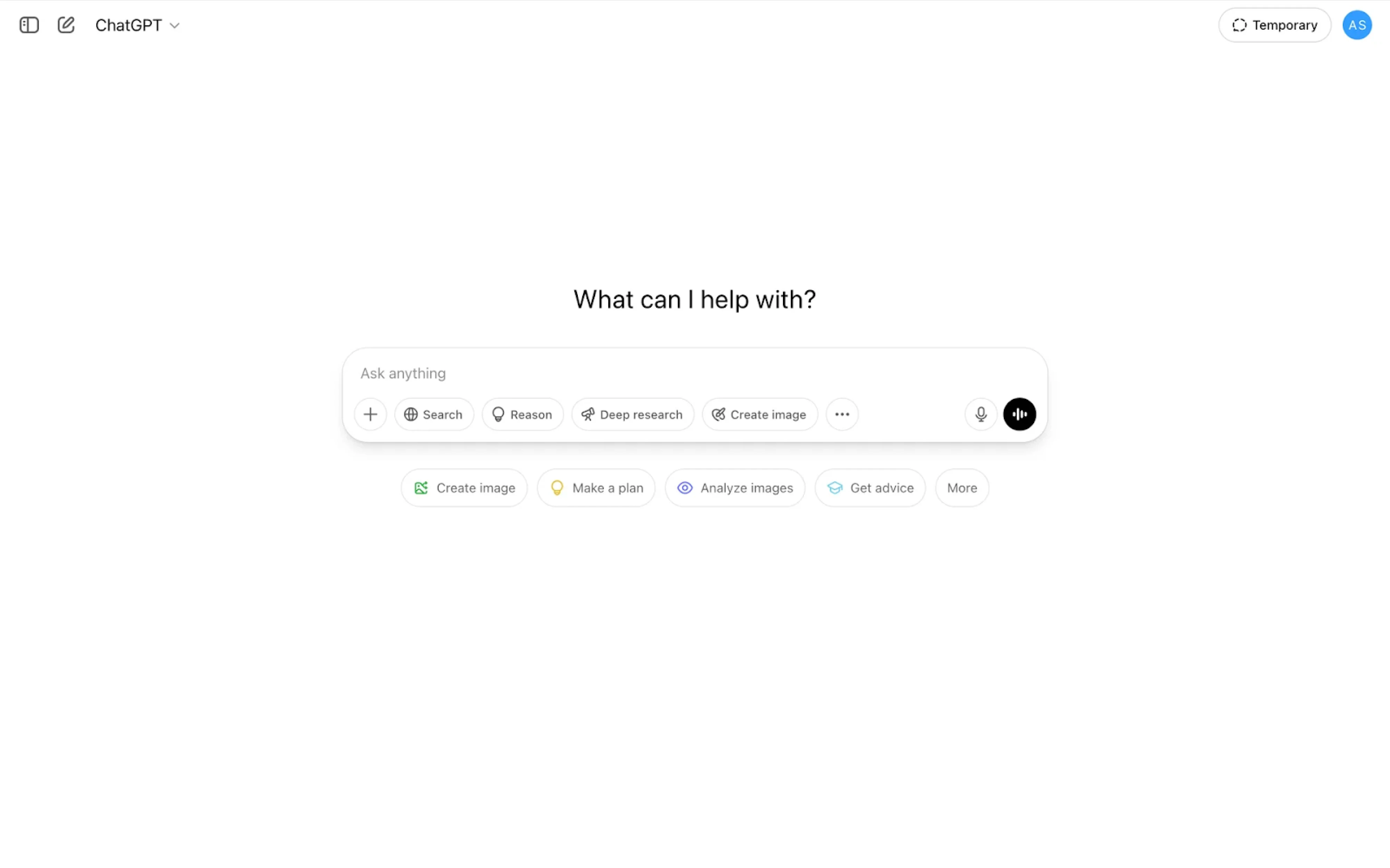
Designers commonly use ChatGPT to:
- Summarize research transcripts and interview notes.
- Generate user personas and empathy maps.
- Draft user flows and feature breakdowns.
- Write UX copy and microcopy variations.
- Rephrase error messages and empty states.
- Create usability test scripts.
- Clean up reports and stakeholder presentations.
However, ChatGPT works best when guided with context. The quality of output depends heavily on how clearly the problem is framed.
Claude
Claude is another AI assistant widely used by designers for research-heavy tasks. While similar to ChatGPT, specialists often turn to Claude when working with longer documents, complex transcripts, or large sets of qualitative data.
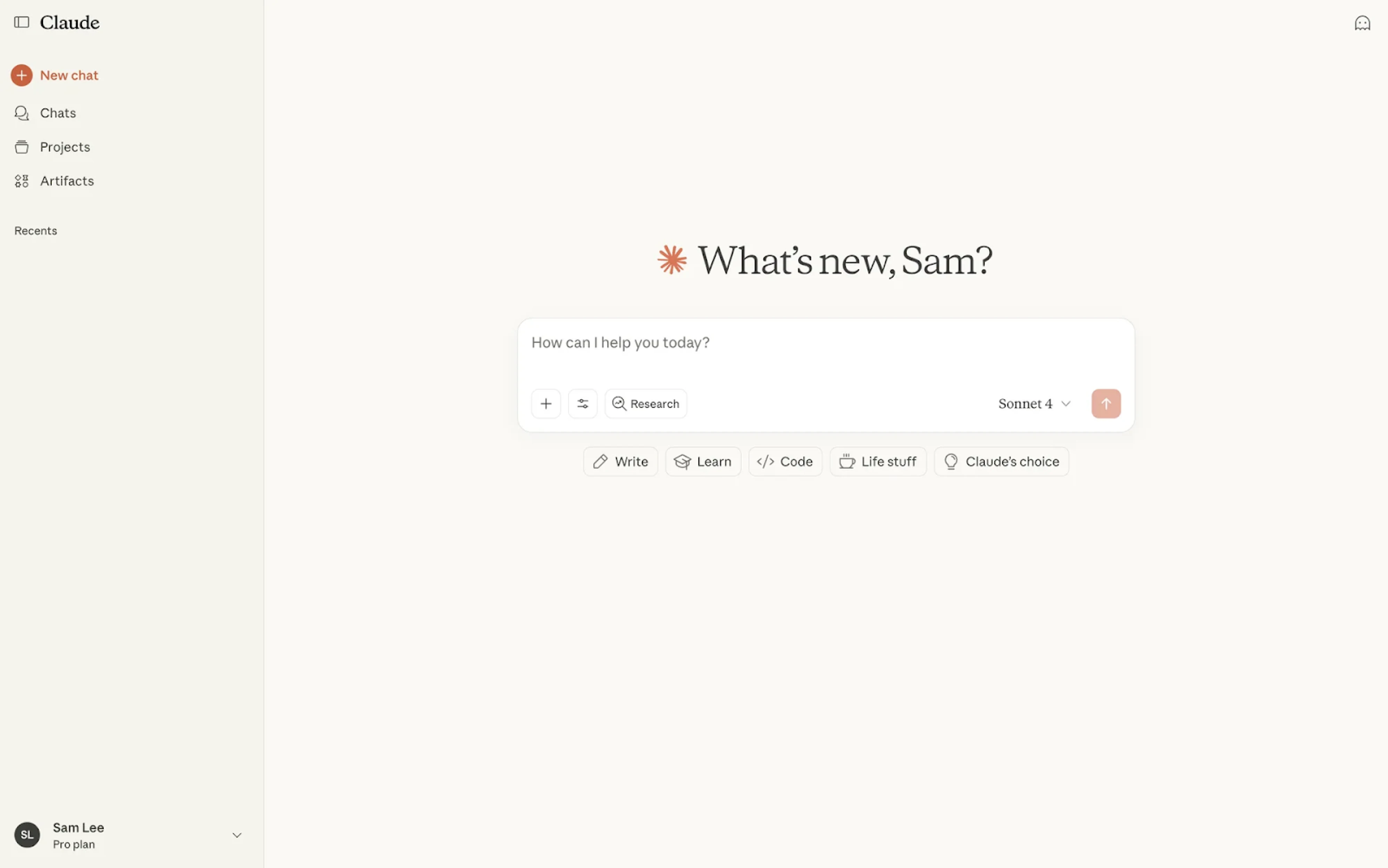
Designers commonly use Claude to:
- Analyze full interview transcripts.
- Cluster qualitative insights into themes.
- Summarize long discovery documents.
- Extract key findings from research sessions.
- Structure research reports and usability findings.
- Compare multiple user interviews to identify patterns.
Like any AI assistant, Claude works best when given clear instructions and sufficient context, significantly speeding up analysis and documentation.
Dovetail
Dovetail is known as a UX research repository and analysis platform, but its AI features have made it valuable for research synthesis. Instead of manually tagging and organizing qualitative data, designers can now use it to accelerate analysis.
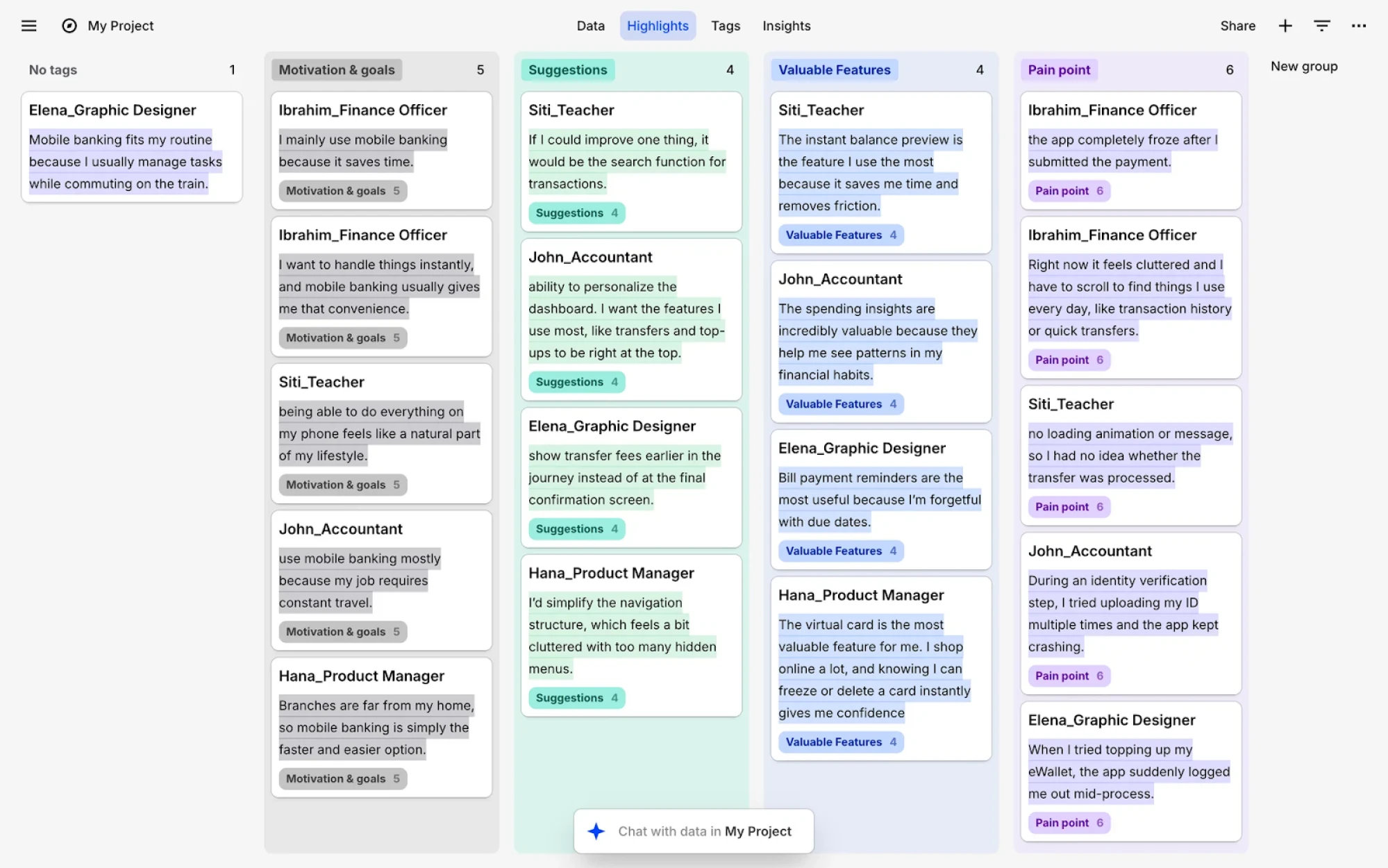
Designers commonly use Dovetail to:
- Automatically transcribe interviews.
- Generate summaries of research sessions.
- Cluster insights into themes.
- Tag and organize qualitative data.
- Extract highlights from long recordings.
- Create structured research reports.
But AI-generated clustering and tagging still require human review. While the tool speeds up organization, evaluation remains the designer’s responsibility.
Galileo AI
Galileo AI is a UI generation tool that creates interface designs from text prompts. Designers can describe a product idea, screen type, or feature, and the software generates structured layouts based on common design patterns.
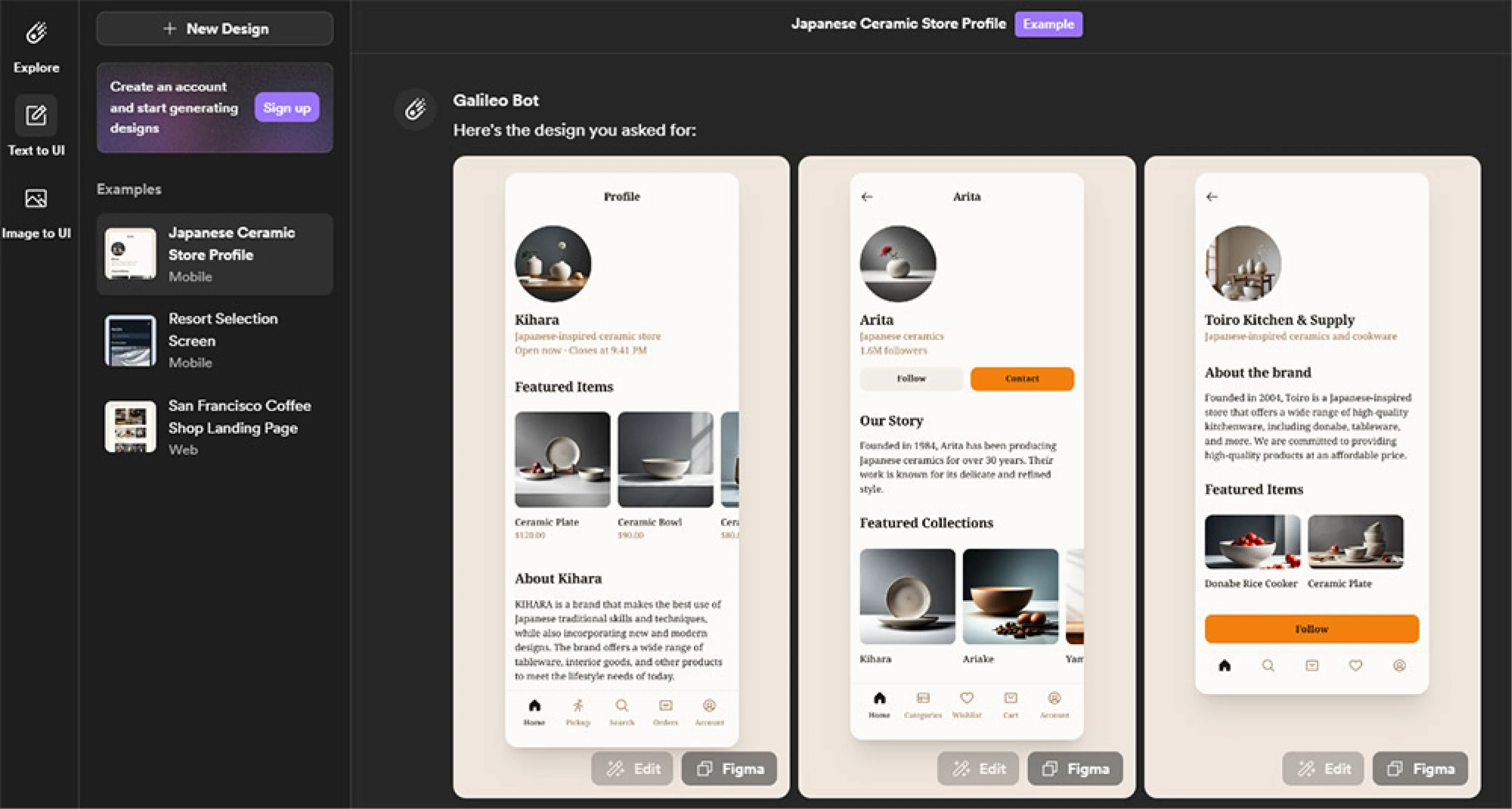
Designers commonly use Galileo AI to:
- Generate initial UI concepts from prompts.
- Explore layout variations quickly.
- Create early-stage wireframes.
- Produce visual drafts for brainstorming sessions.
- Speed up concept validation before refinement.
This AI tool can replicate common design patterns, but it lacks product context and deeper UX reasoning. Designers still need to refine and adapt the layouts.
Uizard
Uizard is a UX design tool that helps turn ideas into wireframes and UI mockups with the help of AI. It is particularly known for transforming text prompts, hand-drawn sketches, and screenshots into editable interface designs.
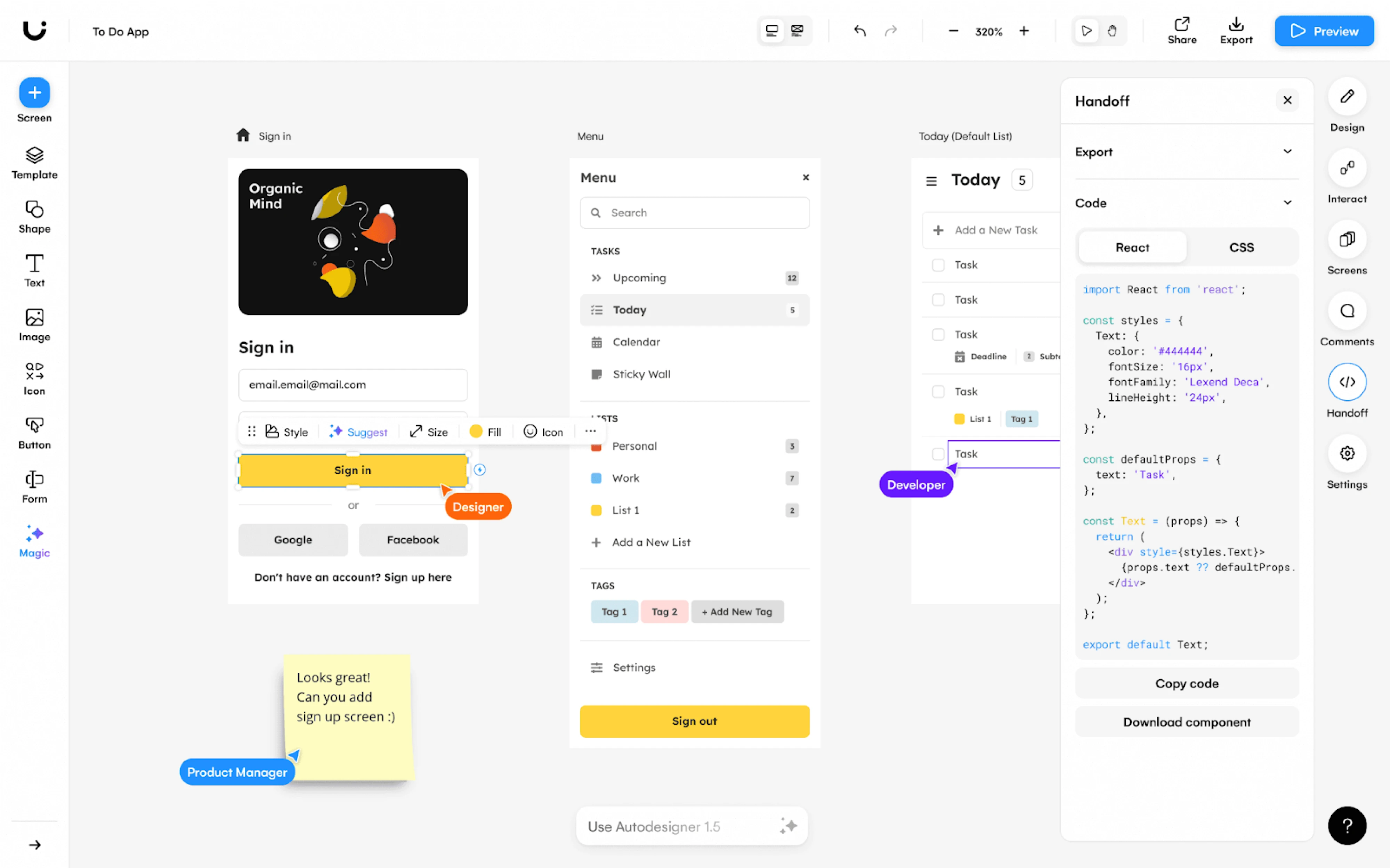
Designers commonly use Uizard to:
- Generate wireframes from text descriptions.
- Convert sketches into digital UI layouts.
- Create low- to mid-fidelity mockups quickly.
- Prototype simple app or website concepts.
- Explore multiple layout variations early in the design process.
As with most AI-driven UX design software, Uizard works best for early exploration. The layouts it generates should still be refined by a designer.
Figma AI plugins
As the leading tool for UI/UX designers, Figma continues to expand its capabilities through AI-powered plugins. These plugins enhance ideation, research, visual refinement, and usability testing, all within the same design environment.
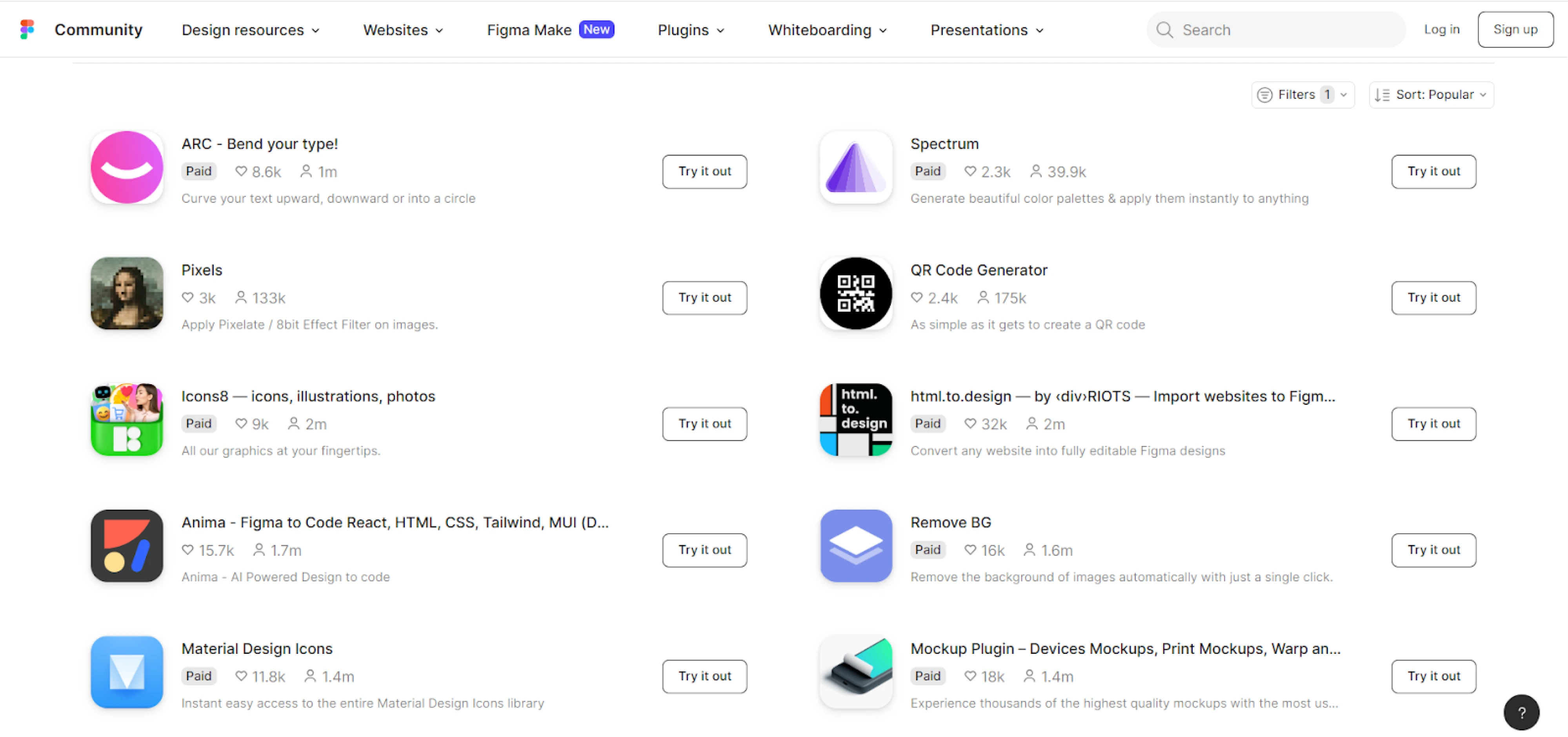
Designers commonly use AI plugins in Figma to:
- Generate wireframes and layout suggestions.
- Create personas and UX artifacts.
- Generate UI copy and placeholder content.
- Produce color palettes and accessible combinations.
- Simulate user attention with AI heatmaps.
- Generate icons, illustrations, and quick visual assets.
Using AI through plugins keeps the workflow centralized. Designers don’t need to switch between external tools and can work inside the UI file.
Runway ML
Runway ML is a creative tool powered by AI, focused on image and video generation, editing, and enhancement. It can support product teams in creating visual assets, motion concepts, and marketing materials.
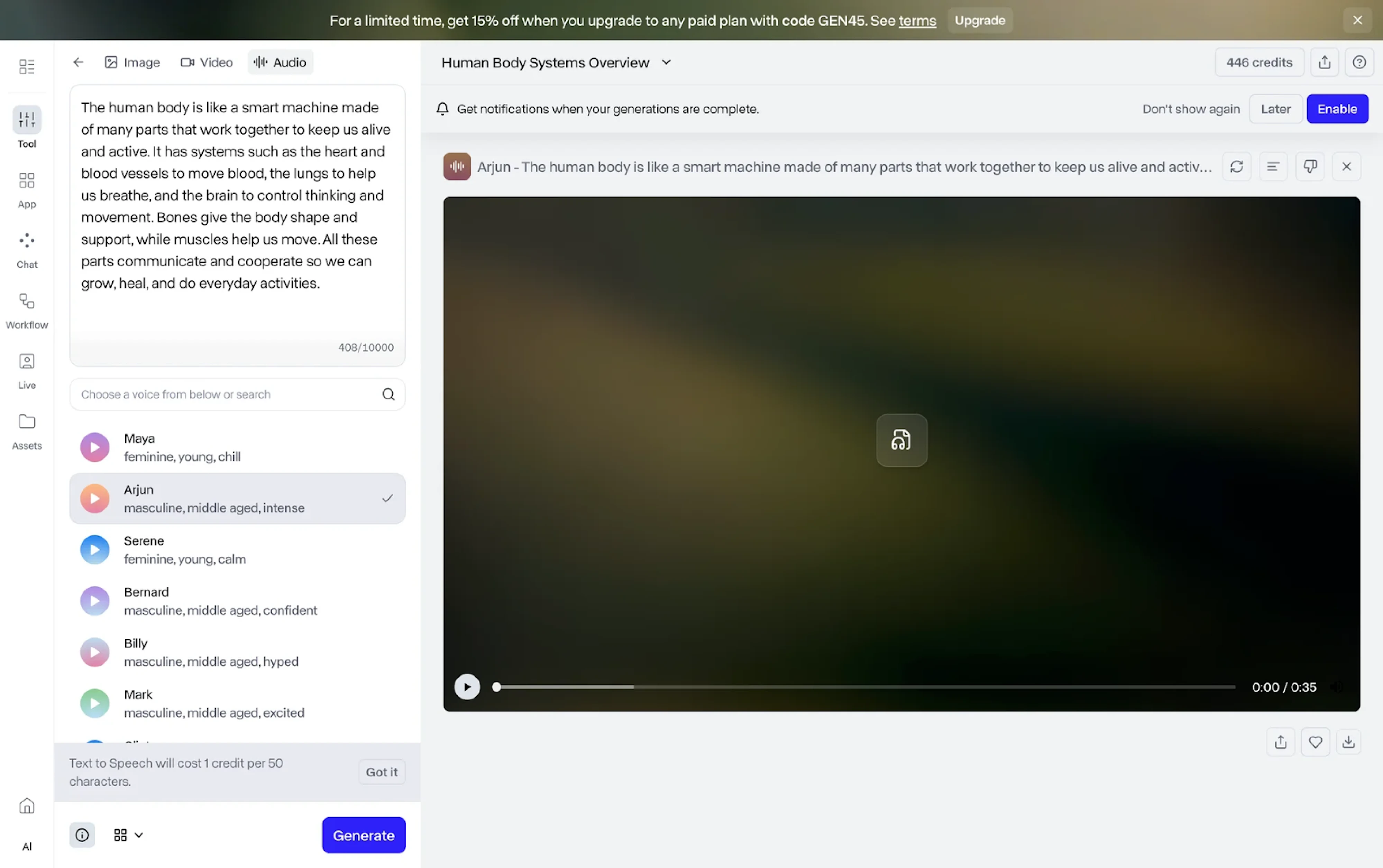
Designers commonly use Runway ML to:
- Generate AI-based images and visual concepts.
- Create and edit short product videos.
- Remove backgrounds or objects from visuals.
- Generate motion effects and animations.
- Produce quick visual assets for presentations or landing pages.
Runway is particularly useful when working on marketing websites, product demos, or promotional materials that require dynamic visuals.
Wrap up
The pool of UX design applications keeps expanding with new AI platforms appearing every year (if not faster). As a designer, you can stay aware of what’s happening in the market, but rely on the tools that bring real value to your process.
In our work, we treat AI as an accelerator to draft faster, synthesize research, and explore ideas. But when it comes to building scalable products, we rely on established UX applications, structured workflows, and strong design systems.
AI can speed things up.
It can’t replace clarity of thinking.