

What if your mobile app is losing users not because it lacks features, but because using those features takes too much effort?
A button that's hard to tap, a feature buried in menus, or a task that takes ten steps instead of three might seem like minor UX issues. But together, they create enough friction to make users leave, often without explaining why.
That's where mobile UX design makes a difference. At Eleken, a mobile UX design agency for SaaS products, we help teams make mobile workflows easier to navigate and complete, so users can get value from the features they've built.
In this article, we'll explore practical mobile UX design principles, real-world examples, and common usability mistakes, along with concrete ways to fix them and keep users coming back.
Understanding UX design for mobile apps
Mobile UX design process is all about creating intuitive, efficient, and accessible experiences for people using mobile devices like smartphones and tablets. It covers everything from how users navigate an app to how quickly screens load, how easily they can tap buttons, and whether they can complete tasks without unnecessary effort.
Unlike desktop UX, mobile design has to account for a different set of conditions and limitations:
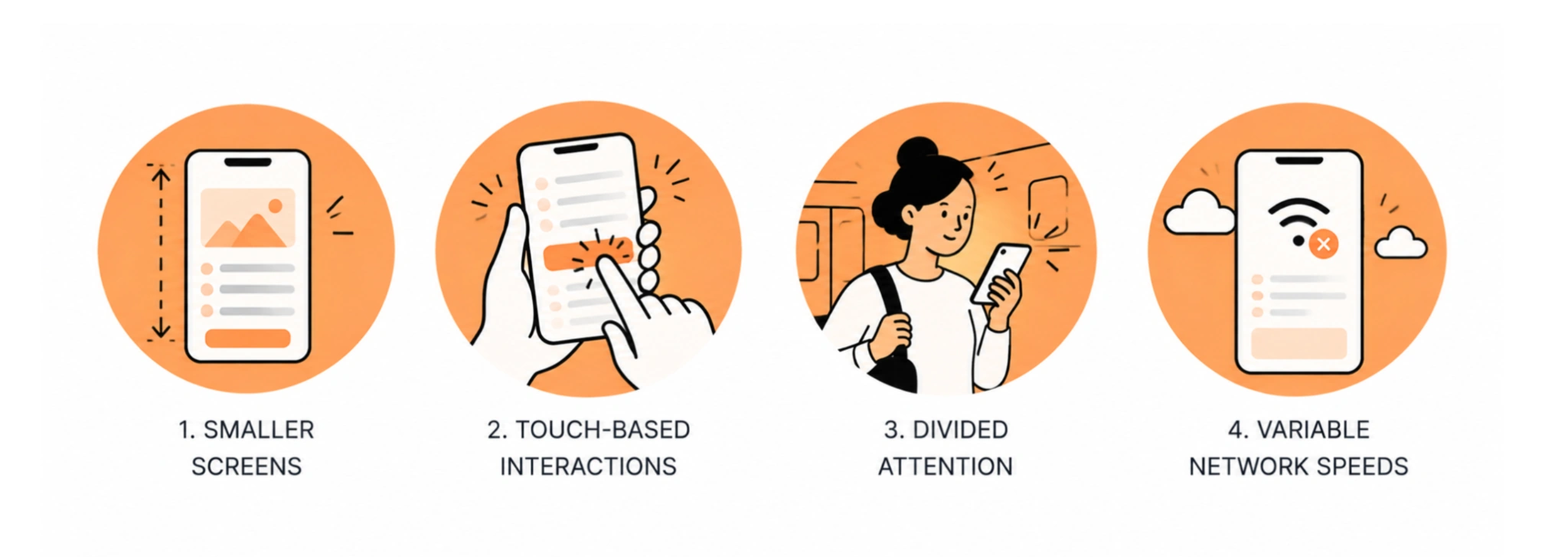
- Smaller screens: Limited space means prioritizing essential content and actions.
- Touch-based interactions: Buttons, menus, and gestures must work comfortably with fingers rather than a mouse.
- Divided attention: Users often interact with apps while walking, commuting, or multitasking.
- Unpredictable connections: Apps need to remain usable even when network speeds fluctuate.
This is also why mobile UX goes beyond responsive design. Shrinking a desktop interface to fit a phone doesn't necessarily make it easier to use. Navigation, content hierarchy, and workflows often need to be reconsidered for mobile.
The same applies to a mobile website: fitting content onto a smaller screen doesn't automatically make navigation or task completion easier.
A good mobile user experience requires rethinking how people navigate, interact with content, and complete tasks on smaller screens.
The goal is simple: help users accomplish their tasks with as little friction as possible, regardless of screen size or context.
Why mobile app UI/UX design affects your bottom line
Mobile accounts for 58.99% of global web traffic, making small screens a major point of contact between businesses and their users. Yet even when an app works technically, a confusing user interface can make it difficult to find features, complete forms, or understand what to do next. Instead of reporting these problems, they simply leave.
For SaaS businesses, this friction can affect several key metrics:

- Activation: Complicated onboarding delays the moment users experience the product’s value. A three-minute setup with unnecessary questions, for example, gives users more opportunities to abandon the process than a focused 60-second flow.
- Retention: When everyday tasks involve clunky navigation or too many taps, users have fewer reasons to return, even if the product offers useful features.
- Conversions and revenue: Slow loading, difficult forms, and unclear CTAs can interrupt purchases, upgrades, and other revenue-generating actions.
- App ratings and trust: Repeated usability problems make a product feel unreliable, increasing the risk of negative reviews and users switching to competitors.
Just picture an app with 40,000 registered users, but fewer than 10% use it regularly. It may offer all the functionality users need, but that functionality provides little value if it's hard to find or use on a phone. And because users often leave without explaining why, teams may not realize what’s holding them back.
Low engagement, abandoned tasks, and declining retention may be the first signs that the experience needs attention.
Improving mobile UI/UX design isn't just about making screens easier to use. It's about understanding where users get stuck, and removing the obstacles that prevent users from experiencing value and giving them a reason to stay.
Core mobile app UI/UX design principles
Good mobile UX starts with understanding how people actually use their phones and what user expectations those habits create. They're often holding a device in one hand, switching between tasks, and expecting to find what they need without much thought.
These four principles help make that possible.
1. Give each screen one clear purpose
When a mobile screen is packed with buttons, banners, and competing calls to action, users have to figure out what deserves their attention.
Instead, make the primary action obvious and keep secondary options less prominent. This doesn't mean every screen can support only one action. It means users should immediately understand what they can do next.
A minimalist UI helps by removing visual distractions and giving the most important actions room to stand out.
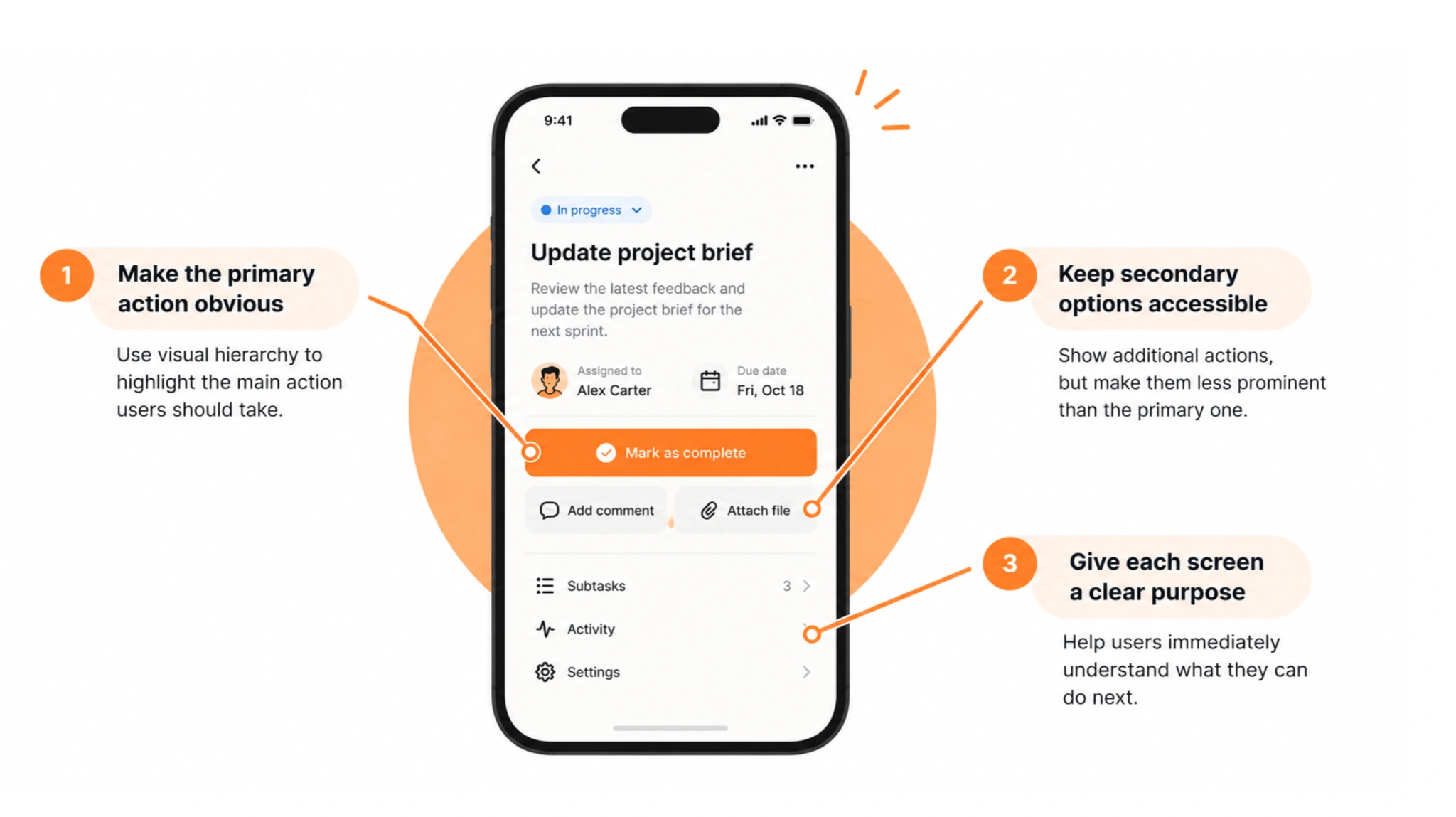
For example, a project management app's task screen should prioritize updating the task's status or adding a comment, rather than giving equal visual weight to every available setting.
2. Put important actions within comfortable thumb reach
In mobile UI design, Fitts's Law helps explain why button size and placement matter: small, distant targets take longer to reach than large, nearby ones.
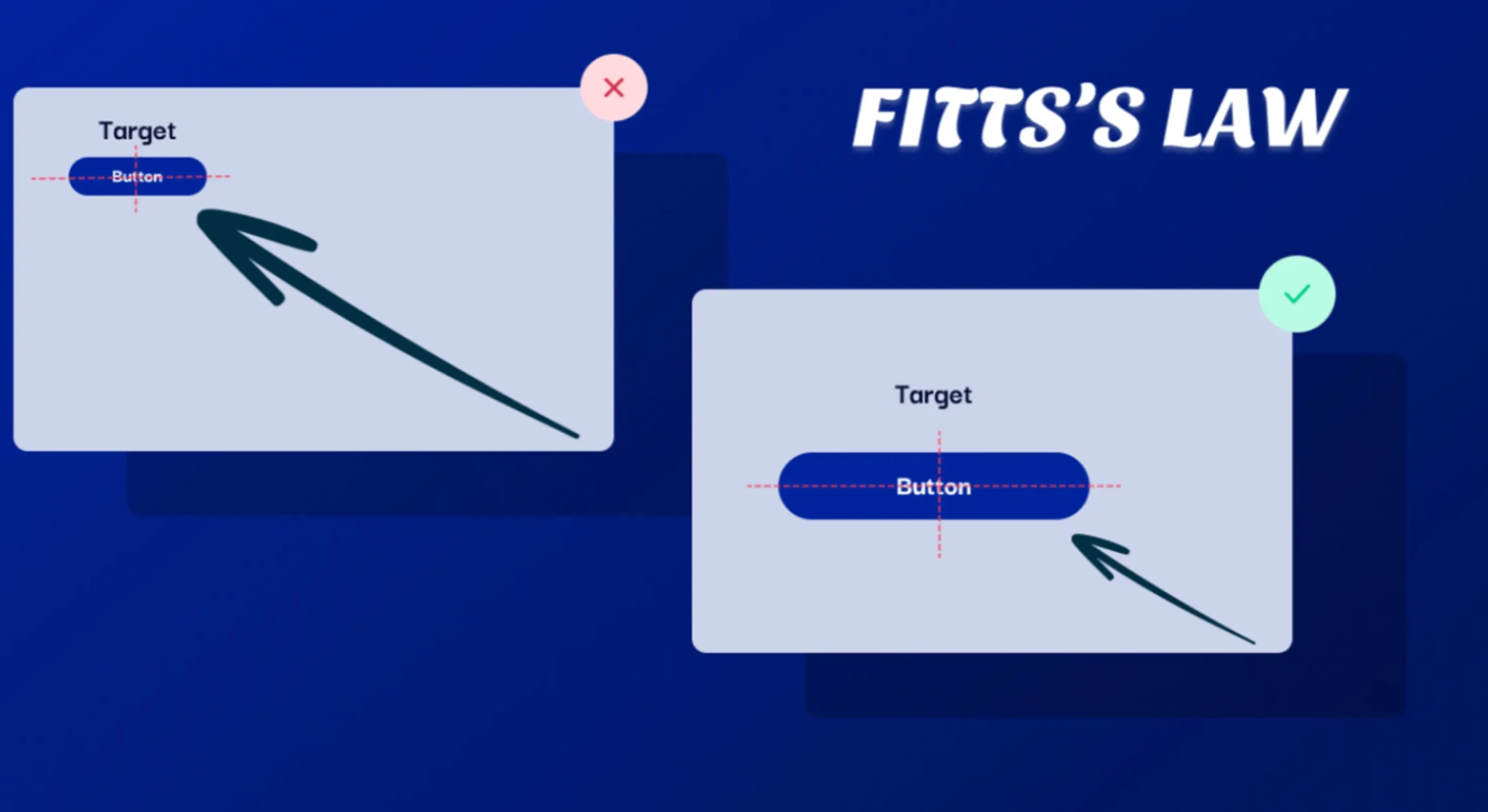
On larger phones, top-corner controls can force users to stretch or adjust their grip. Place frequent actions toward the lower part of the screen, where they’re usually easier to reach one-handed. Give these controls generous tap areas and enough spacing to support fast interactions without accidental taps.
Less-used controls, such as account settings, can sit farther away.
3. Reduce choices and cognitive load
Simplicity matters because more options don't always make an app more useful. They can make decisions slower and information harder to process.
Two UX principles help explain why:
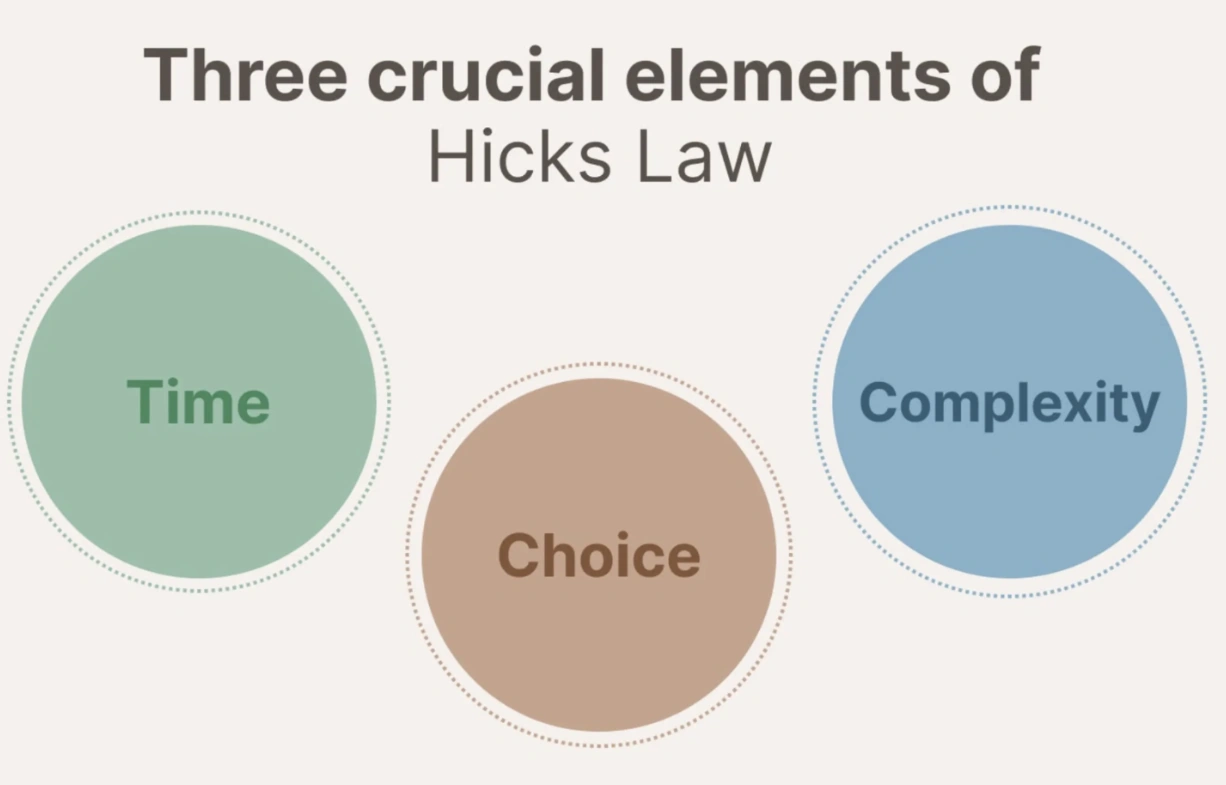
- Hick's Law: The more choices users face, the longer it generally takes them to make a decision. If a finance app displays transfers, payments, reports, rewards, and settings as equally prominent actions, users have to scan everything to find what they need.
- Miller’s Law: Working memory is limited, so don’t make users remember details from previous screens. Group related information and keep key choices visible. For example, a multistep checkout can show the selected product, delivery method, and total price so users can review their choices without going back.

4. Follow familiar mobile interaction patterns
Use recognizable navigation, predictable back behavior, and familiar form controls so users can apply what they already know. Extend that familiarity to gestures: follow platform conventions for swiping, zooming, and long pressing.
Good UX doesn't require users to relearn familiar actions every time they open a different app.
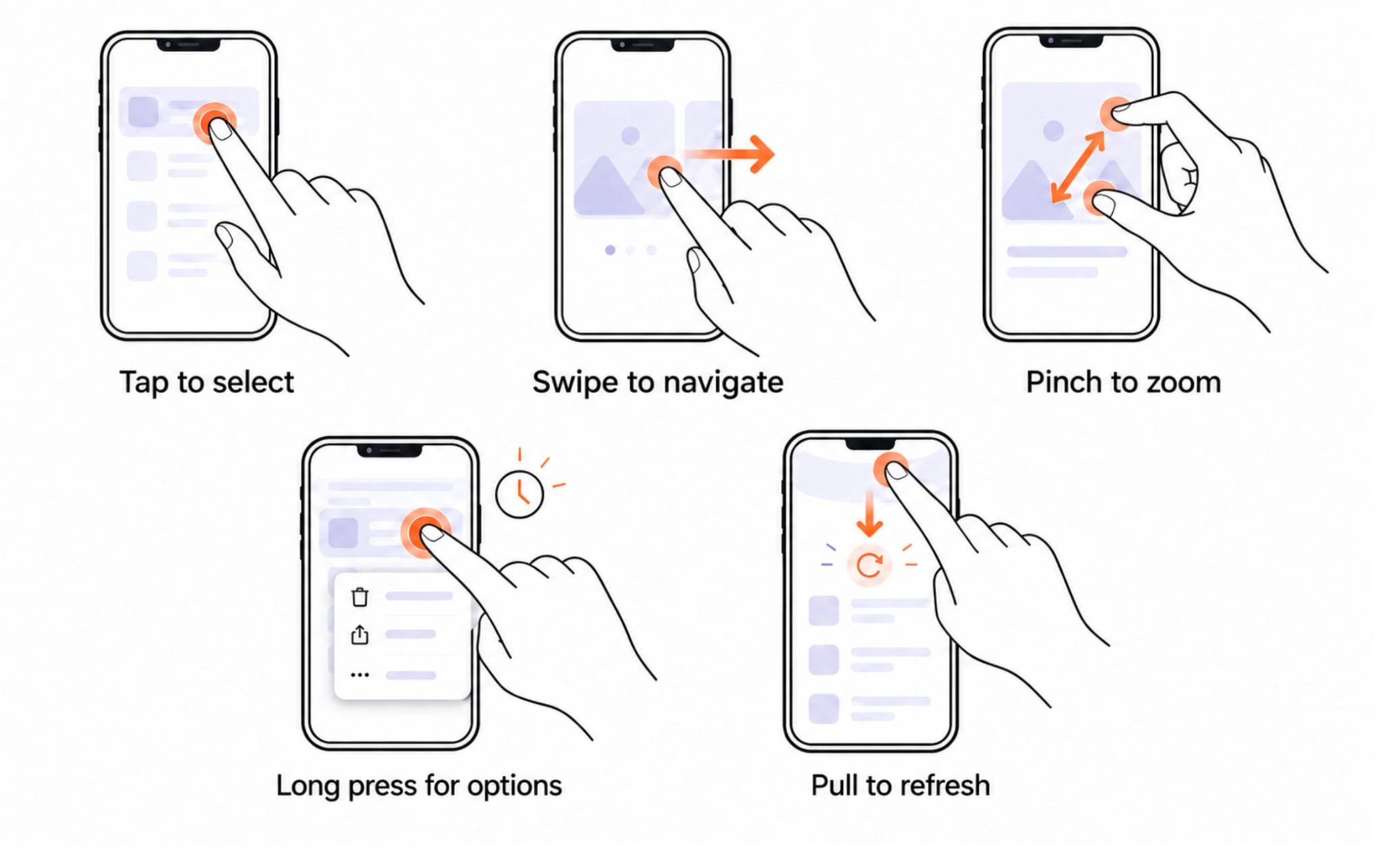
Keep visible alternatives for essential actions. For example, replacing a conventional back button with an unfamiliar gesture can leave users unsure how to return. Likewise, if swiping reveals an important action, also offer it through a button or menu.
Make onboarding faster and more useful
The first few minutes with a mobile app can determine whether users come back. Yet many apps make people complete lengthy forms, answer personalization questions, and grant permissions before they can do anything useful.
The problem is that users are being asked to spend time on setup before they understand what they'll get in return.
A better approach is to create a more seamless path to the app's first meaningful result.
Here are four ways to do that:
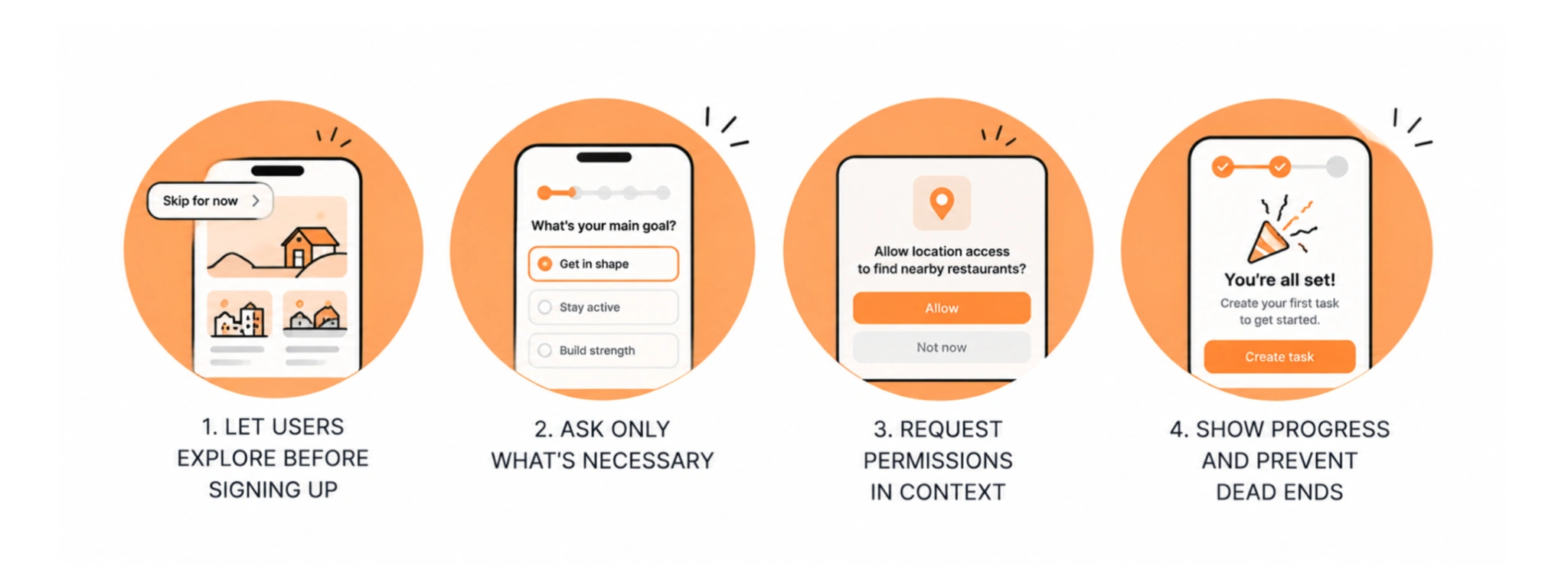
- Let users explore before signing up. If an account isn't essential to the first interaction, don't make registration the starting point. Airbnb, for example, lets people browse properties before asking them to sign in for account-dependent actions. This gives users a reason to register.
- Ask only what's necessary. A fitness app might need to know a user's primary goal to recommend a workout, but it probably doesn't need their entire fitness history upfront. Collect additional details when they become relevant.
- Request permissions in context. Instead of asking for notifications, location, and camera access immediately, explain each request when users try a feature that needs it. A delivery app can ask for location access when someone chooses to find nearby restaurants.
- Show progress and prevent dead ends. If onboarding has multiple steps, indicate how far users have come. Once they finish, guide them toward a useful first action rather than dropping them onto an empty dashboard.
That clarity should continue after setup. For HabitSpace, a habit-tracking app, Eleken combined a minimal interface with clear progress tracking, purposeful micro-interactions, and subtle feedback on users’ actions. This approach keeps the focus on the activity users came for: building and maintaining habits.
Eleken focused on making the mobile experience approachable through a minimal interface, clear progress tracking, and purposeful micro-interactions.
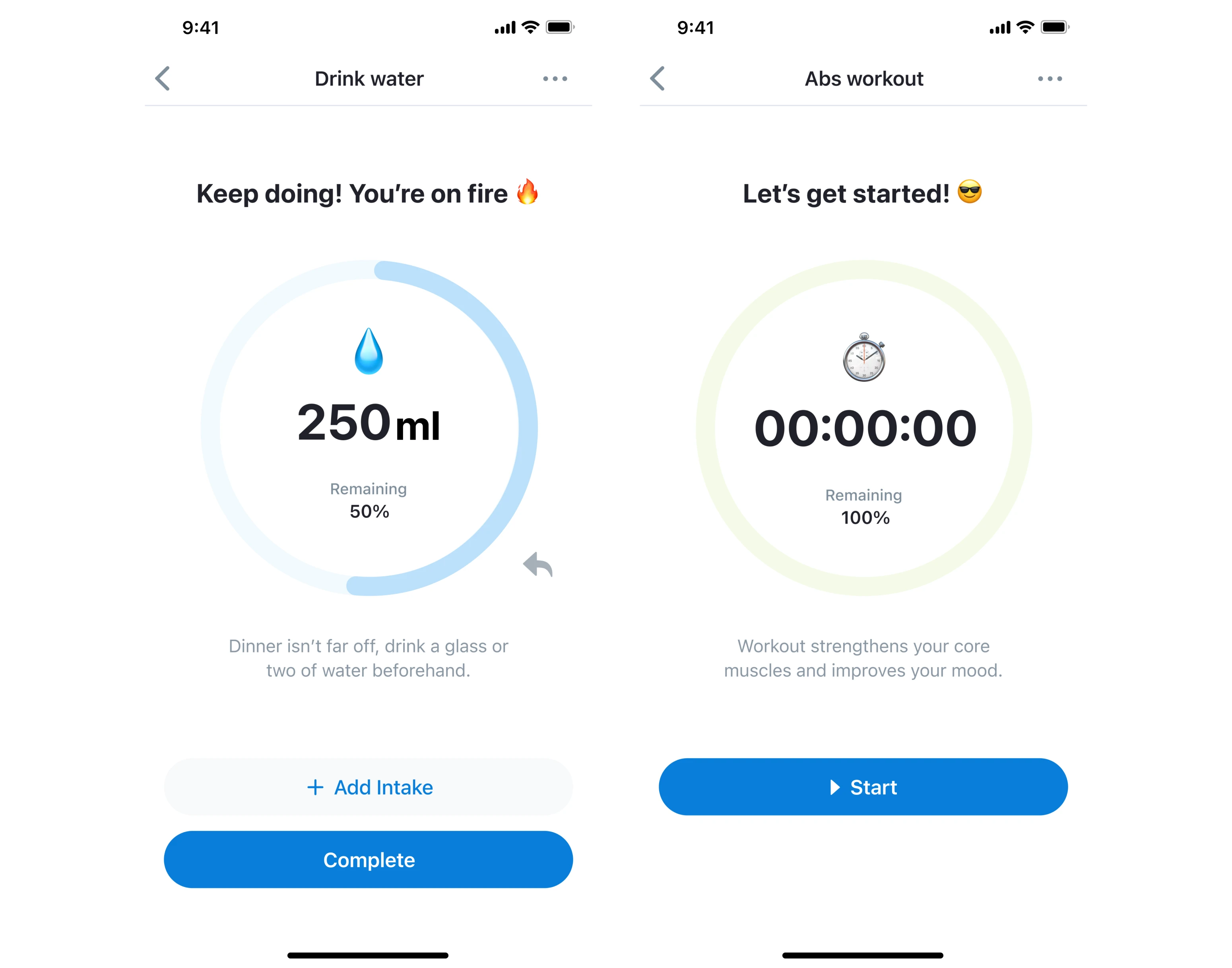
These decisions support the same onboarding goal: help users understand what to do and start building a habit without navigating unnecessary complexity.
Measure onboarding with that goal in mind. Track how many users reach their first meaningful outcome, the aha moment, —and how long it takes—not just how many finish setup.
Design navigation that works on small screens
Keep frequent tasks easy to find and reach. Squeezing a desktop sidebar into a hamburger menu saves space, but can bury the features people need most. In a Nielsen Norman Group study, mobile participants used navigation in 86% of tasks when some options were visible, compared with 57% when everything was hidden behind a menu.
Here are four ways to improve mobile navigation:
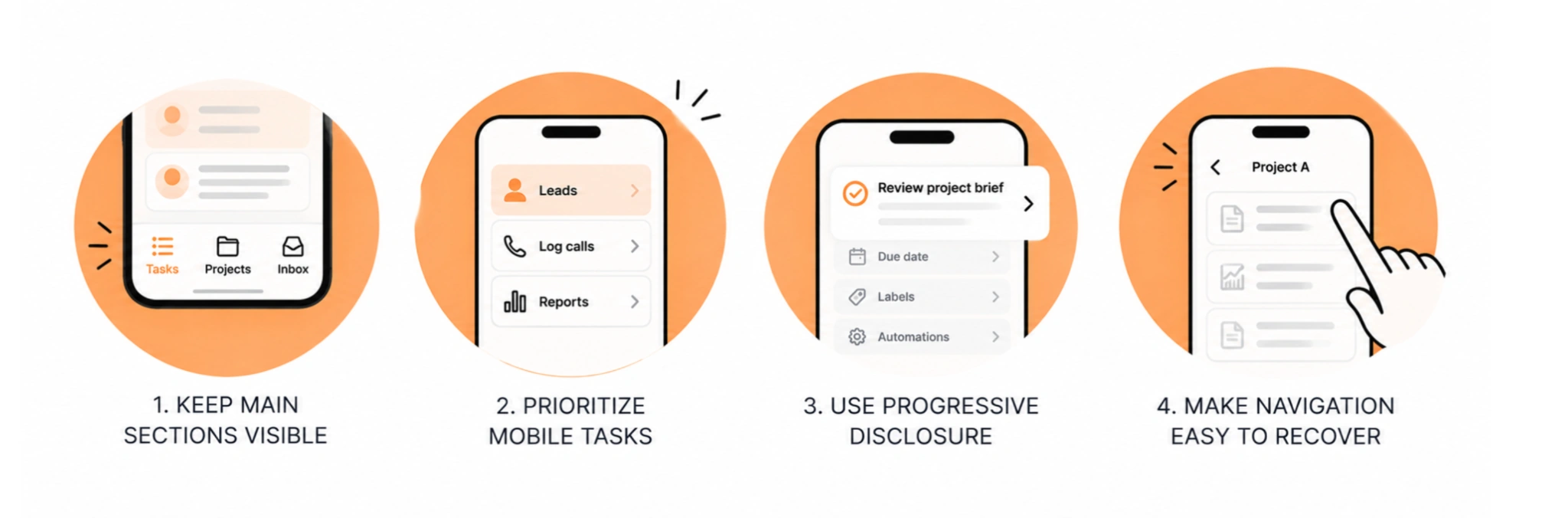
- Keep main sections visible. For apps with a few primary destinations, use a labeled bottom navigation bar—for example, Tasks, Projects, and Inbox. This pattern typically accommodates three to five sections; iOS tab bars serve a similar purpose. Keep less-used settings in a secondary menu.
- Prioritize what people do on their phones. A sales rep may need to check leads and log calls more often than build reports. Give those workflows direct access rather than copying the desktop hierarchy.
- Use progressive disclosure. Show the information users need now and reveal additional options when they're relevant. A task card might display its title, deadline, and status, while keeping permissions, automation rules, and other advanced settings inside the task details.
- Make it easy to move back and recover. Follow familiar back-navigation patterns, preserve users' place when they switch sections, and use deep links to take them directly to the relevant screen.
Together, these choices make navigation feel more intuitive, giving users a sense of where they are and helping them move between screens without losing their place.
Reduce input friction in forms and authentication
Give users less to type, remember, and correct. Ask only for information you need, reuse saved details, and preserve progress when users get interrupted.
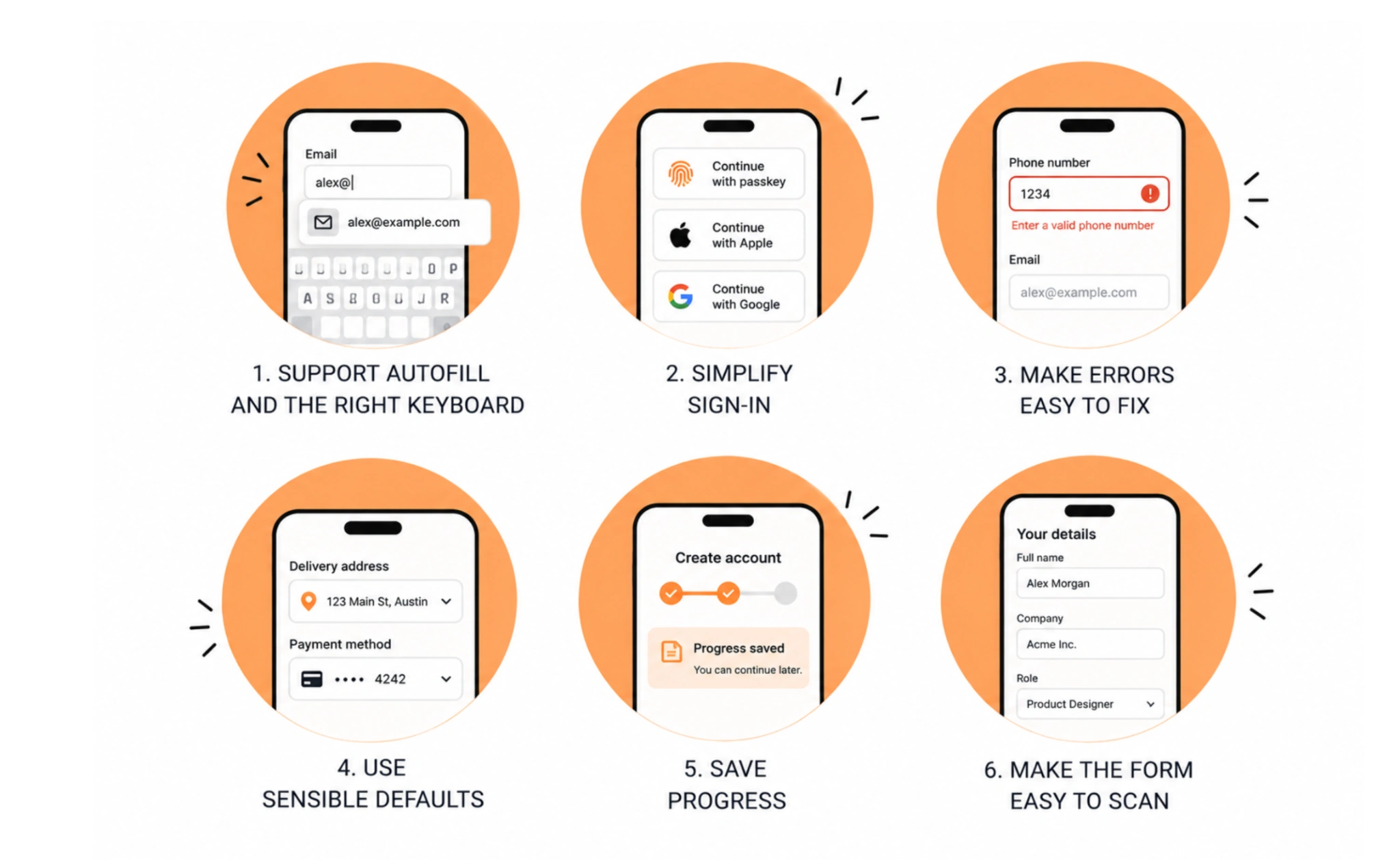
- Support autofill and the right keyboard. Enable saved contact and payment details. Show phone keypads for phone numbers and email-friendly keyboards for email fields. Use selection controls for predefined answers and date pickers when browsing dates is easier than typing.
- Simplify sign-in. Offer passkeys or Apple and Google sign-in where supported, reducing the need to create and remember another password.
- Make errors easy to fix. Validate fields after users finish entering them. Explain what needs correcting beside the field and keep the rest of their input intact.
- Use sensible defaults. Suggest previously used details, such as a delivery address, but leave consent and paid extras for users to choose.
- Save progress. Let users return to an unfinished form without re-entering their information. For longer, multi-step forms, show where they are and how much remains.
- Make the form easy to scan. Use a single-column layout, group related fields, and place persistent labels above inputs rather than relying on disappearing placeholders.
These details matter most when users are interrupted or need to enter information repeatedly. A well-designed form lets them pick up where they left off, correct mistakes, and complete tasks efficiently without entering the same details twice.
Build accessibility into mobile interactions
Small touch targets, low-contrast text, and poorly labeled interactive elements can turn routine tasks into barriers for users with disabilities. WHO estimates that 1 in 6 people worldwide experience significant disability, making accessibility an essential design consideration.
Start with these six checks to make everyday mobile tasks more accessible:
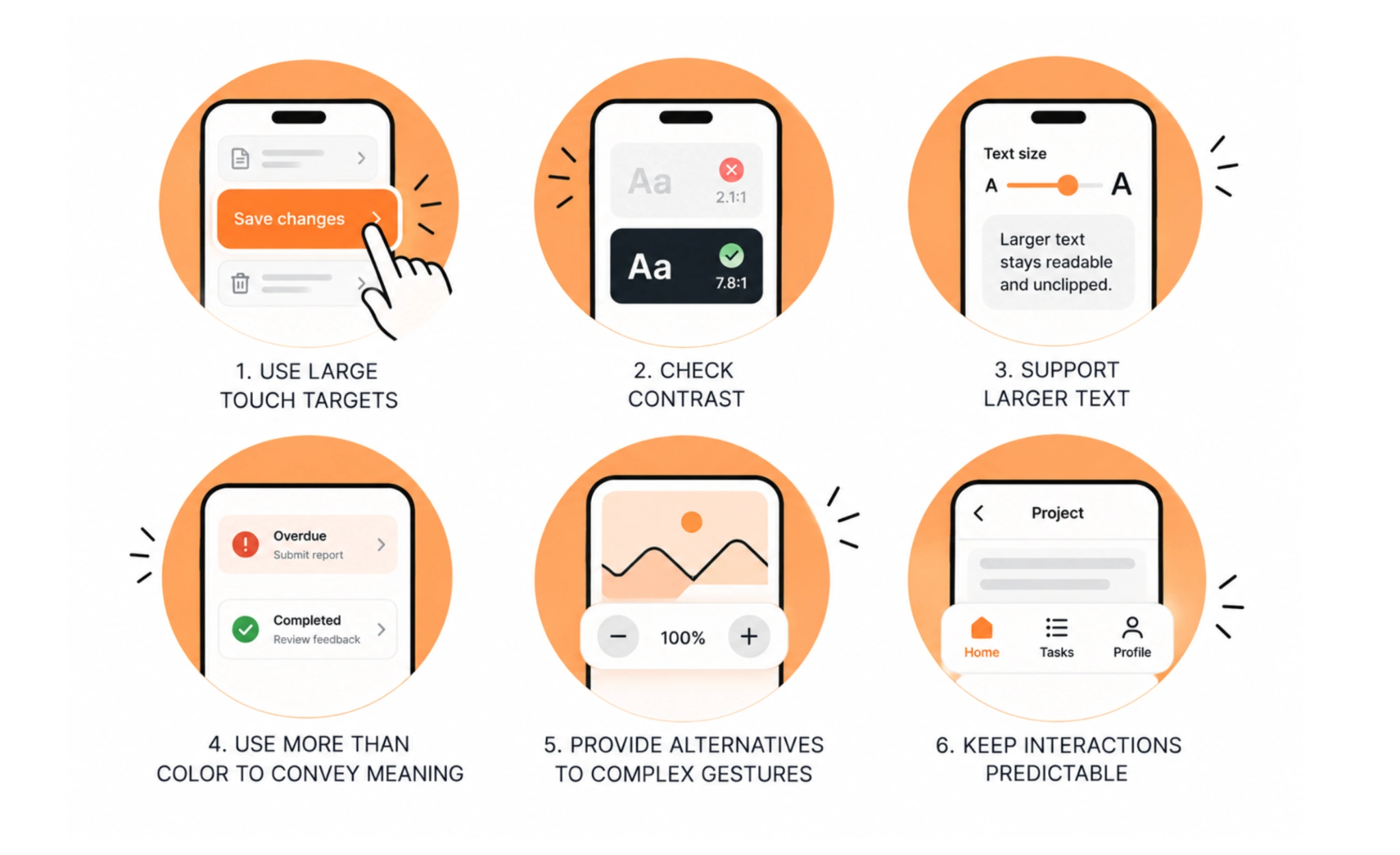
- Use large touch targets. Keep interactive areas generous and well spaced. WCAG 2.2 AA specifies a 24 × 24 CSS-pixel minimum, with exceptions including sufficient spacing; AAA specifies 44 × 44 CSS pixels, also with exceptions.
- Check contrast. WCAG AA requires at least 4.5:1 for normal text and 3:1 for large text. Check with a tool rather than judging by eye.
- Support larger text. Respect device font settings and test for clipped labels, overlapping controls, and hidden content.
- Use more than color to convey meaning. Pair a red status indicator with an “Overdue” label. Respect reduced-motion settings and keep essential information available without animation.
- Provide alternatives to complex gestures. Offer buttons for actions such as zooming or moving items so users don’t have to pinch, drag, or follow a precise gesture path.
- Keep interactions predictable. Use consistent navigation, familiar controls, and clear instructions to help users with cognitive disabilities or limited technical experience.
These checks are easier for designers to apply consistently when accessibility requirements are built into reusable components. For VLI Tech, a workforce management app connecting ambulance staff with their supervisors, Eleken redesigned the supervisor and employee mobile interfaces with a shared UI system supporting light and dark modes. Accessibility requirements were incorporated into the component library from the start, giving both interfaces a common foundation.
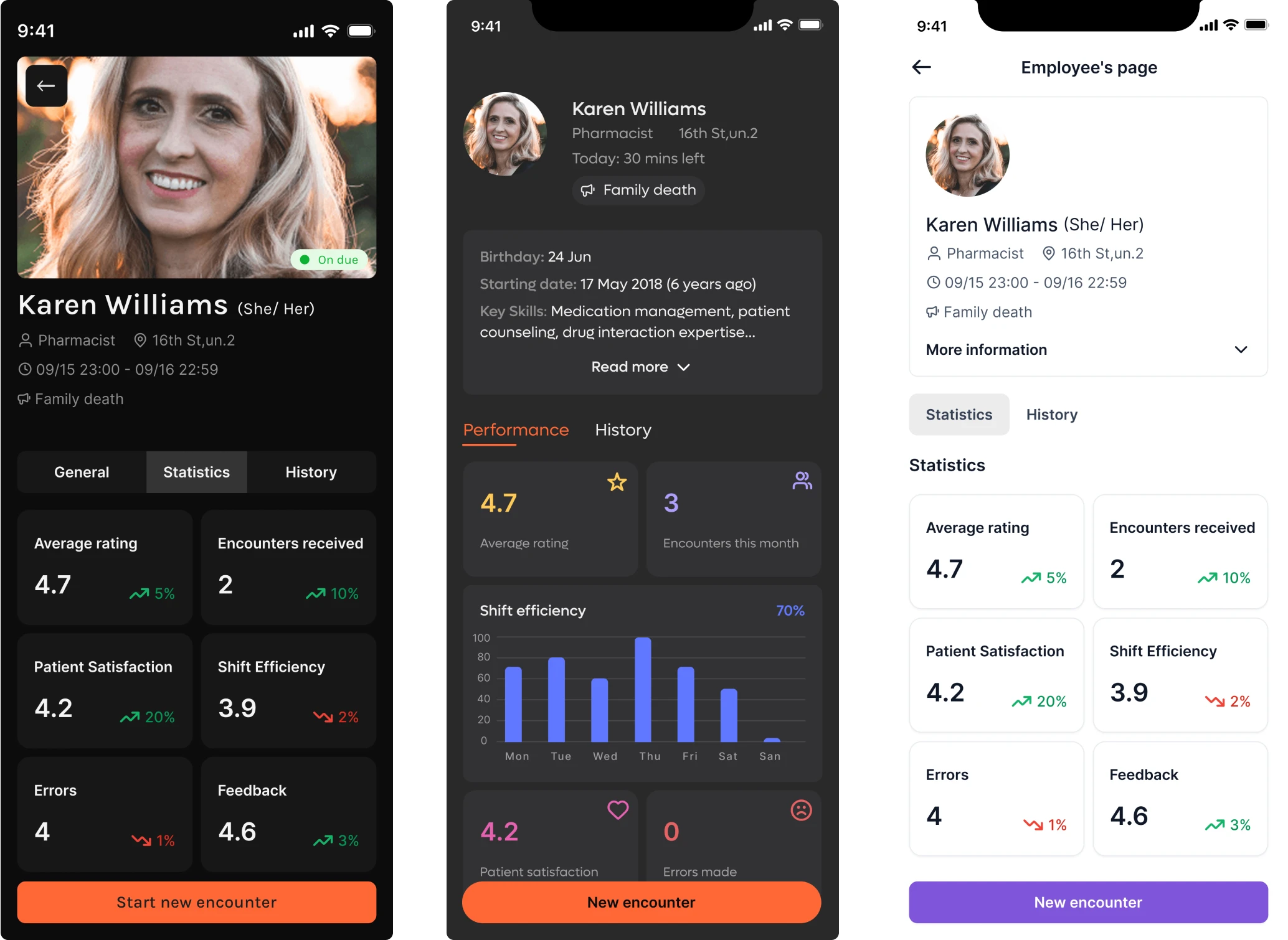
This makes accessibility part of how new screens are built. Designers and developers still need to test complete workflows, but they can reuse components built around the same accessibility requirements instead of addressing the same issues screen by screen.
Test and measure UX design mobile improvements
Launching a mobile app doesn't mean the UX work is finished. Users encounter new problems as features evolve, devices change, and workflows become more complex.
Yet many teams treat usability testing as a one-time activity. The result? Small frustrations accumulate until they start affecting activation, retention, and customer satisfaction.
To prevent this, mobile UX testing should be a continuous cycle of identifying problems, prioritizing fixes, and measuring results.
1. Start with a structured UX audit
Before redesigning screens, examine how the existing experience works.
Eleken's redesign engagements begin with a UX audit covering the product walkthrough, information architecture and navigation, forms and UI elements, usability, accessibility, and visual style.
Findings are classified using three severity levels:
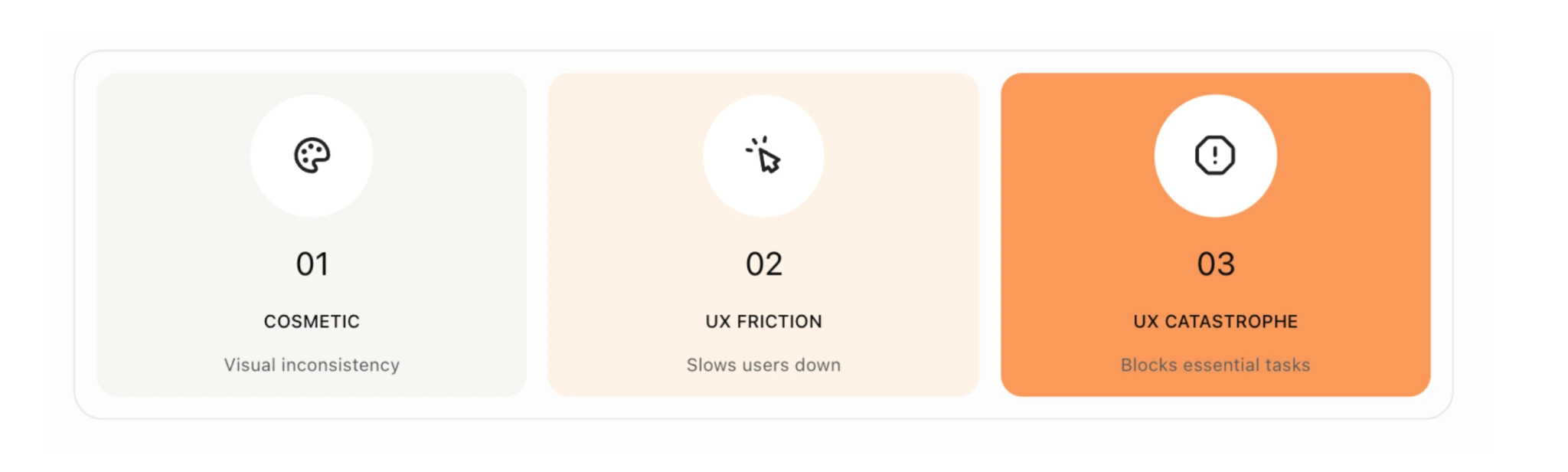
- 1 — Cosmetic: Visual inconsistencies that don't significantly affect usability.
- 2 — UX friction: Problems that slow users down or make tasks unnecessarily difficult.
- 3 — UX catastrophe: Critical issues that prevent users from completing essential actions.
For instance, a minor spacing inconsistency may be less urgent than a broken checkout button. This helps teams distinguish between cosmetic issues and problems that genuinely damage the user experience.
2. Test how users find and complete tasks
Different research methods reveal different problems:
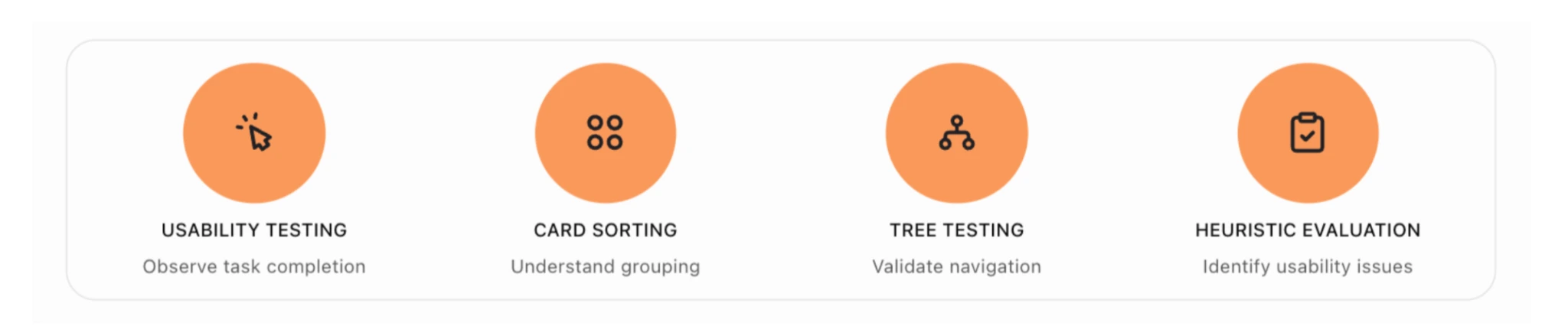
- Usability testing: Watch users complete realistic tasks to identify hesitation, errors, and abandoned workflows.
- Card sorting: Learn how users naturally group features and information.
- Tree testing: Check whether users can find information within your navigation structure.
- Heuristic evaluation: Review the interface against Nielsen's 10 usability heuristics to identify common usability problems.
Each method provides valuable insights, but combining them helps teams understand both where users struggle and why.
For example, if CRM users struggle to find account reports, card sorting can reveal how they expect features to be organized, while tree testing can validate a proposed navigation structure before development.
3. Track metrics that reveal friction
Choose metrics that connect interface problems to user behavior, task completion, and efficiency.
The goal is to understand whether users can achieve meaningful outcomes with less effort, not simply whether they spend more time in the app.
Don't interpret these metrics in isolation. For example, low D7 retention tells you users aren't returning, but usability testing can help explain whether onboarding, navigation, or another part of the experience is responsible.
4. Listen to customers—including the silent ones
Combine user feedback from interviews, surveys, support, and app reviews with Voice of the Silent (VoS) signals such as drop-offs, abandoned workflows, and churn. Together, they show what users report and where others leave without explaining why.
For example, complaints about a confusing form become more actionable when analytics show where users abandon it. Check App Store and Google Play reviews, too—users may often describe frustrations there even without contacting support.
Keep your findings in one place, link each issue to its screen or workflow, and assign an owner so recurring problems get addressed.
5. Use the right tools and keep iterating
Choose tools based on what you need to investigate:
- UXtweak, Maze, and UserTesting: Usability research and task-based testing.
- Hotjar: Behavioral insights for mobile web experiences.
- Firebase Test Lab and BrowserStack: Testing across devices and configurations.
- Google Lighthouse: Performance and accessibility checks for mobile web experiences.
After identifying problems, prioritize improvements using ICE (Impact × Confidence × Effort).
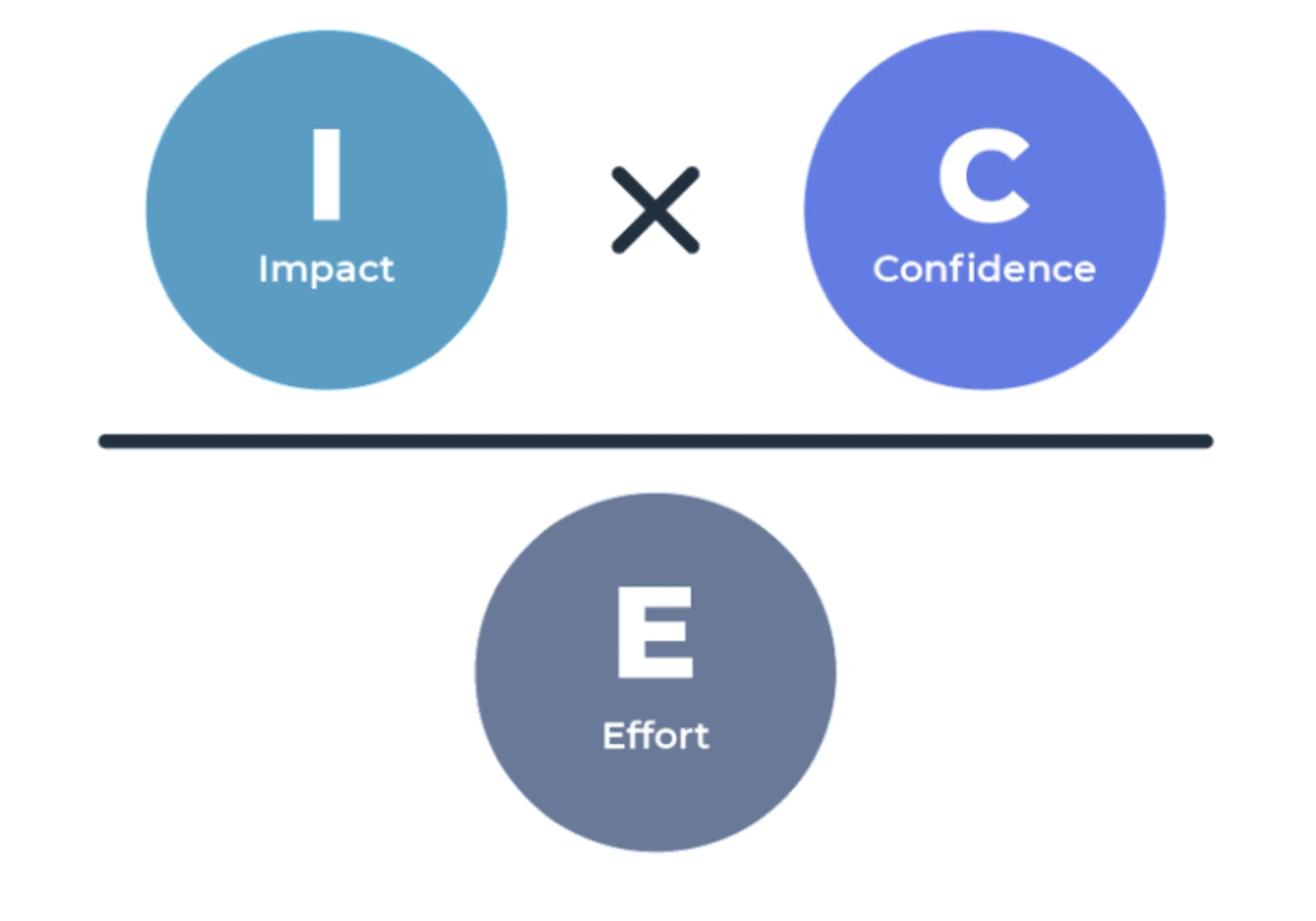
For example, fixing a confusing payment confirmation screen may have a greater impact than redesigning a rarely used settings page.
Then release the improvement and measure the same metrics again.
Don't wait for a major redesign to investigate mobile UX problems. Regular audits, usability testing, behavioral data, and organized feedback help teams catch friction before it turns into churn.
Fix the friction before adding features
Even great features fail when confusing navigation, unnecessary steps, or slow loading prevent users from reaching value. Giving users every available option and expecting them to figure things out only makes the problem worse.
Start by measuring time-to-first-value, then follow a clear process: research → wireframe → prototype → test → iterate. Use ICE (Impact × Confidence × Ease) to prioritize fixes.
If your team knows something feels wrong but can't pinpoint why, a structured UX audit is a good starting point. Eleken's 3-day free trial delivers 1–2 real product screens, so you can evaluate a UX design for your mobile app before committing.
Talk to Eleken today about where your mobile users get stuck and what to improve first —we’ll help you find the friction, prioritize fixes, and make every tap feel a little more effortless.