
In 2024 and 2025, YouTube rolled out one of its biggest video player redesigns in years — and users hated it.
The backlash wasn’t about aesthetics. It was about familiar interactions suddenly feeling wrong. Volume scrolling changed, gestures broke, and features people used every day became harder to access.
That reaction highlights an important truth: video player UI is one of the most-used, least-noticed interfaces in digital products. When it works, nobody thinks about it. When it doesn't, users notice immediately.
At Eleken, we've worked on products where video is central to the experience — from learning platforms to communication tools. And we've seen how often teams underestimate the player itself, even though it's one of the interfaces users interact with most.
In this guide, we'll explore video player UI examples across SaaS and consumer products, the patterns behind them, and the design decisions that make playback feel intuitive instead of frustrating.
What makes a video player UI feel modern in 2026
Most users couldn't describe a modern video player UI if you asked them to. But they know one when they see it.
That's because a handful of products — primarily YouTube and Netflix — have become the unconscious benchmark for video experiences. Whether you're designing a learning platform, a SaaS product, or a streaming service, users bring expectations shaped by these interfaces.
A modern player typically relies on a few familiar patterns:
- a large central play state,
- auto-hiding controls,
- a thin progress bar that expands on hover,
- thumbnail previews while scrubbing,
- keyboard shortcuts,
- and fullscreen playback that removes distractions.
The biggest shift compared to older players is what isn't visible. Early video interfaces often displayed every control all the time: large toolbars, multiple buttons, and dense rows of settings. Modern players hide most controls until users need them, keeping the focus on the content rather than the interface.
The same trend appears on mobile. Instead of persistent controls, newer players increasingly rely on gestures:
- double tap to skip,
- pinch to zoom,
- swipe to seek,
- tap to reveal controls.
The interface appears only when users ask for it.
One trend worth calling out is the growing popularity of pill-shaped controls and rounded UI elements. While these larger targets work well for touch devices, they're more controversial on desktop. Some users argue that oversized controls feel less precise when interacting with a mouse, which partly explains the backlash around recent YouTube redesigns.
Ultimately, what feels modern today isn't a specific visual style. It's an interface that stays out of the way during playback and becomes instantly available when users need control.
That balance between visibility and disappearance is what separates a good video player from a frustrating one.
Video player UI inspiration by category
Looking for inspiration? The best video player UI patterns often come from products solving very different problems.
A Netflix viewer, a Coursera student, and a Gong sales manager all interact with video — but they need completely different tools around the player itself.
That's why it helps to look at examples by category rather than treating all video players as the same component.
Streaming and on-demand platforms
Netflix
Pattern: Immersive playback
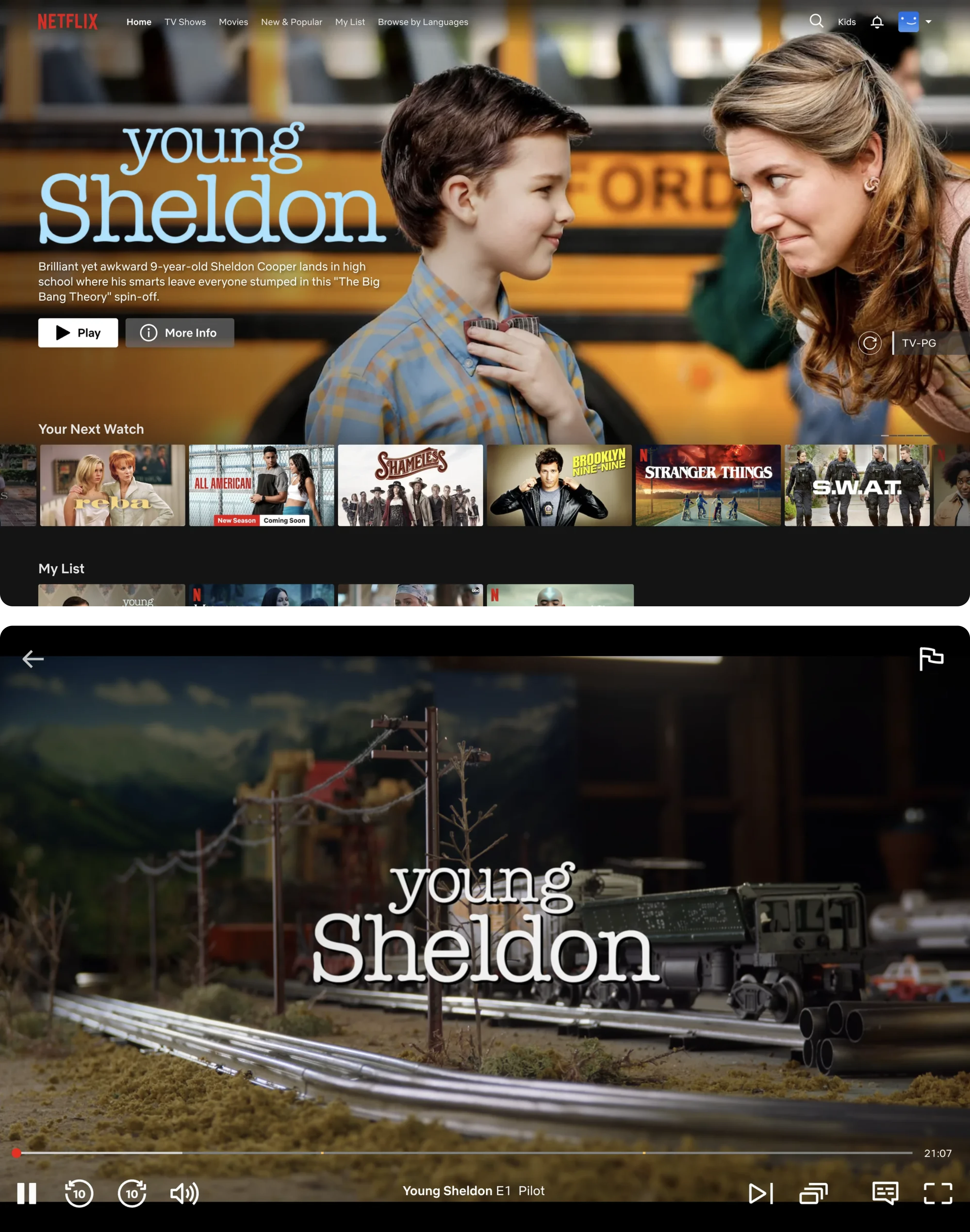
Netflix has become the benchmark for modern video player design. Large hit targets, thumbnail previews during scrubbing, subtle controls, and episode-next overlays create an experience that prioritizes content above everything else.
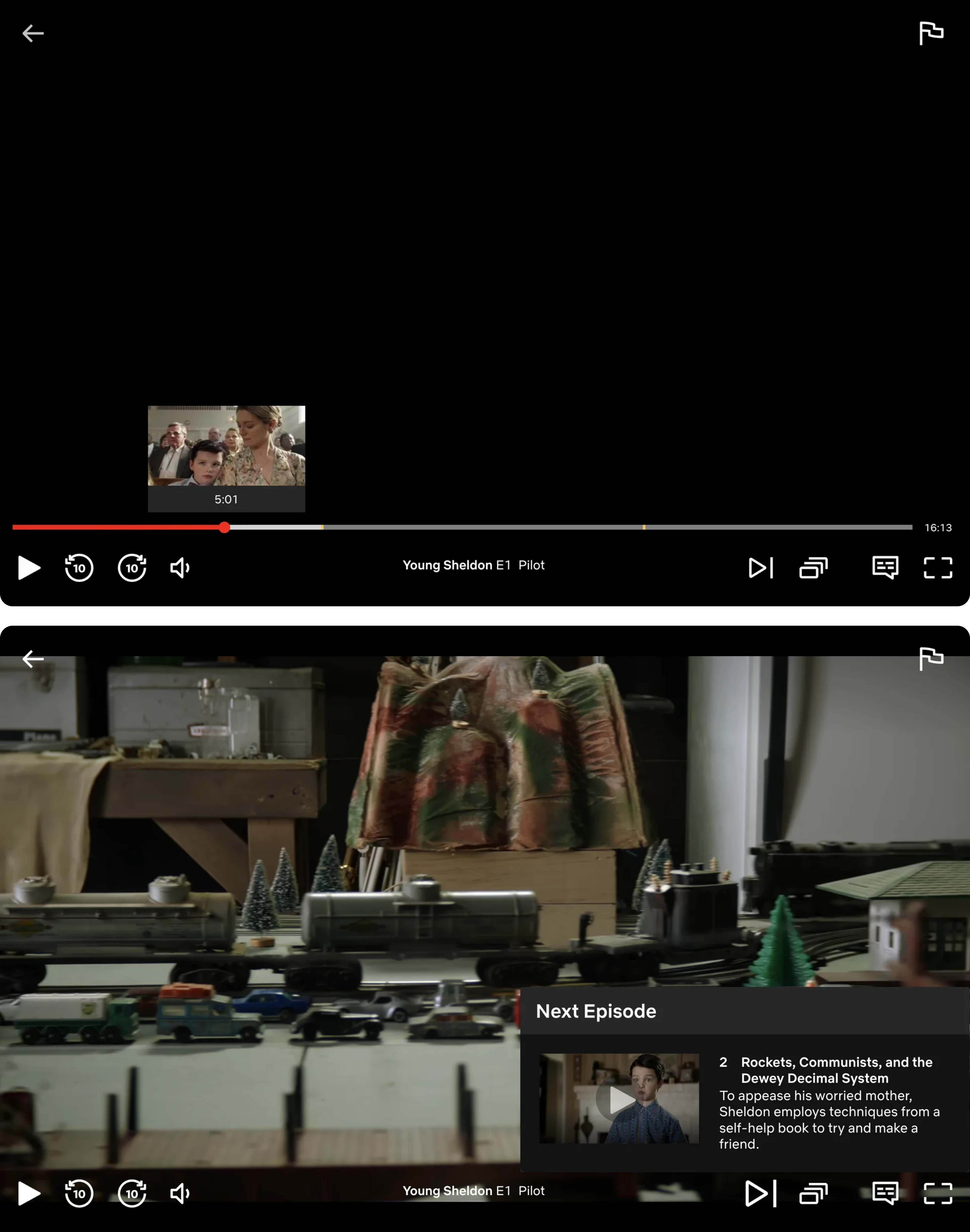
What it does well: Playback always feels effortless.
Tradeoff: Advanced controls remain intentionally limited.
YouTube
Pattern: Feature-rich universal player
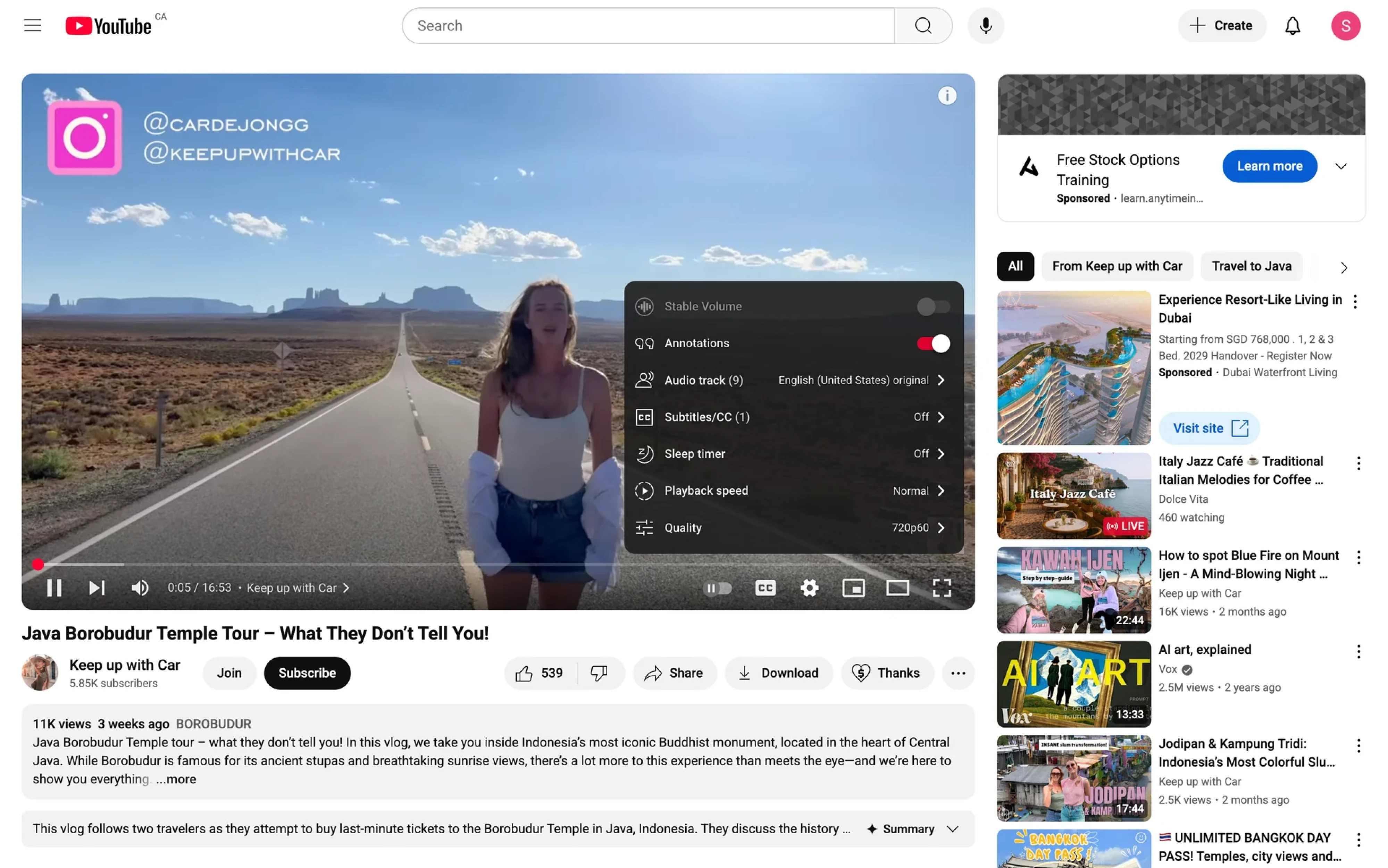
YouTube balances accessibility for casual viewers with tools for power users. Chapters, captions, playback speed, keyboard shortcuts, transcripts, and live-stream functionality all coexist within the same player.
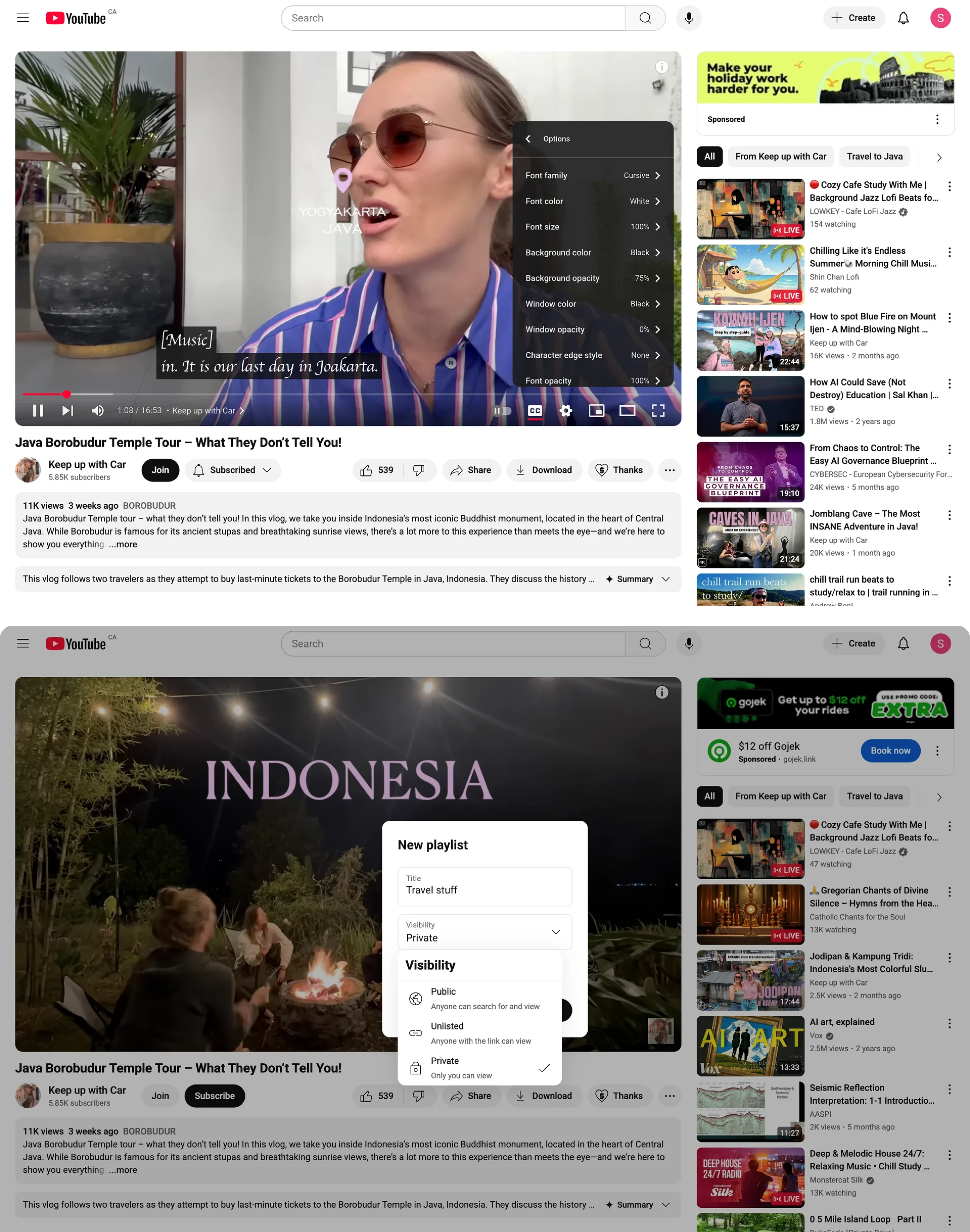
What it does well: Exceptional feature depth.
Tradeoff: Every redesign risks disrupting deeply ingrained habits.
Disney+ and HBO Max
Pattern: Streaming-first simplicity
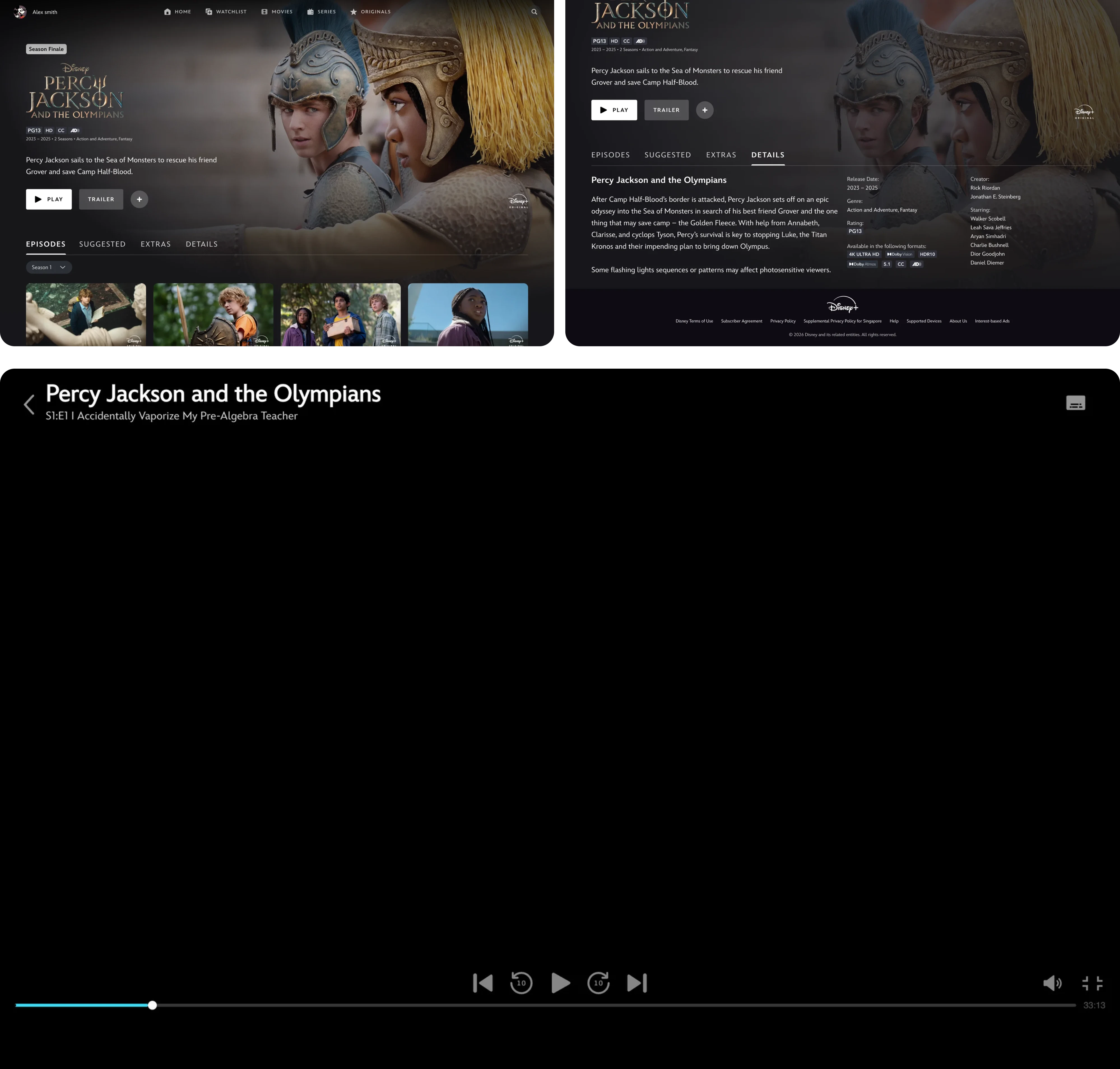
These platforms follow a familiar Netflix-inspired structure but place greater emphasis on content discovery and next-episode flows.
What they do well: Clean, distraction-free playback.
Tradeoff: Less flexibility for advanced viewing preferences.
Async video and video messaging SaaS
This is arguably the most interesting category in video player design right now because the player isn't just for watching — it's part of a workflow.
Loom
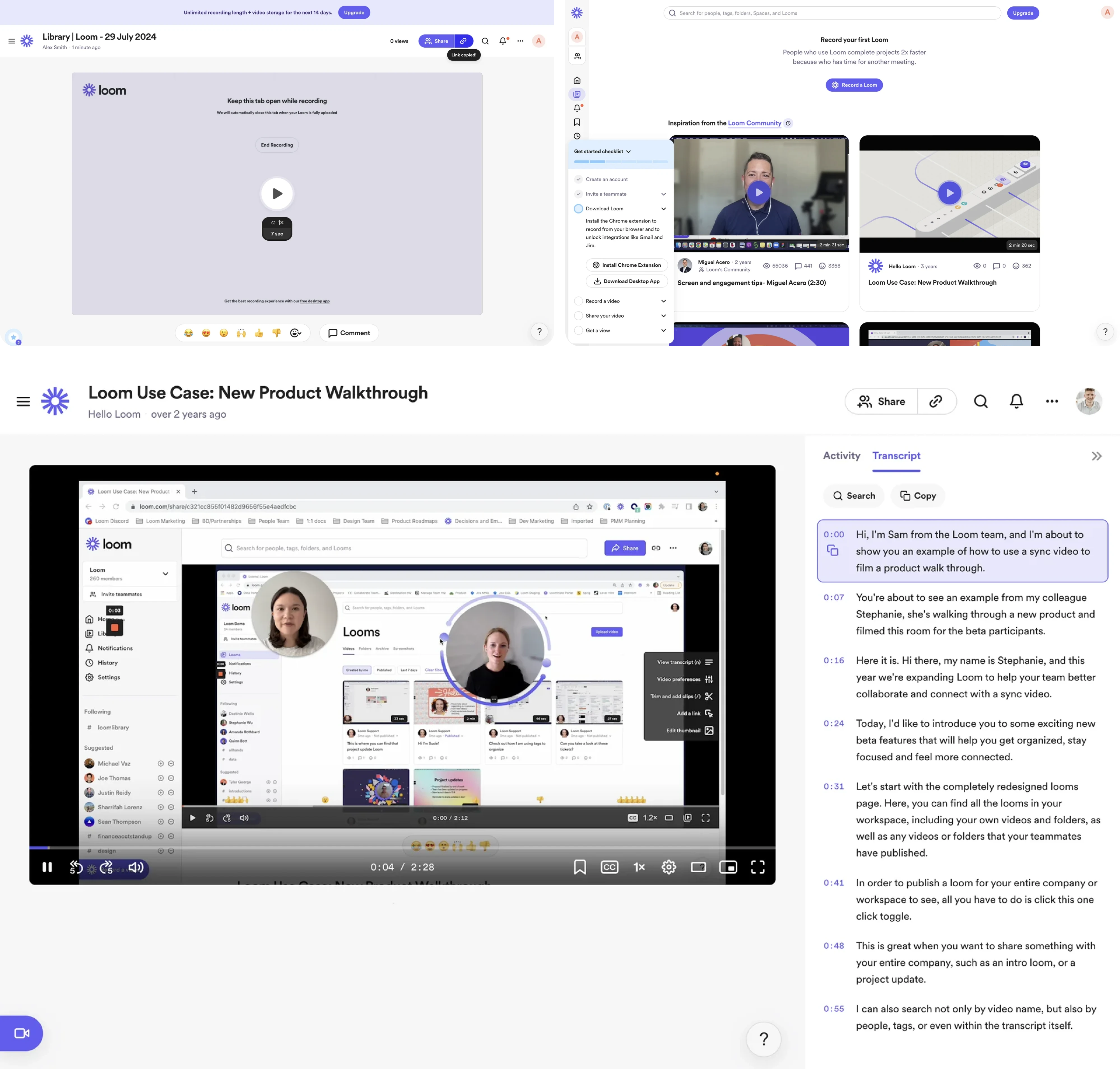
Loom transforms video into a communication tool through:
- timeline reactions,
- timestamped comments,
- searchable transcripts,
- and prominent playback-speed controls.
What it does well: Turns passive viewing into active collaboration.
Tradeoff: Information density can feel overwhelming on smaller screens.
Vidyard
Pattern: Video with analytics
Vidyard layers engagement data directly into the viewing experience.
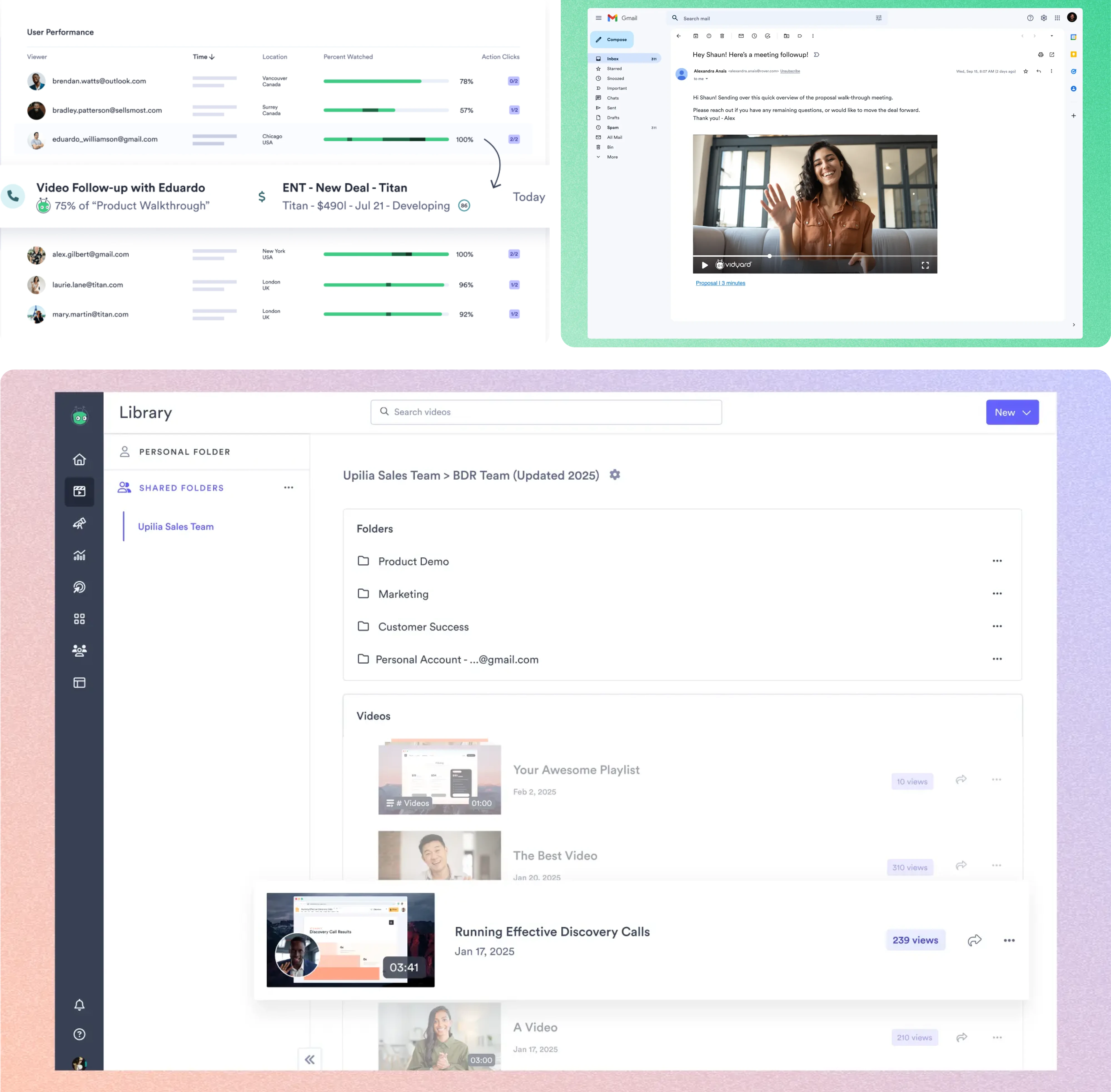
What it does well: Connects viewing behavior to business outcomes.
Tradeoff: Additional analytics increase interface complexity.
Tella
Pattern: Creator-friendly presentation
Tella focuses heavily on visual polish and presentation quality.
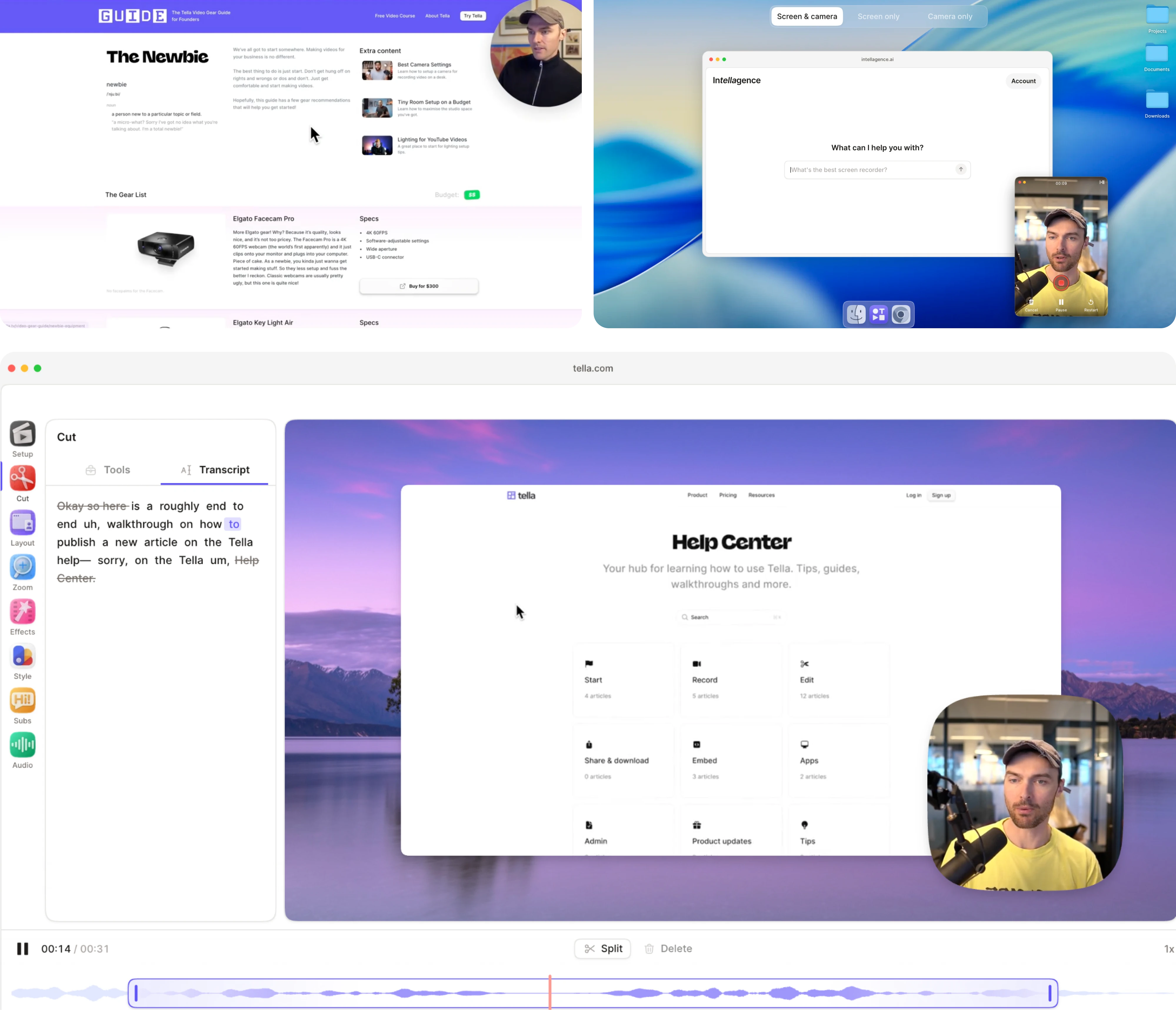
What it does well: Makes videos feel professionally produced by default.
Tradeoff: Prioritizes aesthetics over advanced workflow features.
The lesson from this category is simple: sometimes the video isn't the product — the workflow around the video is.
Learning, education, and course platforms
Educational products place very different demands on a video player. The goal isn't passive consumption — it's helping users learn, review, and retain information.
Coursera
Pattern: Learning-focused utility
Coursera prioritizes practical learning tools such as:
- searchable transcripts,
- chapter navigation,
- playback speed controls,
- and downloadable resources.
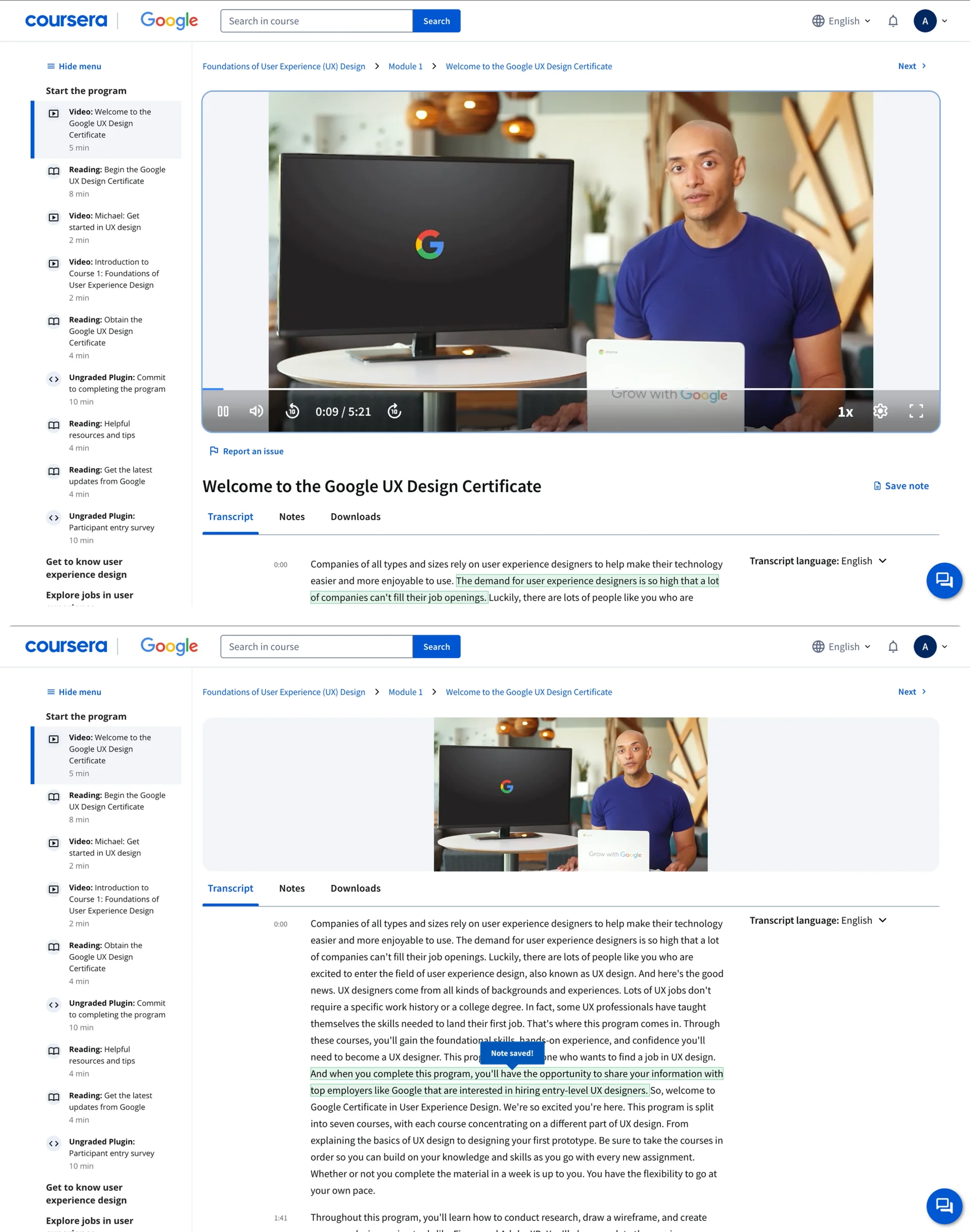
What it does well: Makes it easy to revisit specific information.
Tradeoff: Feature density can make the interface feel utilitarian.
Udemy and Teachable
Pattern: Course-first player
These platforms treat the player as part of a larger learning environment that includes lessons, exercises, and course navigation.
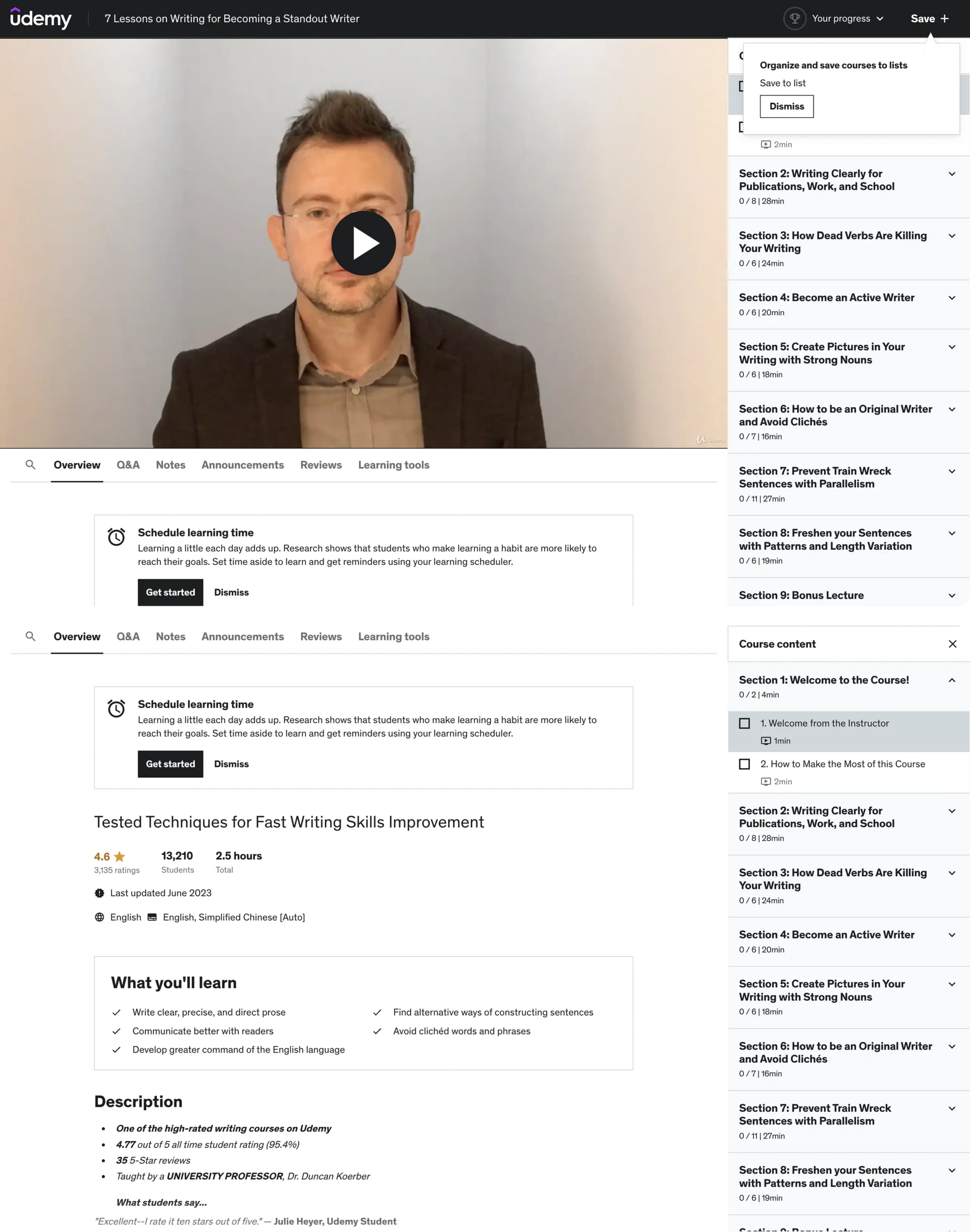
What they do well: Keep educational context visible while watching.
Tradeoff: The player itself sometimes feels secondary to the surrounding UI.
MasterClass
Pattern: Premium cinematic experience
MasterClass takes inspiration from streaming platforms, emphasizing immersive playback and high production value.
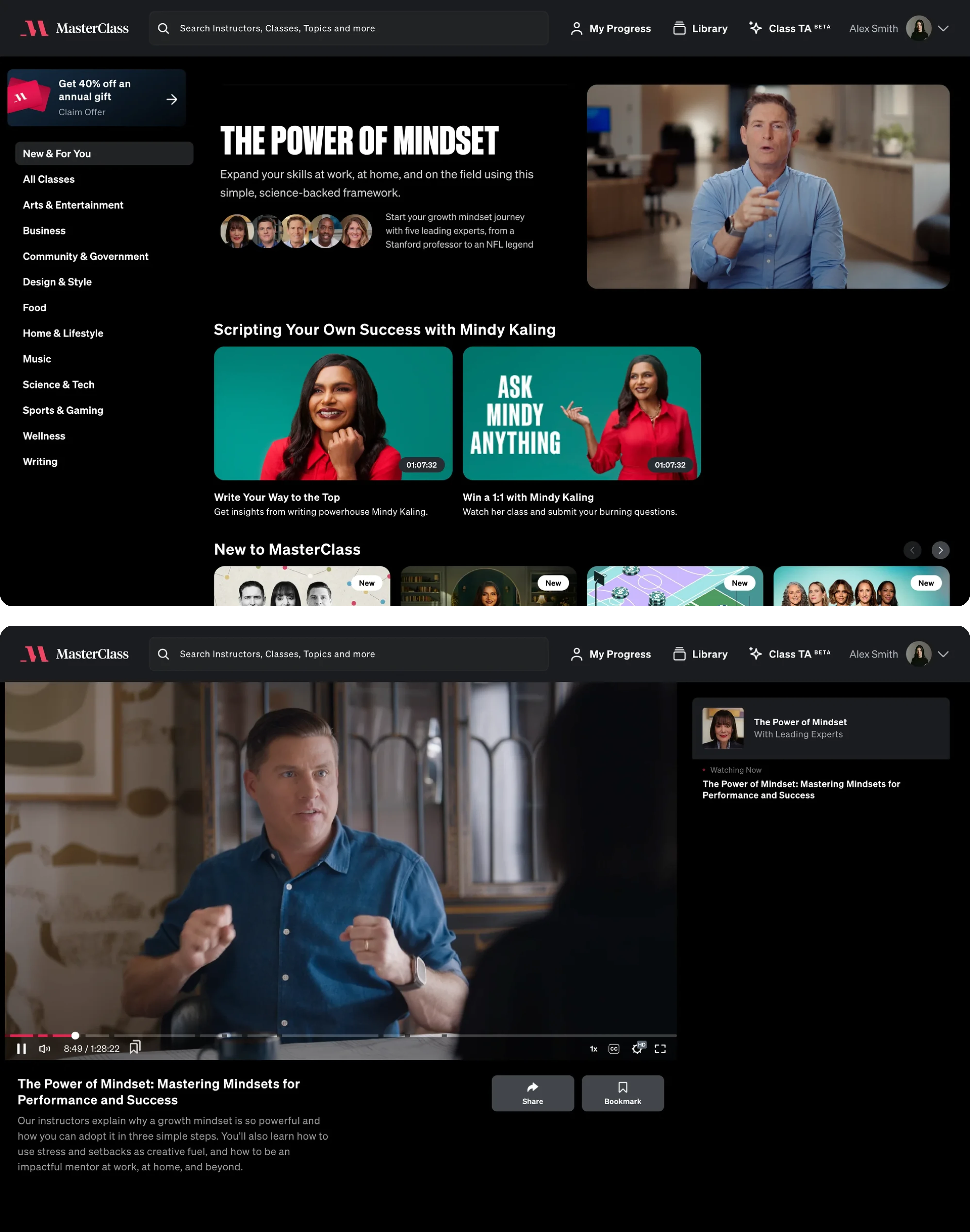
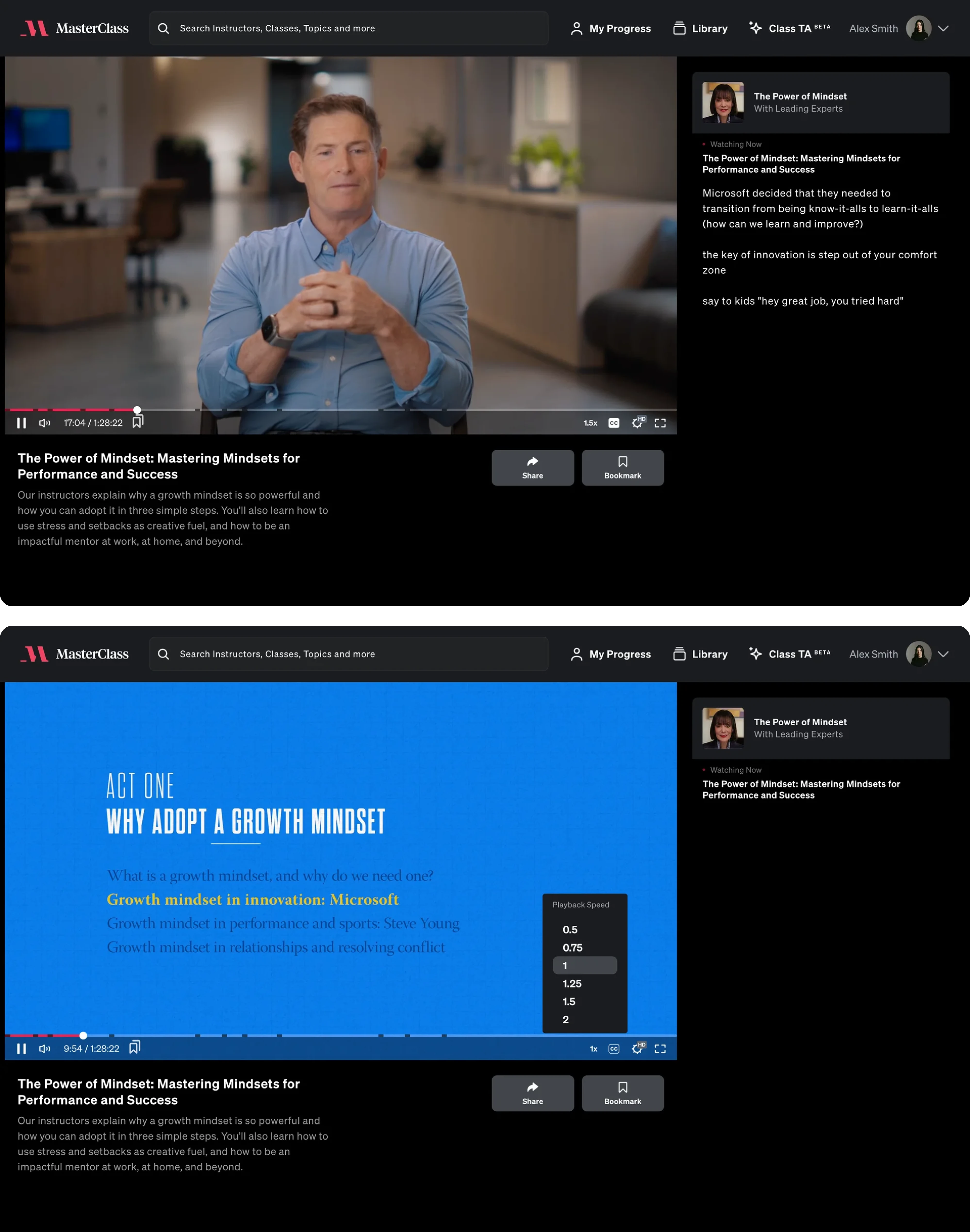
What it does well: Creates a premium viewing experience.
Tradeoff: Fewer learning-oriented controls compared to more practical education platforms.
Wistia
Pattern: SaaS-grade customizable player
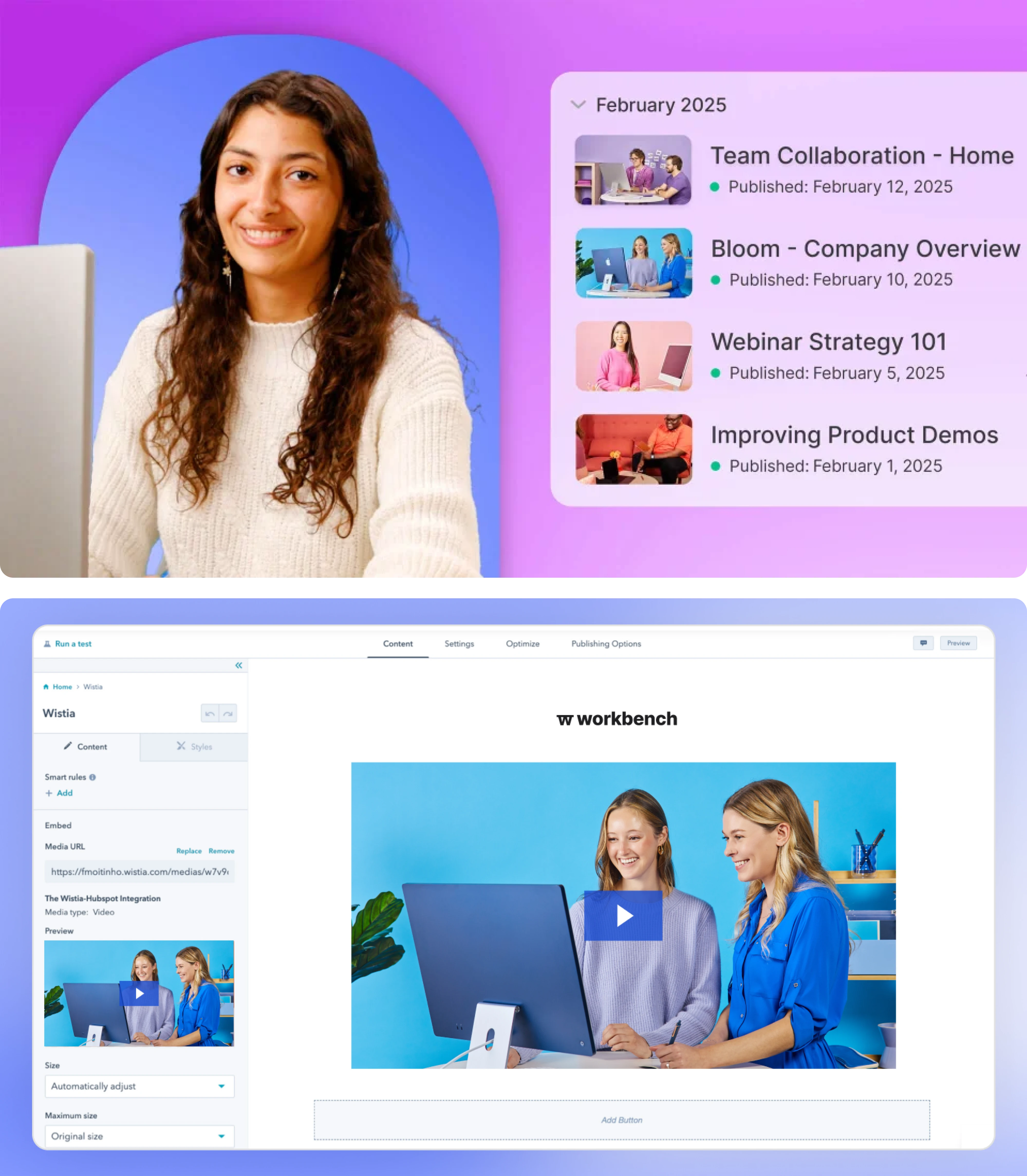
While not strictly an education platform, Wistia is often the reference point for businesses embedding educational or marketing videos.
What it does well: Combines clean design with extensive customization options.
Tradeoff: Advanced customization introduces additional setup complexity.
The common thread across learning platforms is that users frequently jump between sections, revisit concepts, and adjust playback speed. That's why transcripts, chapters, and navigation tools often matter more than visual polish alone.
Live, streaming, and interactive platforms
Live video introduces an entirely different set of UI challenges. Unlike on-demand content, the experience is happening in real time, which means the player needs to communicate status, latency, participation, and engagement simultaneously.
Twitch
Pattern: Chat-first viewing experience
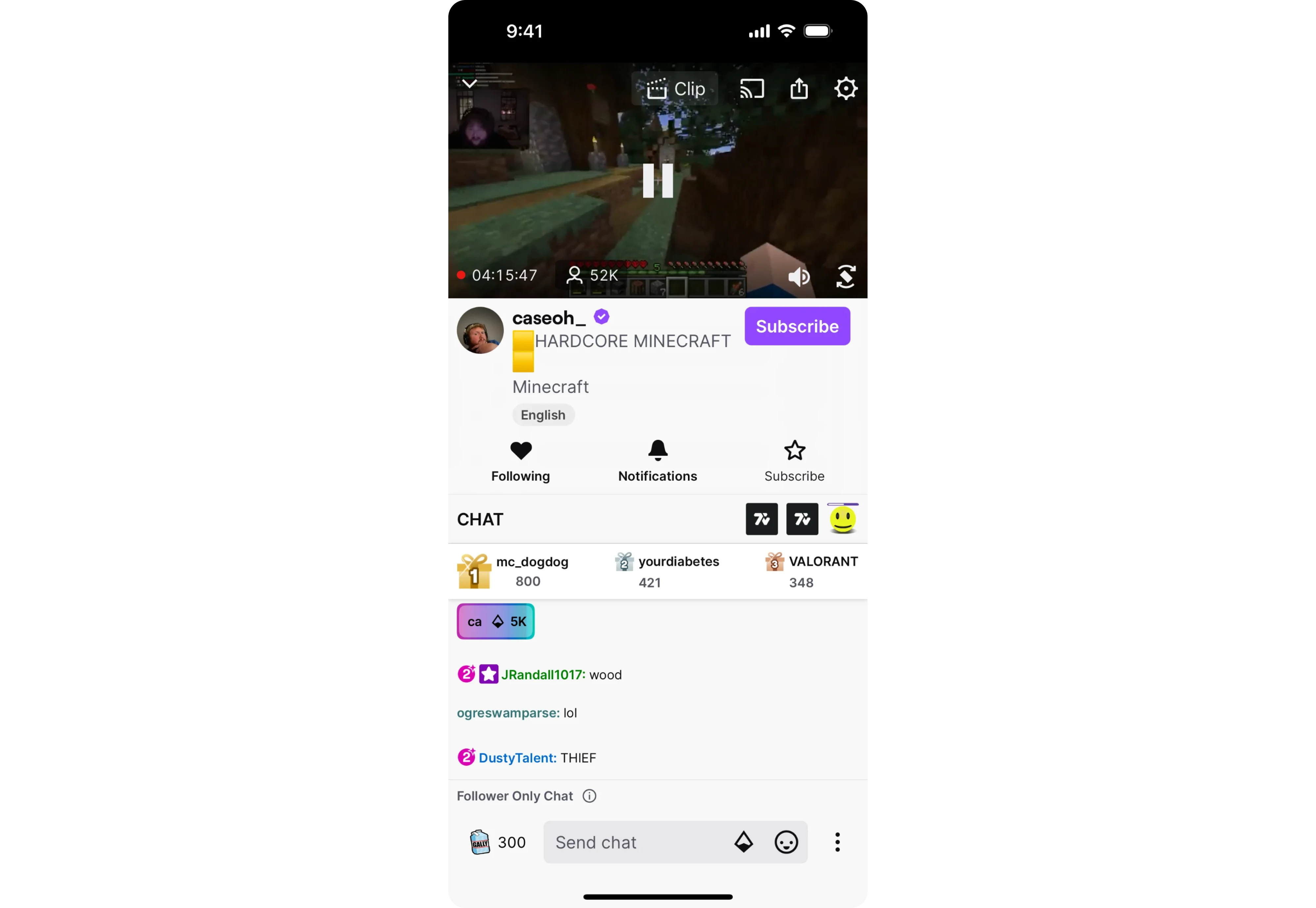
Twitch treats video and conversation as equally important. The player shares space with live chat, viewer interactions, subscriptions, and community activity.
What it does well: Creates a strong sense of participation.
Tradeoff: The interface can feel crowded, especially for first-time viewers.
YouTube Live
Pattern: Familiar player with live extensions
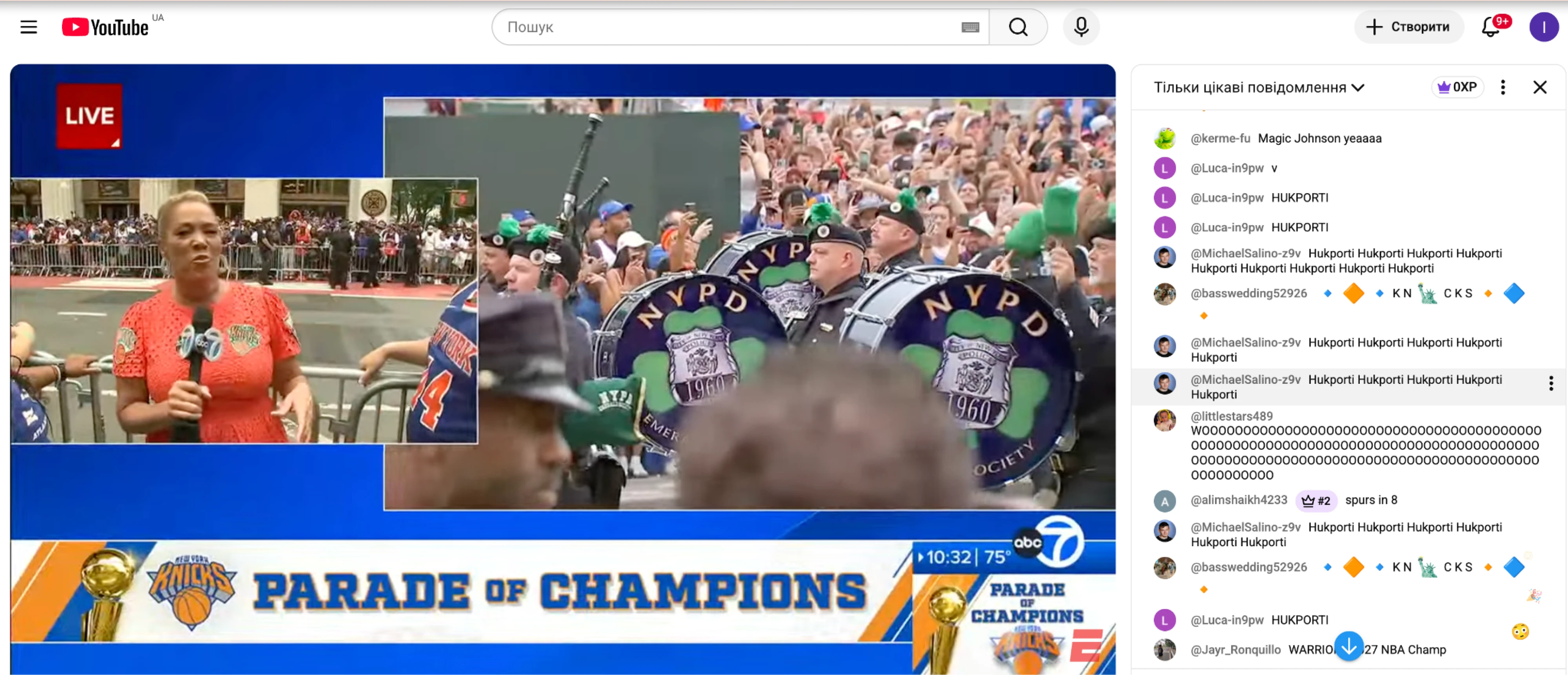
YouTube extends its standard video player with:
- live chat,
- DVR rewind,
- viewer counts,
- and live-status indicators.
What it does well: Builds on interaction patterns users already know.
Tradeoff: The player sometimes feels stretched between live and on-demand use cases.
Restream and StreamYard
Pattern: Broadcaster-focused control center
Unlike Twitch or YouTube, these tools are designed for the people producing the stream rather than consuming it.
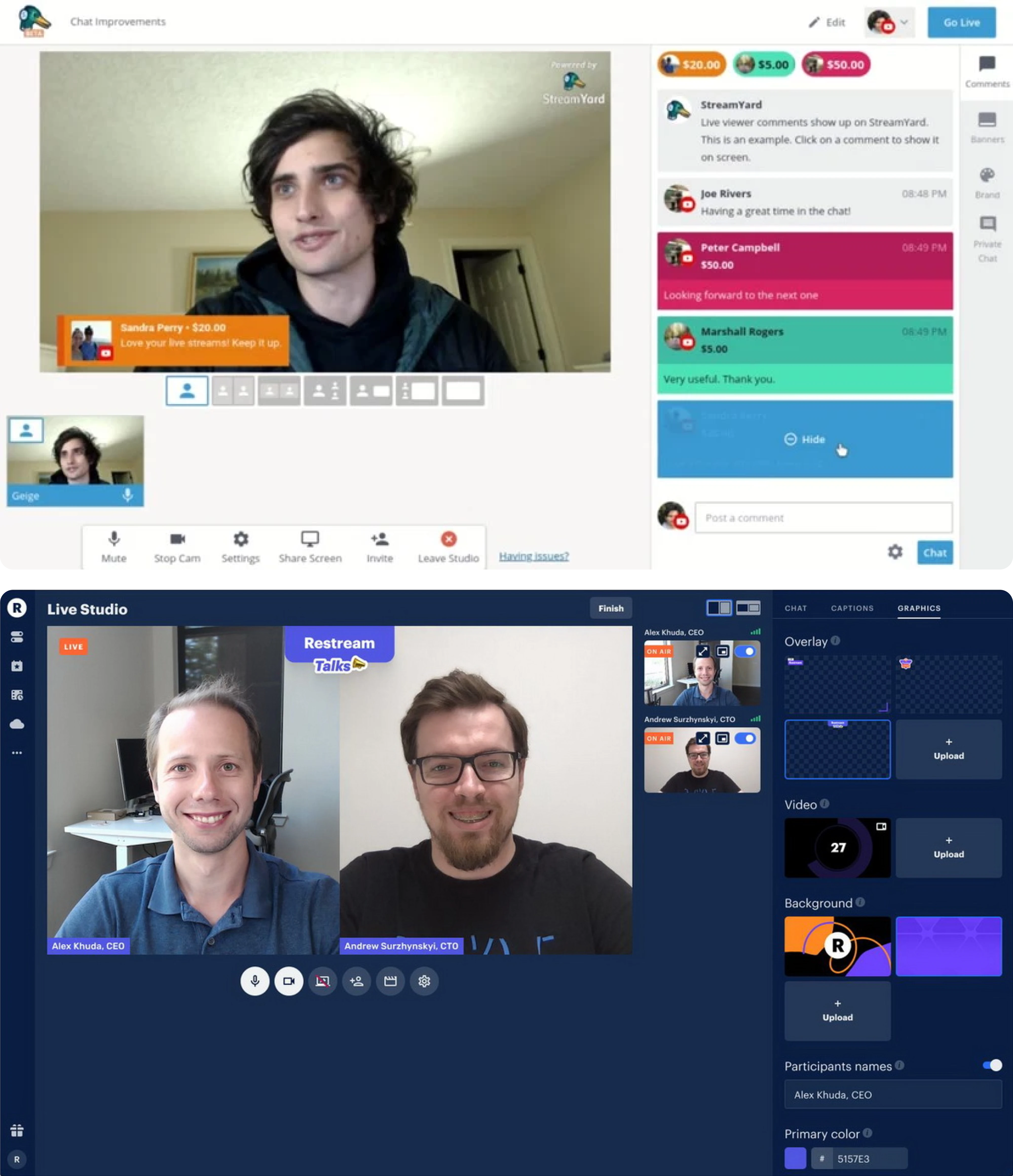
Their interfaces prioritize:
- stream health monitoring,
- scene management,
- source switching,
- and audience engagement tools.
What they do well: Give creators visibility and control.
Tradeoff: Control density creates a steeper learning curve.
The interesting lesson from live-streaming products is that viewer-facing and creator-facing players often optimize for opposite goals. One prioritizes simplicity and engagement, while the other prioritizes visibility and control.
Short-form and social video platforms
Short-form video introduced an entirely different UI language — one that many products have since copied, sometimes successfully and sometimes not.
TikTok
Pattern: Gesture-first player
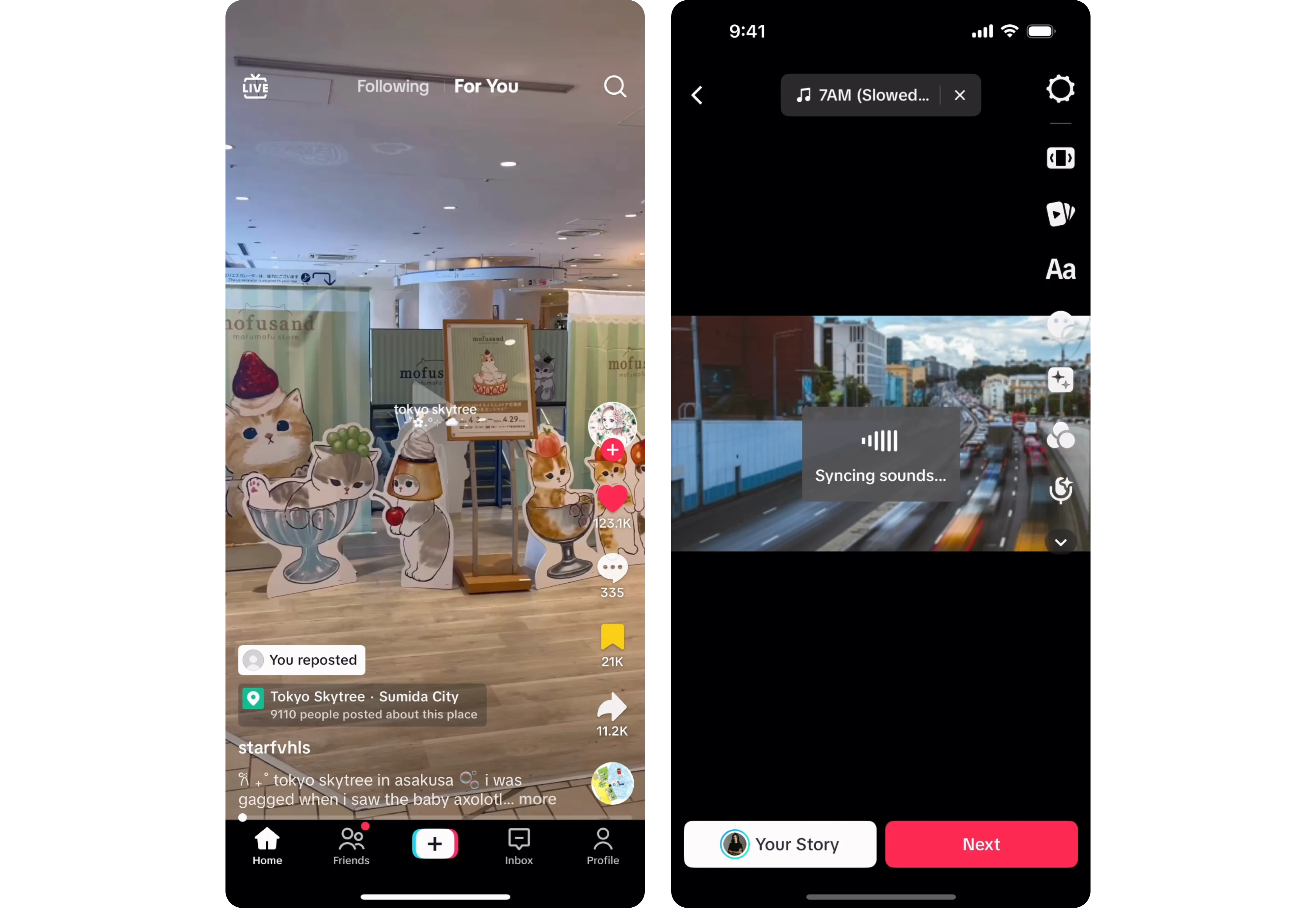
TikTok removed many traditional video controls altogether.
Instead of buttons and menus, users rely on:
- swipes,
- taps,
- holds,
- and scrolling.
What it does well: Creates an incredibly fast and immersive viewing experience.
Tradeoff: Precise playback control is limited.
Instagram Reels
Pattern: Social engagement overlay
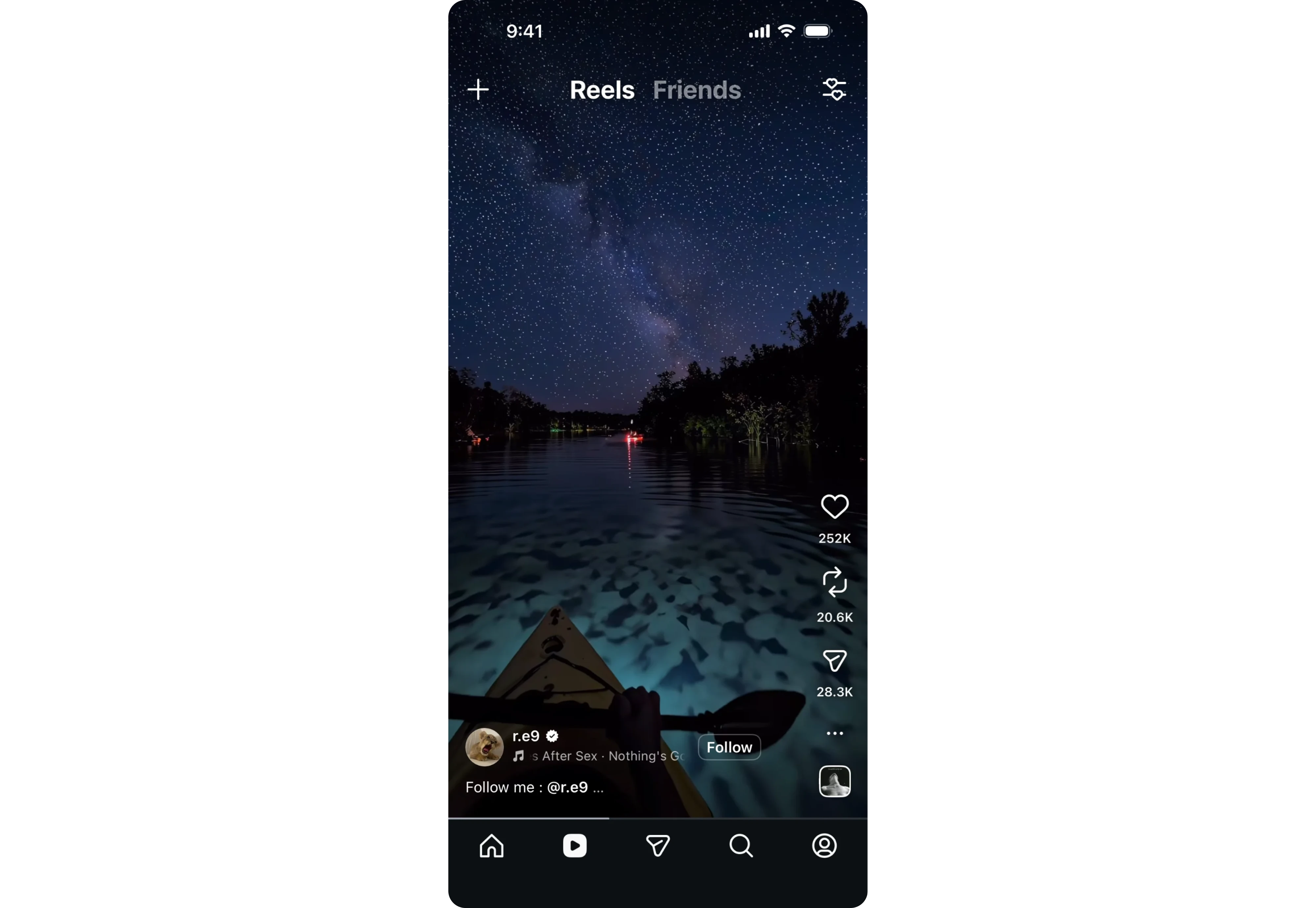
Instagram combines video playback with social actions like:
- likes,
- comments,
- shares,
- and creator information.
What it does well: Encourages engagement without leaving the content.
Tradeoff: Interface elements constantly compete with the video itself.
YouTube Shorts
Pattern: Long-form platform adopting short-form behaviors
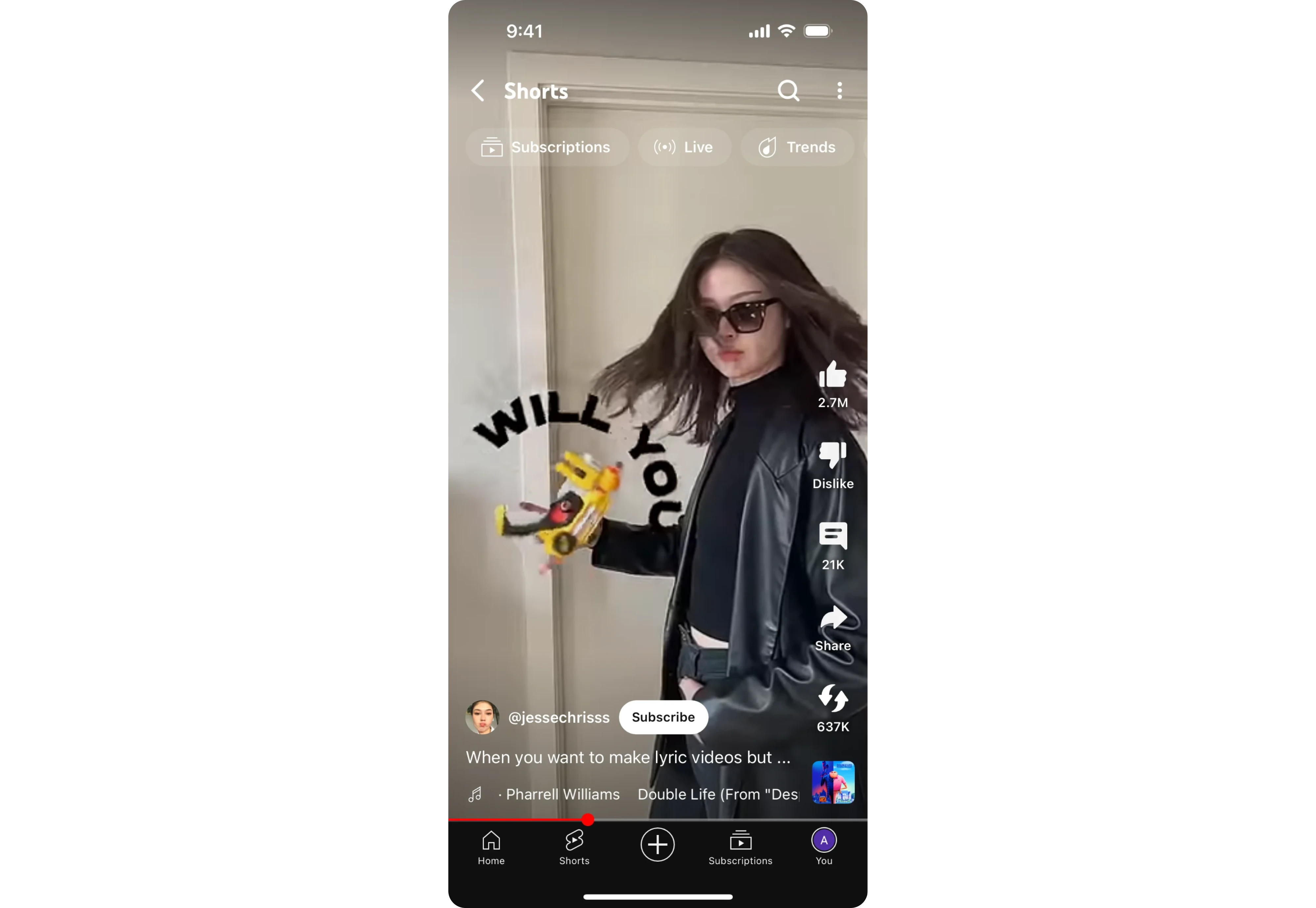
Shorts applies TikTok-inspired interaction patterns inside the broader YouTube ecosystem.
What it does well: Makes content discovery effortless.
Tradeoff: The interaction model can feel awkward when users expect traditional video controls.
LinkedIn Video
Pattern: Professional content, social-first player
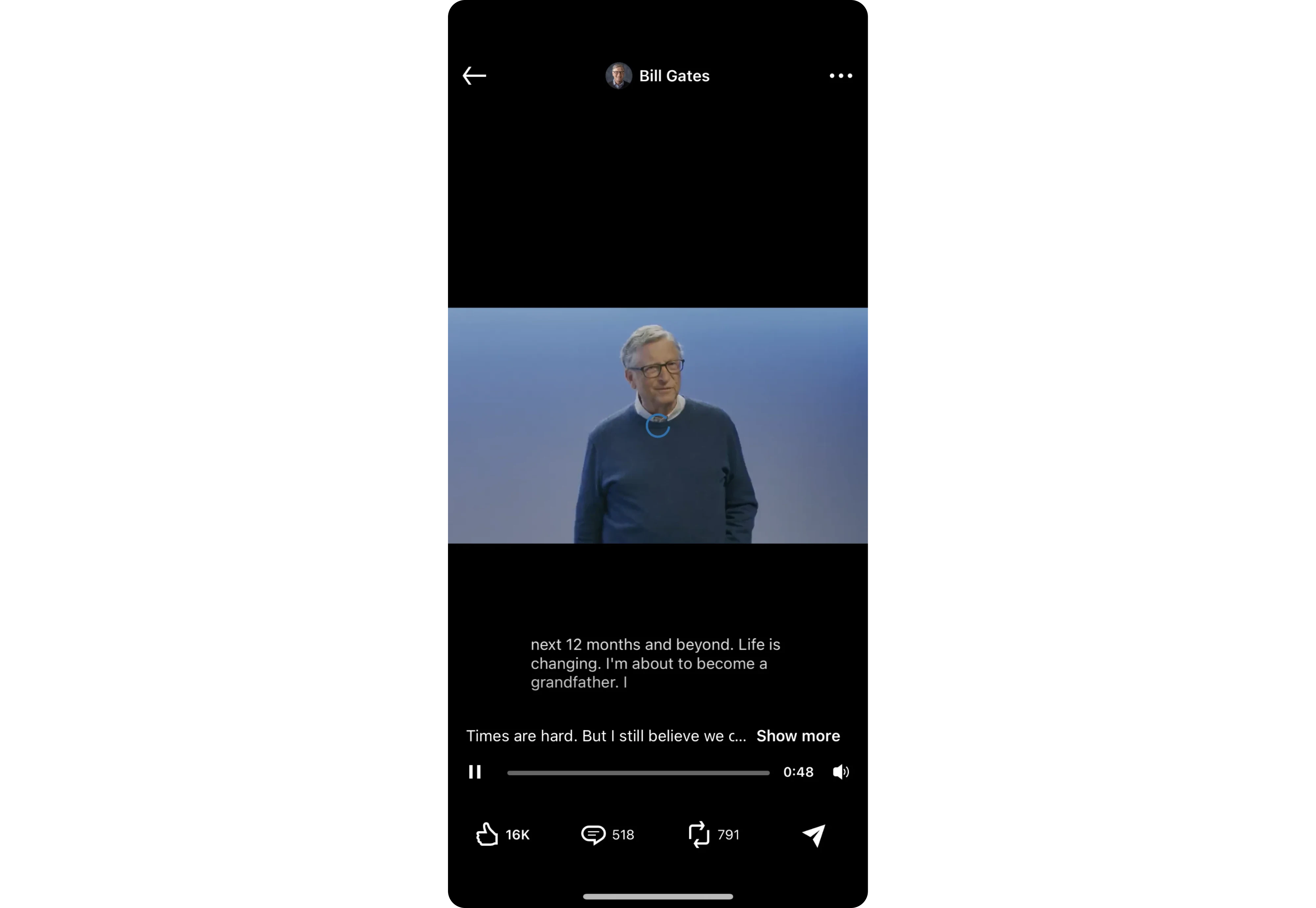
LinkedIn has adopted many short-form conventions despite serving content that is often longer and more informational.
What it does well: Encourages engagement and visibility.
Tradeoff: Users frequently complain that short-form interaction patterns make longer content harder to consume.
This category highlights an important lesson: not every video experience benefits from short-form design patterns. What works for endless scrolling doesn't always work for learning, presentations, or long-form viewing.
Local and desktop video players
This category is often overlooked in design galleries, yet some of the most thoughtfully designed video players exist outside the browser entirely.
IINA
Pattern: Streaming-quality UI for local media
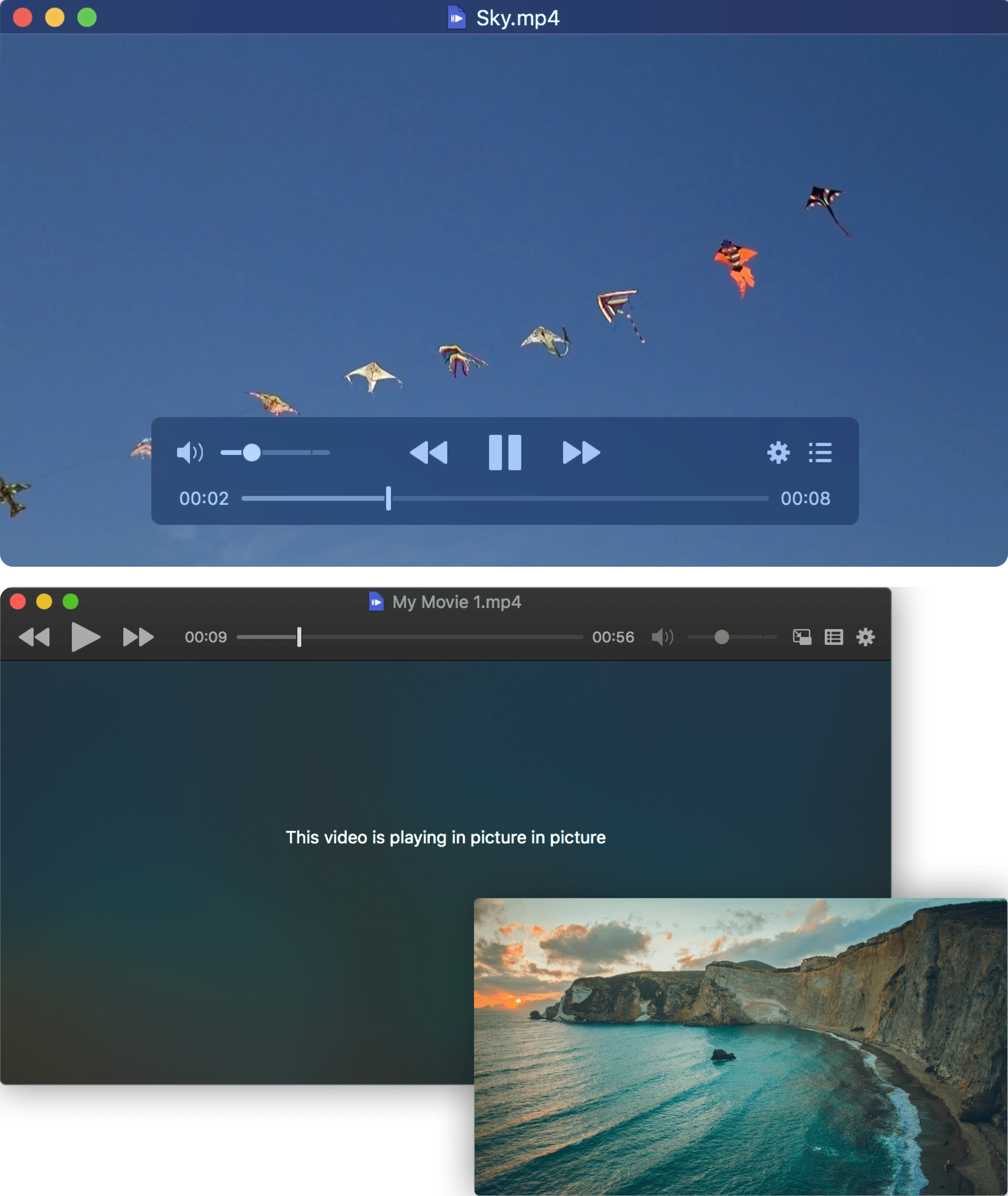
IINA modernized local playback on macOS with:
- clean controls,
- elegant animations,
- keyboard-first interactions,
- and minimal visual clutter.
What it does well: Feels like a modern streaming product despite playing local files.
Tradeoff: Limited platform availability.
Screenbox
Pattern: Windows-native modern media player
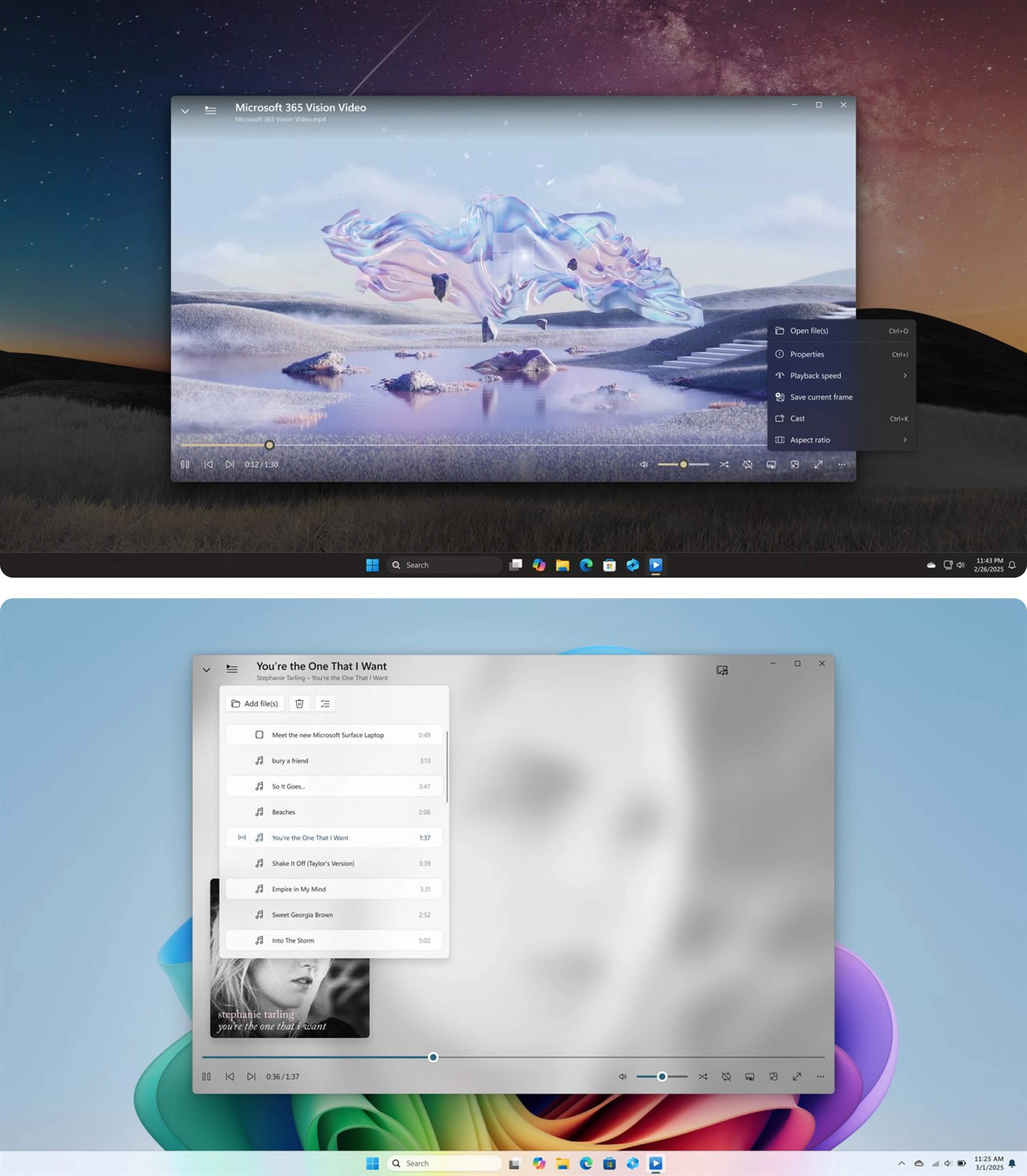
Screenbox brings contemporary design patterns to local playback while remaining familiar to Windows users.
What it does well: Balances simplicity with customization.
Tradeoff: Smaller ecosystem and community compared to older alternatives.
VLC
Pattern: Functionality-first legacy player
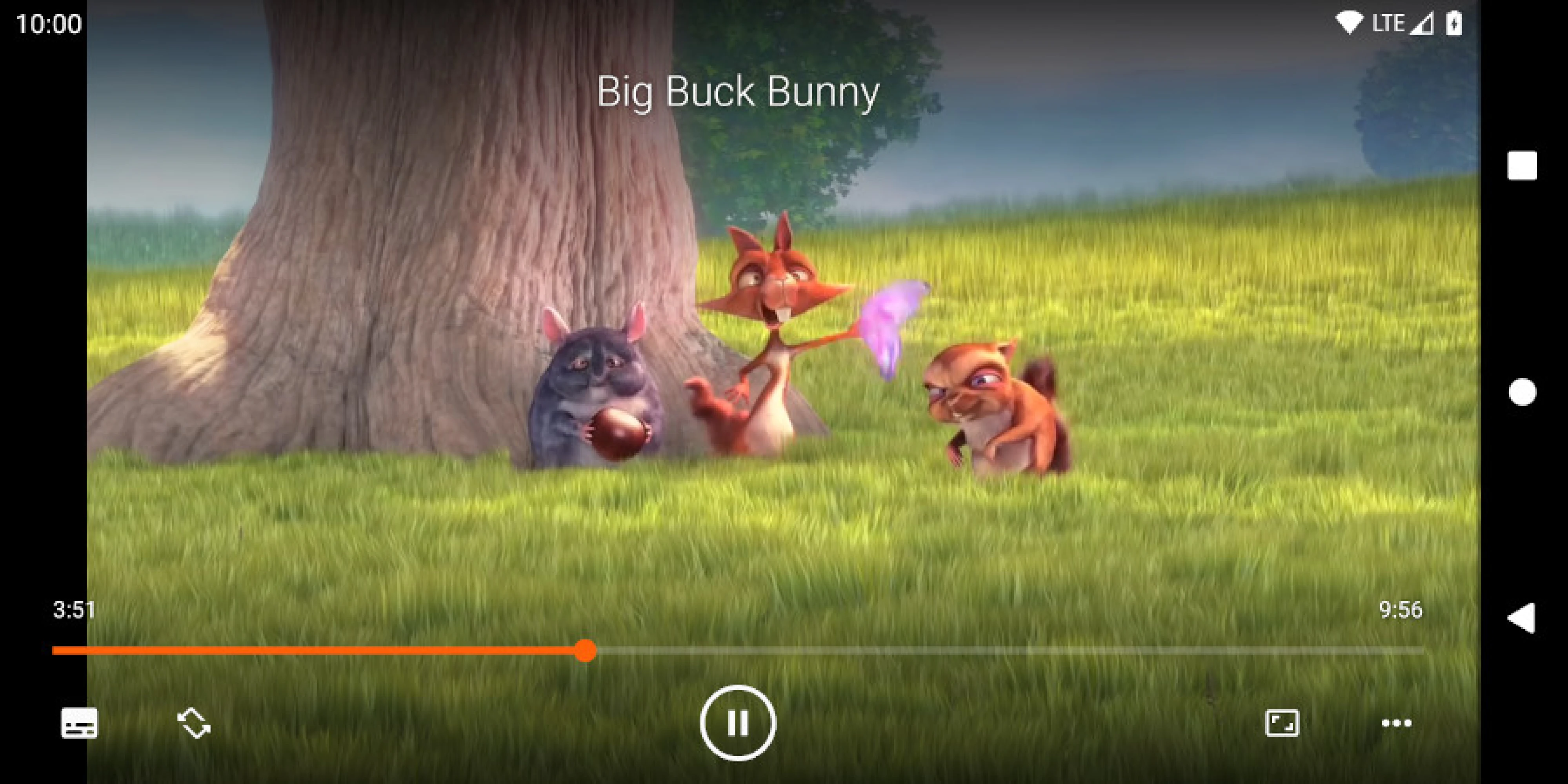
VLC remains one of the most widely used players in the world because of its versatility.
What it does well: Supports virtually everything.
Tradeoff: The interface often feels dated compared to newer alternatives.
This category reveals something many designers forget: users increasingly expect local software to feel as polished as Netflix or YouTube. The gap between web and desktop player UX is shrinking quickly.
Anatomy of a video player UI
Most people think of a video player as a collection of controls: play, pause, volume, fullscreen.
In reality, a player is a state machine.
The interface users see while watching a video is only one of many states a player moves through. Good video player UX comes from handling each state intentionally and making transitions feel seamless.
Loading
This is the first impression users get of the player.
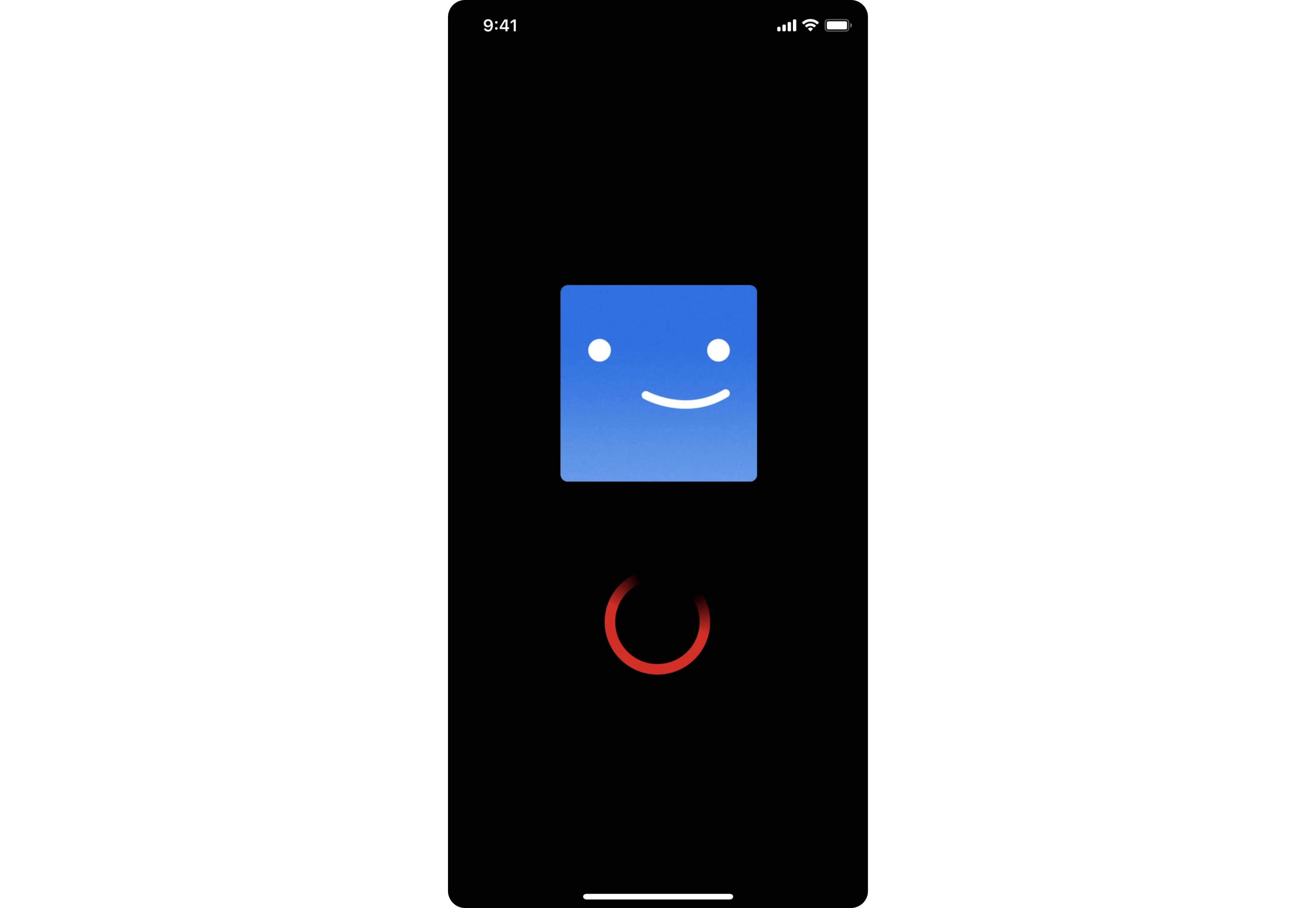
Most modern products use:
- skeleton screens,
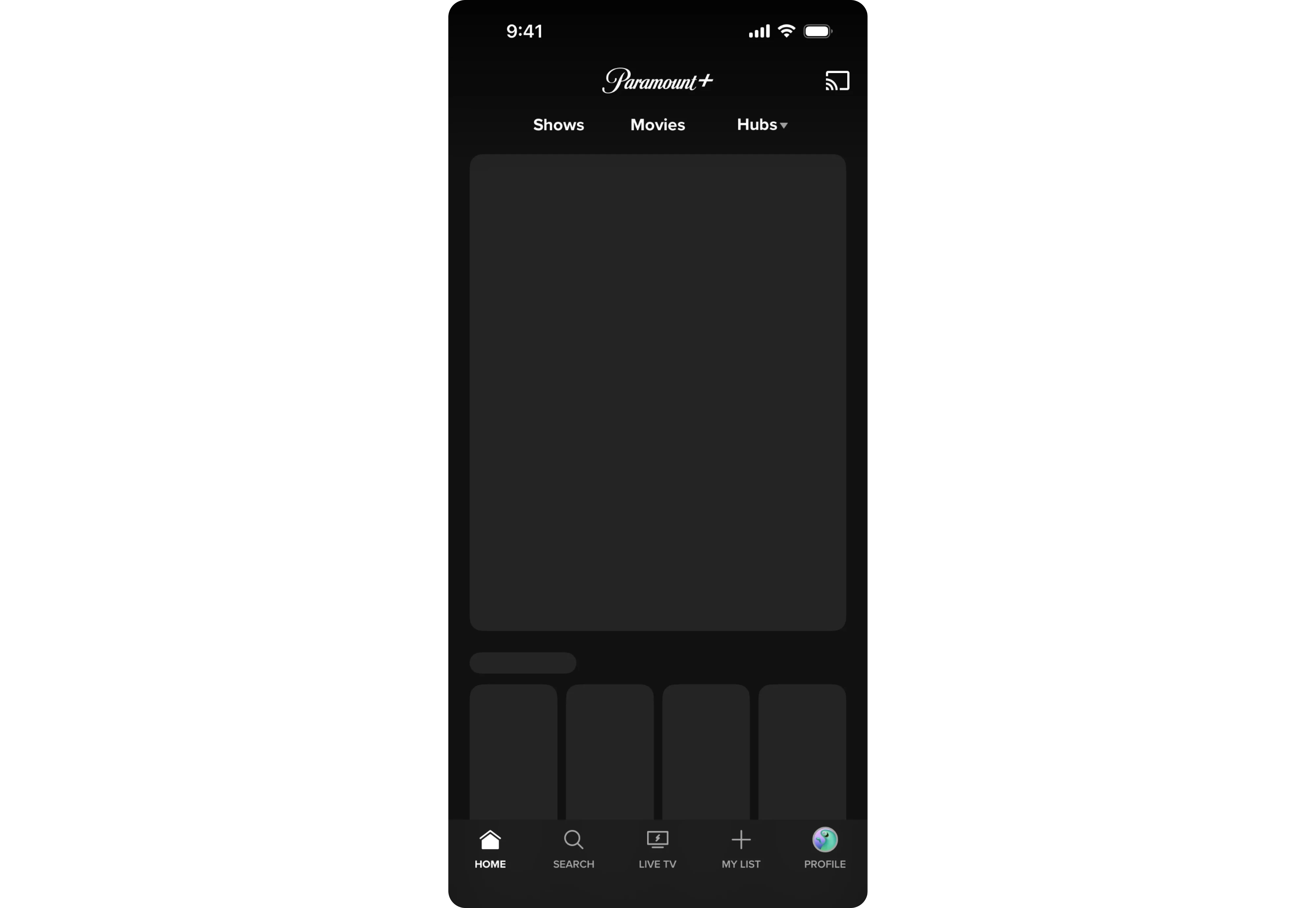
- animated loaders,
- or branded loading states.
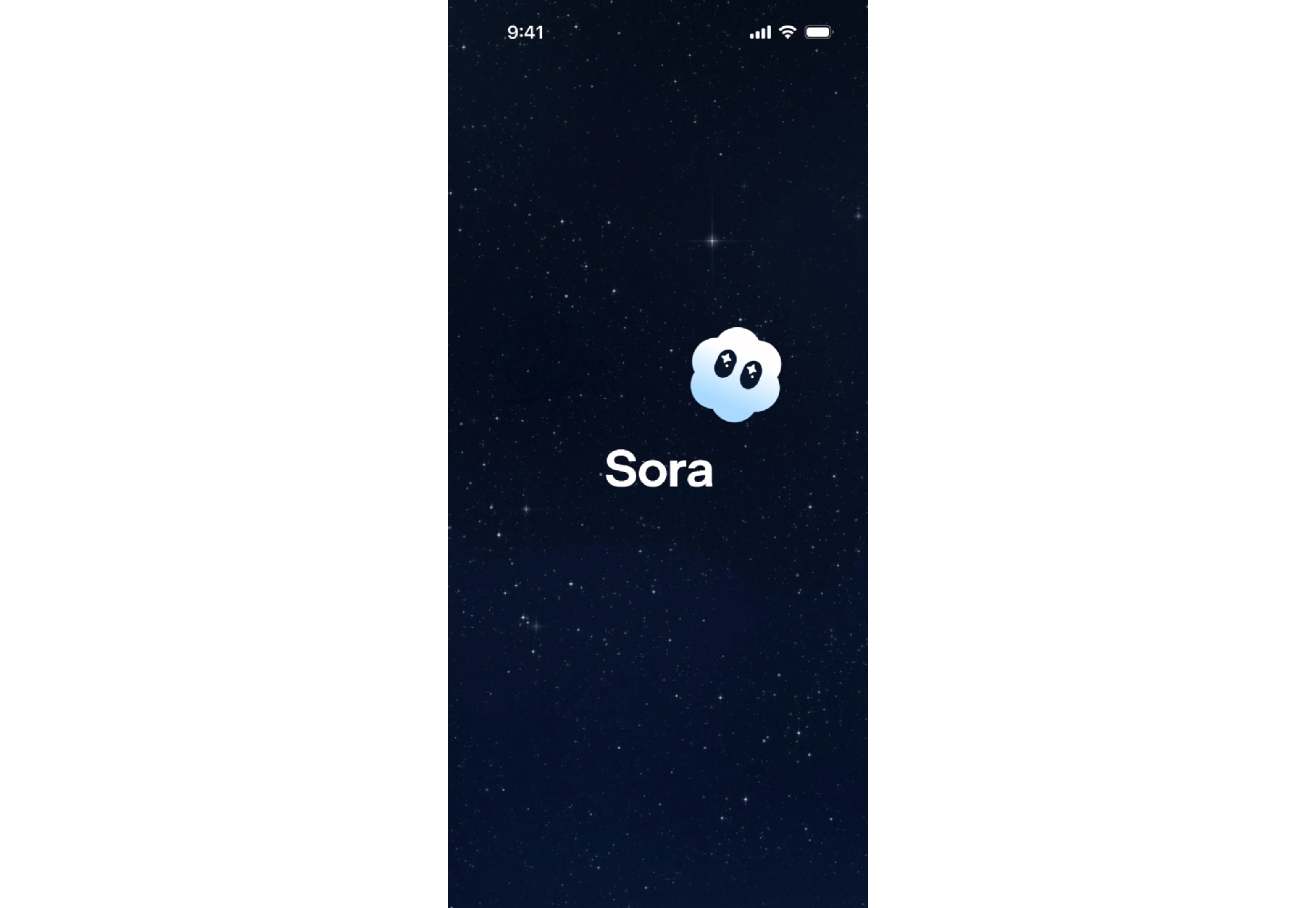
Netflix and YouTube keep loading UI minimal, focusing on getting users into playback as quickly as possible.
The biggest mistake? Leaving users wondering whether the player is working at all.
Before-play
Before playback begins, the player usually displays:
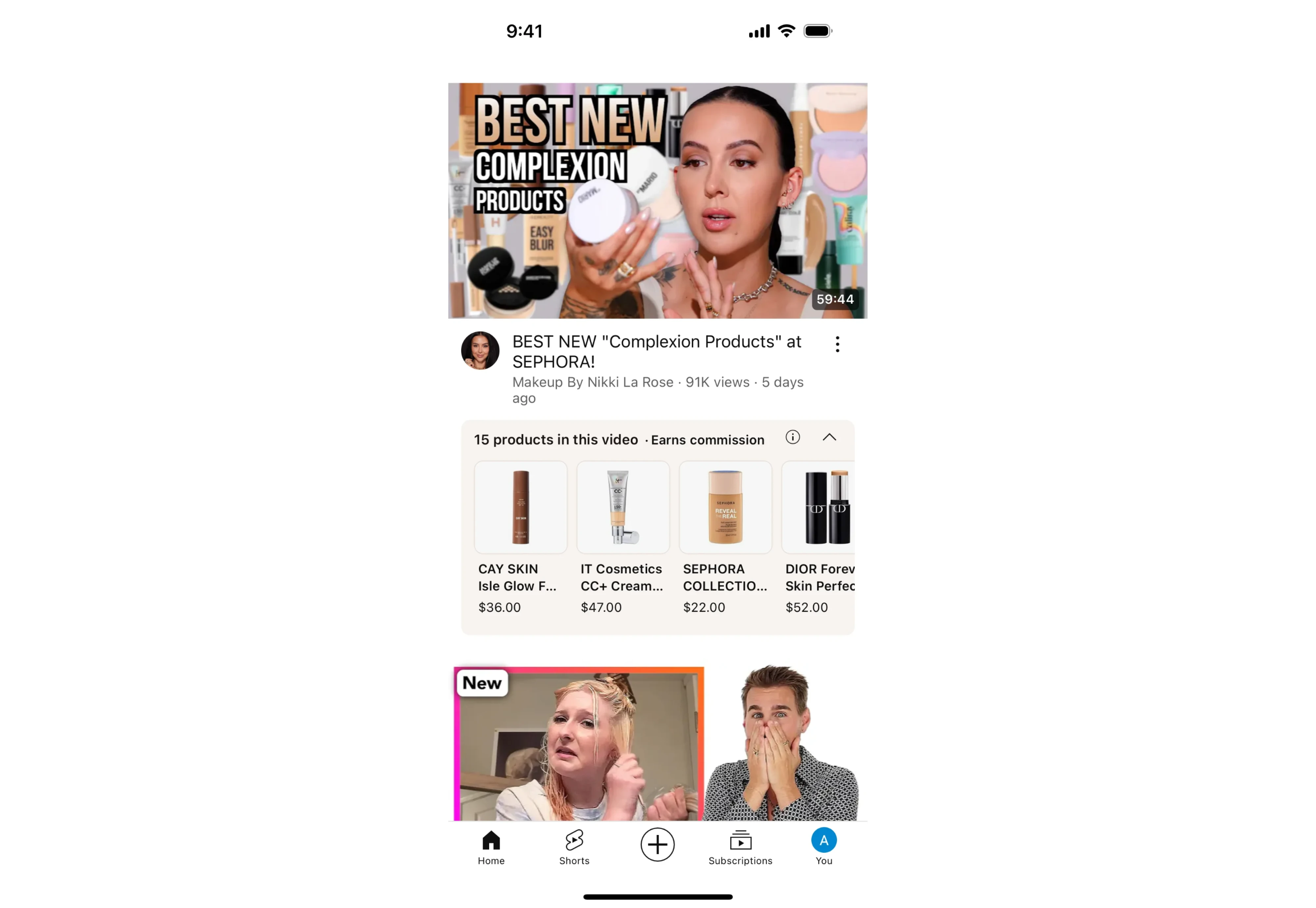
- a thumbnail,
- poster image,
- title,
- or preview state.
This screen has one job: convince users to press play.
YouTube relies heavily on thumbnails, while learning platforms often surface lesson titles, duration, and progress information before playback starts.
Ad state
Whether users love them or hate them, ads introduce a unique player state.
Good ad experiences clearly communicate:
- ad duration,
- skip availability,
- and progress.
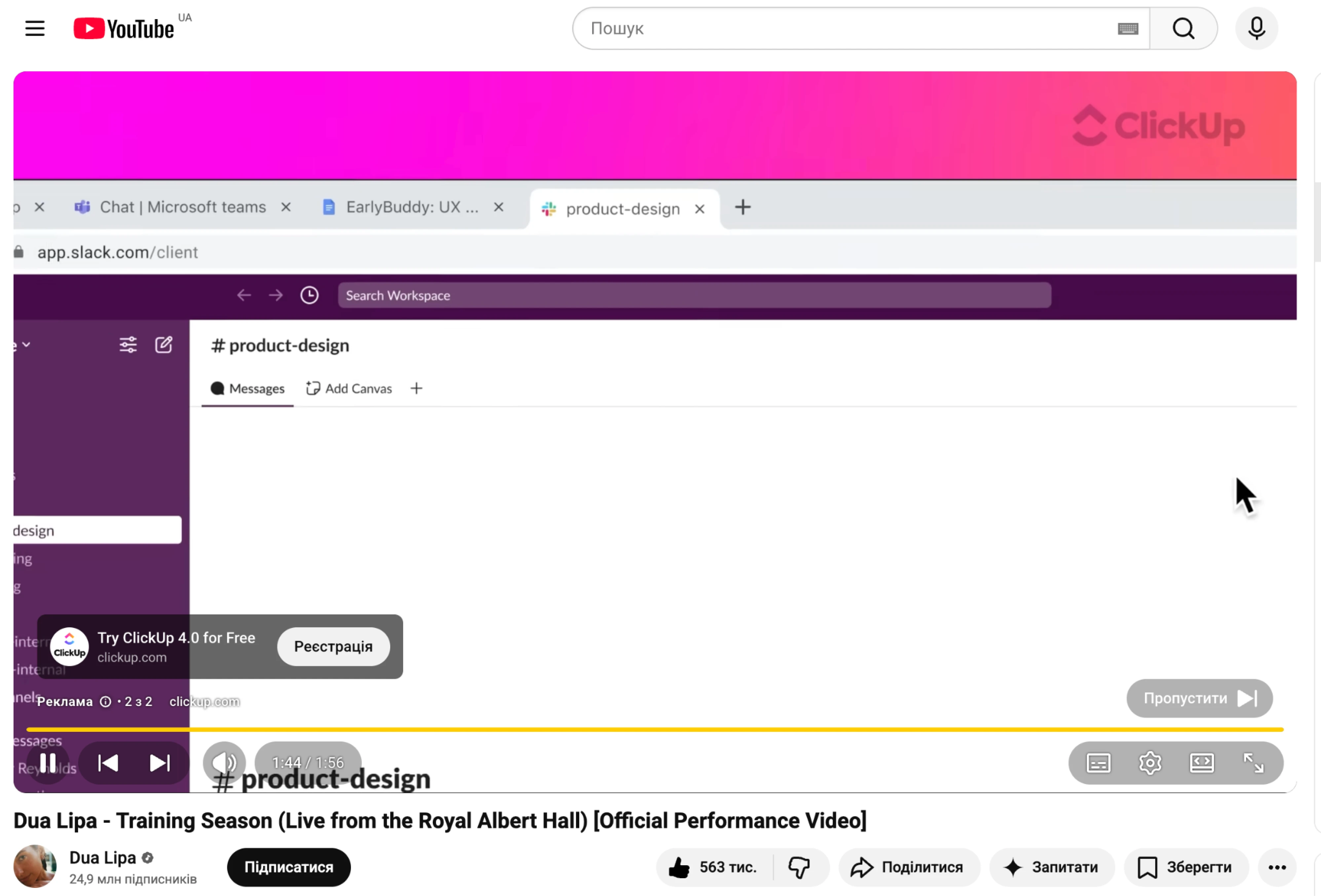
YouTube's "Skip Ad" countdown remains one of the most recognizable examples of this pattern.
The challenge is balancing business goals without making the player feel deceptive.
Playing
This is the state designers spend the most time thinking about.
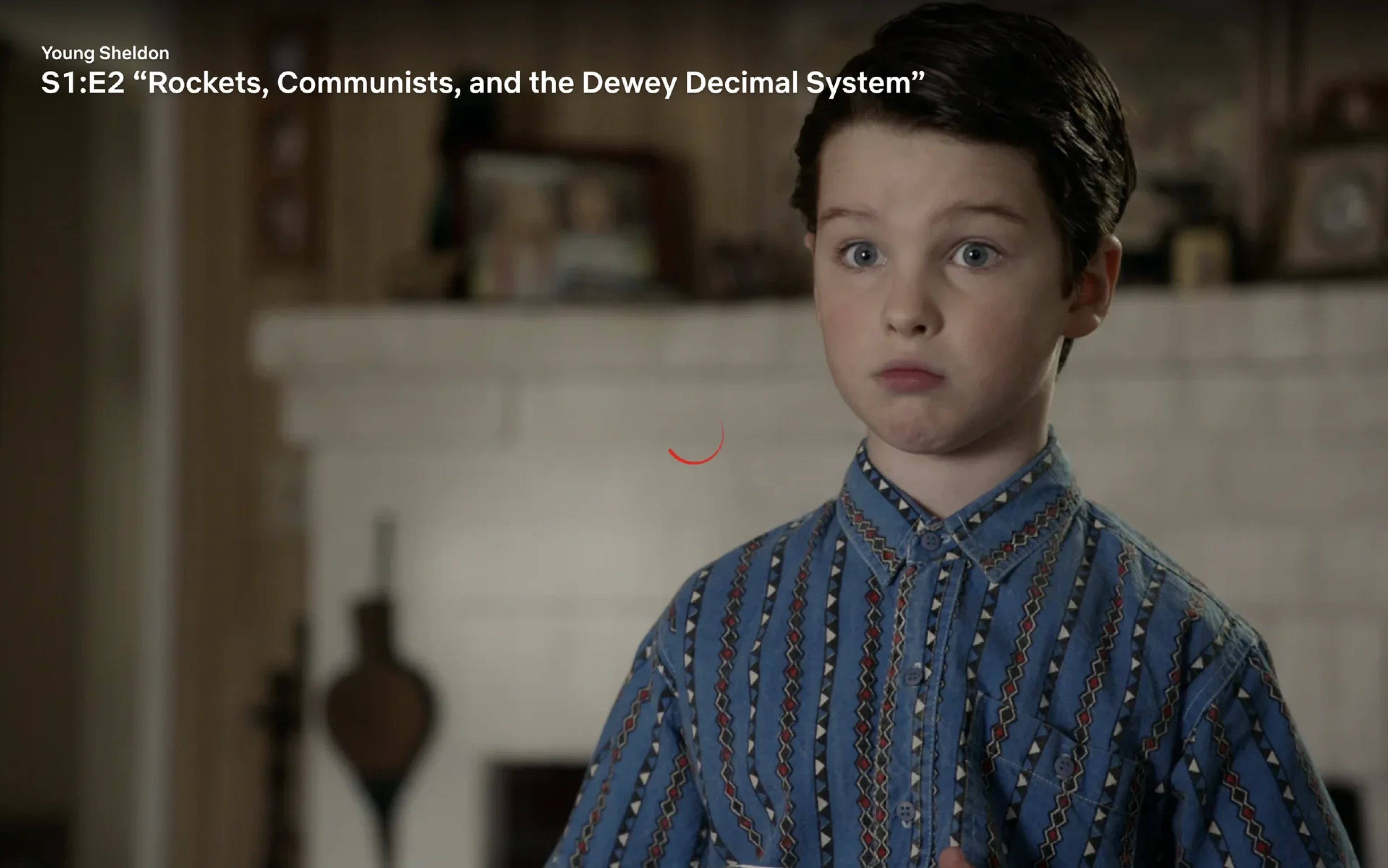
Ironically, the best playback UI is often almost invisible.
Modern players typically:
- auto-hide controls,
- minimize visual noise,
- and keep focus on the content itself.
Netflix is perhaps the best example of this philosophy.
Hover and idle
When users move their cursor or tap the screen, the interface reappears.
This state reveals:
- controls,
- timestamps,
- settings,
- and navigation options.
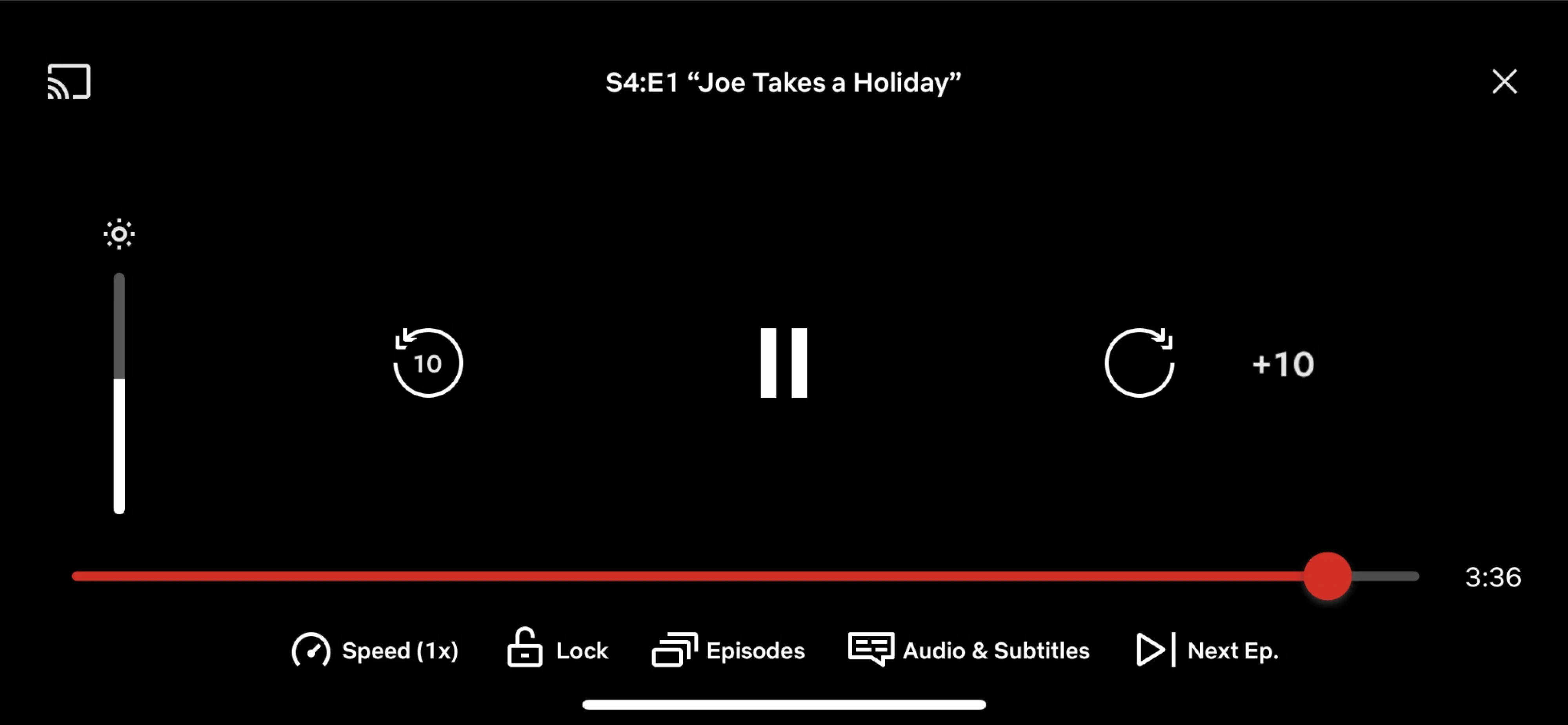
The key principle is predictability. Users should never wonder how to bring controls back.
This is one of the reasons the YouTube redesign received criticism — some familiar interactions suddenly felt less predictable.
Seeking
Seeking happens when users scrub through content.
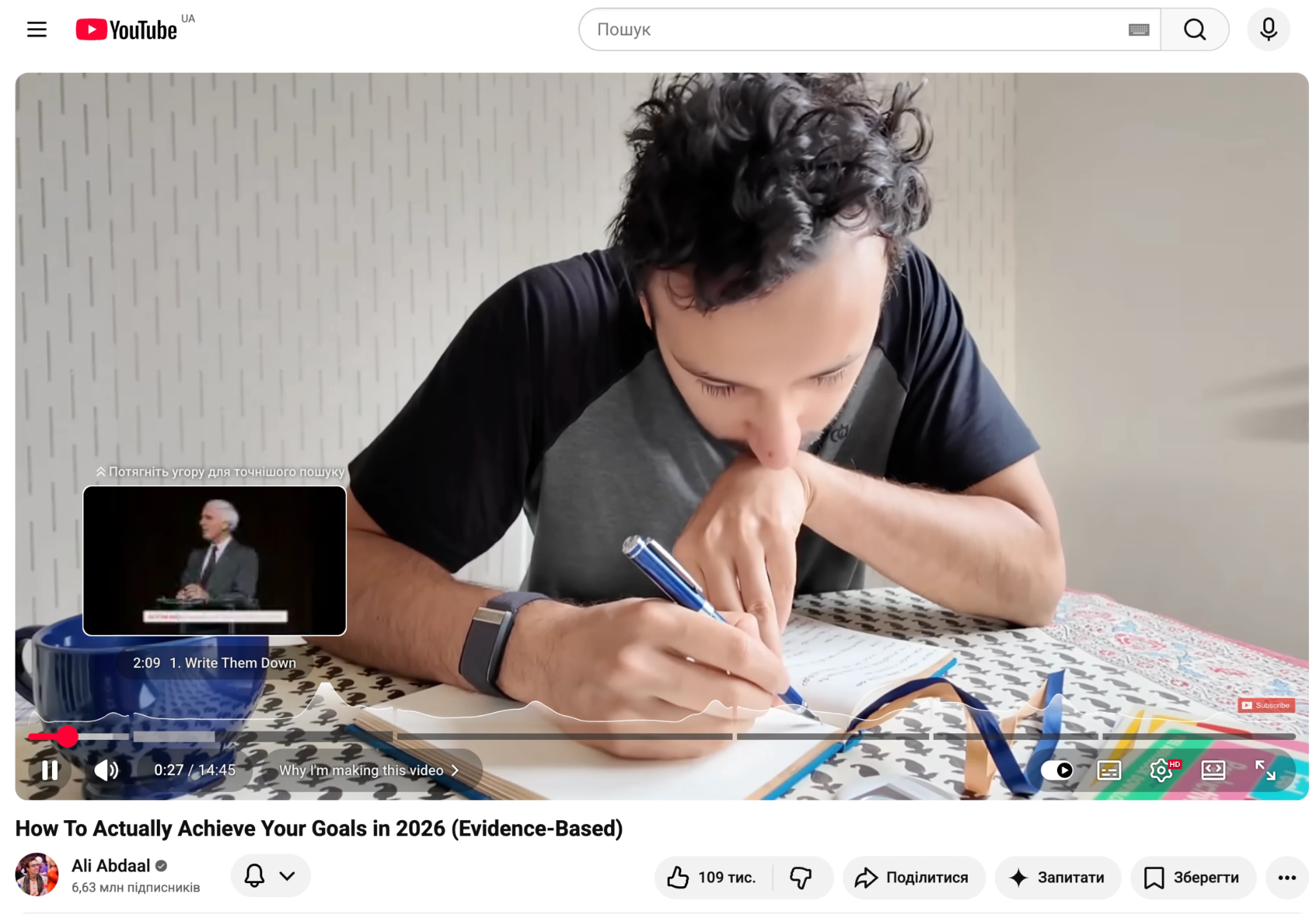
Today, most high-quality players provide:
- thumbnail previews,
- chapter markers,
- timestamp indicators,
- and visual progress cues.
Netflix and YouTube set the standard here, making it easy to find specific moments without guesswork.
Paused
Pause screens are often underutilized.
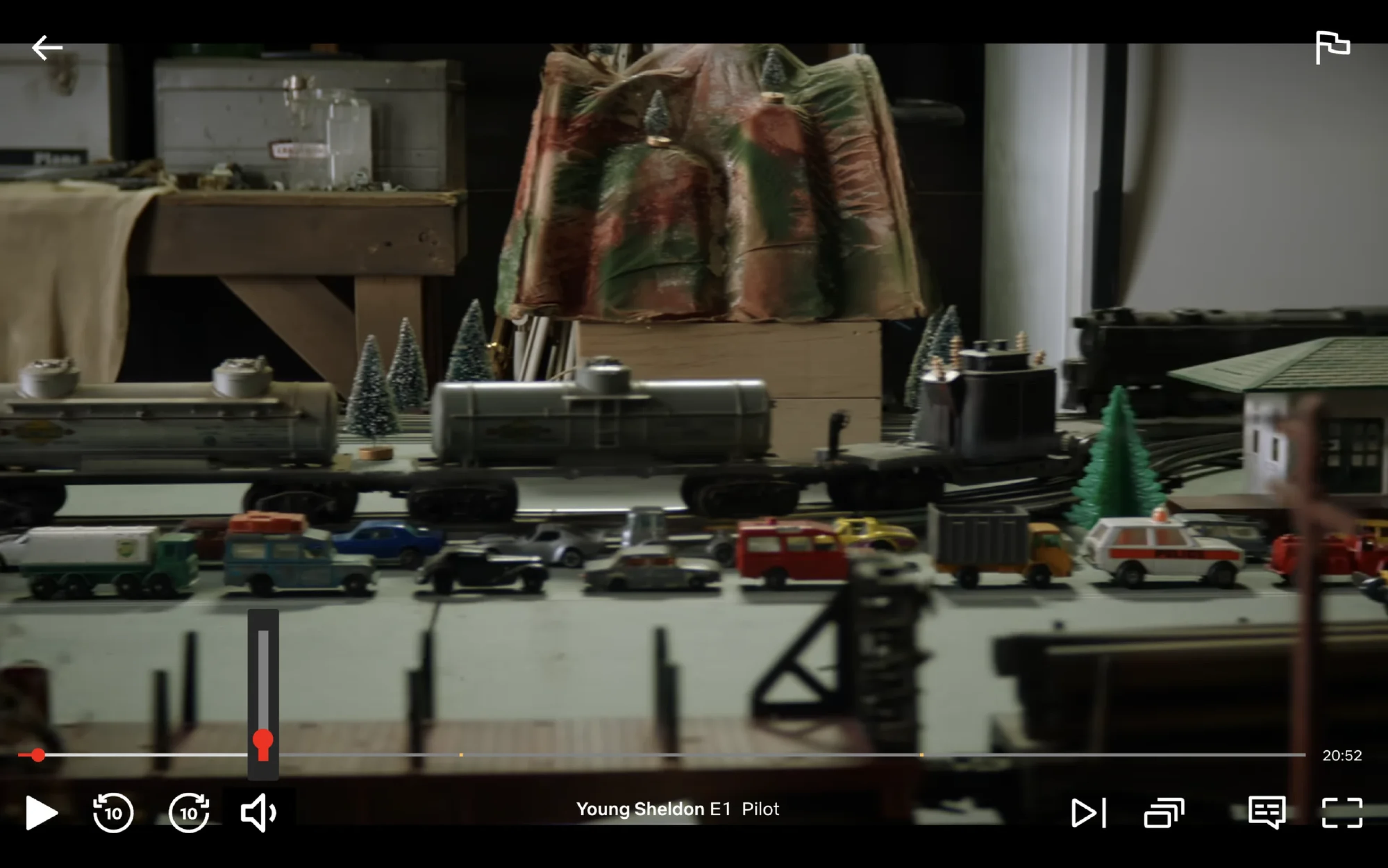
Some products simply freeze the frame.
Others use the opportunity to provide:
- transcripts,
- chapter navigation,
- recommendations,
- or contextual actions.
Learning platforms are particularly effective here because users frequently pause to review material.
Ended and up next
Once playback finishes, the player enters a decision state.
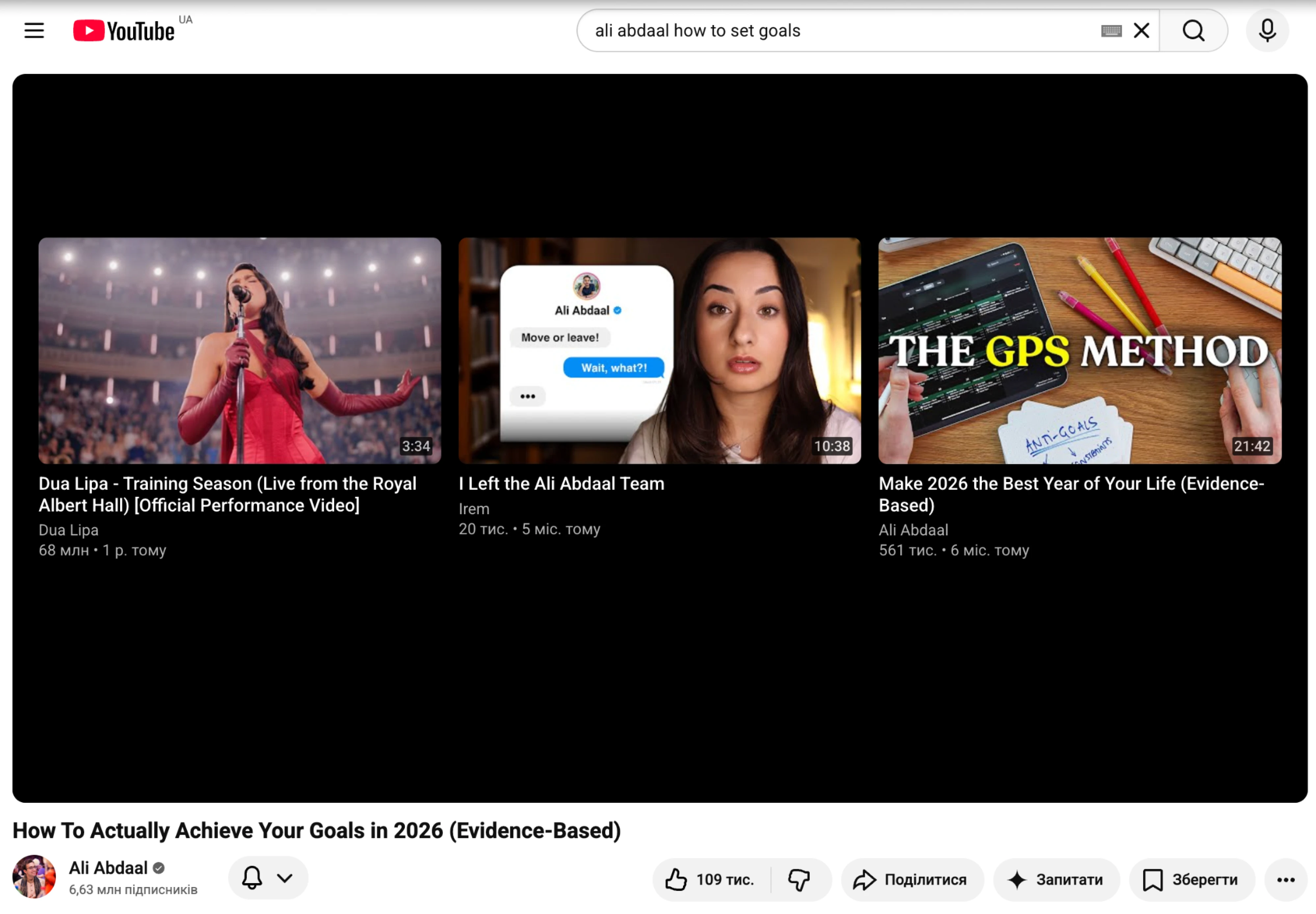
Most products use this moment to encourage the next action:
- watch another episode,
- continue a course,
- replay content,
- or explore related videos.
Netflix's autoplay overlays and YouTube's recommendation screens are classic examples.
The tradeoff is balancing discovery with giving users time to process what they've just watched.
And the common thread across all these states is simple: users shouldn't have to think about them. Great video player UI makes transitions feel natural, keeping attention on the video rather than the interface.
Design principles forum users actually care about
Most articles about video player UI focus on controls, layouts, and visual styles.
Users don't.
When people complain about player redesigns, they're usually reacting to something deeper: a familiar interaction disappeared, a workflow became harder, or a feature they relied on got removed. Looking at years of feedback around YouTube, Netflix, and desktop media players reveals a handful of principles that matter far more than aesthetics.
Auto-hide is no longer optional
Modern video experiences depend on controls getting out of the way during playback.
Users expect the interface to disappear when they're watching and reappear instantly when they move the cursor, tap the screen, or press a key. When this interaction breaks, people immediately assume something is wrong.
The lesson is simple: controls should never compete with the content, but they should always be easy to summon.
Feature parity beats visual refresh
One of the most common complaints about video player redesigns has nothing to do with appearance.
It's feature loss.
Again and again, users tolerate visual changes but react strongly when familiar functionality disappears. Recent YouTube criticism wasn't centered on colors or spacing—it focused on removed shortcuts, altered gestures, and interactions that no longer worked as expected.
A redesign that looks better but does less rarely feels like an improvement.
Button shapes should match the input device
The rise of pill-shaped controls reflects a broader shift toward touch-first design.
On mobile, larger targets improve usability. On desktop, however, oversized controls can feel imprecise, especially for users navigating with a mouse.
Many products apply the same component system across every platform, but interaction needs aren't always identical. A player optimized for touch isn't automatically optimized for desktop.
Don't force new defaults silently
Users are surprisingly adaptable when changes are explained.
What frustrates them is when behavior changes without warning.
Many YouTube users initially assumed recent player updates were bugs because familiar interactions suddenly behaved differently. The issue wasn't the redesign itself—it was the lack of context.
If a new behavior changes how people interact with the player, make the change visible.
Design for the screen people actually have
Video players don't exist in a vacuum.
A feature that looks beautiful on one display can feel broken on another.
Ambient glow effects are a good example. They can create a cinematic experience on LCD displays but often look less convincing on OLED screens, where users may prefer pure blacks and higher contrast.
Modern player design increasingly needs to account for different devices, display technologies, and viewing environments.
Accessibility is becoming non-negotiable
Accessibility is no longer an optional enhancement.
Keyboard navigation, caption customization, screen reader support, and WCAG compliance are becoming baseline expectations rather than premium features.
Many recent player redesigns are partially driven by accessibility requirements, even when those motivations aren't obvious to users. The challenge is improving accessibility without disrupting workflows people already know.
Keep controls hidden—but discoverable
This may be the most important principle of all.
A great video player disappears when users don't need it and reappears exactly when they do.
Not eventually.
Not after a hunt through menus.
Immediately.
Whether someone uses a mouse, a keyboard, a touchscreen, or assistive technology, the path to playback controls should always feel predictable.
Most video player frustrations can ultimately be traced back to this rule being broken.
If users have to think about how to control the player, the interface is already getting in the way.
Final thoughts: good video player UI gets out of the way
The best video player UI isn't the one with the most features — it's the one users barely notice.
Whether it's Netflix, Loom, Coursera, or Gong, great players all follow the same principle: keep the focus on the content, make controls easy to access, and stay out of the way the rest of the time.
At Eleken, we've worked on SaaS products where video is central to the experience, and one thing is consistently true: the player isn't just another component. It's often the interface users interact with most.
Whether you're designing a custom video player UI or improving an existing one, the goal is the same: create an experience that feels intuitive, responsive, and effortless from the first click to the last frame.



.webp)