
AI is still a black box for most users, as the logic behind answers remains invisible. That’s risky. If users don’t understand or trust what AI is doing, they’ll stop using it, or worse, misuse it.
According to Gartner, 2026 will be a turning point. With the rise of domain-specific language models and multi-agent systems, AI adoption is accelerating across industries. But without clear, explainable interfaces, users get left behind.
By 2028, over 40% of enterprises will adopt hybrid computing architectures, making explainability critical to how users interact with AI.
-trends-statistics-01.webp)
At Eleken, we specialize in UI/UX design for SaaS, across all verticals, with a focus on complex B2B and AI-powered applications. And we’re seeing the same thing Gartner warns about: trust is becoming the core UX challenge. Designers should shape how users see, question, and trust the intelligence behind the interface.
In this guide, we’ll show why explainability is a UX problem, what design patterns are emerging, and how to bake transparency into your product
Let’s get into it.
What explainable AI means for design
Explainable AI began as a way to make sense of machine learning models, especially the “black box” kind that even developers couldn’t fully unpack.
In design, explainable AI (XAI) means creating interfaces that help users understand how and why an AI system made a decision.
It’s about making the AI’s behavior feel clear, predictable, and trustworthy. That could mean adding tooltips that explain suggestions, visual cues that show confidence levels, or allowing users to ask, “Why did the AI choose this?”
If you want to learn more about how UX designers can use AI, consider watching this video:
Also, designers often use ChatGPT as a UX researcher, helping them identify gaps in understanding and test how people react to AI outputs in real time.
Let’s translate some of the academic XAI terms into design language:
Designers are responsible for how those models speak to users. That’s the layer where trust is built.
And importantly, explainability is interactive, contextual, and embedded into the flow. XAI in design turns invisible AI logic into visible user insight, so users can stay informed, feel in control, and make better decisions with AI.
In that sense, product design AI tools are evolving from just generators to explainers. We’re designing relationships between input, logic, and output.
Let’s look at what’s breaking in the UX, and how explainable AI UI design can fix it.
The hidden UX problems explainable design solves
Most AI products fail because their interfaces don’t speak human. We’ve been watching designers and devs talk about this in forums, Reddit threads, and feedback calls. The problems are consistent, and an explainable design is the answer.
Here’s what we’re seeing:
- “You can’t do it without the lingo.”
If AI speaks like a data scientist, users check out. One Reddit user shared: “... I've always been disappointed in the resulting quality of the discussion, especially with that kind of topic. Between the glazing, the artificially neutral tone, the circular reasoning after 10 sentences, having prolonged discussion is impossible…”
-reddit-02.webp)
Design implication: explainability has to speak the user’s language, not the model’s. For a healthcare app, that means plain-language descriptions, not probability graphs. For a fintech dashboard, think “estimated risk based on your last 5 transactions”, not “anomaly score: 0.78”.
This ties into what we know from the psychology laws behind UX design: clarity reduces friction.
- “I explain it to AI, AI explains it back to me.”
People want a feedback loop. The frustration often comes from systems that respond, but don’t listen. As one Redditor put it: “This repetitive cope is getting exhausting.”
-reddit-03.webp)
Design implication: transparent AI interfaces need mutual verification. That could be a simple "Did I get that right?" confirmation before execution. Or a way for users to tweak the result and see how the AI in UX design adjusts. This supports the idea that user feedback is important not just for improvement, but also for building trust.
- “I had to create Markdown files with UX laws.”
A real quote from a designer forced to document logic that wasn’t visible in the UI. The Redditor wrote: “... Then you need to build a directory of UX heuristics and conventions that the LLM can work from, convert something like this to markdown files…”
-reddit-04.webp)
Design implication: users and even product teams need visibility into the rules the AI is following. This could be visual logic trees, editable templates, or modular content blocks with transparent rules baked in.
- “Screenshots work better than prompts.”
That comment says it all. When users interact with AI, they don’t want to imagine what it might do; they want to see it in action. As one user put it: “Screenshots of similar apps or mockup.”
And another Redditor added: “This is the way.“
-reddit-05.webp)
Design implication: visual grounding matters.
Previews, example completions, or card-based outputs help users anticipate what’s coming: a principle that also helps when you design a dashboard that helps people make decisions.
This Redditor shared how he/she approached it: “I use a custom GPT where I upload UI screenshots, and it converts them into designer-style prompts using proper design terminology.
Then I take that prompt and the screenshot and ask my AI builder to recreate the design.
For consistency, I also build a design system with colors, typography, font sizes, and spacing rules.”
-reddit-06.webp)
Explainability isn’t an academic exercise. It’s the UX fix for:
- Lost clarity.
- Prompt fatigue.
- Trust gaps.
- Misaligned expectations.
- User hesitation.
Now let’s break down the principles that make explainable design work and show how they can reduce AI bias in UX, with examples of real products.
Principles of explainable UI design with real examples
So, how do you make an AI interface explainable? A good explainable design is quietly smart; it gives users just enough clarity, right when they need it, without slowing them down.
Here are the principles we follow at Eleken when turning opaque AI logic into transparent, user-friendly interfaces.
1. Show the AI’s thinking path
You don’t need to open the hood completely; just give users a peek into the logic.
How to do it:
- Add inline tooltips like “AI selected this option based on your last search.”
- Use expandable rationale chips that reveal reasoning only if users want more.
- Place a “Why this?” link next to AI-generated results or suggestions.
In Zaplify, a sales automation tool, we redesigned onboarding from the ground up, starting with the user’s mindset.
Instead of dropping users into a blank interface, we explained each step with contextual highlights and AI-generated message suggestions. Even integrations were handled transparently: before asking for access, we showed what data would be used, when, and why it was safe.
Also, we added a “Why suggested” tooltip that explains the rationale behind the generated results. This aligns with design-driven development; decisions are user-led, not just feature-led.
-zaplify-07.webp)
2. Use explain-back loops
If AI misreads intent, things go sideways fast. Confirming before doing saves the user and the product.
How to do it:
- Before acting, show a summary of what the AI understood and ask, “Is this correct?”
- Use natural language explanations AI, as well as rephrasing to clarify intent.
In Frontend AI, an open-source AI developer tool, we helped shape. Eleken designers used progressive feedback to keep users in the loop during multi-step generation.
Instead of leaving users staring at a spinner, the system offered friendly updates every few seconds:
- “Designing your component…”
- “Almost there! Just checking spacing…”
These lightweight updates turned a passive wait into an active, collaborative experience, proving that even in UX customer support, trust starts with visibility.
-frontend-ai-08.webp)
3. Design for multimodal explainability
Text is great. But pairing it with visuals makes explanations faster, richer, and more trustworthy.
How to do it:
- Combine descriptions with interactive previews, annotated mockups, or sample data.
- Layer visual hints (icons, charts, sketches) over abstract logic.
Take ChatGPT’s Canva, which lets users see how prompts translate into design blocks or flows; it’s an explanation without needing to explain.
-canva-09.webp)
4. Expose decision boundaries
Let users know where the AI’s “freedom” ends and where theirs begins.
How to do it:
- Highlight what’s editable vs locked.
- Use grayed-out constraints, editable inputs, and “You can tweak this” indicators.
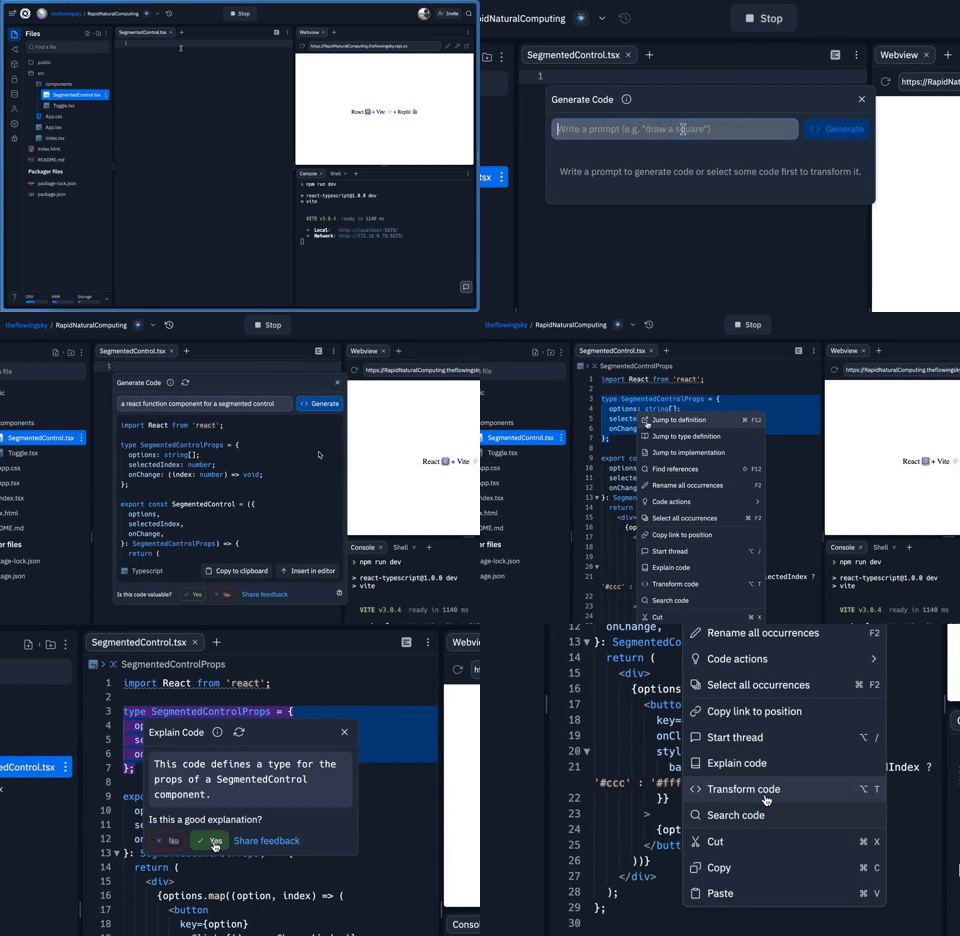
In apps like Replit Ghostwriter, users can edit AI-suggested code with guardrails. This builds confidence: you’re not at the mercy of the machine; you’re still in charge.
5. Make confidence legible
If the AI is unsure, let the user know.
How to do it:
- Use confidence meters, “low certainty” labels, or progress bars.
- Visually separate “sure bets” from “best guesses.”
For example, in Tromzo, a security automation platform, we used risk-level cards to make massive lists of vulnerabilities more navigable and understandable.
Red flagged the highest-risk areas, helping users focus instantly. As issues were resolved, the tiles changed color, making progress visually trackable.
-tromzo-11.webp)
Eleken designers also built a custom intelligence graph to show how projects, teams, and vulnerabilities connect. It’s interactive, zoomable, and searchable, giving users a clear view of the system’s structure and the AI’s logic behind prioritization.
-tromzo-12.webp)
6. Let users explore “what if” with counterfactuals
Sometimes, the best way to understand a decision is to ask: What would have changed the outcome? Counterfactual explanation UIs show users exactly that: what inputs they could change to get a different result. It turns the AI into a collaborative system rather than a black box.
How to do it:
- Add counterfactuals like “If your income were $500 higher, this loan would be approved.”
- Let users tweak inputs and see updated results without starting over.
- Use visual cues to highlight what changed and why it matters.
In products like credit scoring tools or recommendation systems, counterfactual UIs help users understand why the AI made a decision and what they could do differently next time. It shifts the experience from passive explanation to active learning.
-zapier-13.webp)
With that said, you don’t have to explain everything. You just have to explain the right thing, at the right time, in the right way.
Next, we’ll look at patterns and how top AI products are already doing this well.
Patterns emerging from the field
Some of the best explainable UI ideas are already out there, quietly shaping how users interact with AI tools.
We’ve been studying emerging UX design patterns across dozens of real-world products, including apps we’ve designed at Eleken. Here's what’s working and why these patterns matter.
Intent-driven shortcuts
AI suggests the next step before you even ask.
What it looks like:
- Contextual prompts or buttons: “Add chart based on this data?”
- Smart defaults based on prior behavior.
For example, Shopify Magic recommends content and layouts tailored to your product type, reducing friction while still giving users control.
-shopify-14.webp)
Why it works: it’s predictive explainability. The UI shows the AI’s intent before acting.
In-chat elements
AI inserts visuals, summaries, or interactive elements right inside the chat, no modal hopping.
What it looks like:
- Code blocks, charts, cards, and previews inside the AI response stream.
- Embedded actions: “Send this,” “Edit that,” “Try again.”
For instance, Notion AI, ChatGPT, and Replit all layer formatted content directly into chat threads.
-notionai-15.webp)
Why it works: It grounds AI output in a real UI context, making explanations feel less abstract and more usable.
Co-pilot with artifacts
Users and AI collaborate on a shared surface, not just via prompts.
What it looks like:
- AI creates live previews, and users tweak them in real time.
- Workspace updates as a shared source of truth.
For example, GitHub Copilot lets users see AI outputs, modify them, and understand how things were generated.
-github-16.webp)
Why it works: This pattern makes explainability tactile: users don’t read explanations, they work with them.
Explain-back loop
Before the AI acts, it explains what it thinks you meant and asks for confirmation.
What it looks like:
- “Did I get this right?” prompts.
- Rephrased intent previews.
We’re seeing this in early enterprise copilots, where stakes are high and clarity matters (think: finance, legal, health).
-chatgpt-17.webp)
Why it works: Trust and transparency in AI UI is earned by showing the AI understood you, not just that it can do something.
Feedbackable reasoning
Users can critique or correct the AI’s explanation, thereby improving both the output and trust.
What it looks like:
- “This wasn’t helpful” buttons with comment options.
- Editable reasoning snippets.
Grammarly’s “Rewrite for clarity” lets users flag tone/style mismatches, helping improve AI output and model behavior.
-grammarly-18.webp)
Why it works: It gives the user agency. They’re not passive recipients but active collaborators.
Many of these patterns blur the line between UI and conversation, between traditional interfaces and chat-based flows.
That middle ground is where modern explainable design is heading. We call it the semi-transparent UI: not fully open, not fully opaque, but just clear enough to keep the human in the loop.
Next: let’s explore how to build explainability into your design process.
How to build explainability into your design process
Explainability has to be baked into your process, from discovery to handoff. Here’s how we do it at Eleken:
-design-process-19.webp)
- Start with the mental model gap.
Most trust issues start with mismatched expectations. Users think the AI does one thing, but it does another.
What to do:
- Map out what users believe is happening.
- Compare that to how the AI really works.
- Identify moments of potential confusion.
This gap is where misunderstandings, frustration, and misuse begin; closing it is the first step to designing trust.
- Prototype the explanation layer.
Don’t just design features. Design how the system will explain feature visualization XAI.
What to include:
- Tooltips, previews, and expandable “why this?” elements.
- Confidence tags (“High confidence” / “AI guess”).
- Editable or correctable inputs.
Attribution methods in XAI help users understand why the AI made a decision by highlighting which inputs had the most influence. These techniques can be used to show feature importance, explain scores, or visualize decision paths, making complex AI behavior more transparent and trustworthy:
- SHapley Additive exPlanations (SHAP)
SHAP is an explainable AI method that shows how much each input feature contributed to a specific prediction. It’s based on Shapley values from game theory, which fairly distribute “credit” among players, in this case, features. SHAP assigns a value to each input, showing whether it pushed the prediction higher or lower, and by how much.
- Local Interpretable Model-agnostic Explanations (LIME)
LIME is a method that helps explain how a machine learning model made a specific prediction by creating a simple, interpretable model that mimics the complex one, just around that single prediction.
It works by slightly changing the input data (creating “perturbations”) and observing how the prediction changes. Then it fits a simple model (like linear regression) to approximate the behavior of the complex model in that local area.
- Attention maps
They help explain how models handle context and relevance. For example:
- In text: they show which words influenced the meaning of a sentence most.
- In images: they highlight which areas were most important for classifying or detecting an object.
-coda-20.webp)
- Create explainability guidelines in your design system.
Build explainability into your design DNA. Don’t leave it up to chance.
What to include:
- A checklist in your design QA:
- Is the AI’s logic visible?
- Can the user correct or question it?
- Is uncertainty clearly communicated?
- Is the AI’s logic visible?
- Design tokens for trust indicators (icons, badges, color cues).
When you standardize explainability, dev handoff gets easier because you’re not reinventing trust on every screen.
- Collaborate across disciplines.
Designers can’t do this alone. AI teams have the logic, but you shape how it’s presented.
What to do:
- Sit down with ML engineers early in the process.
- Ask for model inputs, outputs, and confidence ranges.
- Work together to turn black-box logic into interface logic.
Explaining AI to users is hard. But explaining design to data scientists? Often harder. Bring them in early and often; you’ll avoid explainability debt, the silent killer of user trust.
Next up, where all this is heading and what the future of explainable interfaces might look like.
The future: beyond conversations toward hybrid explainable interfaces
A lot of people think we’re heading toward a fully conversational future, just you and your AI, chatting like old friends.
But based on what we’ve seen in the field, that’s not quite where things are going. Instead, we’re evolving through conversation toward something more powerful: Hybrid interfaces that combine the flexibility of chat with the clarity of structured UI.
-zaplify-21.webp)
Sure, typing a prompt feels intuitive. But once complexity enters the picture, multiple data sources, conditional logic, and steps with dependencies, conversation hits its limits.
Users start asking:
- “Where am I in the process?”
- “What happens next?”
- “Can I just click this instead of asking for it?”
That’s where the chat UI starts to feel like a bottleneck rather than a bridge. The solution here is to enter semi-structured explainability. It’s chat + interface + visibility.
Think:
- Visual traces of what the AI is doing.
- Clickable summaries of prior actions.
- Modular components you can edit without re-prompting.
-status-report-22.webp)
This is explainability in its most usable form:
- Flexible like conversation.
- Navigable like an app.
- Understandable like a well-designed flow.
You might ask what this means for designers. We’ll design reasoning surfaces. Spaces where the AI can demonstrate its logic, request feedback, and adapt to user corrections.
It’s less about UI elements, more about systems that communicate with the user in context, at the right moment.
We’re not replacing buttons with chat bubbles. We’re combining them into hybrid, explainable experiences where AI is understandable.
And the best part? You don’t need to predict the future to design for it. You just need to start building interfaces that let users in. Let’s wrap this up.
Conclusion: designing AI that earns trust
The more powerful AI gets, the more important design becomes.
Because no matter how smart the model is, if users don’t understand it, they won’t trust it. And if they don’t trust it, they won’t use it the way it’s meant to be used. That’s why explainability is a design job.
Here’s your quick explainability checklist:
- Did you show the AI’s reasoning?
- Did you let users question or correct it?
- Did you expose what the AI is confident or unsure about?
- Did you design for collaboration, not automation?
At Eleken, we’ve helped 200+ SaaS teams design products that think clearly and speak plainly, especially when AI is involved. Whether it’s visualizing risk in cybersecurity, explaining predictions in healthtech, or simplifying logic in low-code tools, we know what it takes to make complex systems feel human.
And beyond just trust, we’ve seen how UX design can solve business challenges, reducing churn, increasing activation, and helping users get more value from AI-powered products.
If you’re building an AI product and want users to actually understand it, not just use it, we’d love to help. Let’s build something explainable.


.webp)
.webp)
.webp)